

Confirmation details before deletion
- Only workspace owners or administrators can delete.
- After deletion, object data, files, linkage settings, and execution history cannot be restored. Please export the necessary data in advance.
- If you have a plan that is currently being billed, please confirm the suspension procedure and billing timing with the person in charge before deleting it.
Delete workspace
- Log in to Sanka and open the workspace you want to delete from the workspace switcher in the upper left.
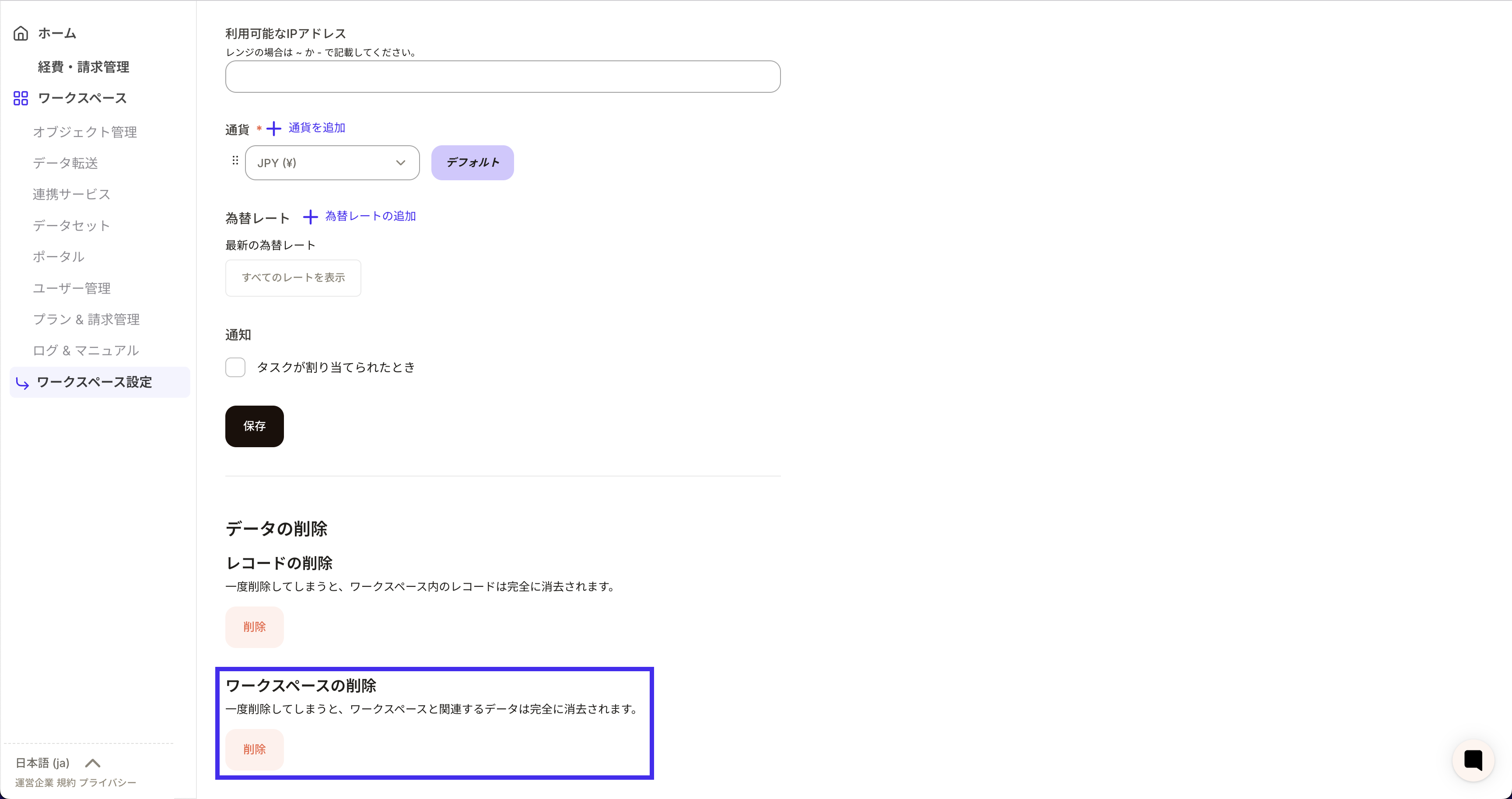
- Click “Workspace Settings” in the left navigation.
- Go to Delete data at the bottom of the settings page and click Delete workspace.
- Follow the instructions in the confirmation dialog to confirm deletion by entering a workspace name and confirming the checkbox.
- Once the deletion is complete, you will be signed out of the session and the target will disappear from the workspace list.
Effects after deletion
- All shared links, integration keys and tokens, workflows, and connection settings will be disabled.
- A workspace with the same name can be recreated, but the data before deletion will not be returned.
- Cannot be restored even if deleted by mistake. Please be sure to confirm before deleting, as it cannot be restarted even if you contact support.
FAQ
- Unable to “delete workspace”: If the role is a member, please ask the workspace administrator. Once permission is granted, a button will appear.
- Deletion not completed: Network instability or browser extensions may be the cause. Try reloading or using a different browser, and if that doesn’t help, please contact support.