

How to check the import/export status
- Open the object screen to import CSV.
- Click the “Import” button in the upper right corner.
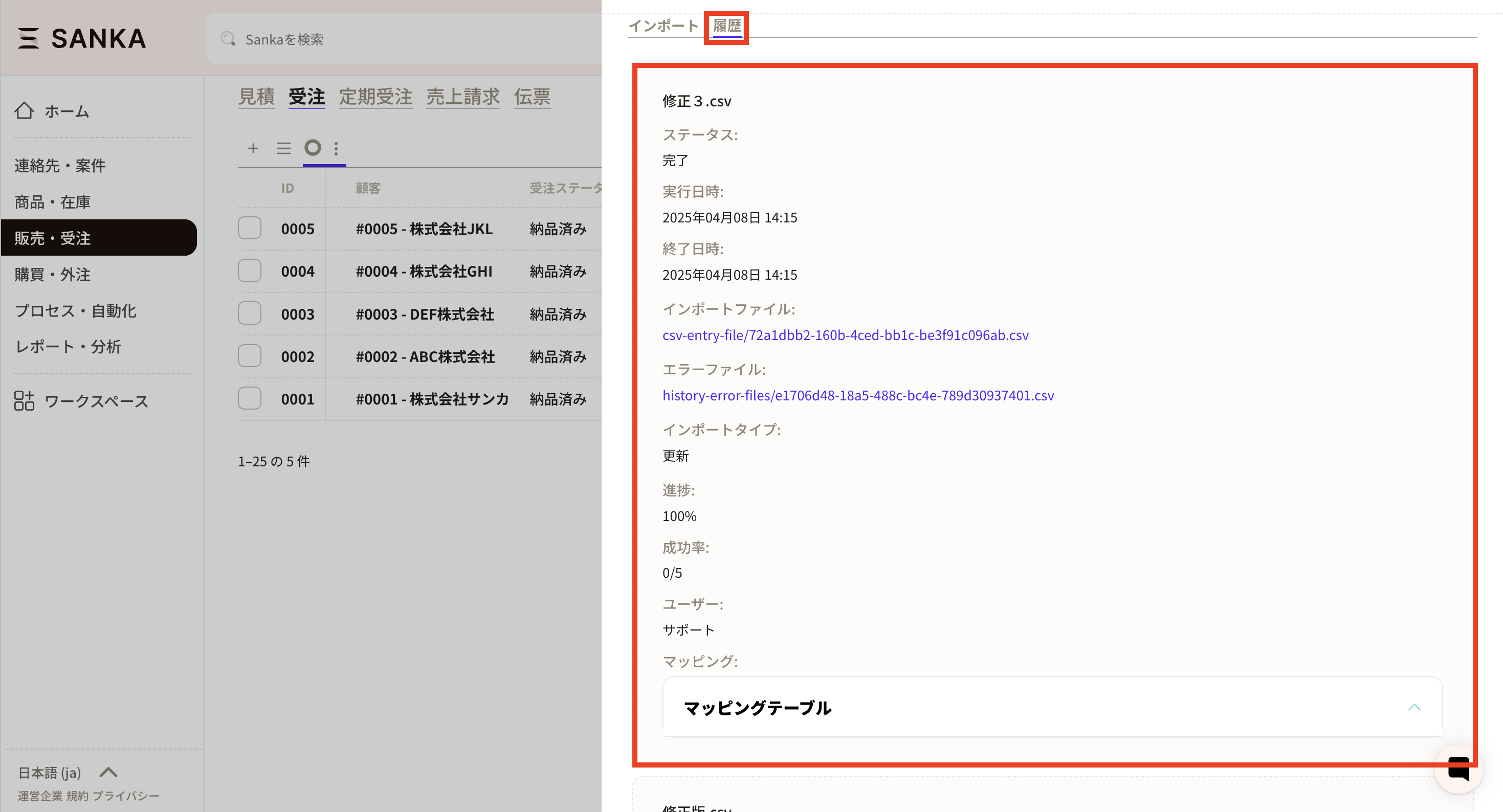
- Open the “History” tab on the import screen and select the target import.
- Check the status column in the list and, if necessary, the error file.
Common statuses and meanings
The status column displays states such as “Completed,” “Failed,” and “Errors.” Typical cases and responses are as follows.- “Complete”: All rows have been registered without any problems.
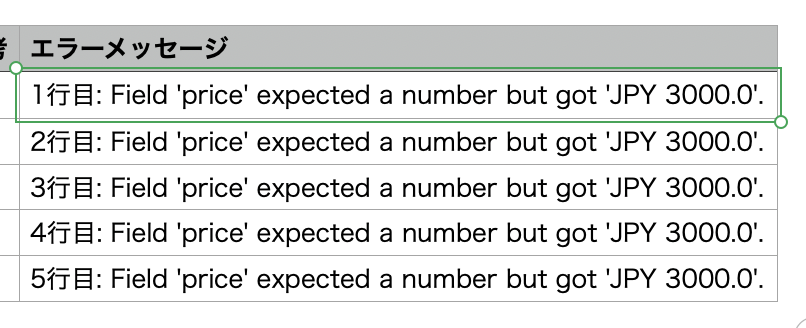
- “Completed (with errors)” or “Partially failed”: Only some rows could not be imported. Please download the error file and modify the CSV based on the error message displayed in the last column.
- “Failed”: There is a problem with the file format or mapping settings, and the record was not created. Please review the import settings (target object, mapping, unique key, etc.) and import again after making any corrections.
- Remains “Processing” for a long time: The file may be very large or processing may be temporarily busy. If the problem persists after a while, please split the file into smaller files or contact support.
If the import itself does not start
If your status does not appear in your history, please check the following:- Is it saved in CSV format (.csv)?
- Is there a header line (property name) in the first line?
- Are required property columns missing?
- Is the character code or line feed code in a special format? (This may be improved by re-opening and re-saving with a general CSV tool.)
If an error occurs
What to do if there is an error in the contents of the CSV file and it does not work ①Click the import button for the relevant object.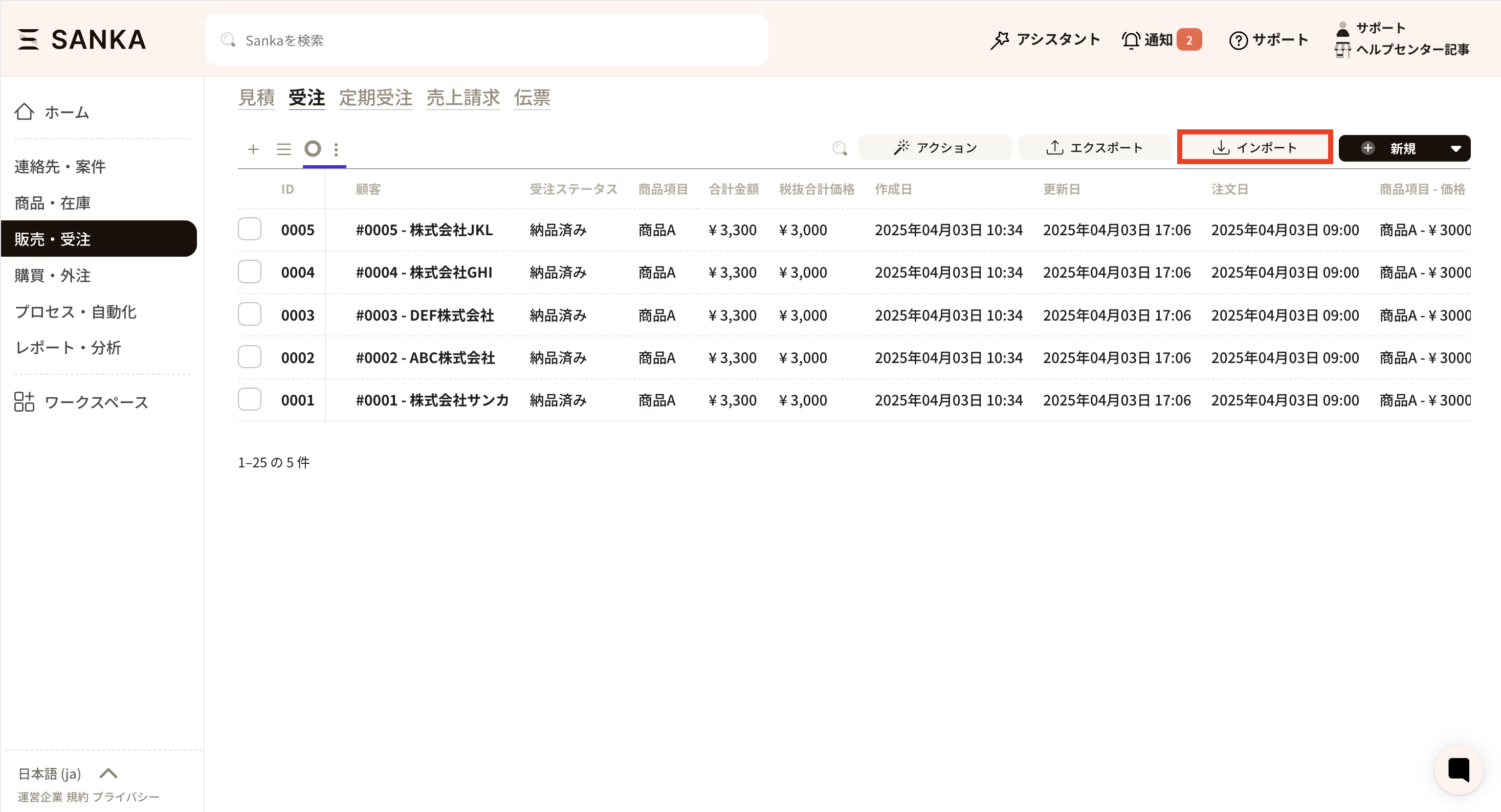 ②The import screen will appear, so click on History.
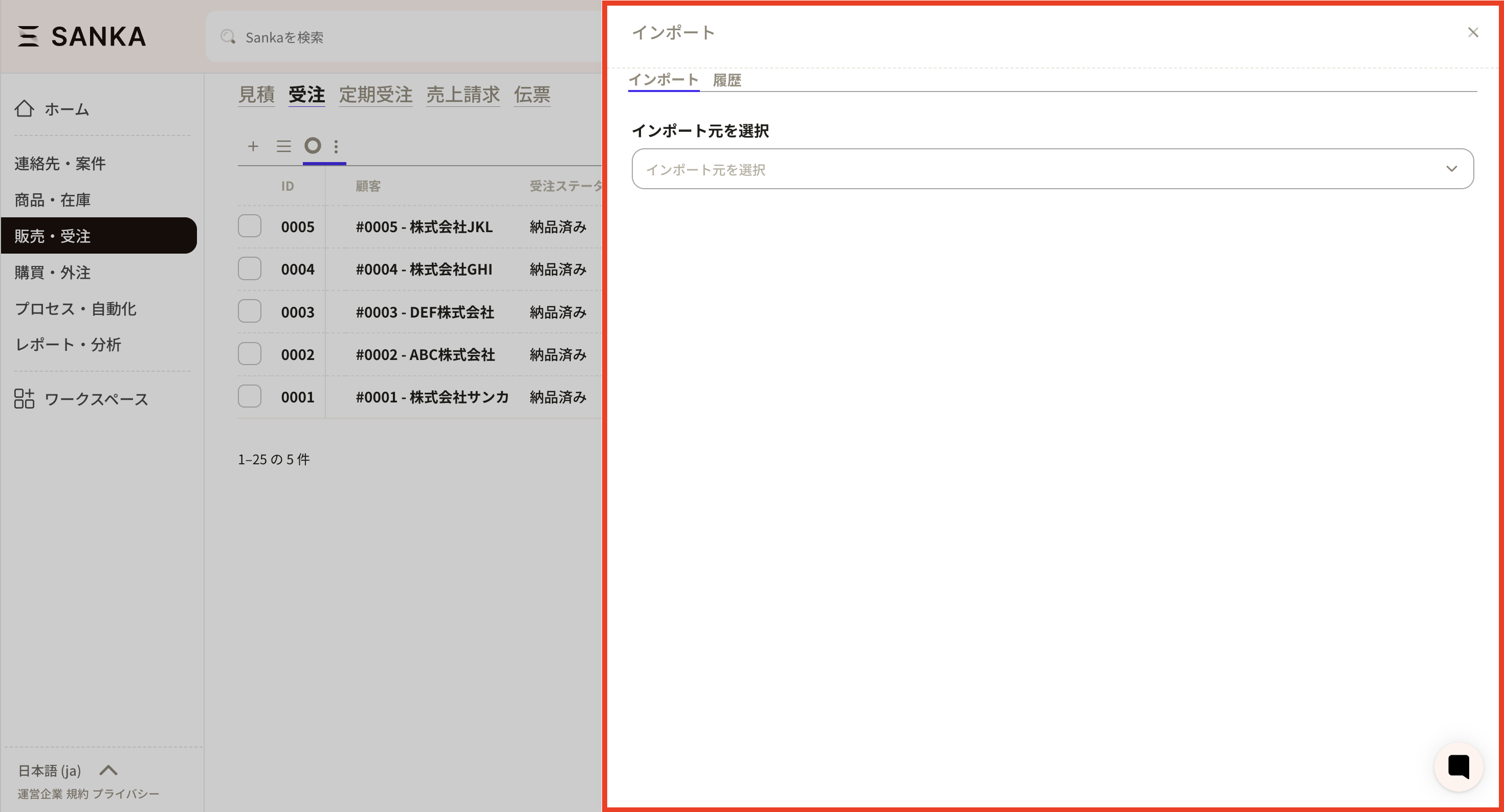 ③ The previous import history will appear, so check what you have imported this time.
 ④If an error file appears, check it because registration is not possible due to the contents of the CSV file.
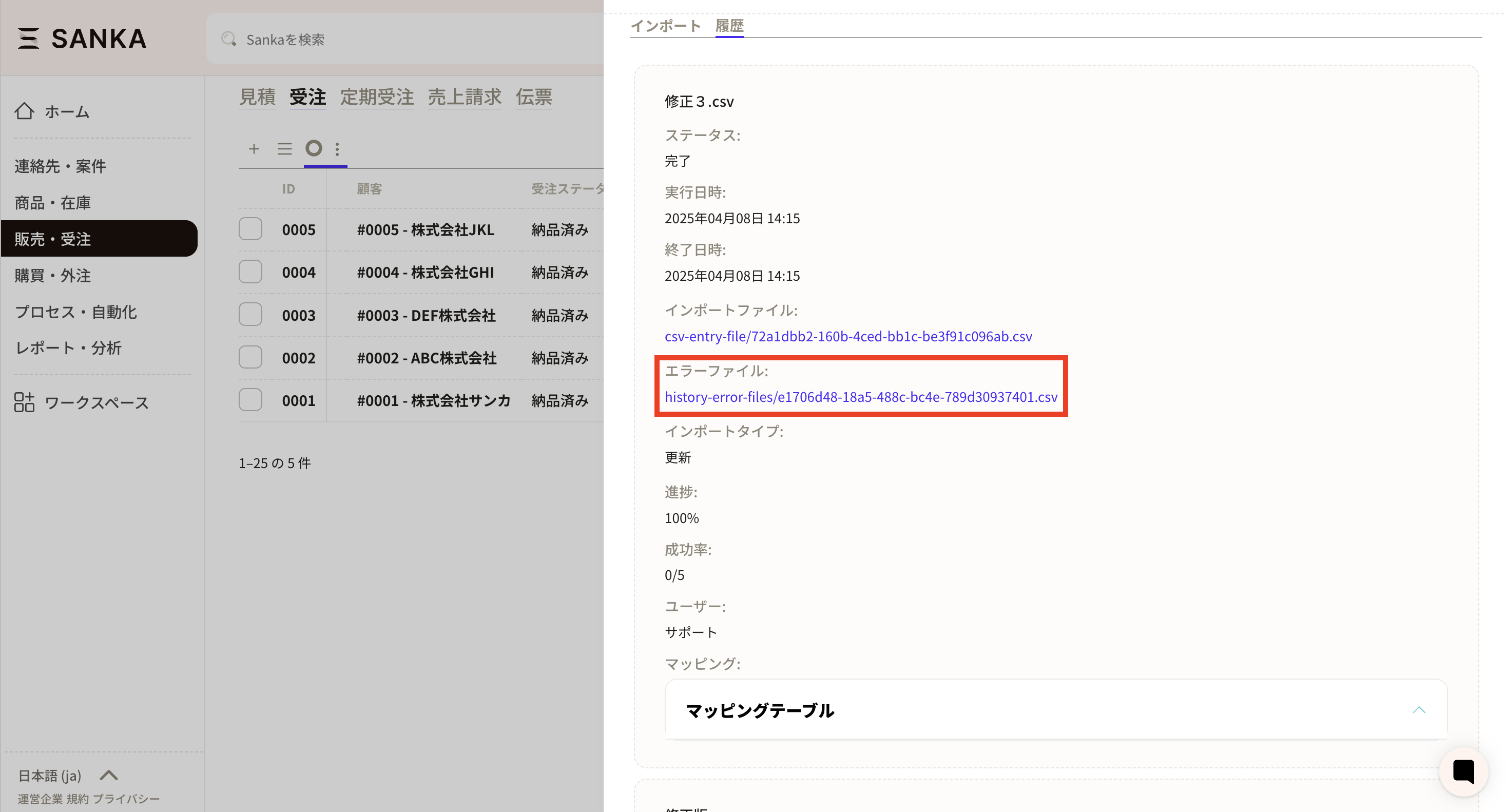 ⑤Click on the error file to download it. When I check the downloaded CSV file, an error message is displayed in the rightmost column. Modify the relevant CSV file while modifying the relevant parts.
 ⑥Please import again.
- For mapping table