

Set up automation for stock reservation from order records
If you want to automate inventory allocation based on order information imported into Sanka from each EC shop, set up a workflow. ①Press the new button on the workflow object.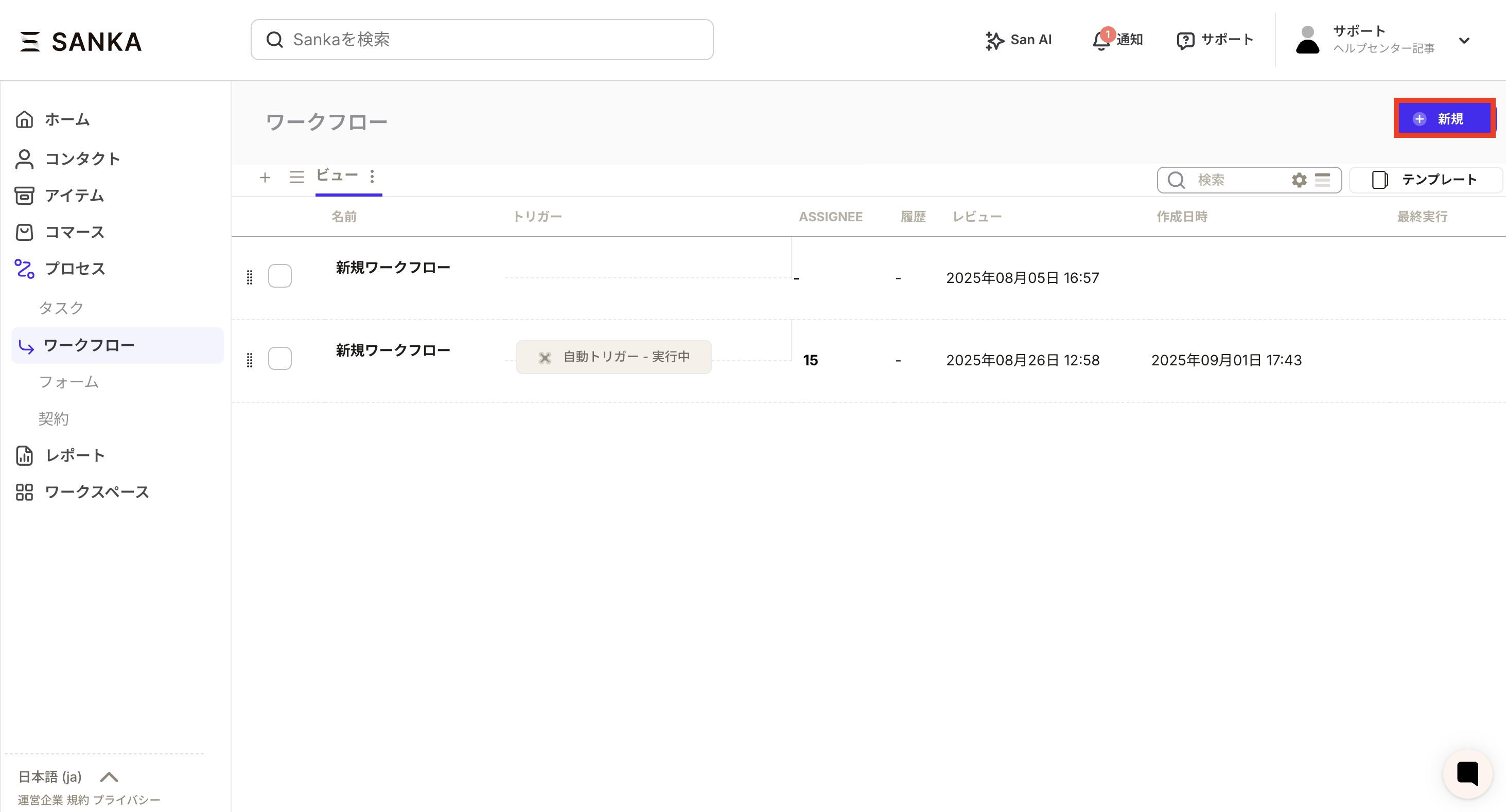 ②The workflow creation screen will be displayed, so let’s set it up.
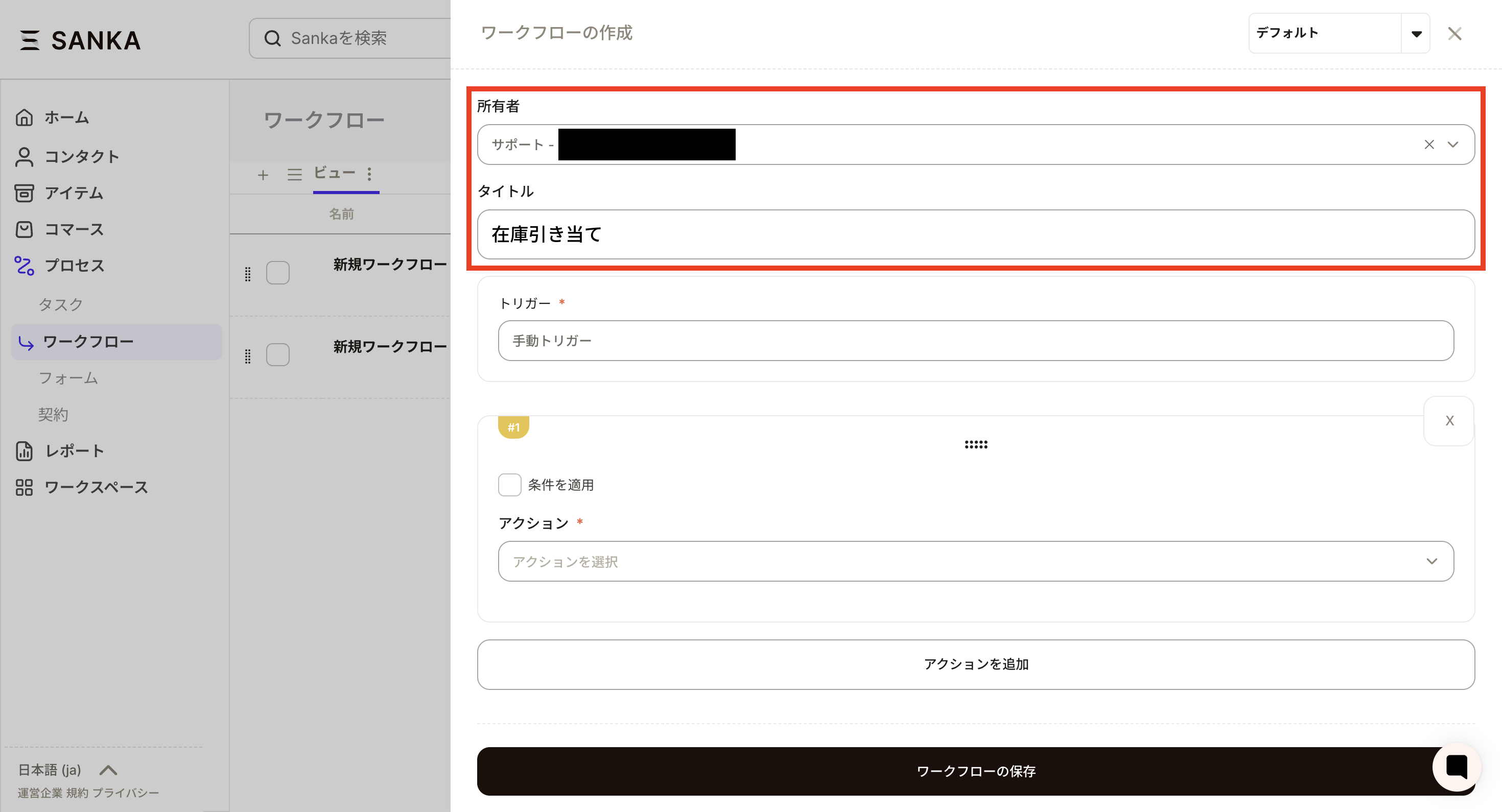
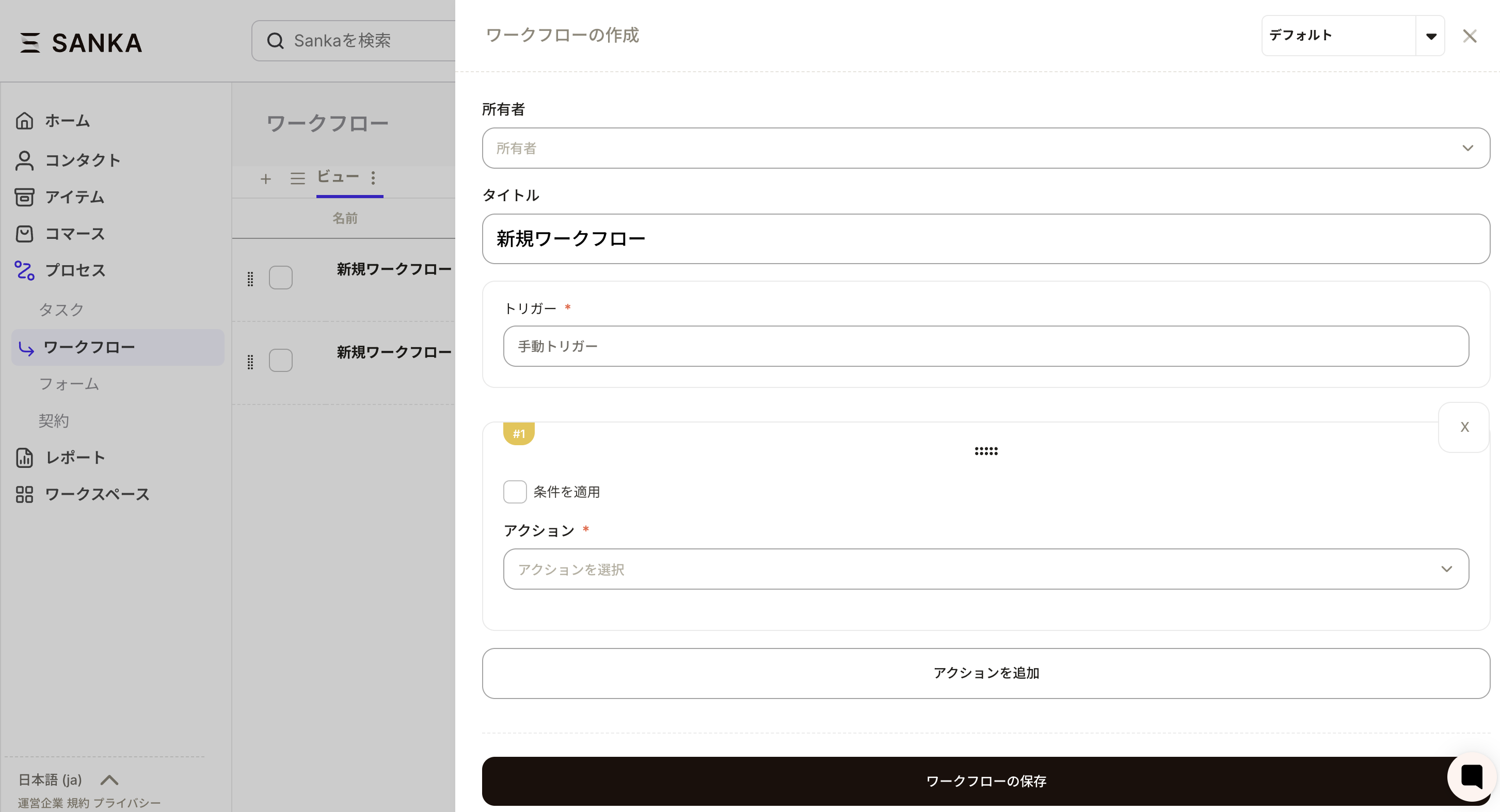 ③Set the owner and title (workflow name).
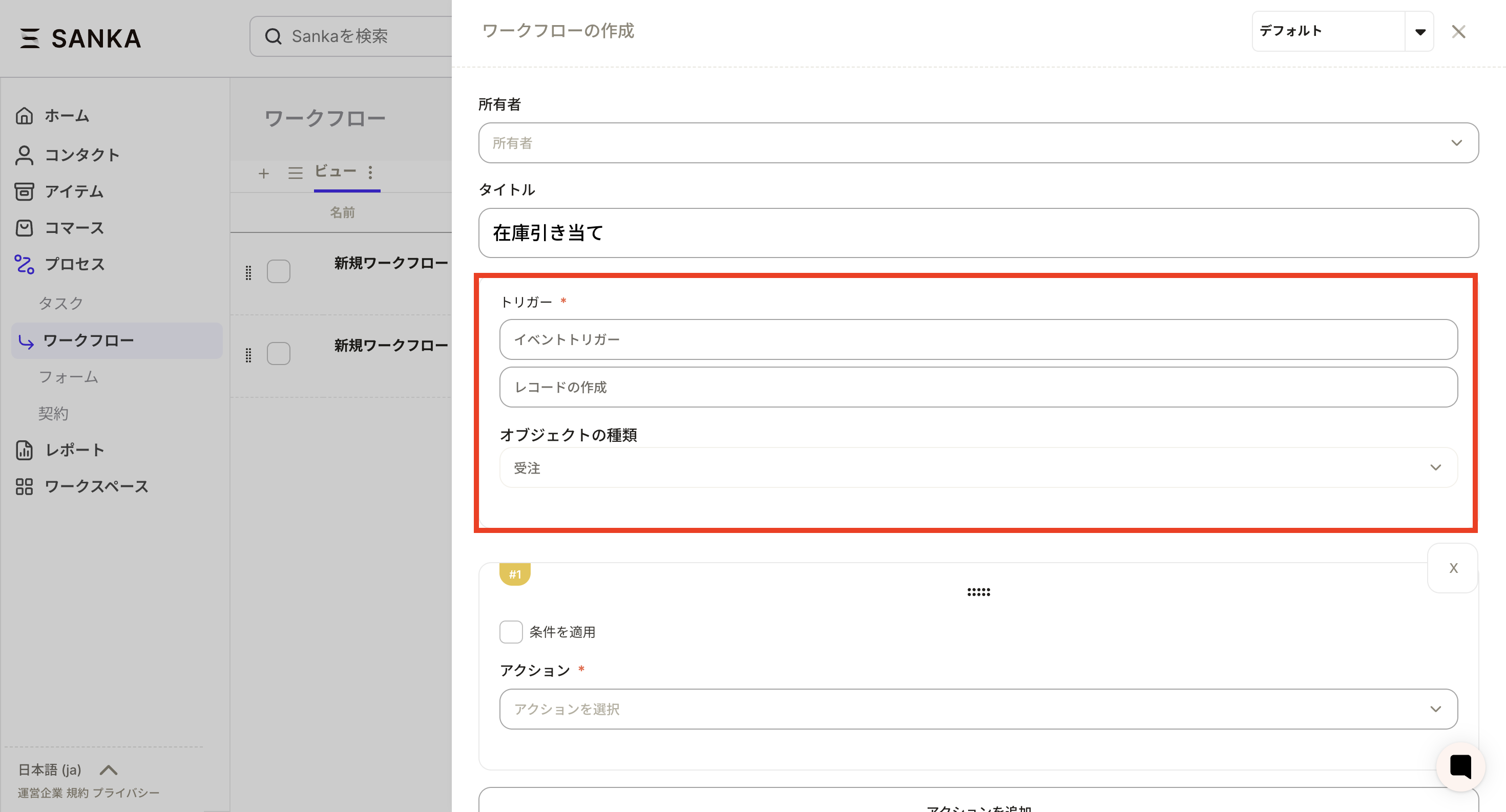
 ④Next, set the trigger.
- Please select an event trigger as the trigger.
- Select Create Record as the action.
- Please select “Order” as the object type.
 ⑤Next, we will set the conditions.
- Select Create Object Record as the action.
- Please set the object to be in/out.
- Select the action as Create a receipt/issue record and check Use data from trigger.
- Select warehousing type for warehousing type.
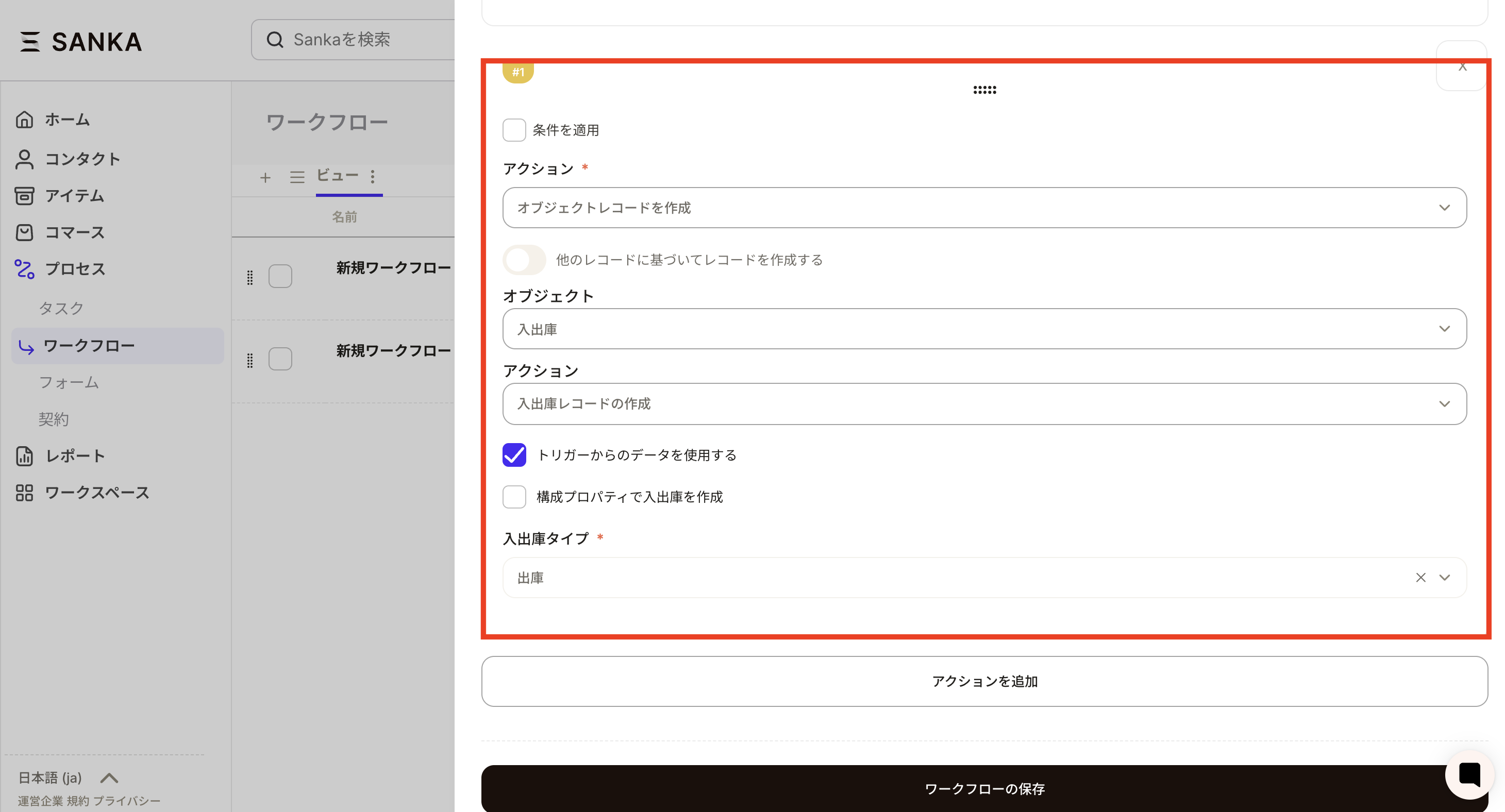 ⑥Click the save button for the workflow and it will be registered in the workflow record list. Next, press the Run Workflow button to start the workflow. Inventory will now be reserved every time a sales order is imported.
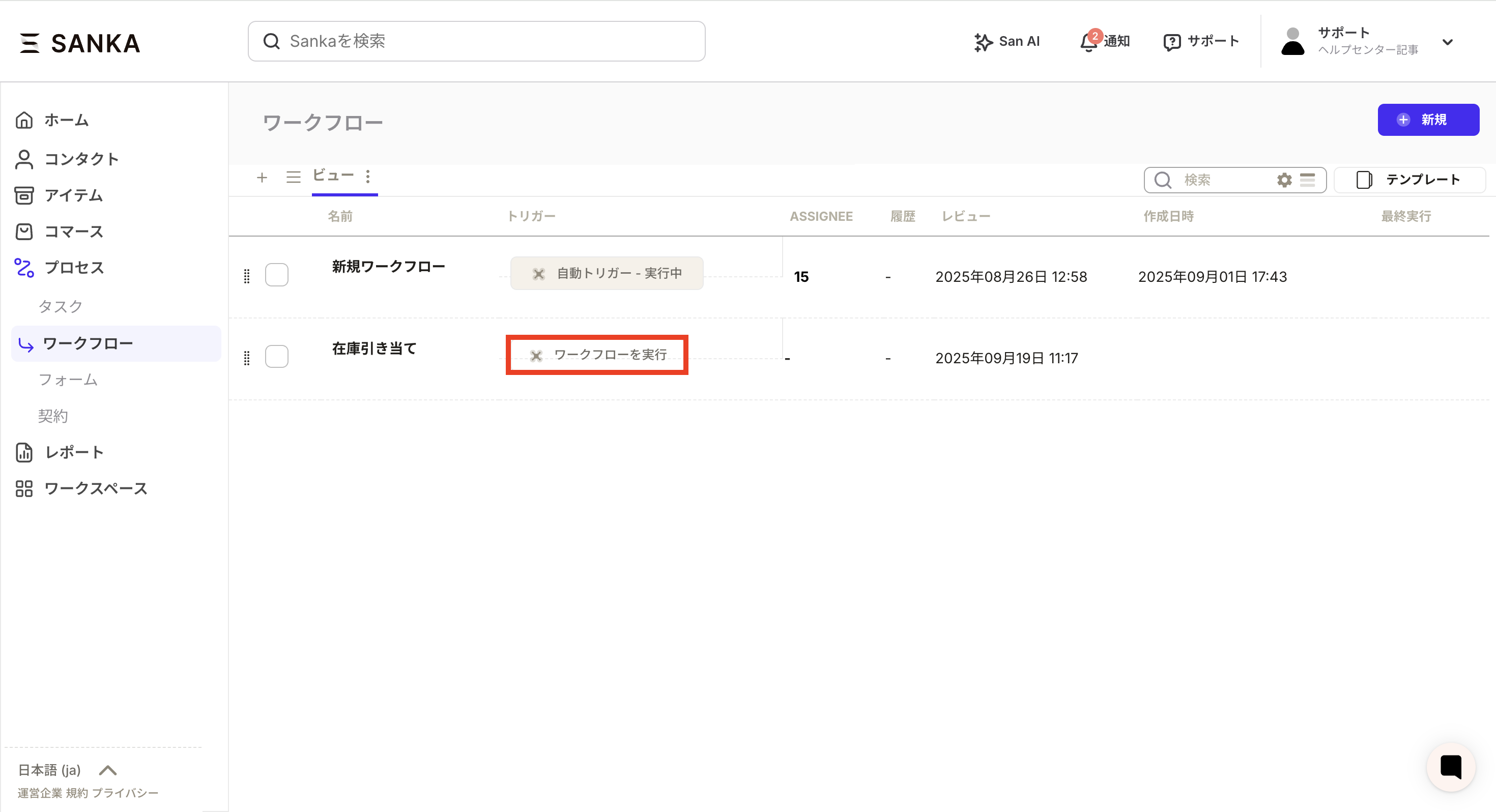
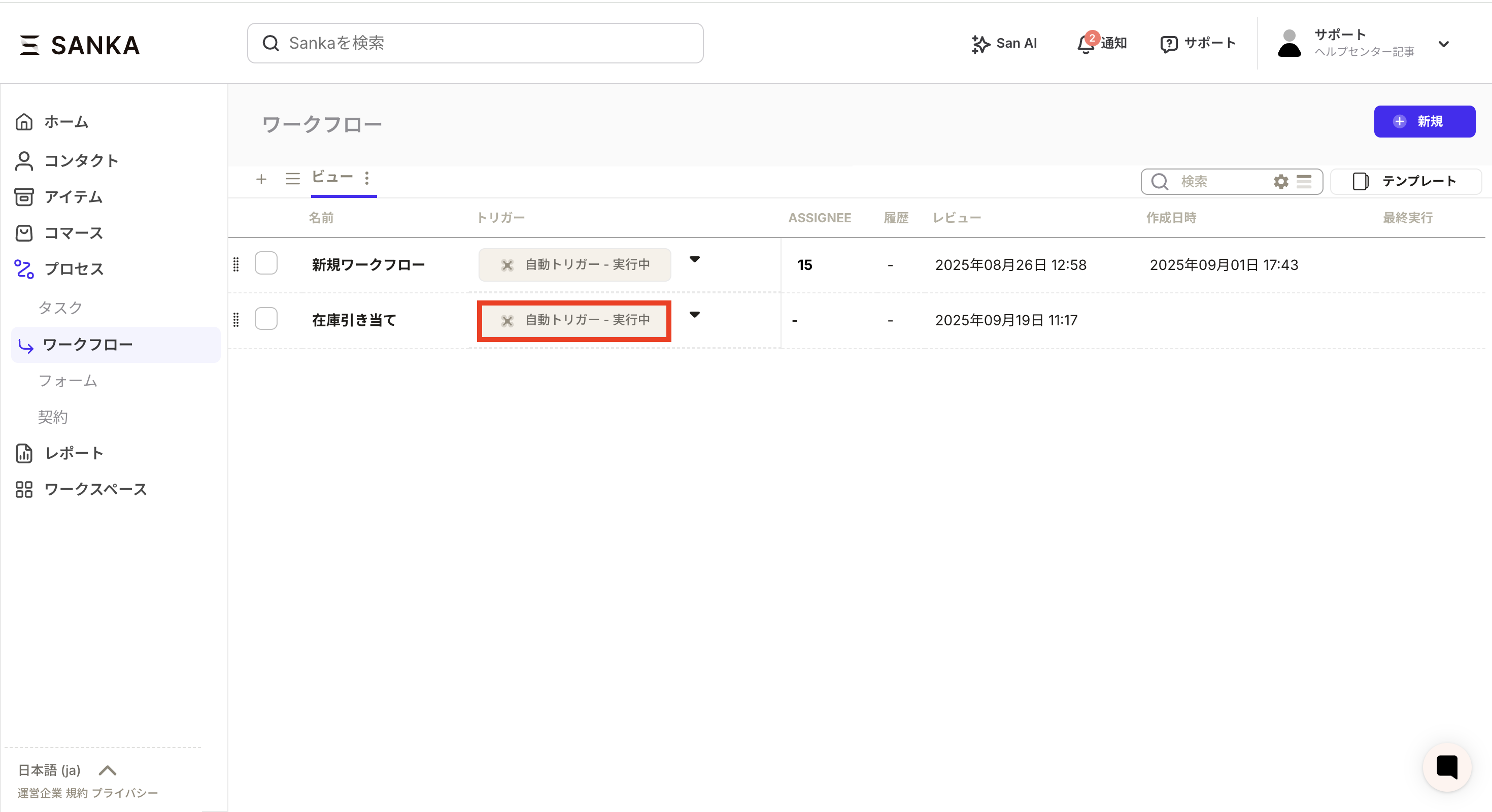
Enable inventory reservation from component products
If the parent product has component parts and you want to subtract the inventory of the child product, turn on “If the product has components, create goods receipts and issues using the inventory of the components” in the action settings. Items with no configuration are automatically processed with the parent item’s inventory, so an inventory transaction is created in both cases.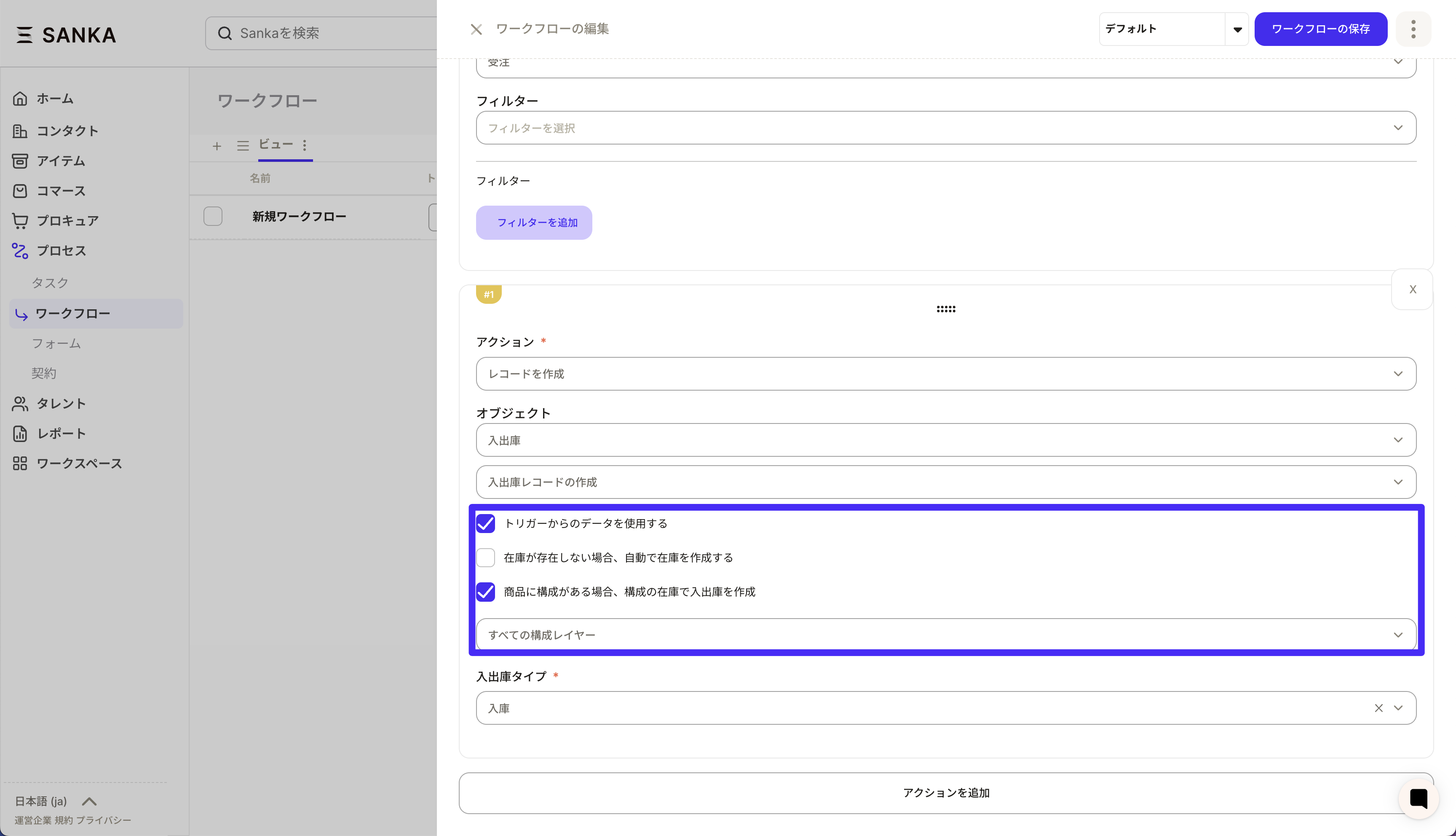
Configuration steps
- Open the Create receipt/issue record action on the workflow editing screen.
- Check Use data from trigger.
- Turn on Automatically create inventory if inventory does not exist as necessary (automatically generates inventory even if inventory for child parts is not created).
- **If the product has a configuration, check Create receipts and issues with the inventory of the configuration.
- Under Select composition layers, specify “All composition layers” or 1 to 3 layers.
- Save your changes and start the workflow.
Points of operation
- If the component exists: Creates an issue (or receipt) for the child part of the specified layer.
- If the component does not exist: Create the same receipt or issue in the parent item’s inventory.
- If you turn on “Automatically create inventory”, the transaction will be registered after automatically generating uncreated inventory for both child parts and parent items.