Dashboard Overview
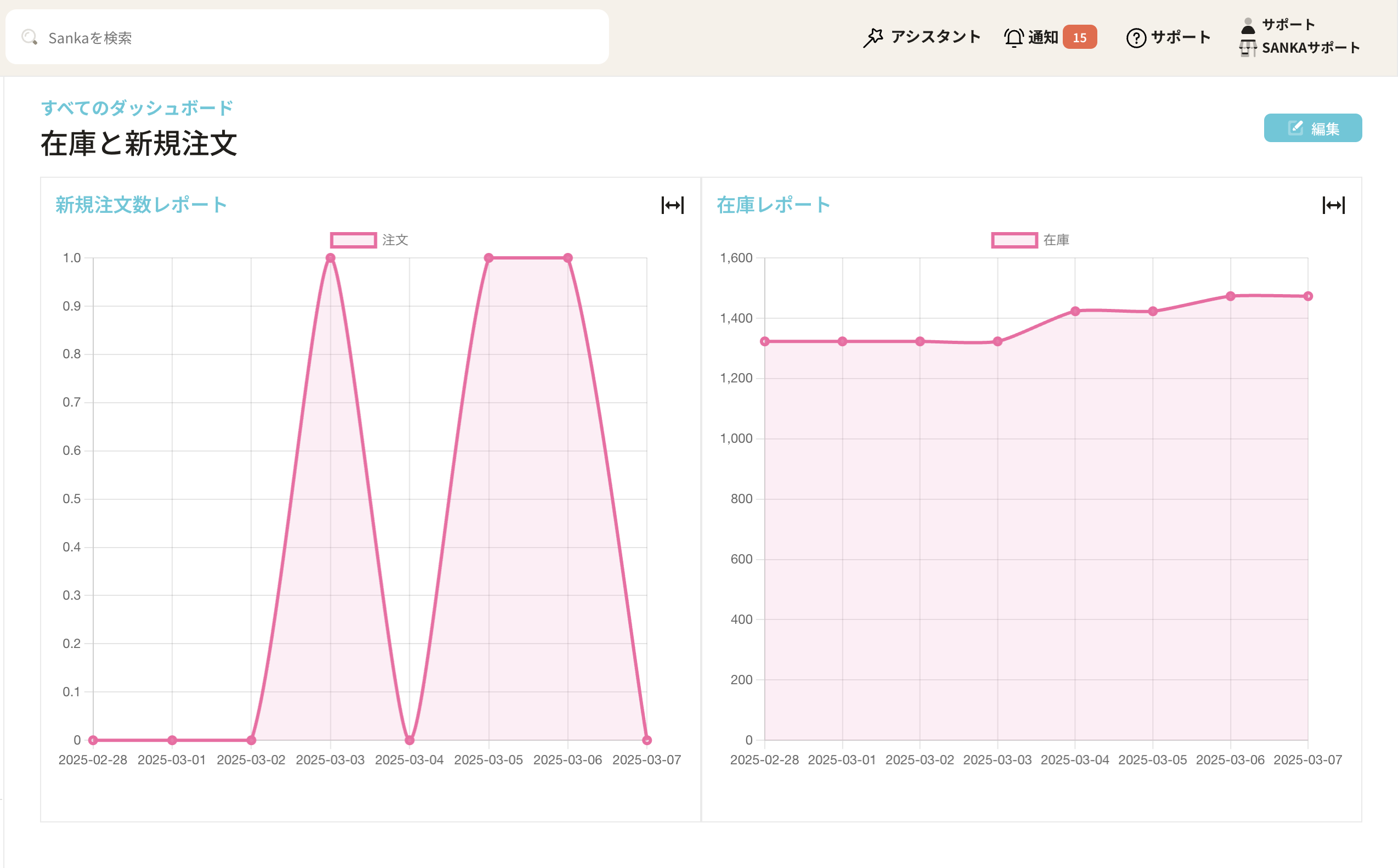
Dashboard is a feature that allows you to summarize multiple reports created with Reports and set a dashboard on Sanka’s home screen. Data can be comprehensively analyzed and displayed visually in an easy-to-understand manner.What you can do with the dashboard
- Data visualization: Extracted data can be visually expressed in graphs, tables, etc.
- Display on Sanka home screen: You can display the created dashboard on Sanka’s home screen and check the data in real time.
Dashboard main properties
- Name: Name to identify the dashboard.
- Report: Select the registered report and decide the data to display. *If there are no records registered in the report, it will not be displayed.
 It is also possible to create a dashboard by combining the reports created with Reports and display it on the Sanka home screen.
What you can learn from this article
- How to create a dashboard
- How to display the dashboard on the Sanka home screen
- How to modify or delete registered dashboards
How to create a dashboard
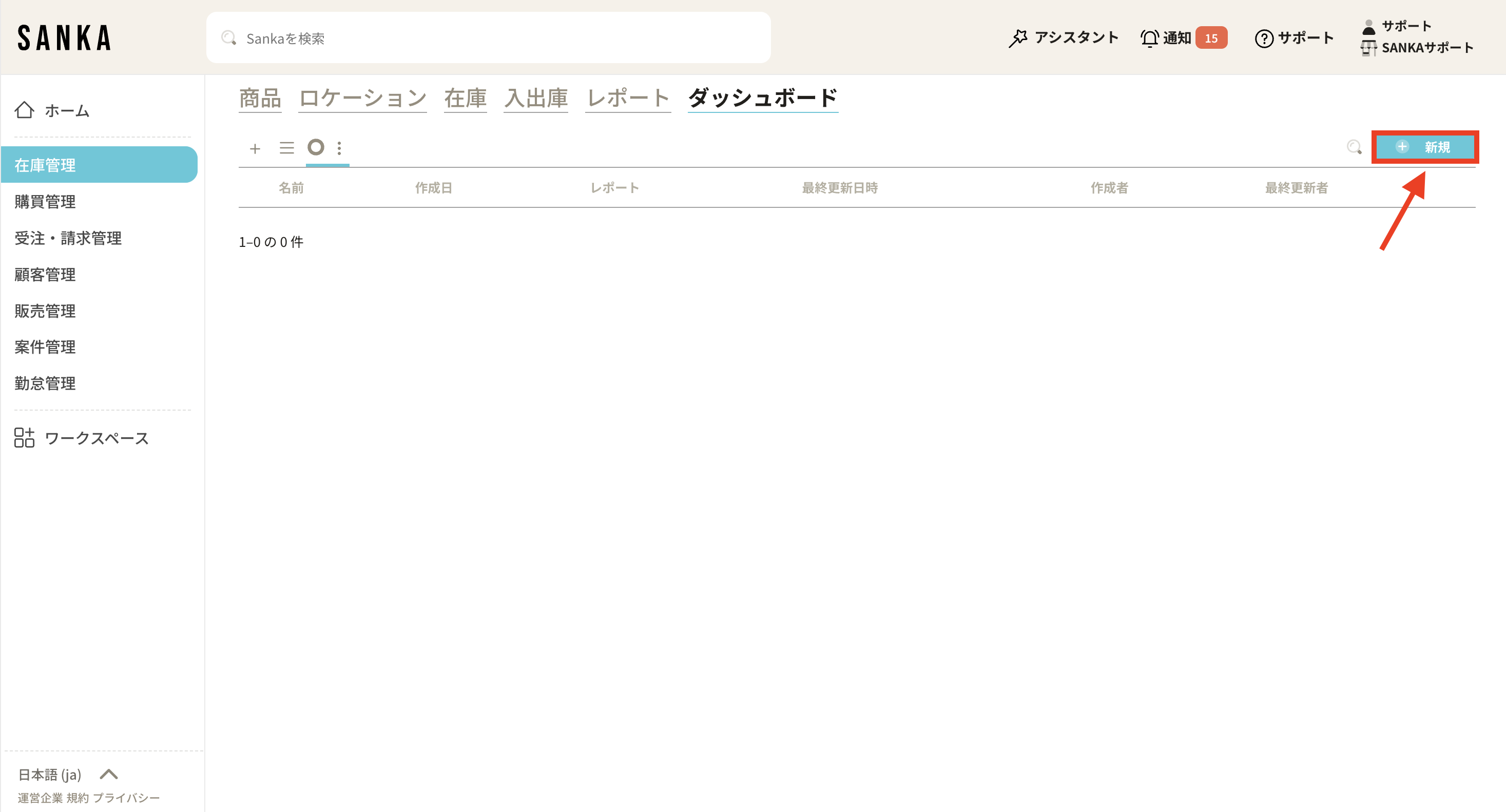
Here we will show you how to create a dashboard. ① First, open the dashboard.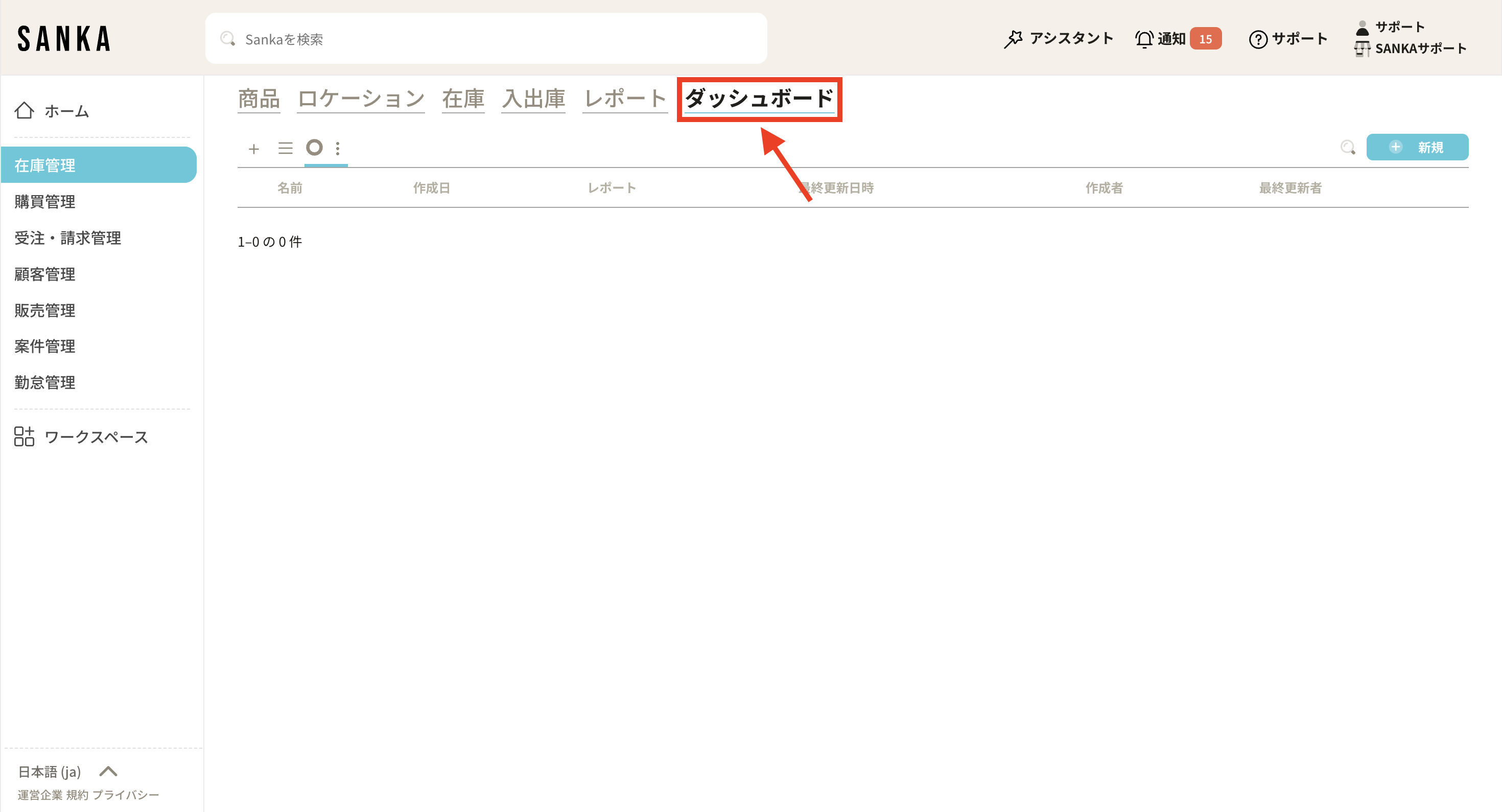 ②Click the “New” button at the top right of the dashboard screen.
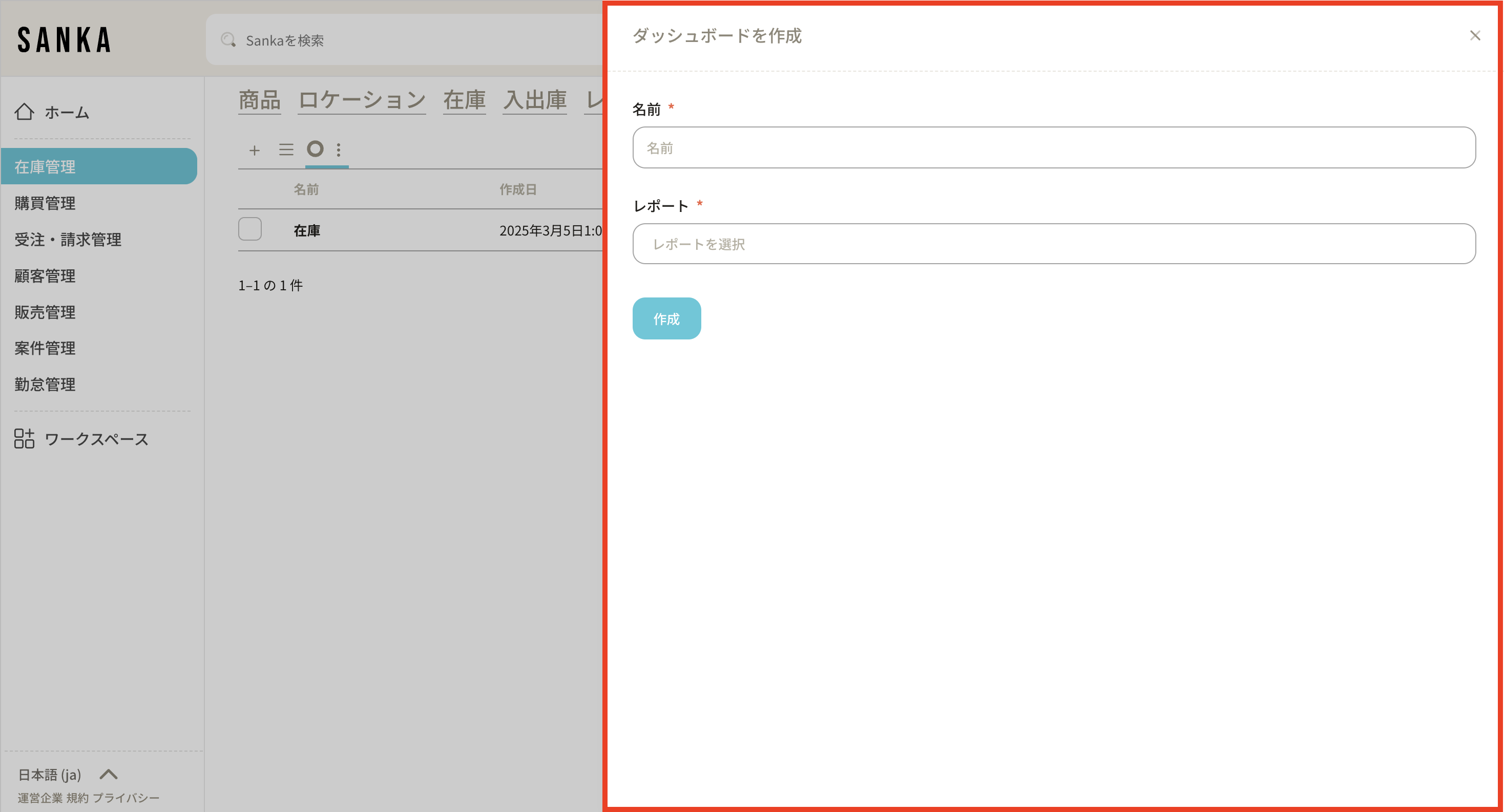
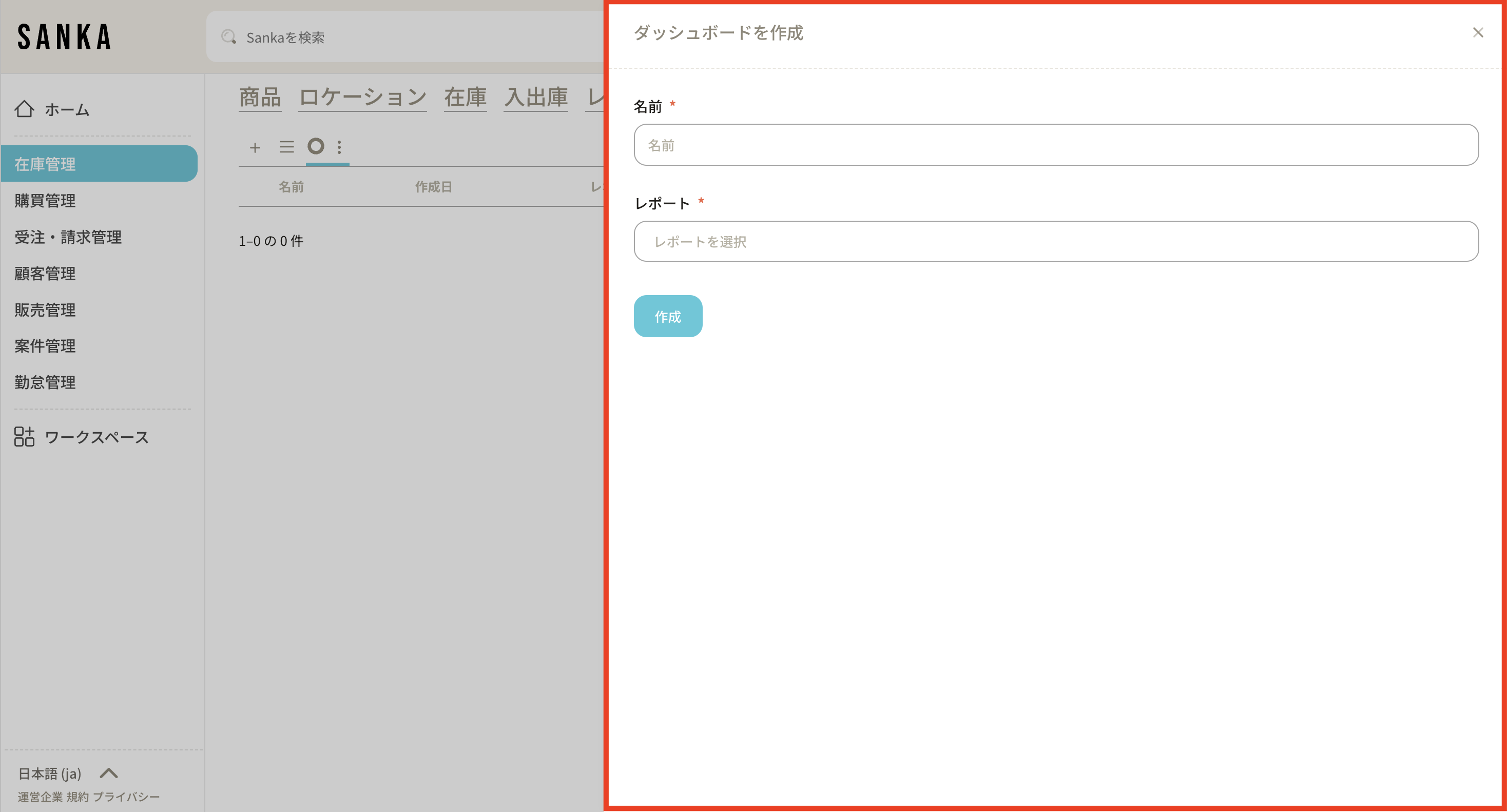
 ③ The “Create Dashboard” screen will be displayed.
“Name”: Give the dashboard a name.
“Report”: Reports registered in Reports are displayed, so select the report you want to include on the dashboard. Multiple selections are possible. *It will not be displayed if there is no registration in the report.
③ The “Create Dashboard” screen will be displayed.
“Name”: Give the dashboard a name.
“Report”: Reports registered in Reports are displayed, so select the report you want to include on the dashboard. Multiple selections are possible. *It will not be displayed if there is no registration in the report.
 ④Click the “Create” button to register.
How to display the dashboard on the Sanka home screen
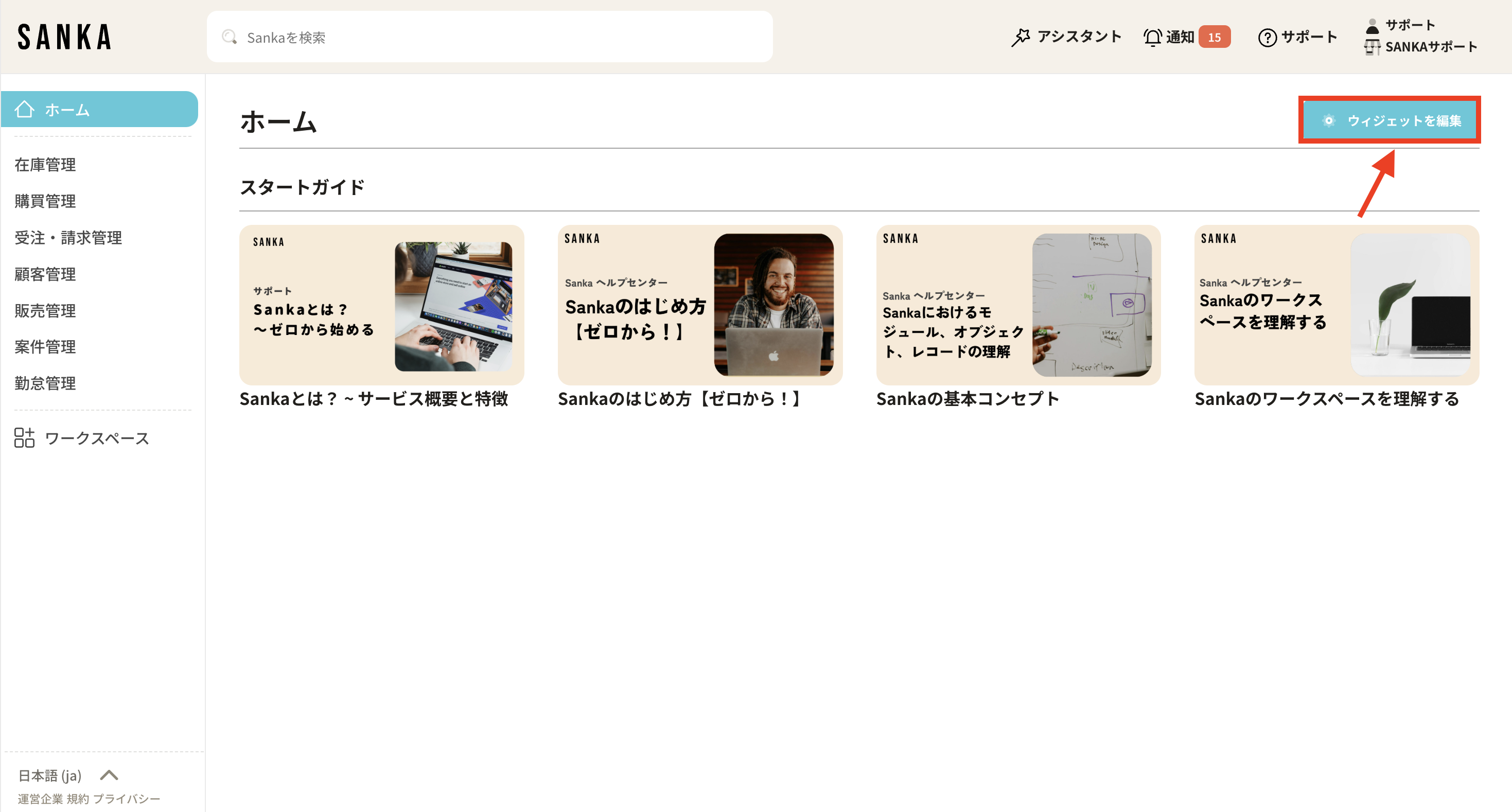
Here we will show you how to display the dashboard on your home screen. ①Open the Sanka home screen.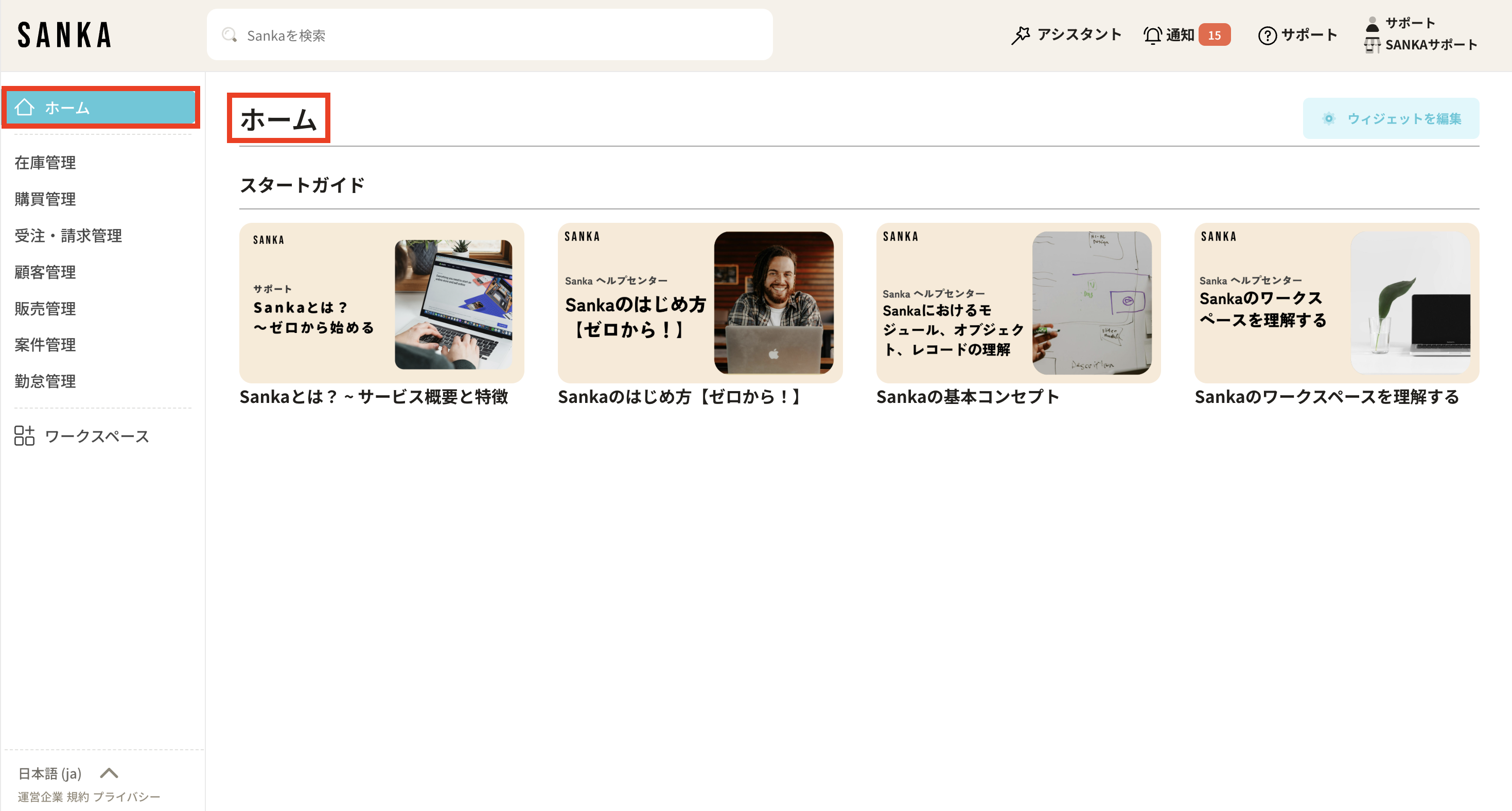 ②Click “Edit Widget” on the top right of the home screen.
 ③The “Edit Widget” screen will be displayed. By default, “Getting Started Guide” is set.
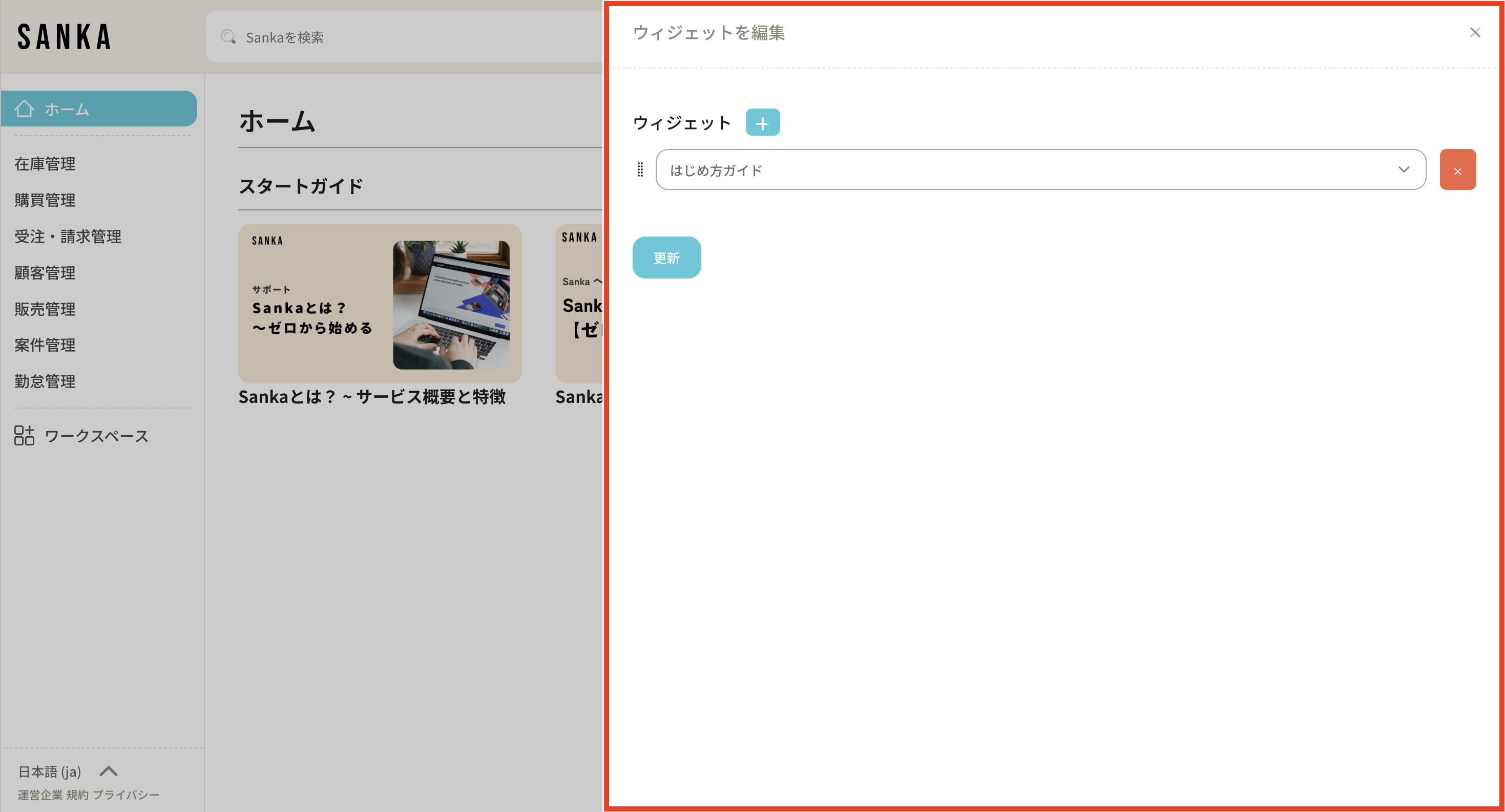 ④Press the + button on the widget.
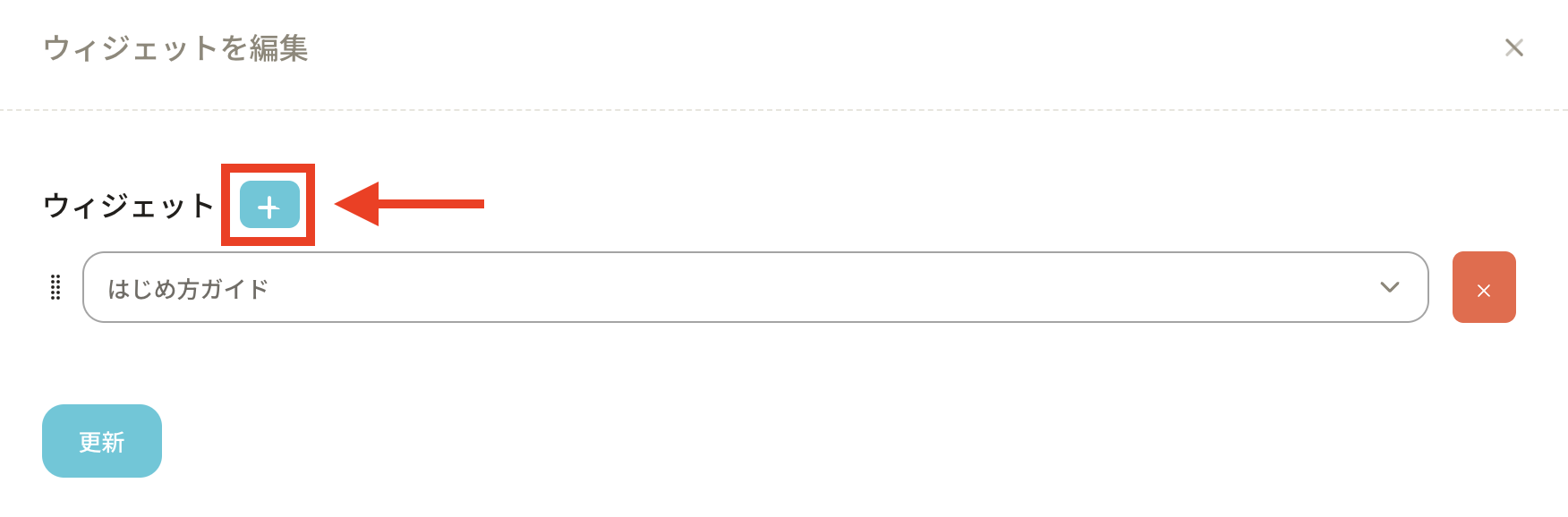 ⑤ A frame will be added.
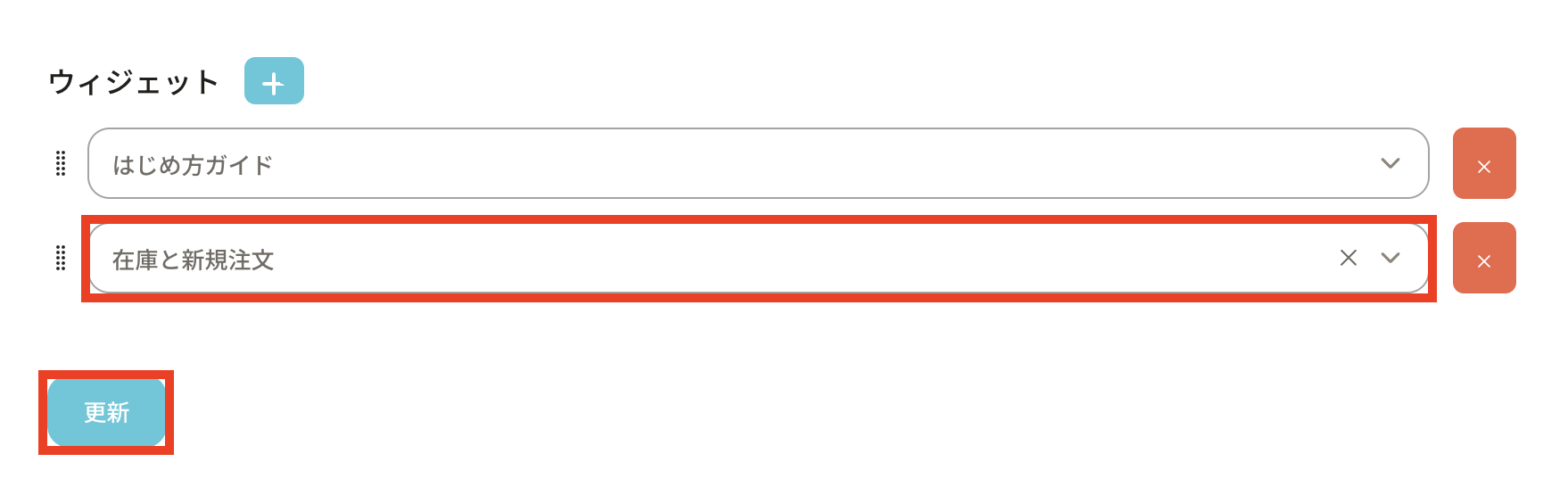
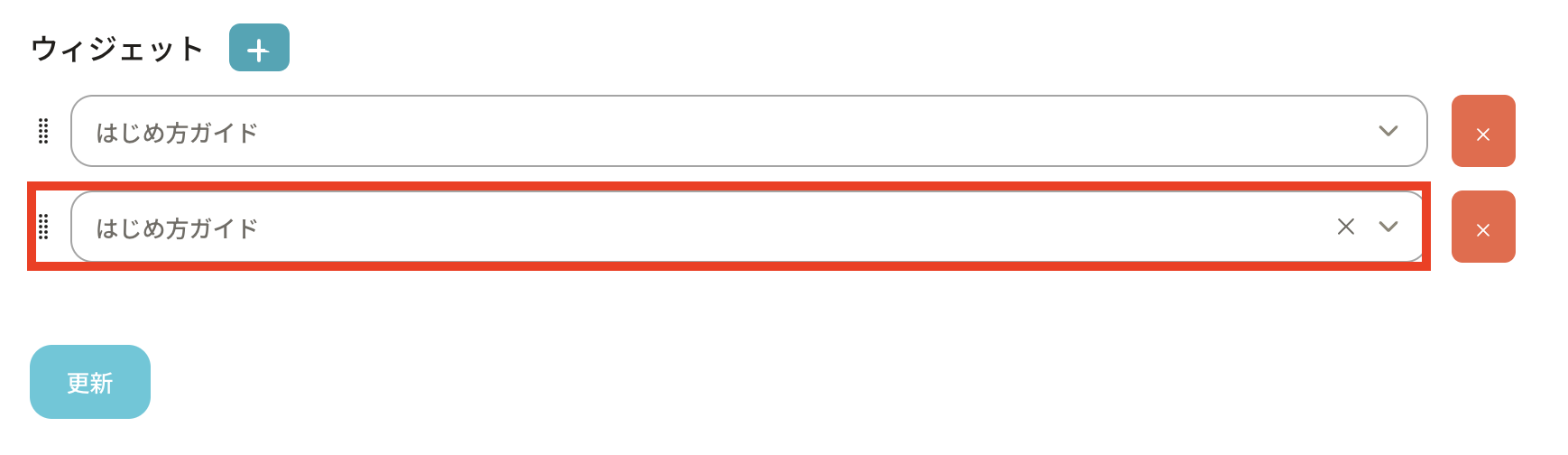 ⑥Click on the added frame.The selection field will be displayed, so select the dashboard. The name of the dashboard you created will be displayed here.
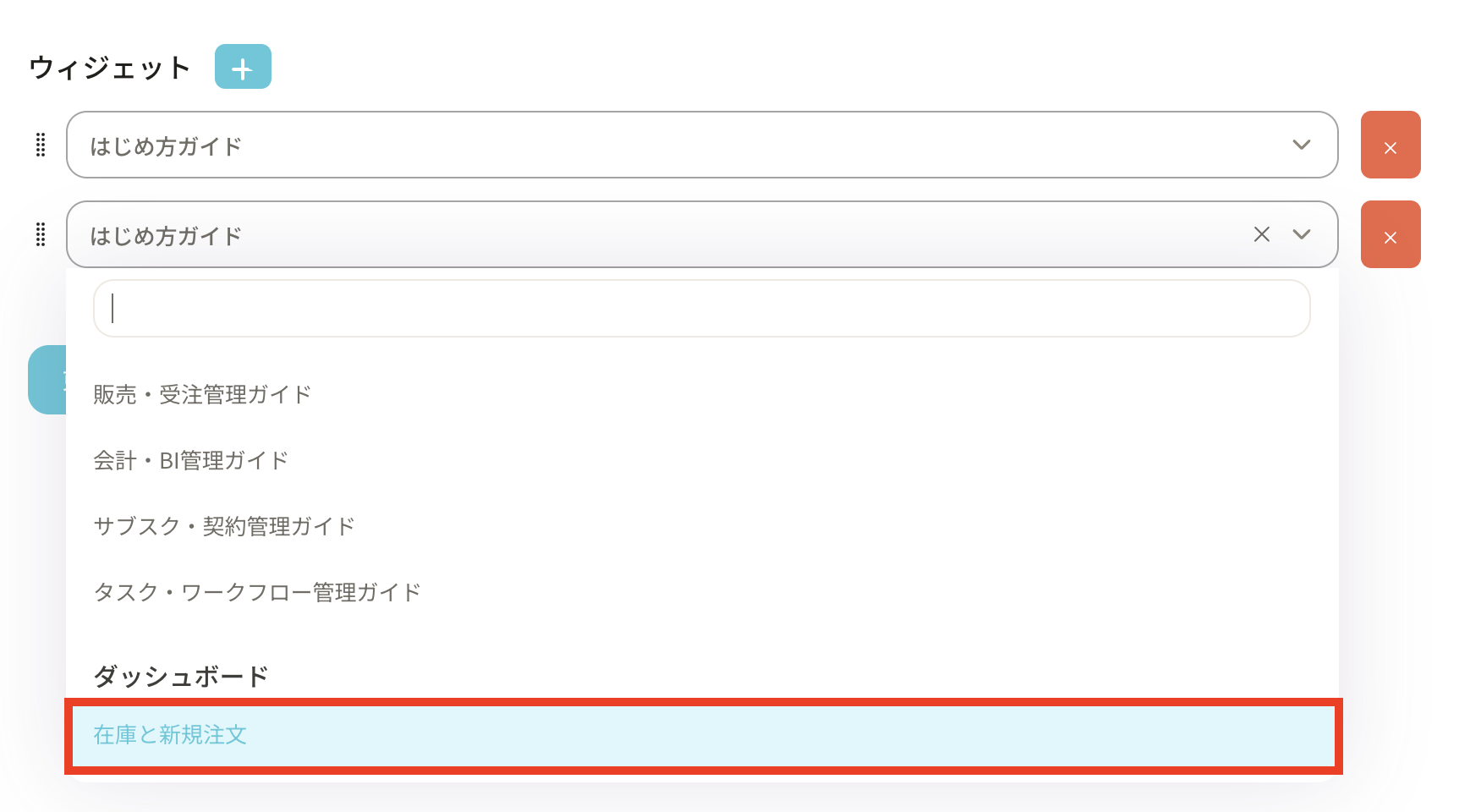 ⑦After adding the relevant dashboard, press the “Update” button.
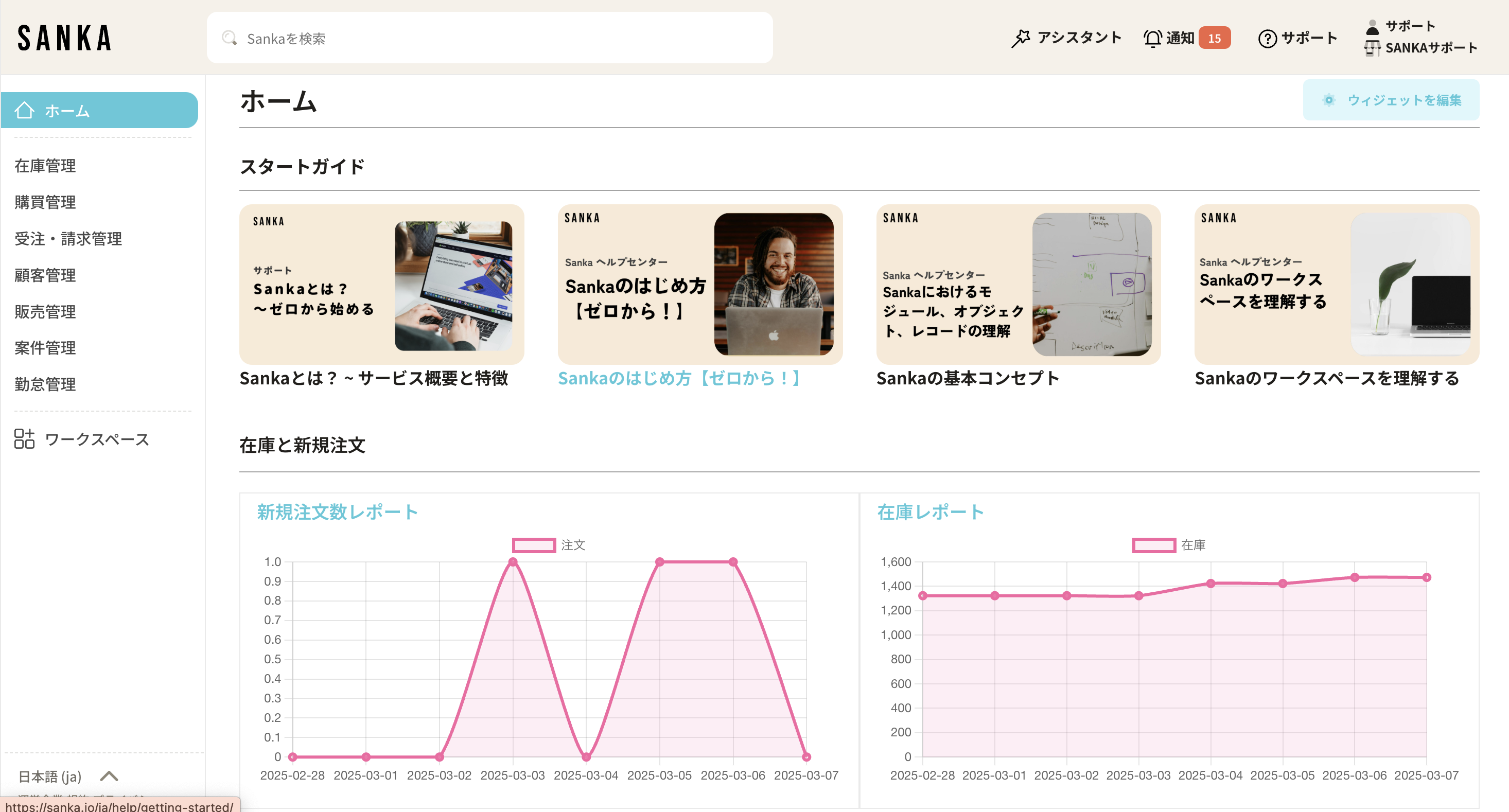
 ⑧ Return to the home screen and the dashboard will be displayed.
How to modify/delete registered dashboard records
How to modify registered dashboard records
① Select the dashboard.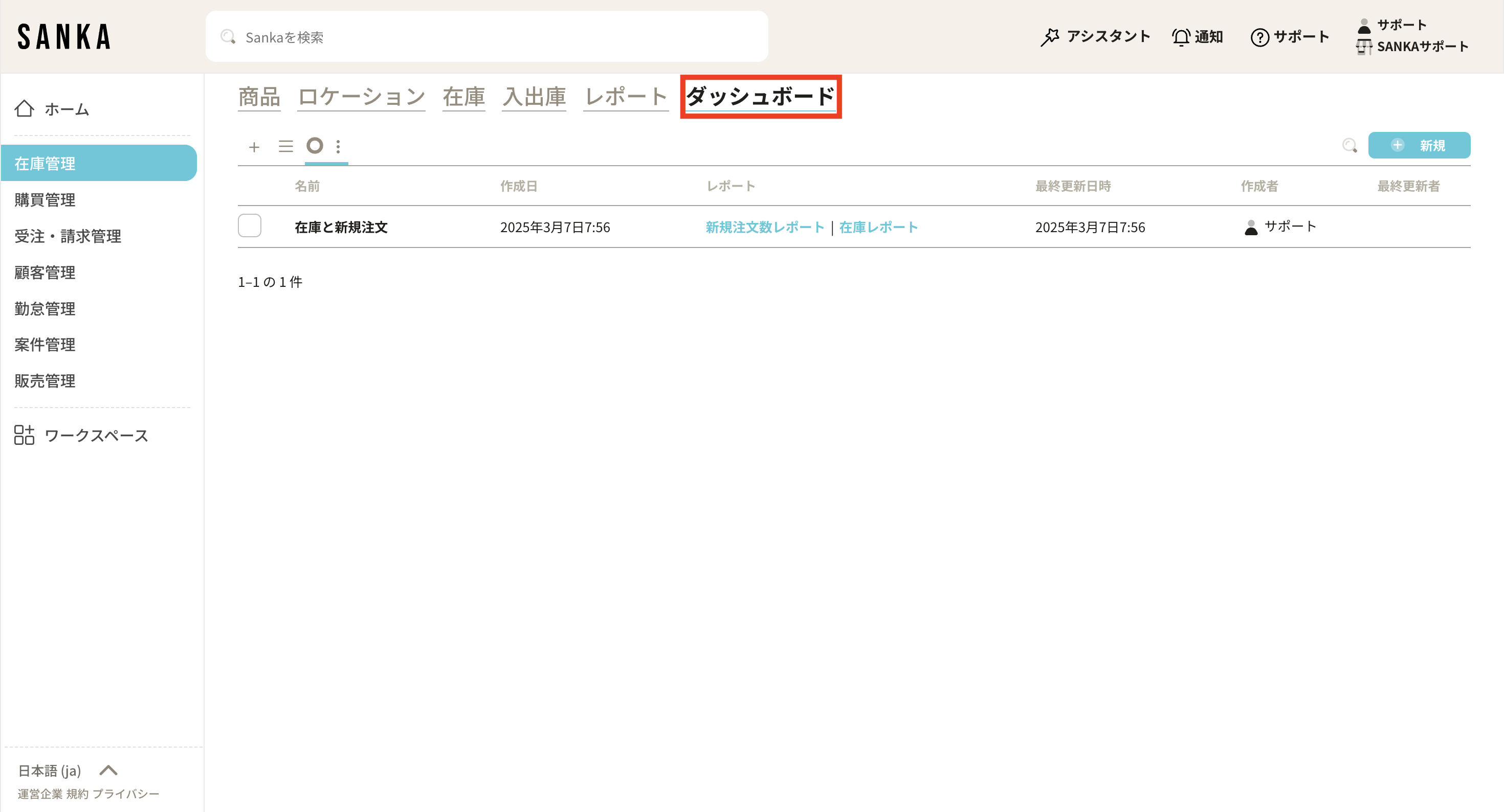 ② Select the name of the relevant dashboard record. You can also check and edit the report here.
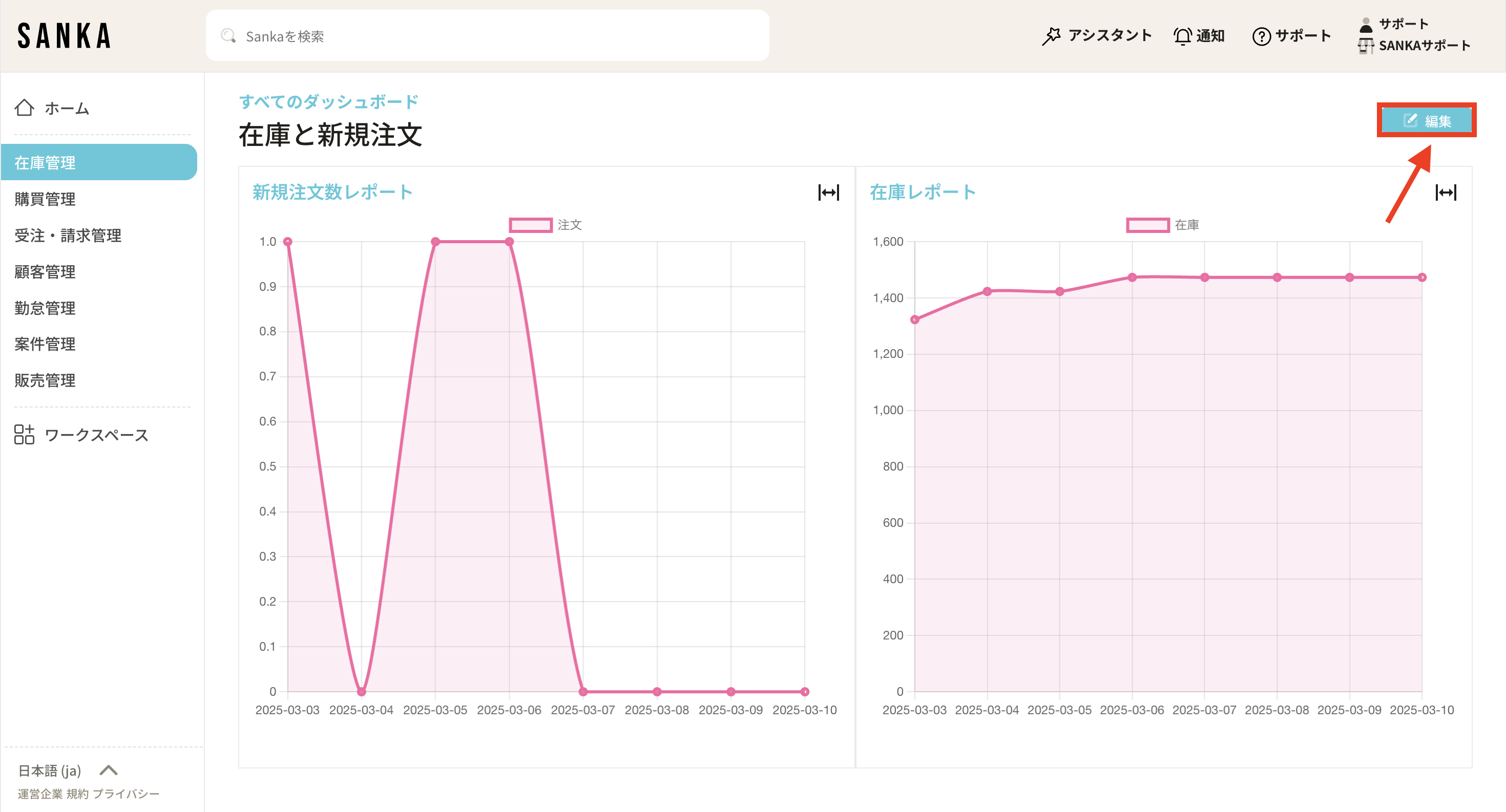
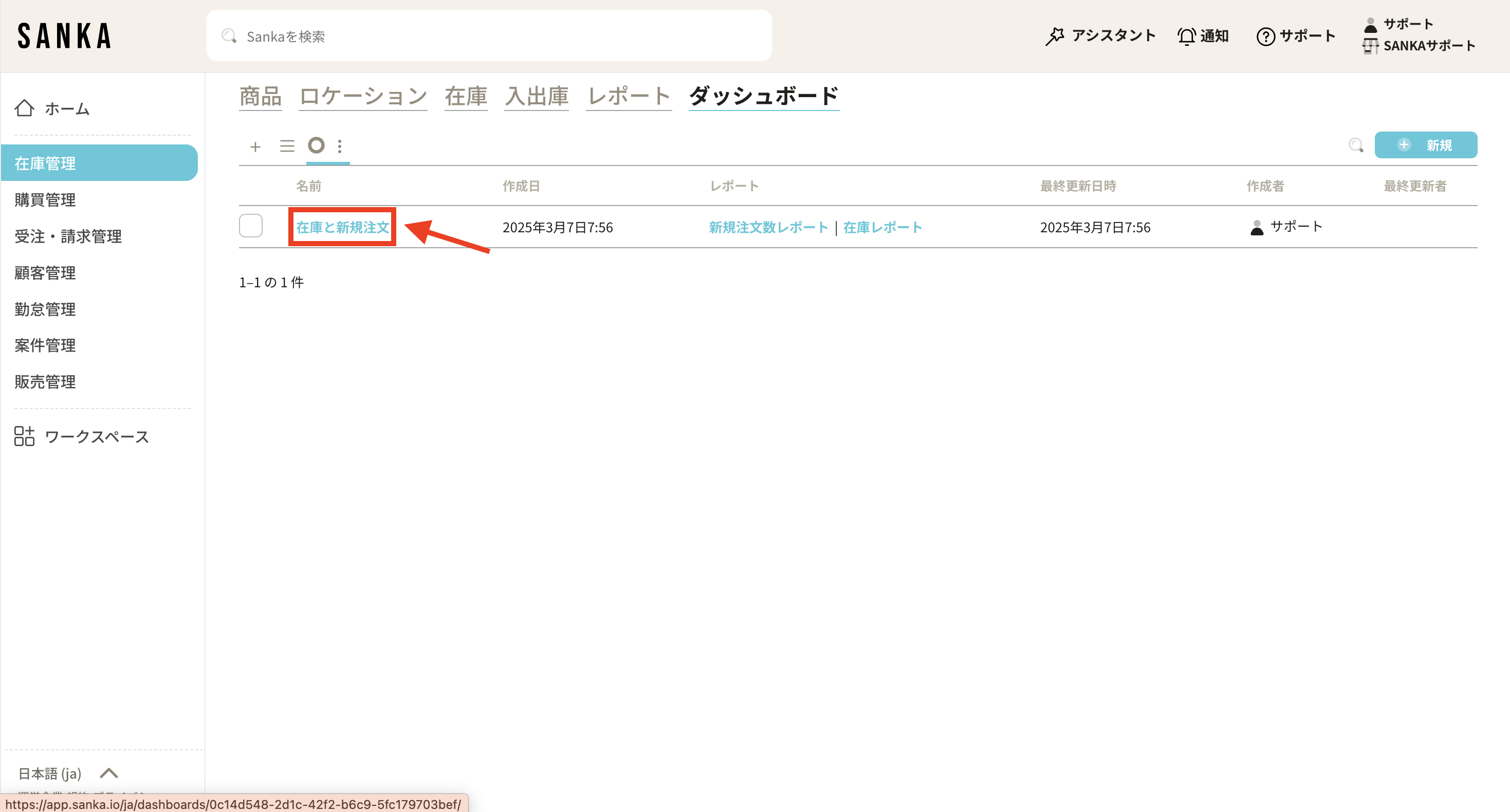 ③ The dashboard will be displayed, so press “Edit” on the right side.
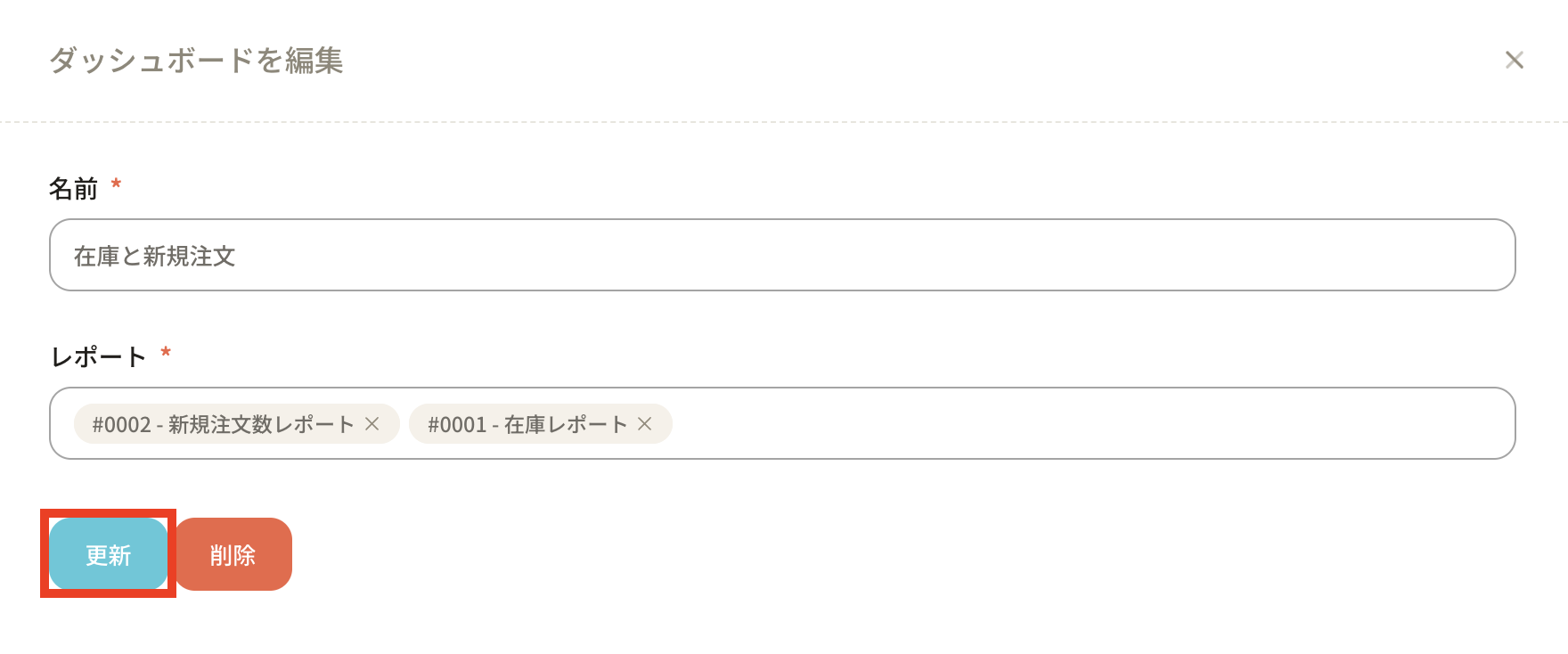
 ④Next, the “Edit Dashboard” screen will be displayed, so modify the contents and press the “Update” button to update. At this time, press the “Delete” button to delete it.
How to delete registered dashboard records
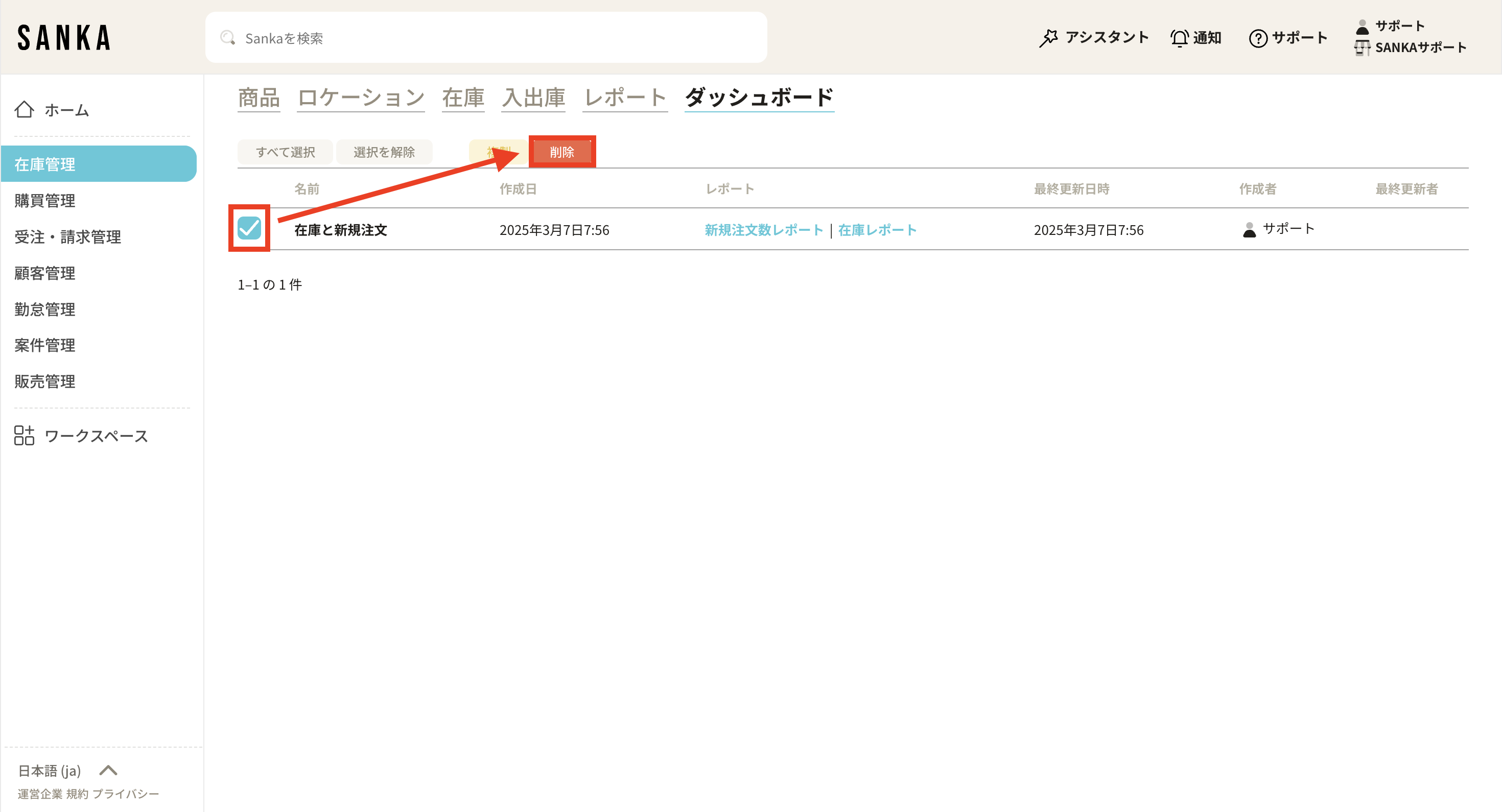
① Click the checkbox of the record you want to delete from the record screen list and select “Delete”. Please be careful not to make any mistakes as it cannot be restored.