What you can do with subscription objects
- Understand accurate subscription status The Subscriptions object allows you to accurately understand each customer’s subscription status and billing schedule. All data can be integrated and managed in one database rather than being managed individually using Excel, etc., which prevents missed updates and discrepancies in information.
- Improve operational efficiency Because information such as customers, products/services, payment methods, and billing dates are linked, subscription registration, renewal, and cancellation processes are automated and streamlined, significantly reducing operational costs and human errors.
- Alert settings and automatic update function When your next billing or renewal date approaches, you can be alerted via email or in-system notifications, allowing you to quickly update or cancel your subscription. Additionally, follow-up in case of payment errors can be automatically performed, ensuring continuity of service.
Default properties of subscription objects
- **Subscription ID: **A unique identifier given to each subscription record.
- **Customer: **Each subscription record is linked to a specific customer record, allowing you to see the customer’s name, contact information, account information, and more.
- Products/Services: Information about products and services covered by the subscription. Includes product name, description, price plan, terms of use, etc.
- Subscription start date, end date: Date when the subscription started or ended (automatic extension is possible by leaving blank).
- **Next Billing Date: **The date on which your next payment will occur. This makes it easier to manage renewal and cancellation timing.
- Billing Frequency: The billing frequency for your subscription (e.g. weekly, monthly, quarterly, yearly, etc.).
- **Status: **The current state of the subscription, such as active or canceled.
- **Date and Time: **Date and time information when the subscription record was created or updated.
How to register and manage subscription records
In this guide, we will introduce how to register subscription records and how to manage them such as modifying and deleting them. ① Select the “Subscription” object. Click the “New” button at the top right of the screen.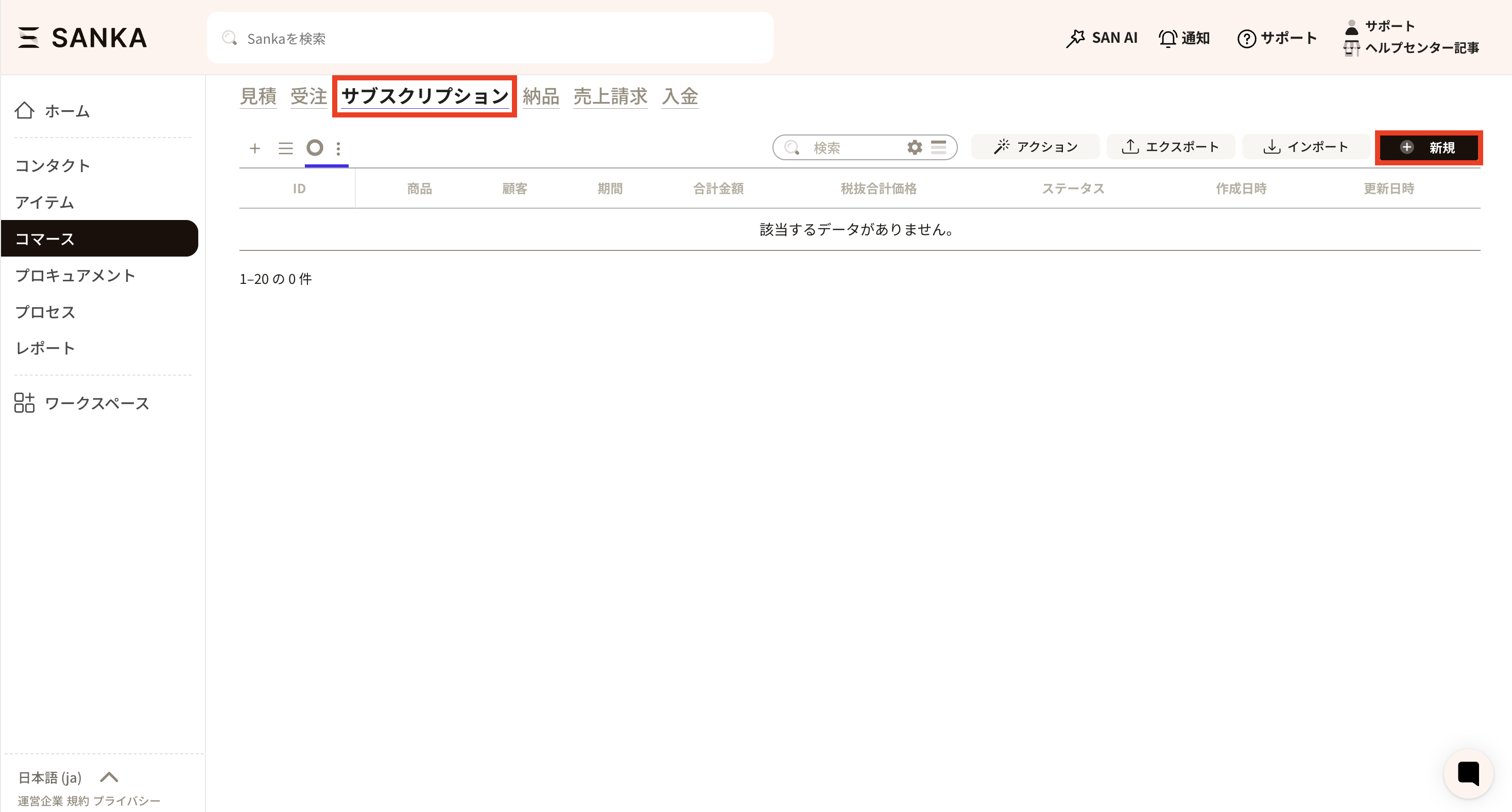 ②The “Create subscription record” menu will be displayed, so enter the required information.
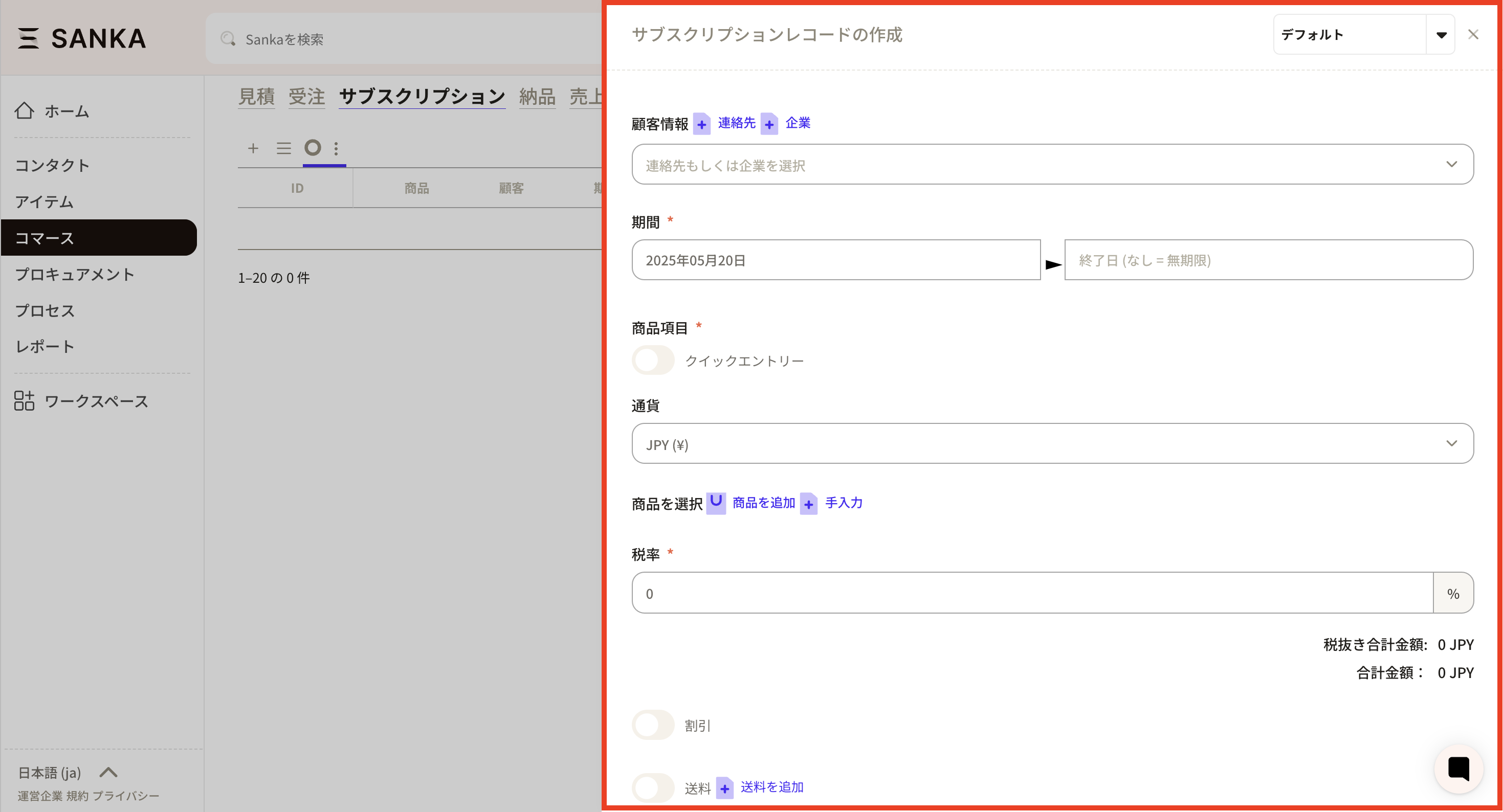 ③ Details of the required items are as follows.
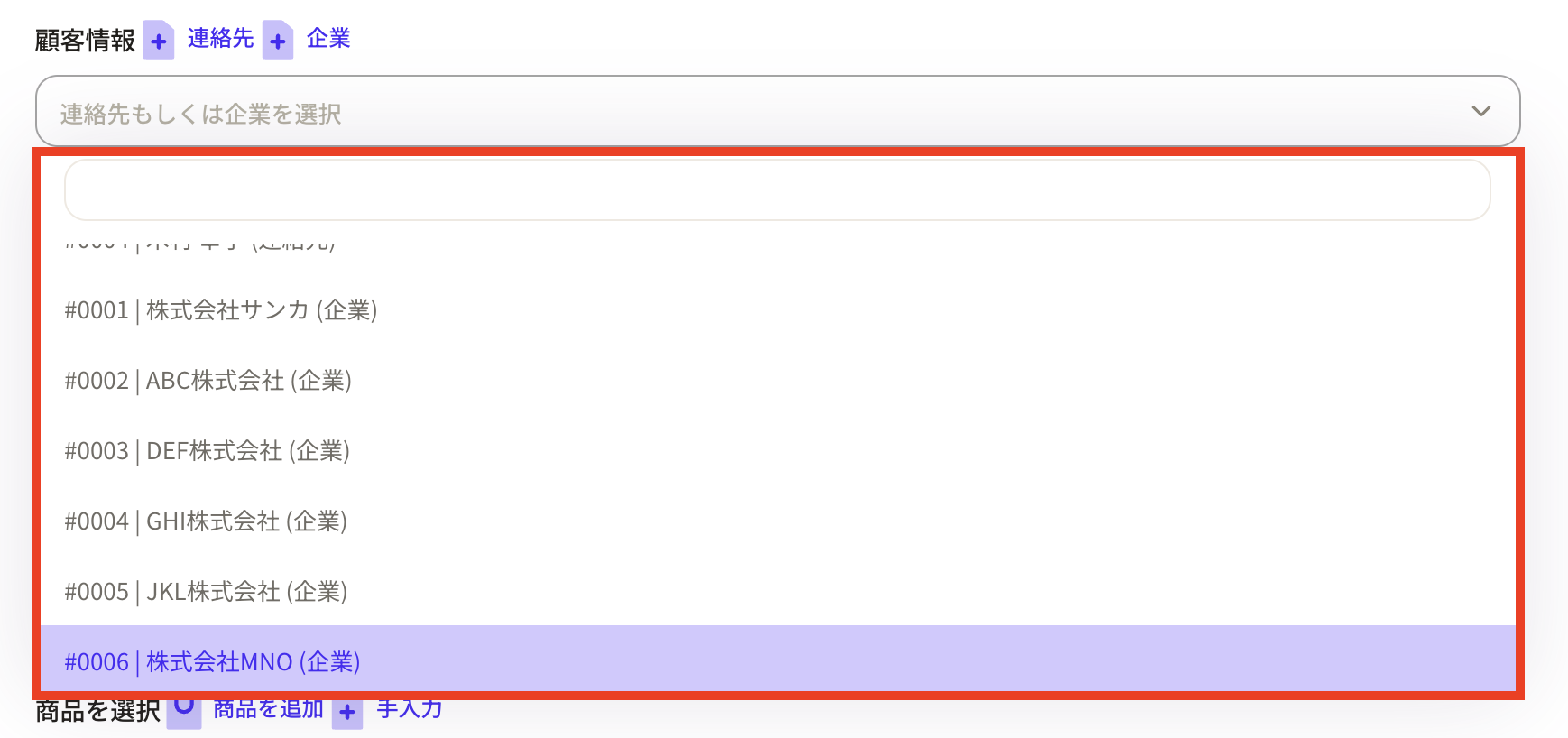
- “Customer information”: Click the frame to display the already registered customer information, so select the appropriate one. You can add new customer information by pressing the “+Contact” and “+Company” buttons.
- “Deadline”: Click the frame to display a calendar, then select the start period and end period. If you do not enter anything in the end date frame, it will be treated as indefinite.

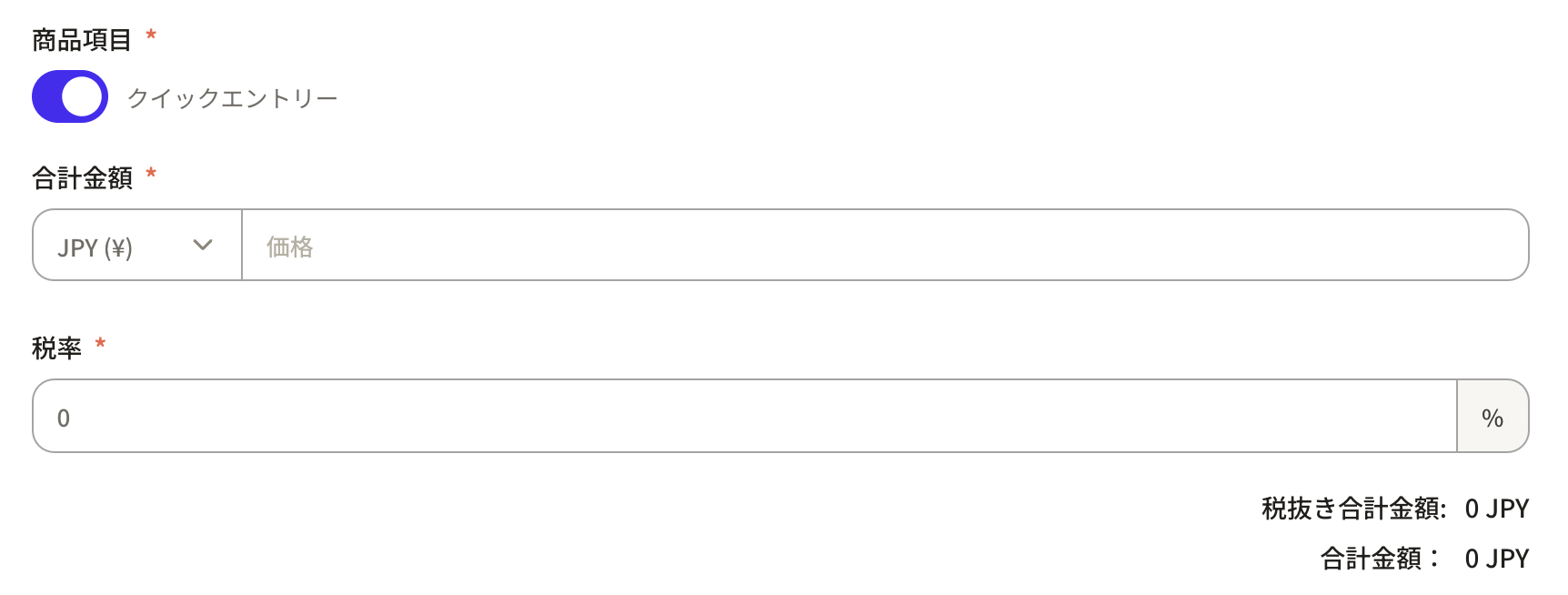
- “Product item”: When you turn on the quick entry button, the “Select product” frame will disappear and you will be able to enter only the total amount.
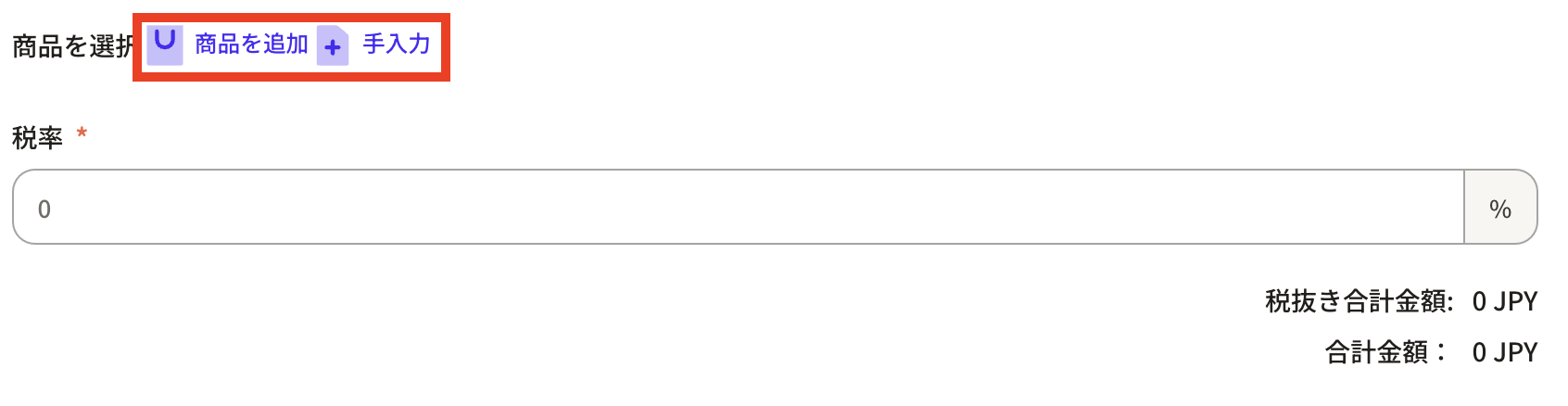
 If you want to add a product item, press the “Add product” or “Manual input” button.
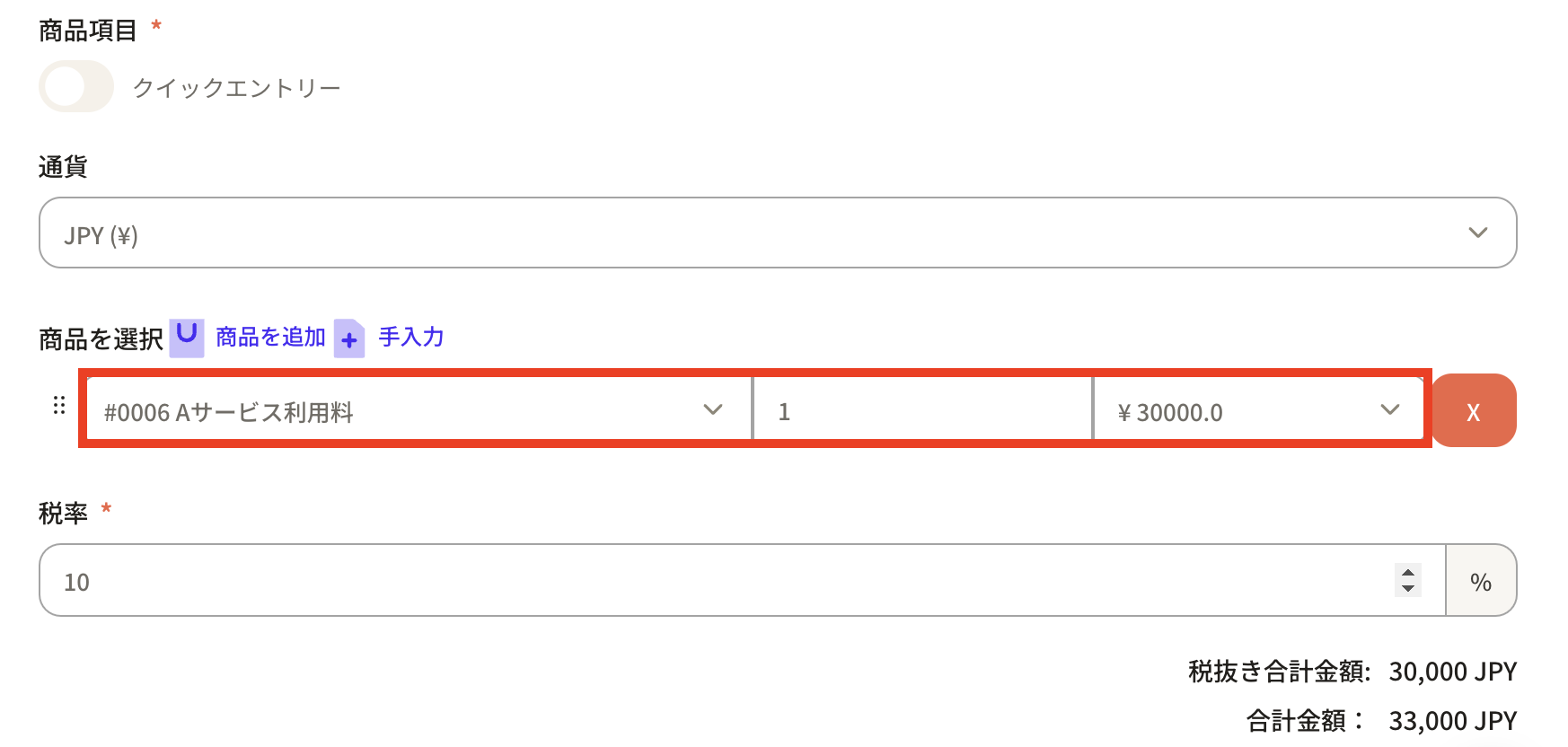
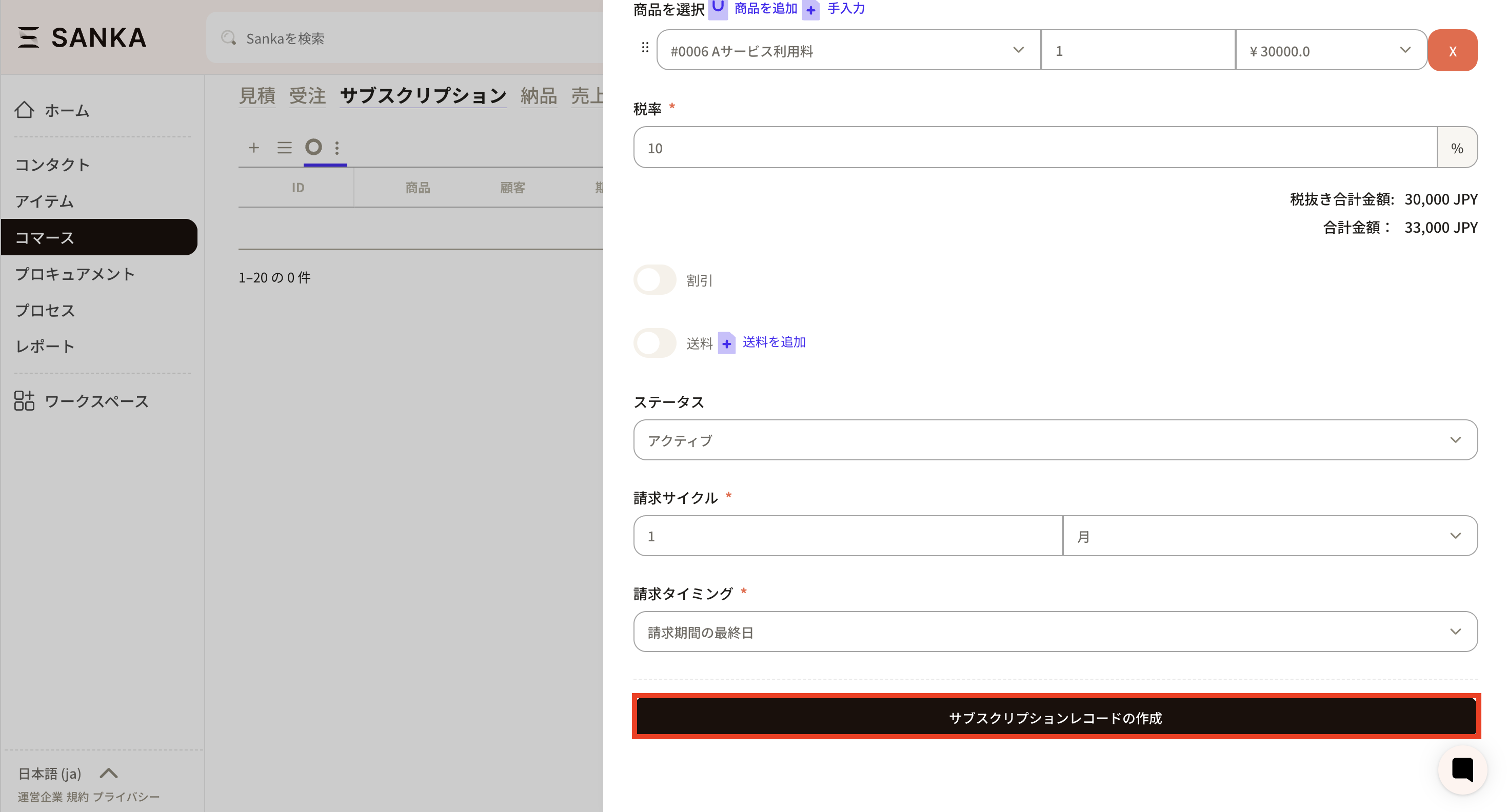
 A frame for the product item will be added, so set the necessary information. Select the product, enter the quantity and tax rate, and the total amount will be automatically calculated. When you click the “Currency” frame, a list of currencies will be displayed, so select the appropriate one.
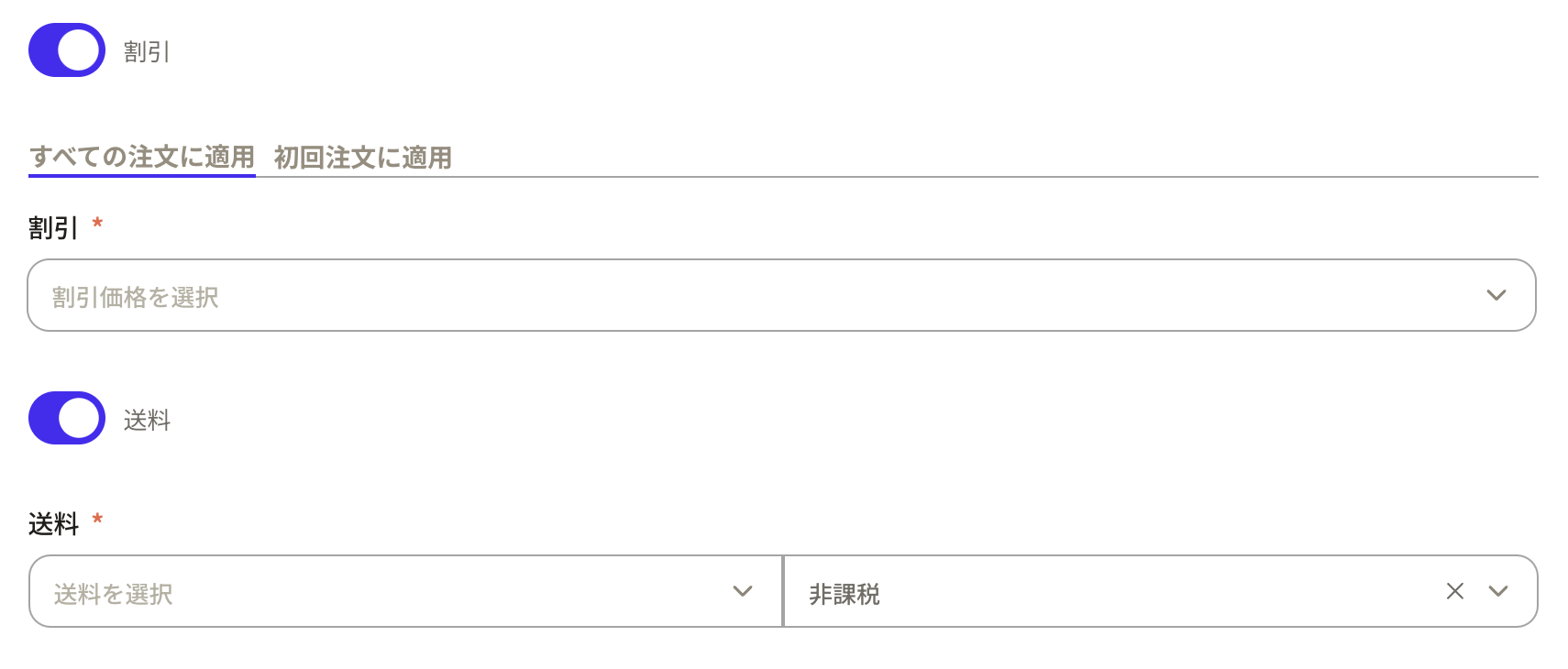
 If there is a “discount” or “shipping fee”, check it and a frame will be displayed, so please set it.

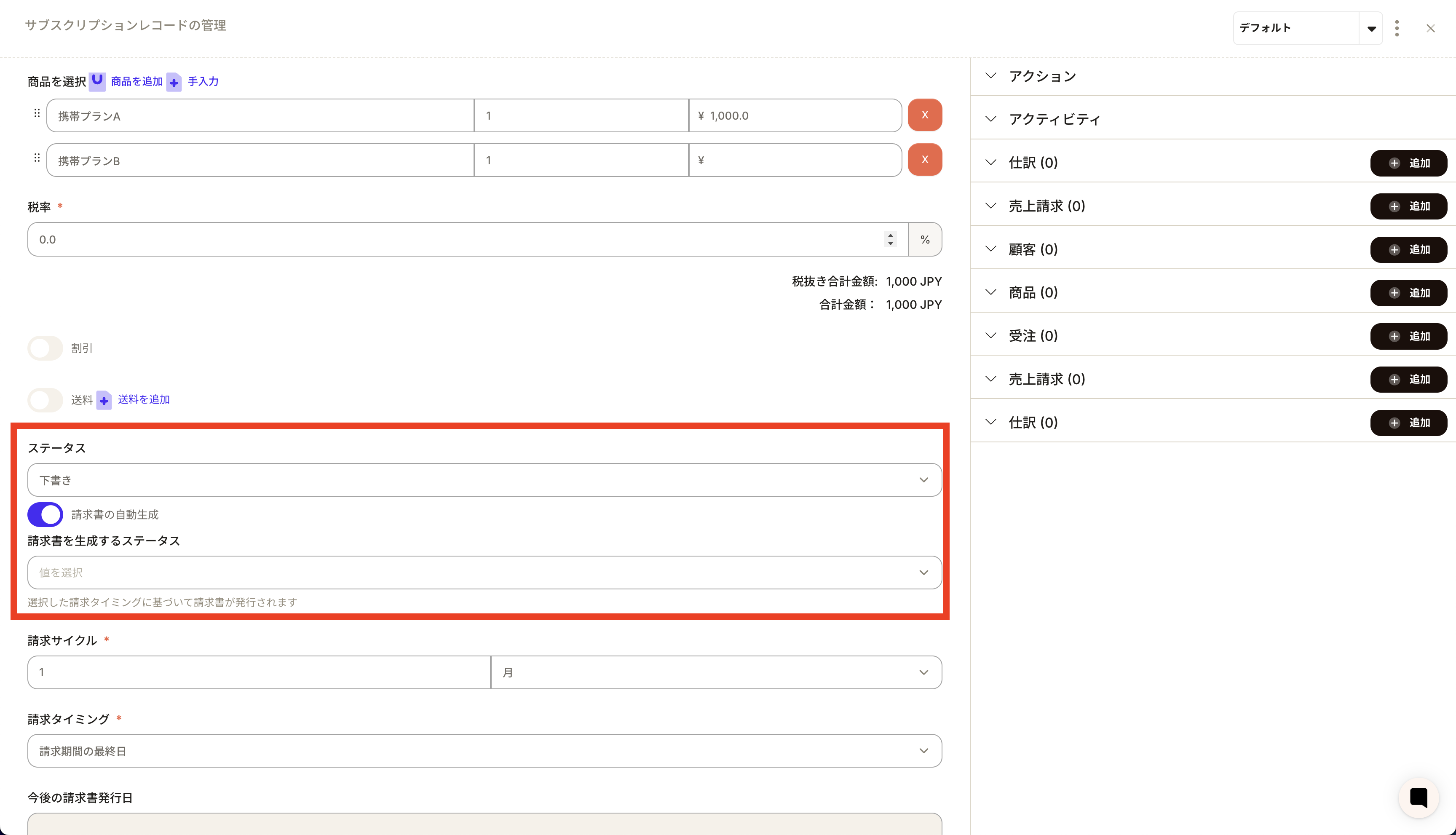
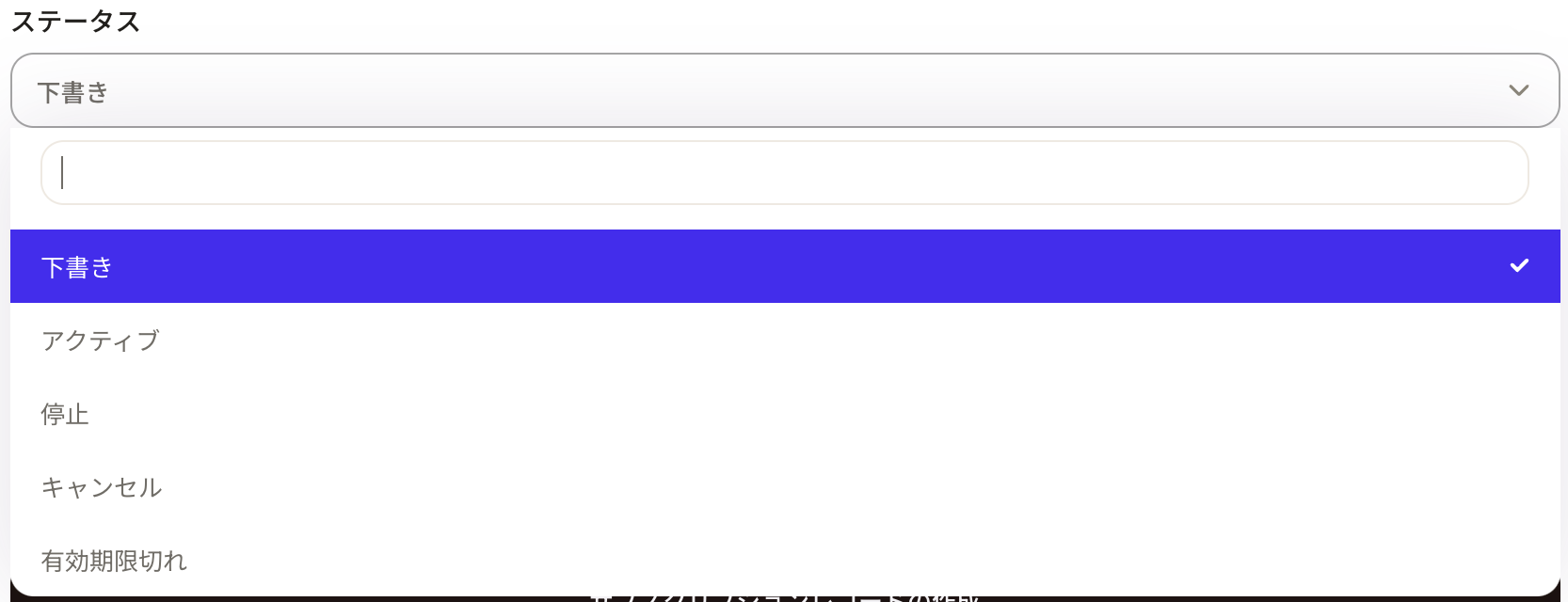
- “Status”: Set the current status. You can select from “Draft”, “Active”, “Stop”, “Cancel”, and “Expired”. *This status item can be changed from the property settings.
- “Billing” cycle”: Enter the number in the left frame, and set the unit such as “month”, “year”, “day”, etc. in the right frame.

- “Billing” Timing”: Click on the frame and select the appropriate timing.
 ④ After entering the required information, click the “Create Subscription Record” button.
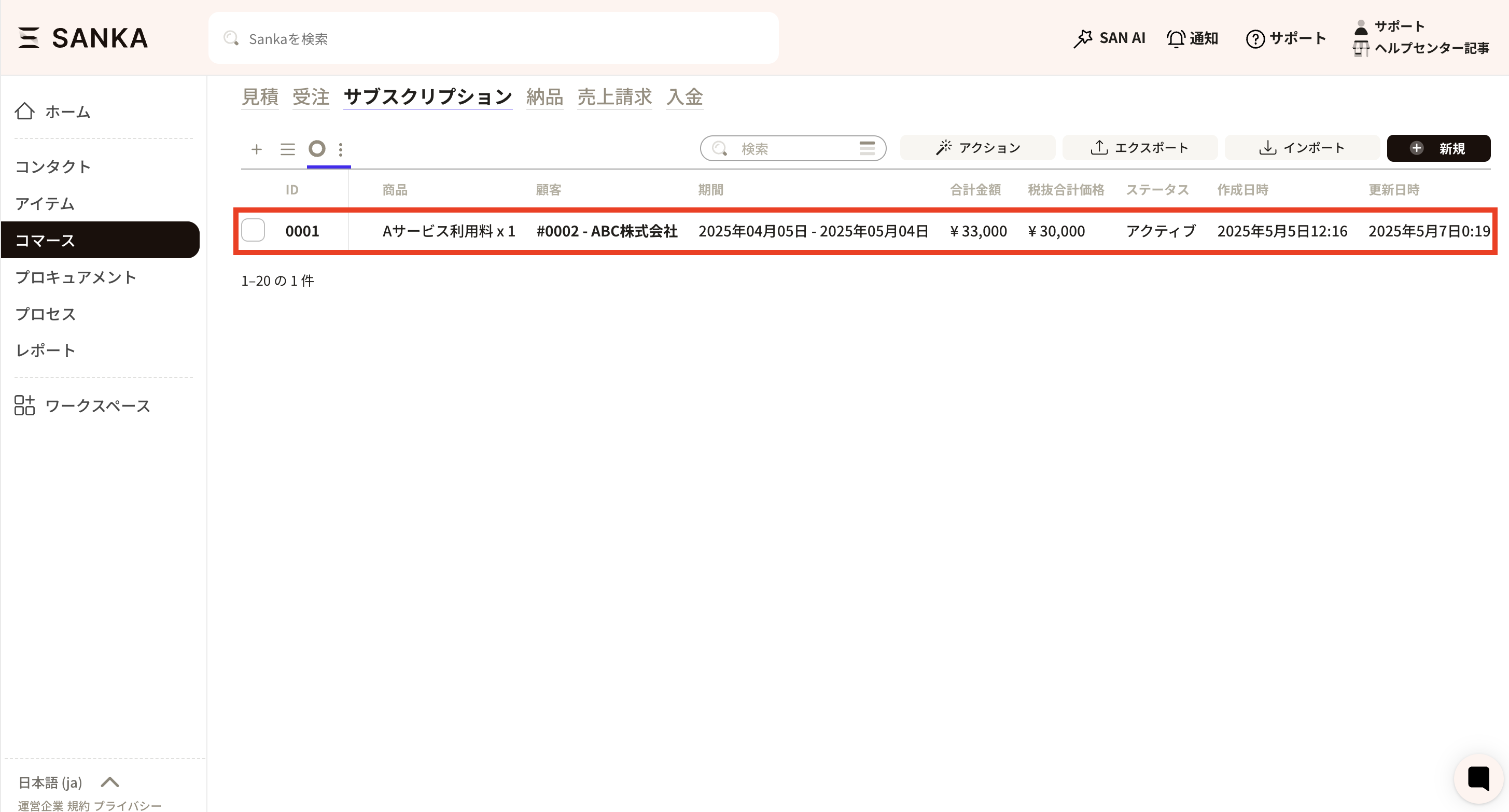
 ⑤Added to the subscription record list screen.
How to modify and manage registered records
How to modify registered records
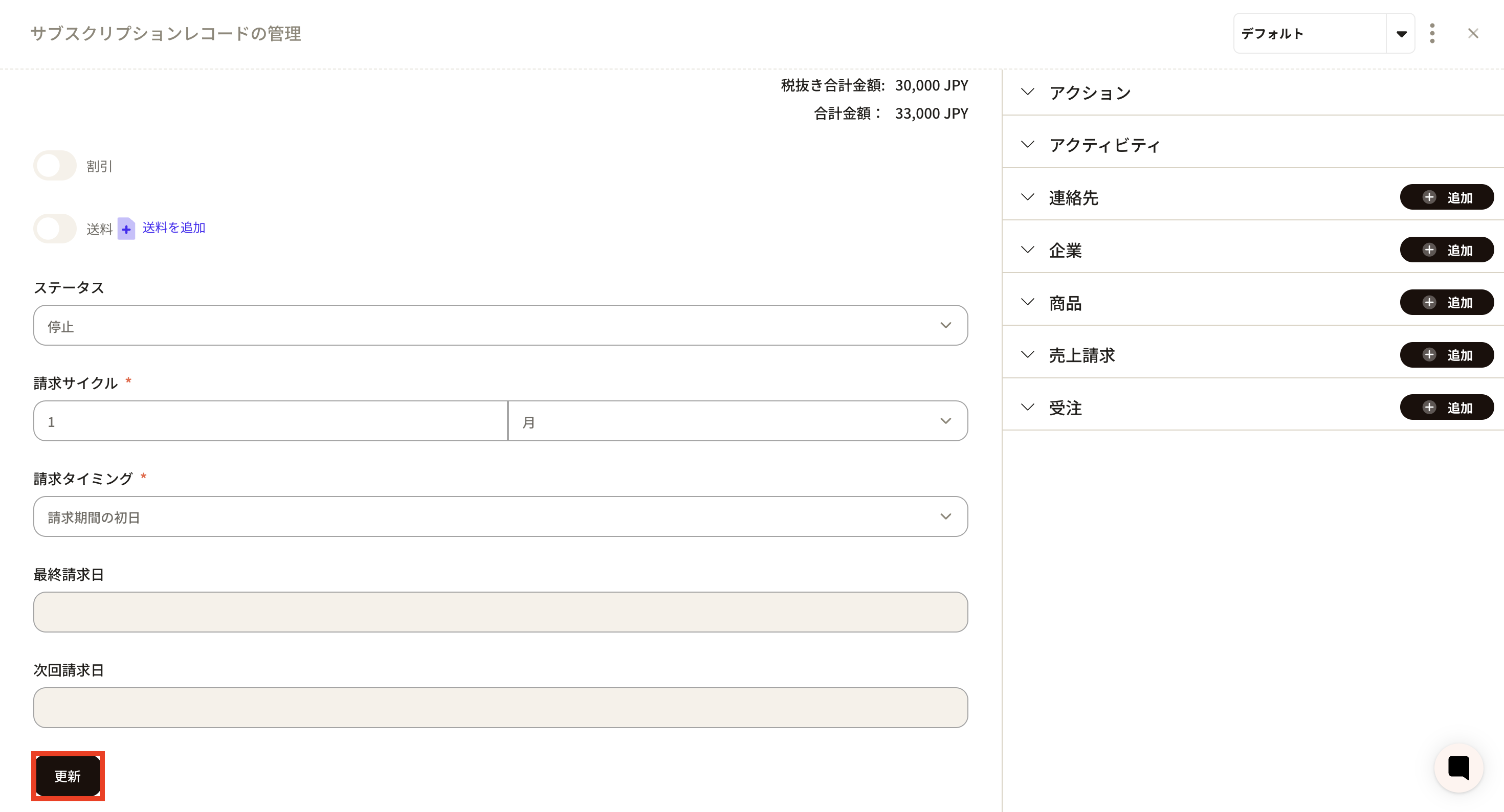
① Click the ID of the modified record from the record list screen of the subscription object.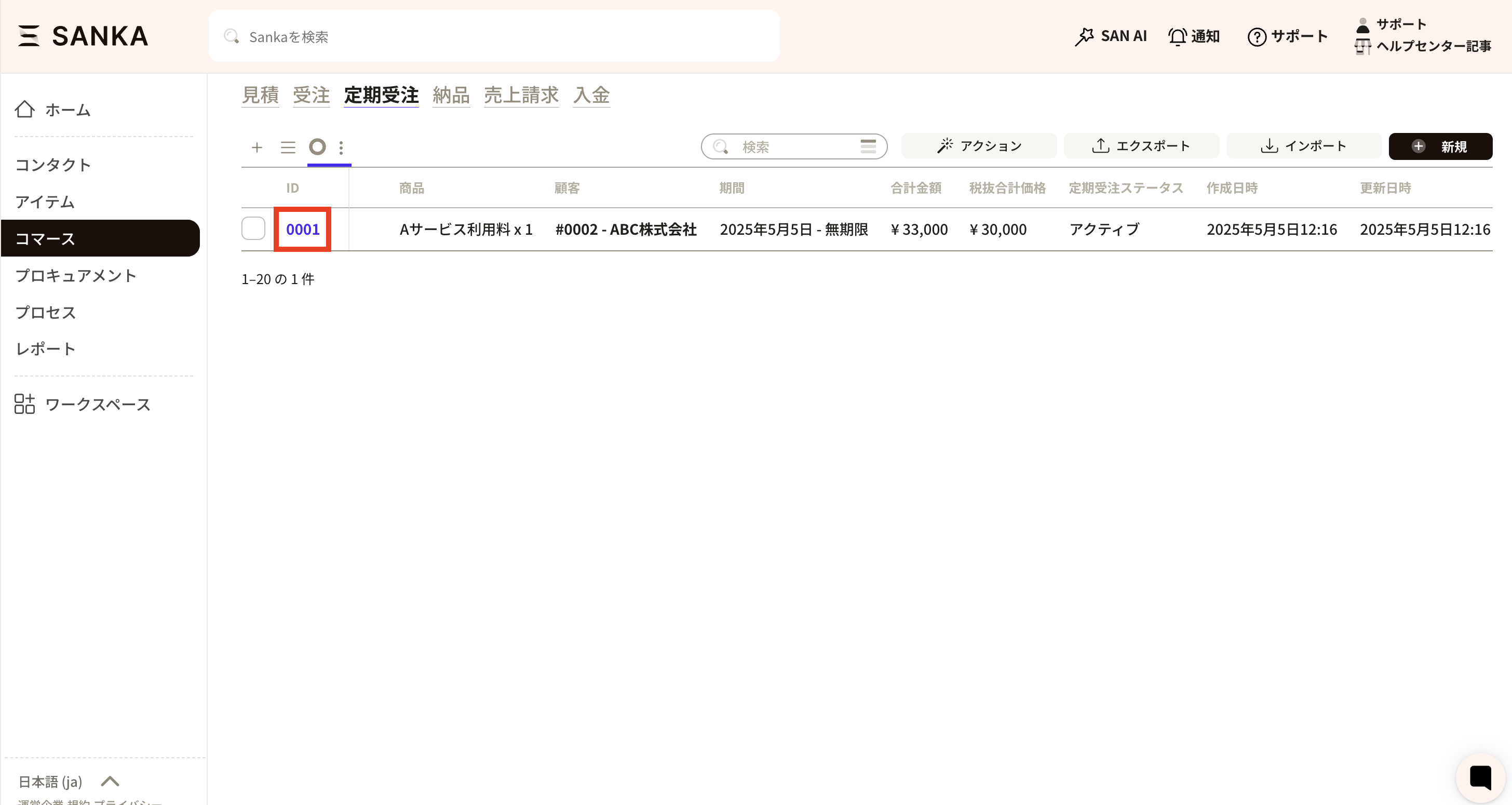 ②The “Manage subscription records” menu will be displayed, allowing you to modify the information.
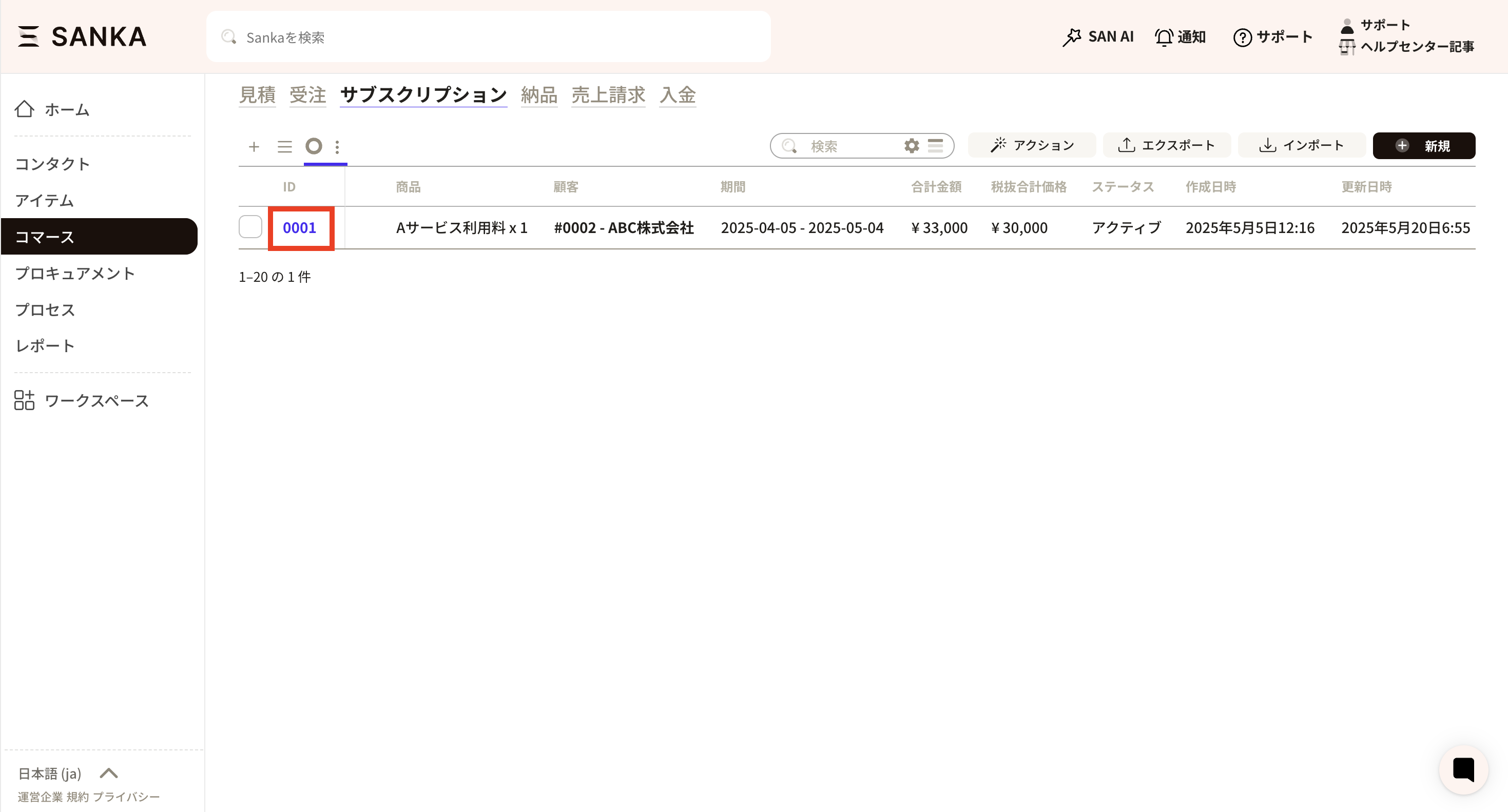 ③For example, if a regular order has ended, set the regular order status to “Stopped”.
 ④After correcting the information, click “Update”.
How to archive records
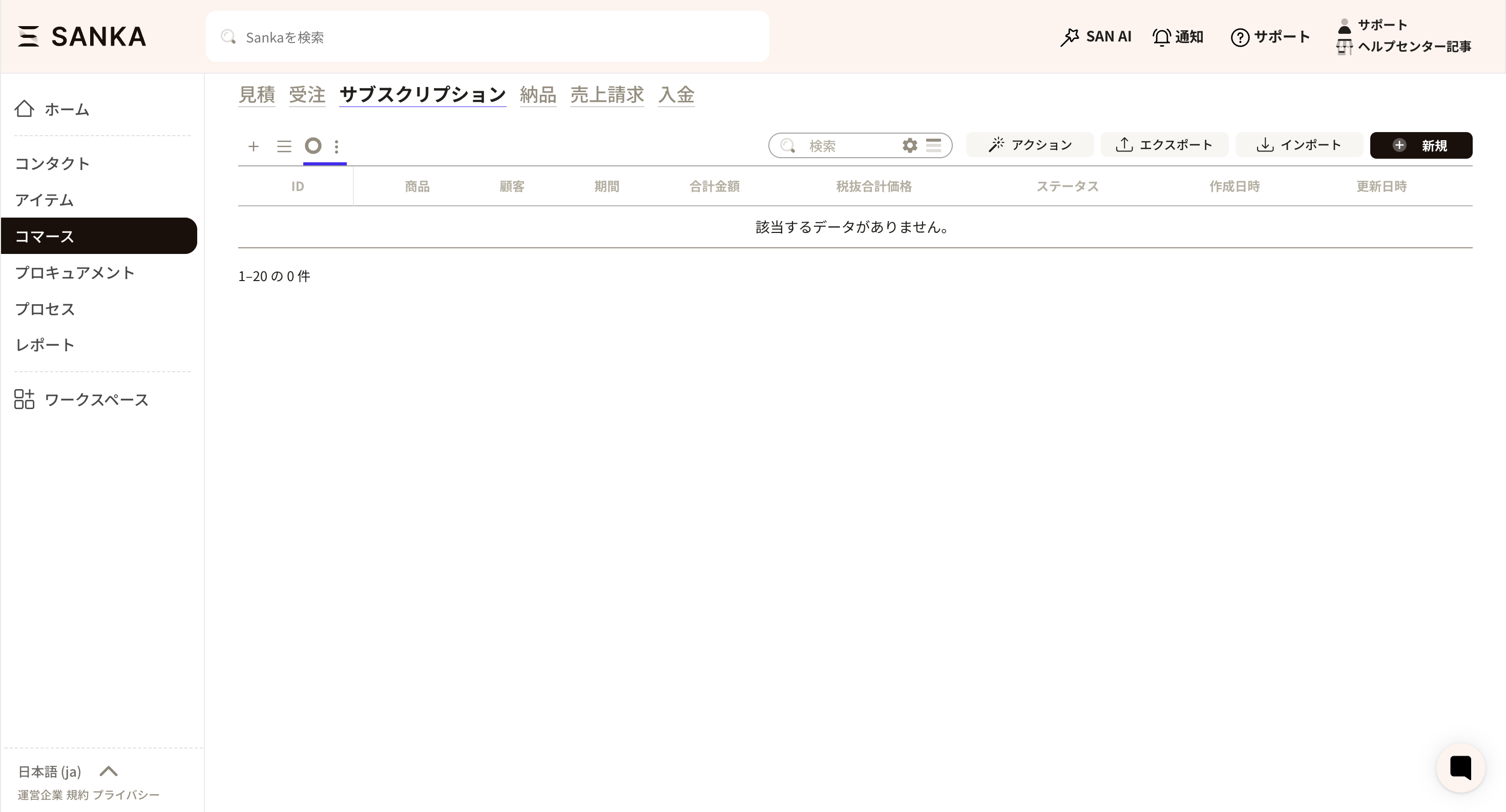
Once registered with Sanka, information cannot be deleted. Therefore, you can use the archive function to hide it from the registered record list table. ① Click the box of the record you want to archive from the record list screen and select “Archive”.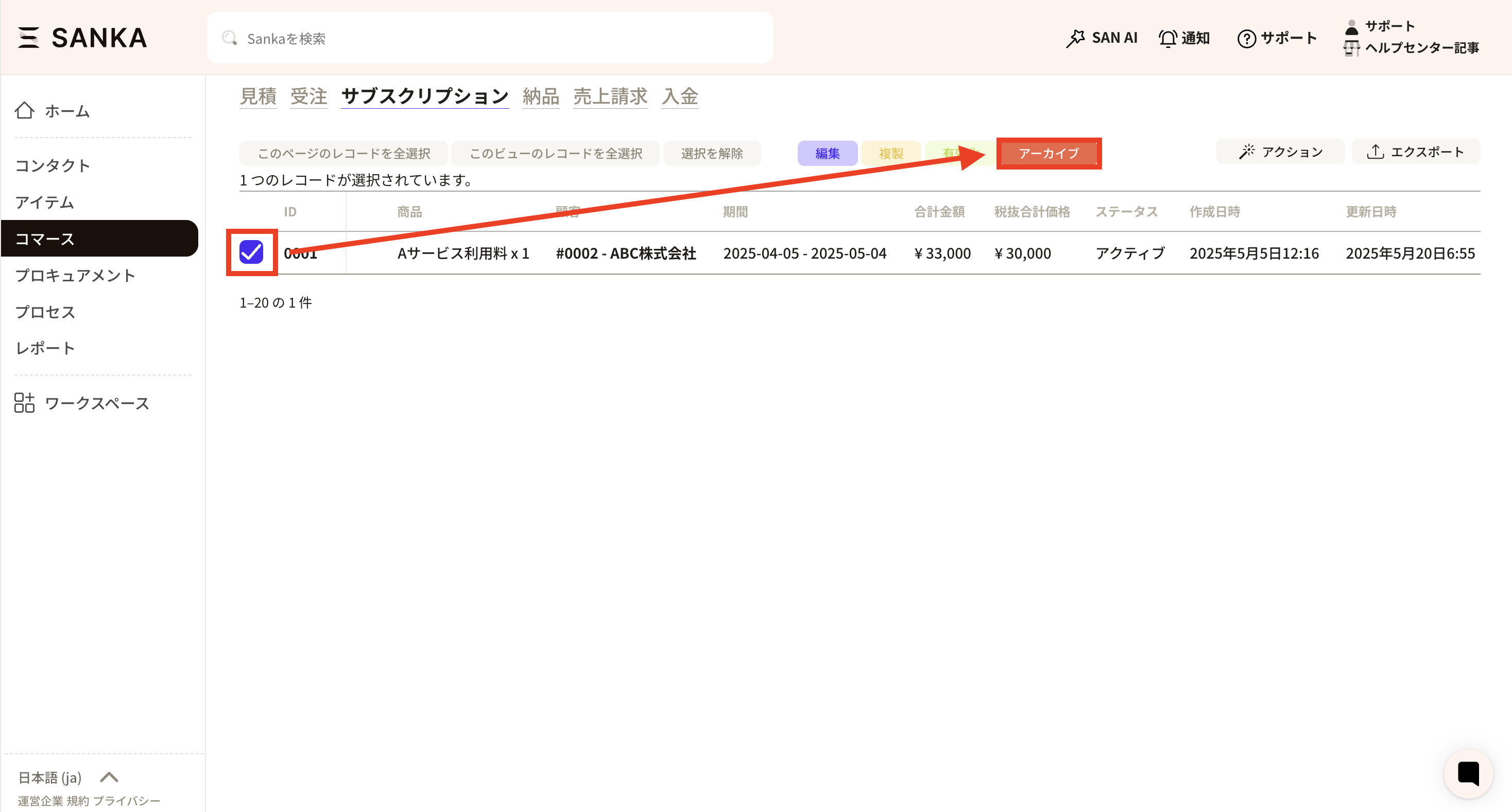 ② It will no longer be displayed in the list of archived records.
 ③ If you want to cancel the archive, press the hamburger icon (three-line mark) view settings at the top left of the record list.
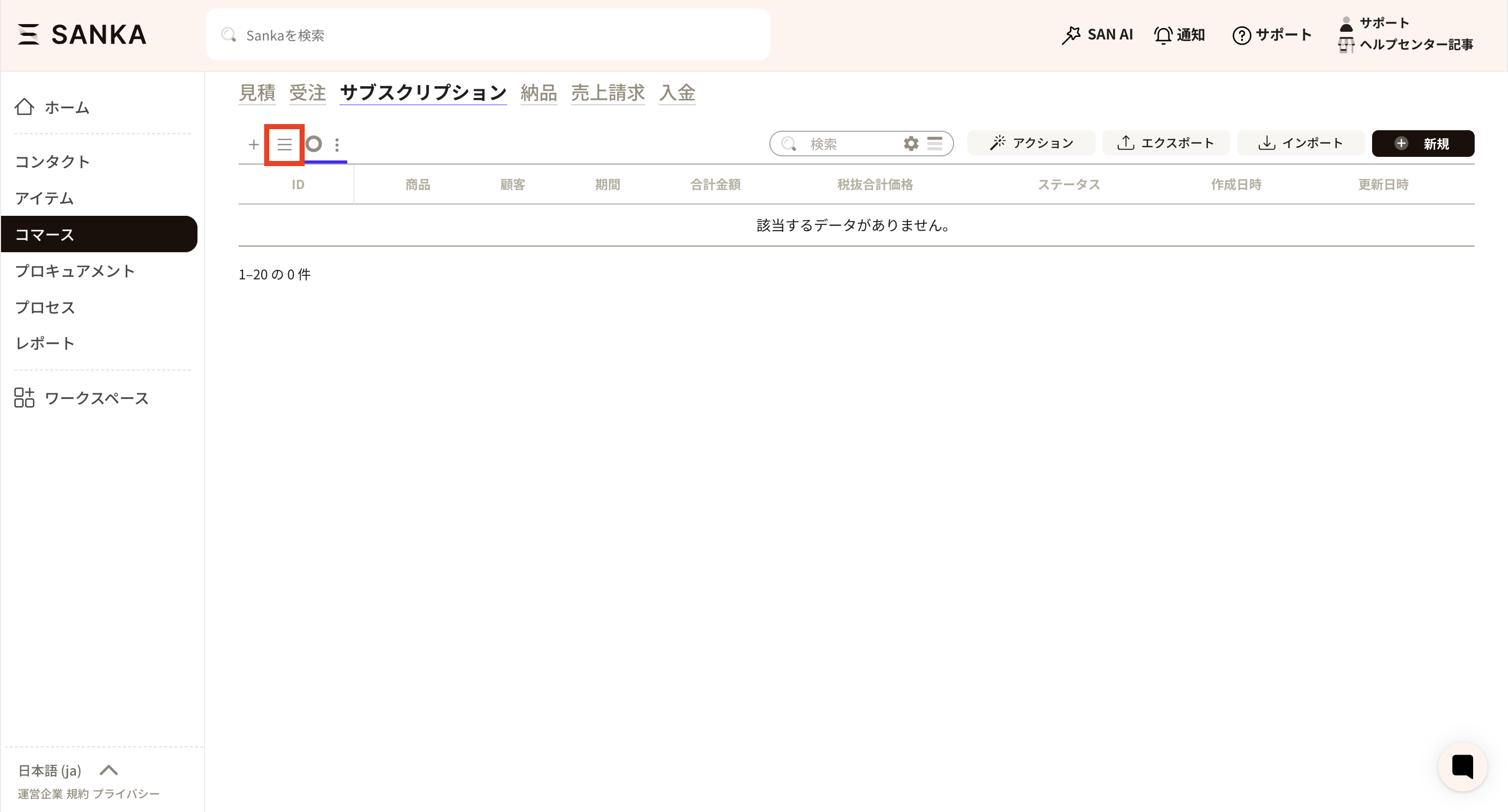 ④ Select the archive.
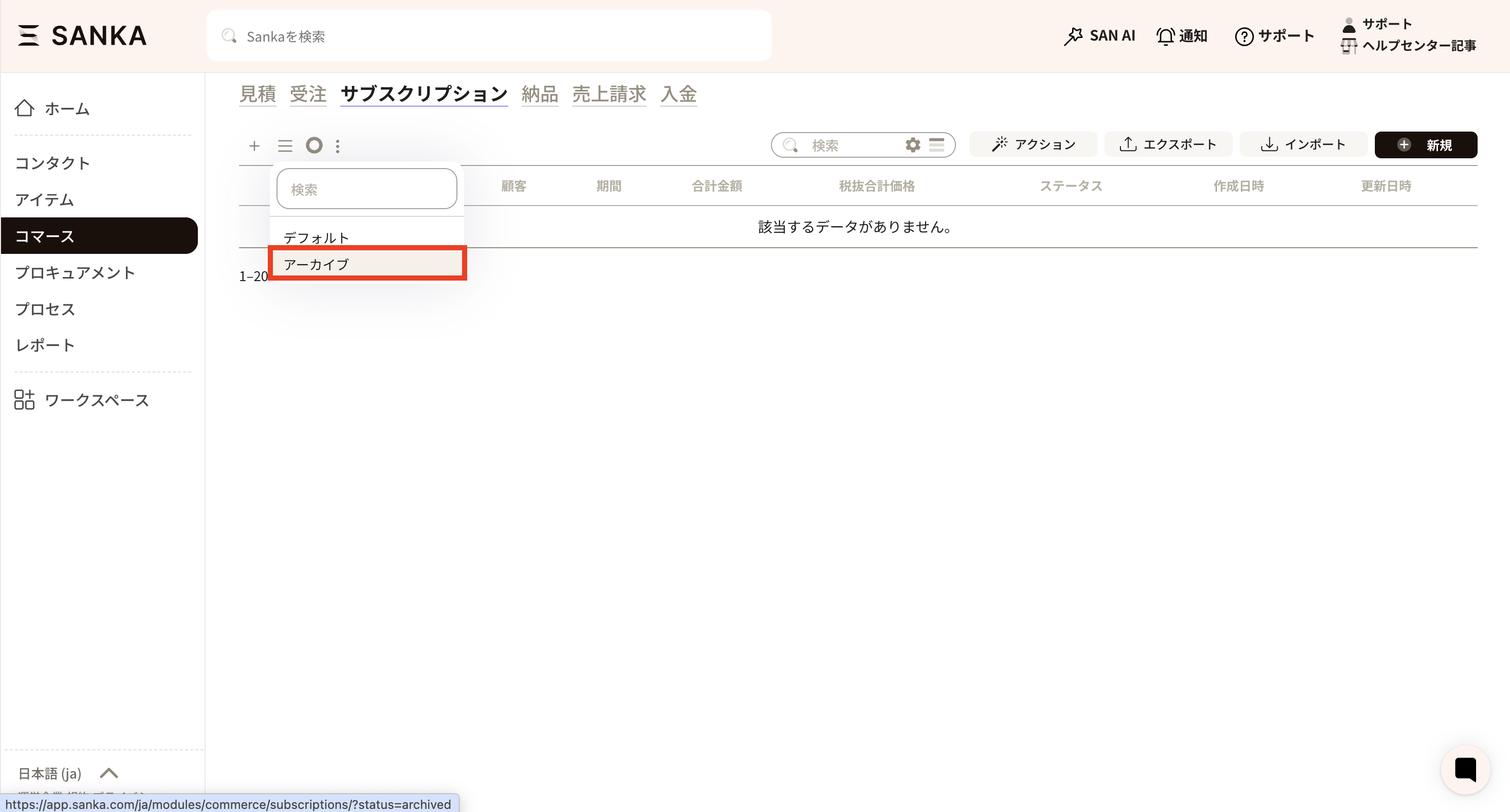 ⑤ A list of records that have been archived will be displayed. Click the box for the record and select “Enable.”
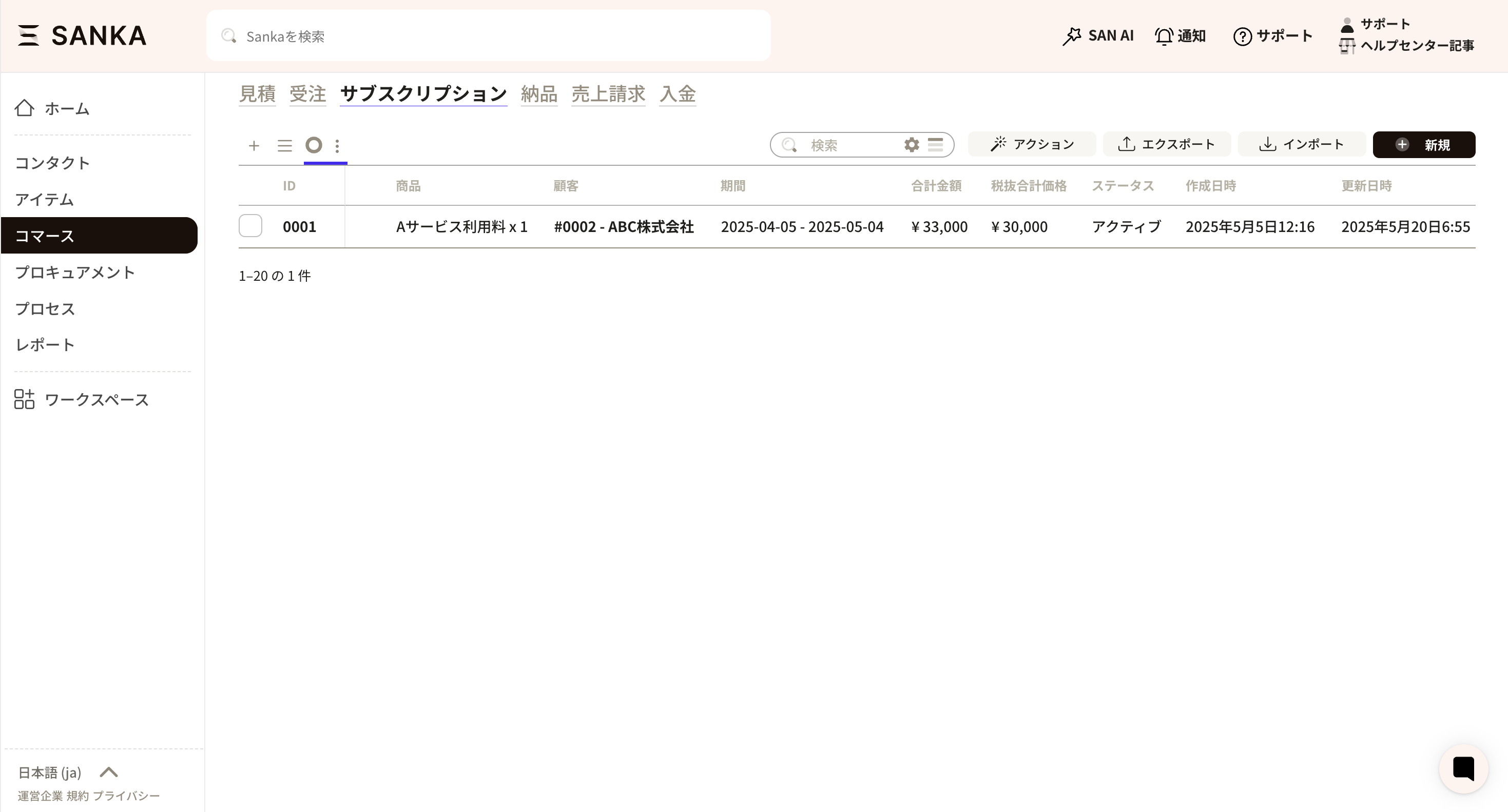
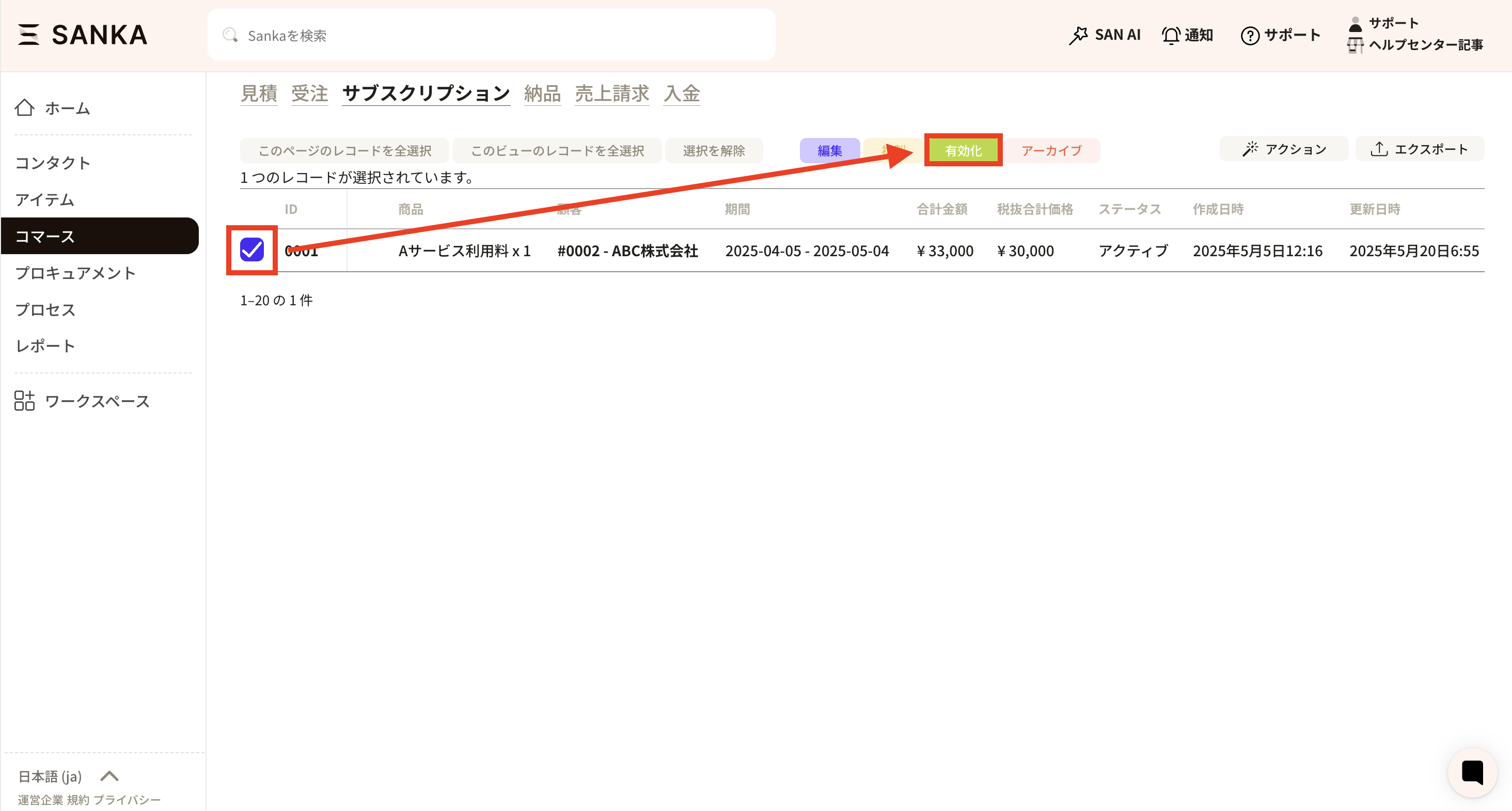 ⑥ The activated record will return to normal display again.
How to automatically create sales billing records based on subscriptions
- Click “Auto-generate billing record” from the Sanka subscription record details.
- It is also possible to filter by the status of generating billing records.
- Sales billing records are automatically generated between 00:00 and 06:00.