

overview
In the product object, you can register images for each product record. If you have a lot of images, you can upload them all at once from the list screen, or use Image Group, which allows you to put multiple images in one property, for smoother management.What is image group property?
Image Group is a property type that allows you to store multiple images in one property. By using it properly with the regular Image property (only one image), you can register photos, detail photos, package photos, etc. for the product page all at once.Create image group properties
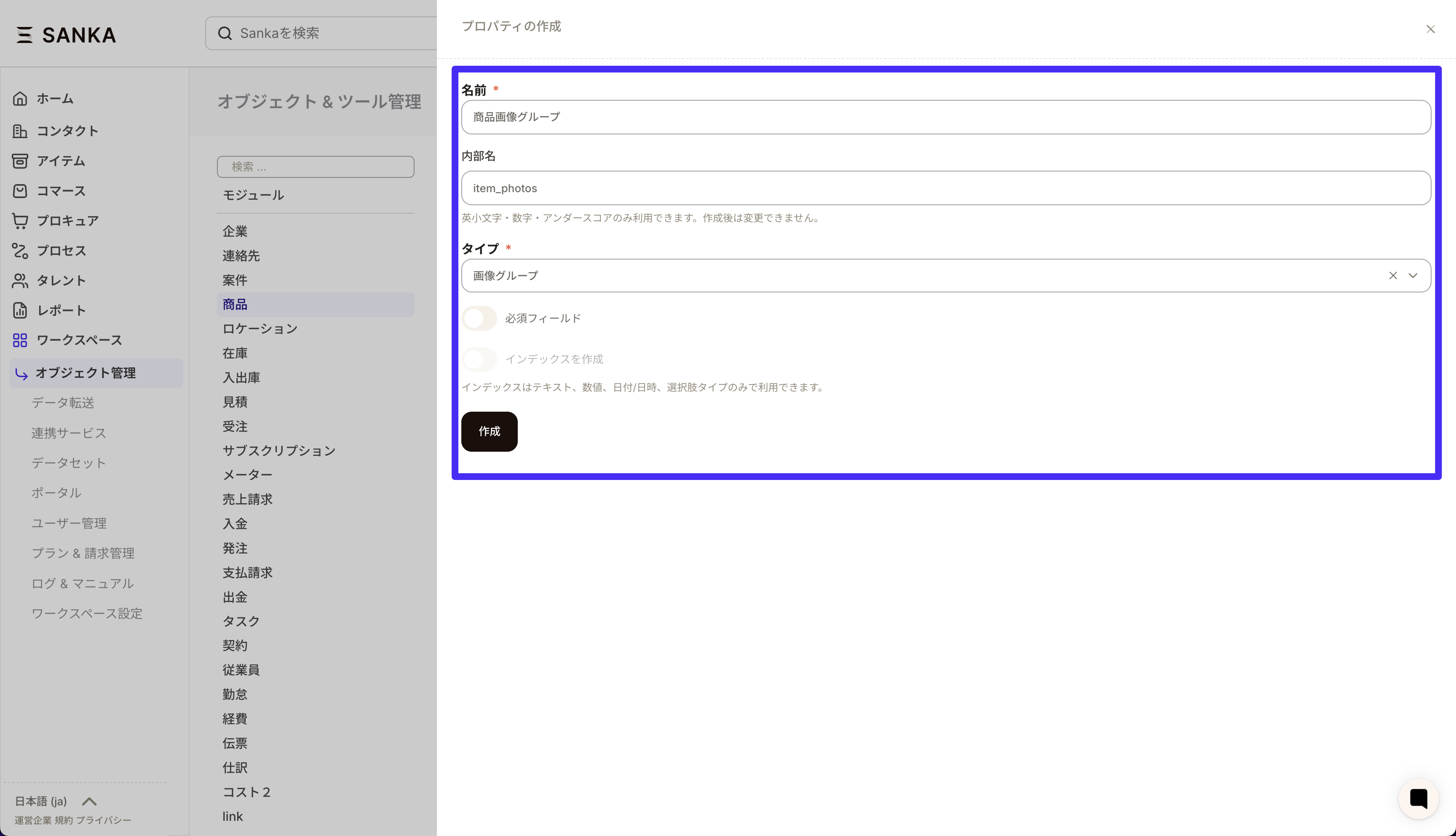
- Open “Workspace” at the bottom left of the screen and click “Object management”.
- Select “Product” from the list and click “New” in the upper right corner.
- Enter the property name (e.g. Product Image).
- Select Image Group as the type and click Create.
- If you want to display the created property in the record creation form or view, add it in “View /Manage Forms”.
How to upload product images in bulk
Advance preparation
In bulk upload, images are linked by matching the image file name and property value of the product record. Before proceeding, please check the following points:- Prepare a property (Image or Image Group) to save the image.
- Determine the text properties to be used for matching (e.g. record ID, SKU, product number, etc.) Choosing a property with a unique value for the matching key will prevent you from accidentally linking it to multiple products.
procedure
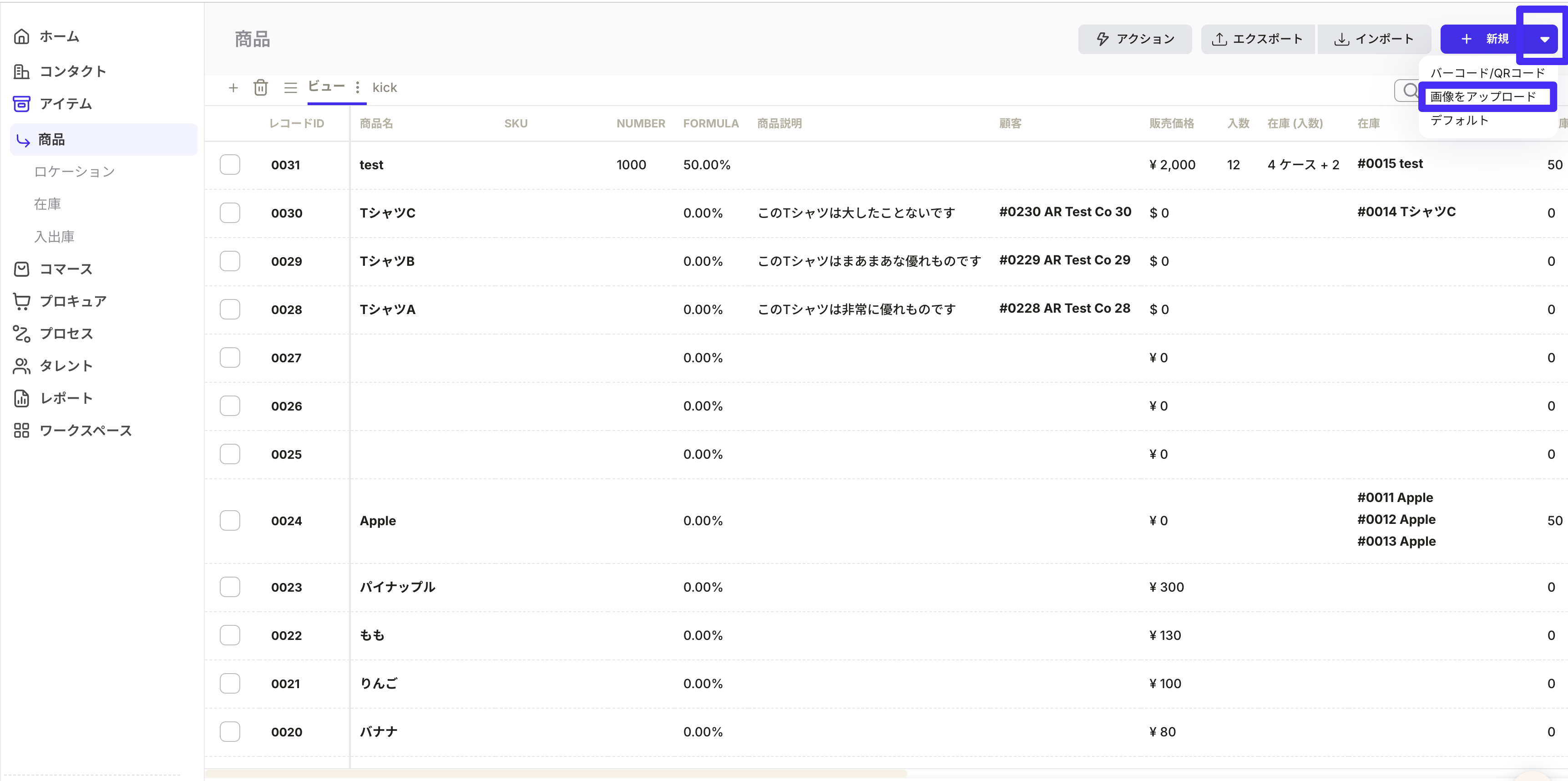
- Open the product object list screen and click “Upload image” from the action menu at the top right.
- Under Image Properties, select the property where you want to save the image.
- If you want to register multiple images at once, select Image Group.
- In “Text Property”, select the matching key to link the image.
- Prepare the image file name to match the value of the selected text property.
- The part of the file name excluding the extension (.jpg/.jpeg/.png) is used for matching.
| Product ID (record side) | Image file name |
|---|---|
| 001 | 001.jpg |
| 002 | 002.png |
| 003 | 003.jpeg |
- Drag and drop the image or click to select it.
- Check the file list and click “Upload Image”.
If you want to register multiple images in one record
If you want to include multiple images for the same product, please select “Image Group” in the image properties. Then, prepare multiple image files for the same matching key. For the second and subsequent files, add a number to the end of the file name to distinguish them. Sanka matches by excluding the-number`'' and _Number`” at the end, so you can also use hyphen-separated names.
Example: When registering 3 items in the record with product ID 001
| Match key | Image file name |
|---|---|
| 001 | 001.png |
| 001 | 001-1.png |
| 001 | 001-2.jpg |
- Even if the verification key itself contains a hyphen, only the last number will be treated as a delimiter.
Example: If the SKU is
ABC-1, it will be added asABC-1.jpg,ABC-1-2.jpg.
Confirmation after upload
Once the upload is complete, open the target product record and verify that the selected image property reflects the image. Image groups display multiple images side by side within the same property.When it doesn’t reflect well
- Make sure that the image file name exactly matches the text property value (no spaces before or after, or full-width /Be careful of the difference in half-width characters).
- Records with empty text properties used for matching will not be linked.
- Supported formats are
.jpg/.jpeg/.png. Other formats cannot be uploaded. - If there are multiple products with the same key, the same image will be registered for all applicable products.