What is Sanka’s “Quote” object?
Sanka’s Quote object is an important tool for managing and generating cost estimates for goods and services. It provides a way for businesses to streamline the process of creating, sending, and managing quotes for their clients. The Quote object helps you generate price estimates for potential projects, provide cost breakdowns, and make accurate financial projections before committing to a formal contract with a customer. By centralizing the quotation process, Sanka enables businesses to quickly and efficiently respond to client inquiries, track quotations, and smoothly convert them into actual orders and invoices upon approval.”Quote” object overview
The quote object provides several key functions for companies in the sales process.- **Centralized management of quotes: **Create, manage, and store all your quotes in one place, reducing clutter, minimizing administrative effort, and ensuring no quotes fall through the cracks.
- **Easy conversion to orders and invoices: **After a quote is approved by the client, you can easily convert it into a formal order or invoice, streamlining the entire sales cycle and reducing manual entry effort.
- **Customization per client: **The quote object allows you to tailor your quote to the specific needs of your client. You can include product descriptions, add itemized taxes and discounts, and apply specific conditions that align with your client’s expectations.
- **Tracking and Follow-up: **Status tracking allows you to know whether a quote is draft, awaiting approval, or approved, making it easier to follow up in a timely manner and manage client relationships.
- **Detailed breakdown for clients: **Product list and cost breakdown features provide transparency for clients. Build trust and increase your chances of conversion by being able to see exactly what you’ll be charged, including any discounts or taxes that may apply.
- **Integration with other objects: **The quote object can be integrated with other key Sanka features such as invoices, orders, and inventory. This automation eliminates redundant work, ensures accurate data transfer, and also maintains inventory levels.
Why is the “Quote” object important?
Quote objects play an important role in a company’s financial management and customer service workflows. There are several advantages.- **Improved efficiency: **A centralized system allows businesses to quickly generate quotes and reduce the time it takes to respond to client inquiries. This efficiency improves customer satisfaction and increases the chances of closing a sale.
- **Strengthens customer trust: **Providing clear and transparent quotes increases trust with potential customers, clarifying price and schedule expectations, and reducing misunderstandings and disputes.
- **Better financial planning: **Using the quote object, businesses can more accurately track potential revenue sources. Monitoring pending quotes gives you a clearer picture of your business’s sales pipeline, which helps with revenue forecasting and financial planning.
- **Seamless Sales Conversion: **After a quote is approved, it can be converted directly into a sales order or invoice, reducing manual effort and potential for errors. This seamless process allows companies to efficiently scale their operations.
- **Improve your sales strategy: **By leveraging data such as the number of quotes generated, number accepted, and number rejected, businesses can analyze customer behavior, improve pricing strategies, and improve their overall sales approach. Identify trends in popular products and services and discounts that drive conversions.
Default properties of “Quote” object
At Sanka, a quote serves as an initial estimate that provides the client with the expected cost of a product or service. Each quote includes the following key elements:- **Quote ID: **A unique identifier assigned to each quote for easier tracking and management.
- Customer information: A complete record of who the quote was created for, including the client’s name, contact information, and company information.
- **Product List: **A detailed breakdown of the products and services included in the quote, including description, quantity, unit price, and tax amount.
- **Quote Creation Date: **The date the quote was created, important for maintaining accurate timelines.
- **Quote Status: ** Track the progress of each quote (e.g. draft, submitted, approved, rejected).
How to register a new quotation record
From here, we will show you how to register a new quotation record. ① Select the “Estimate” object and click the “New” button at the top right of the screen.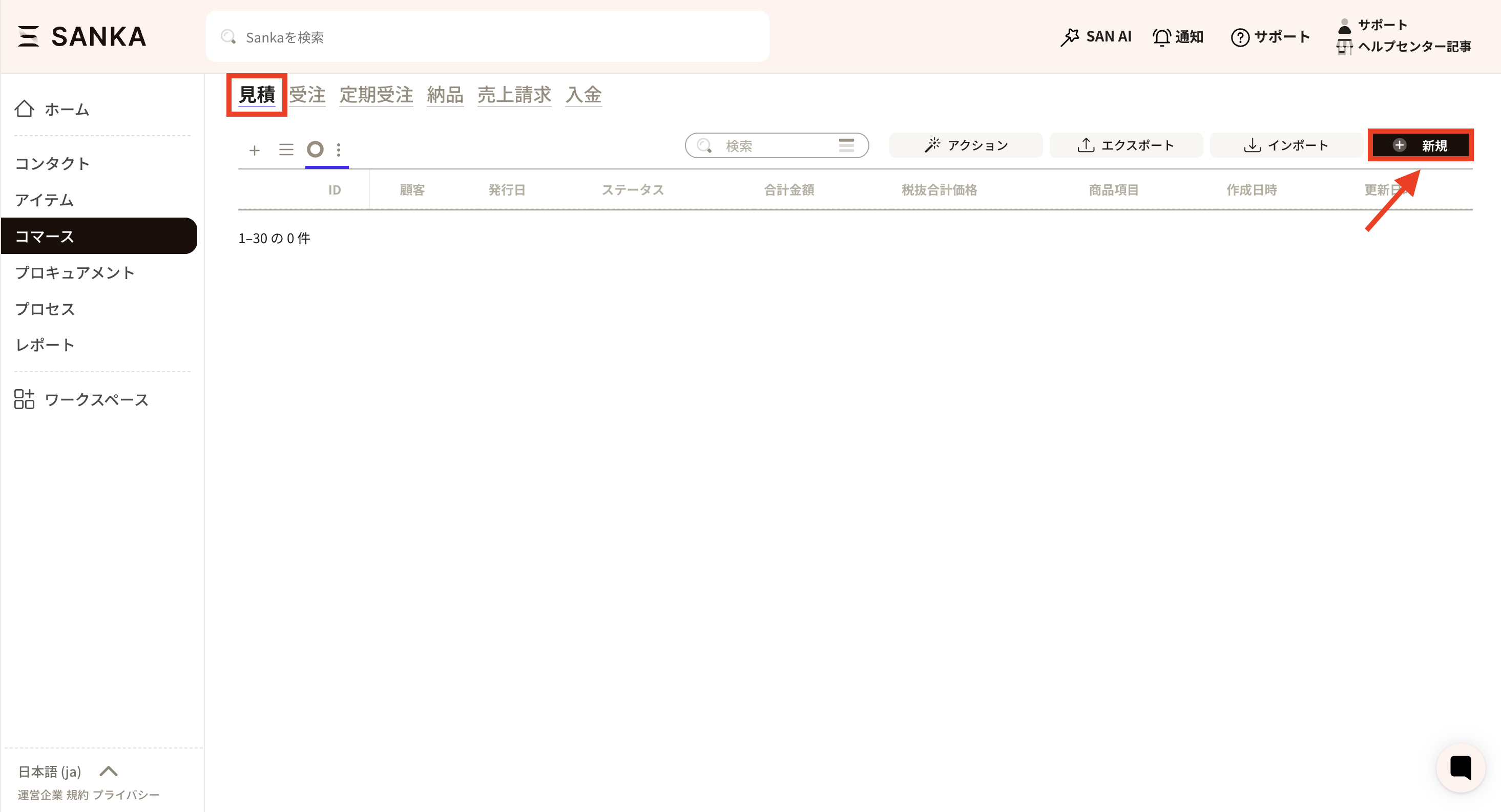 ② The “Create quotation record” screen will be displayed, so enter the necessary information.
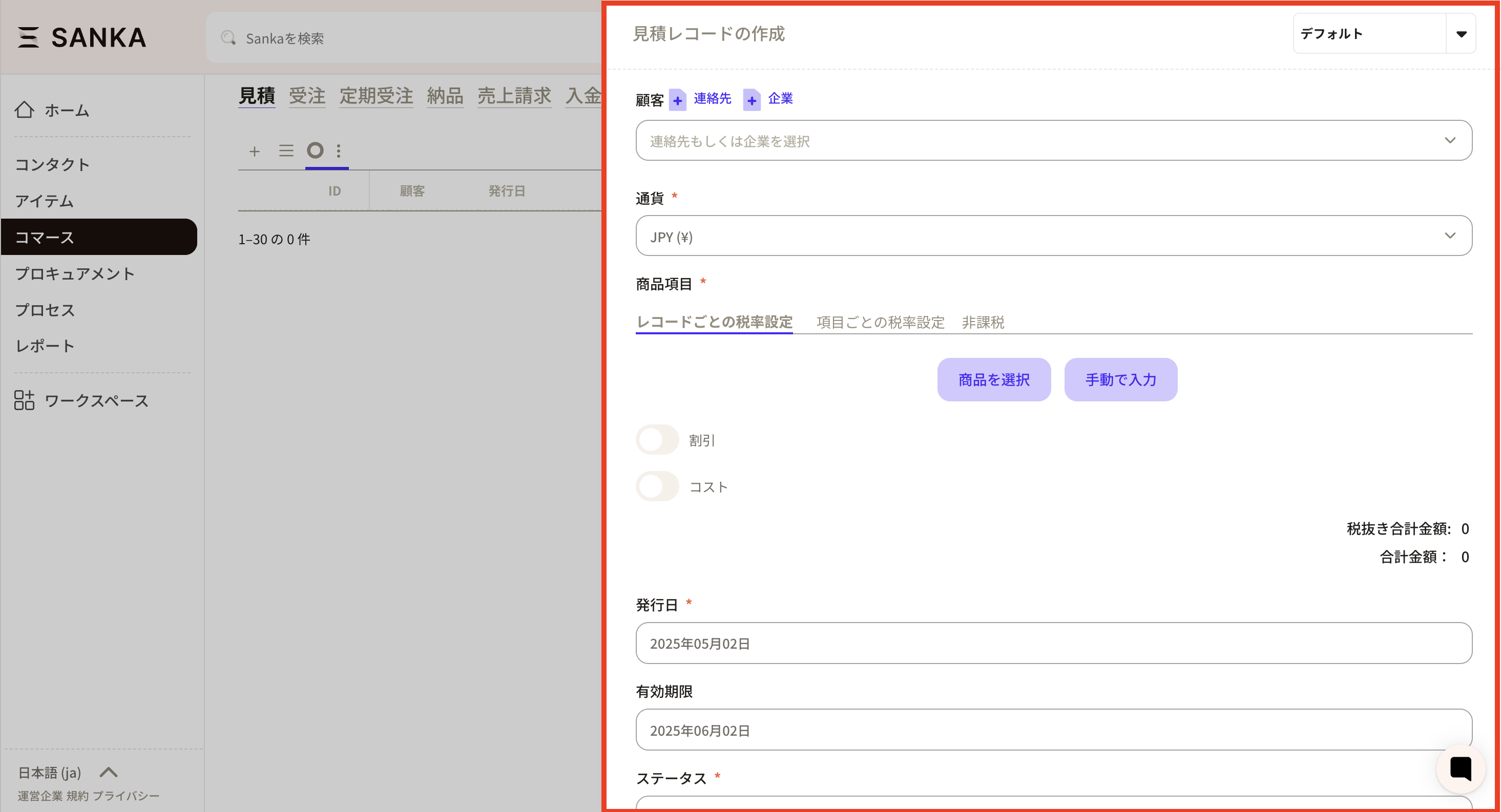 ③ First, let’s register from “Customer Information”. Click “Customer Information” to display registered business partners.
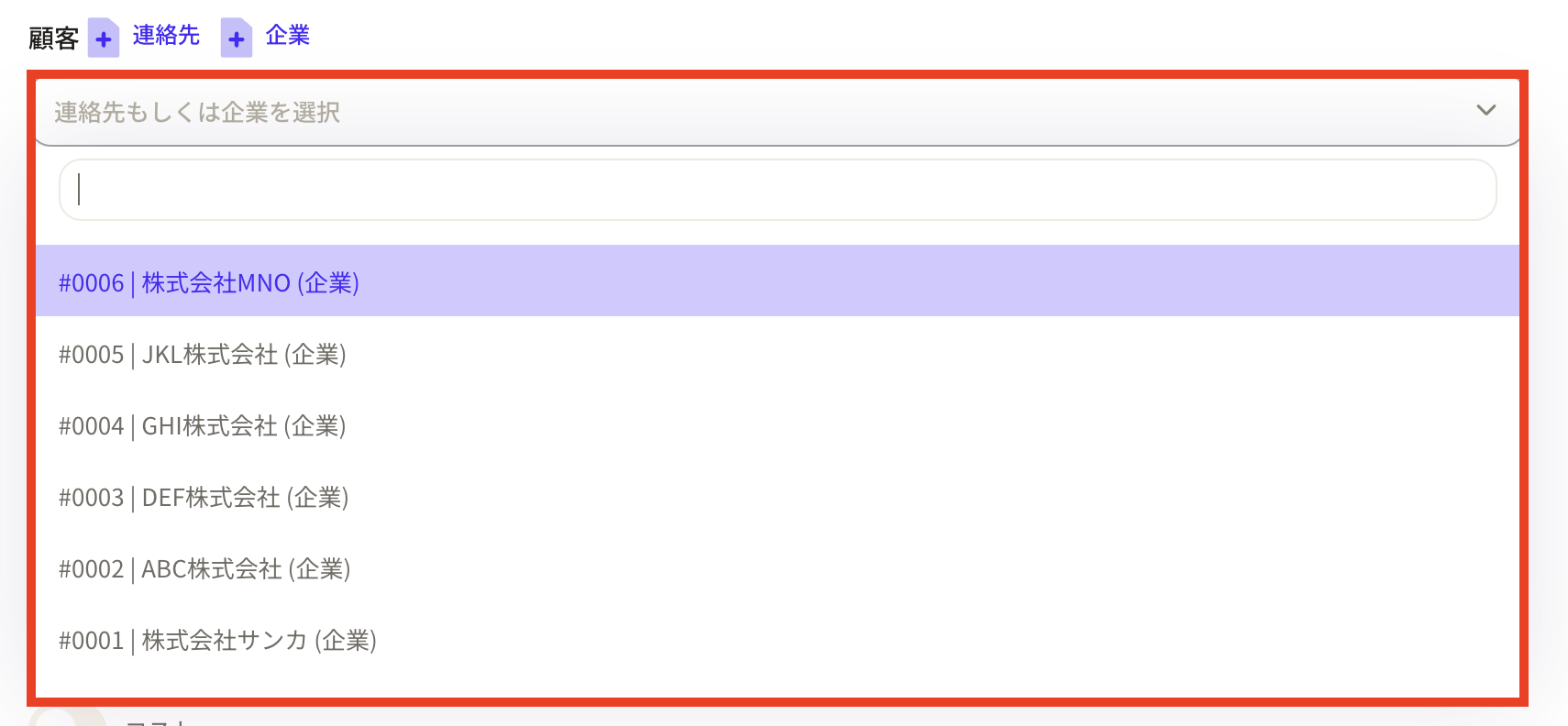 *If you do not have business partner information, you can add it directly from the “+Contact” and “+Company” buttons. The information entered here will be registered as a record in each object.
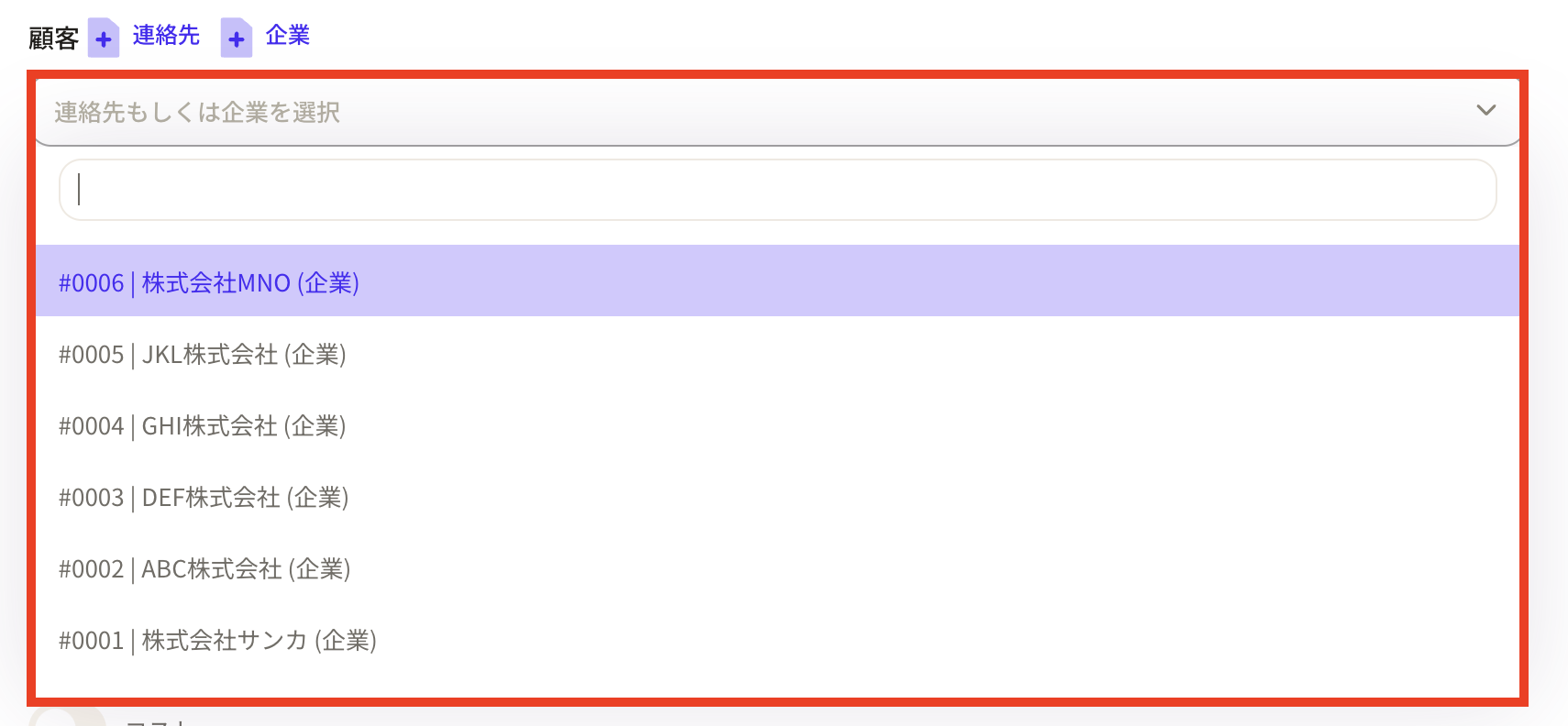 ④Next, select “Currency”.
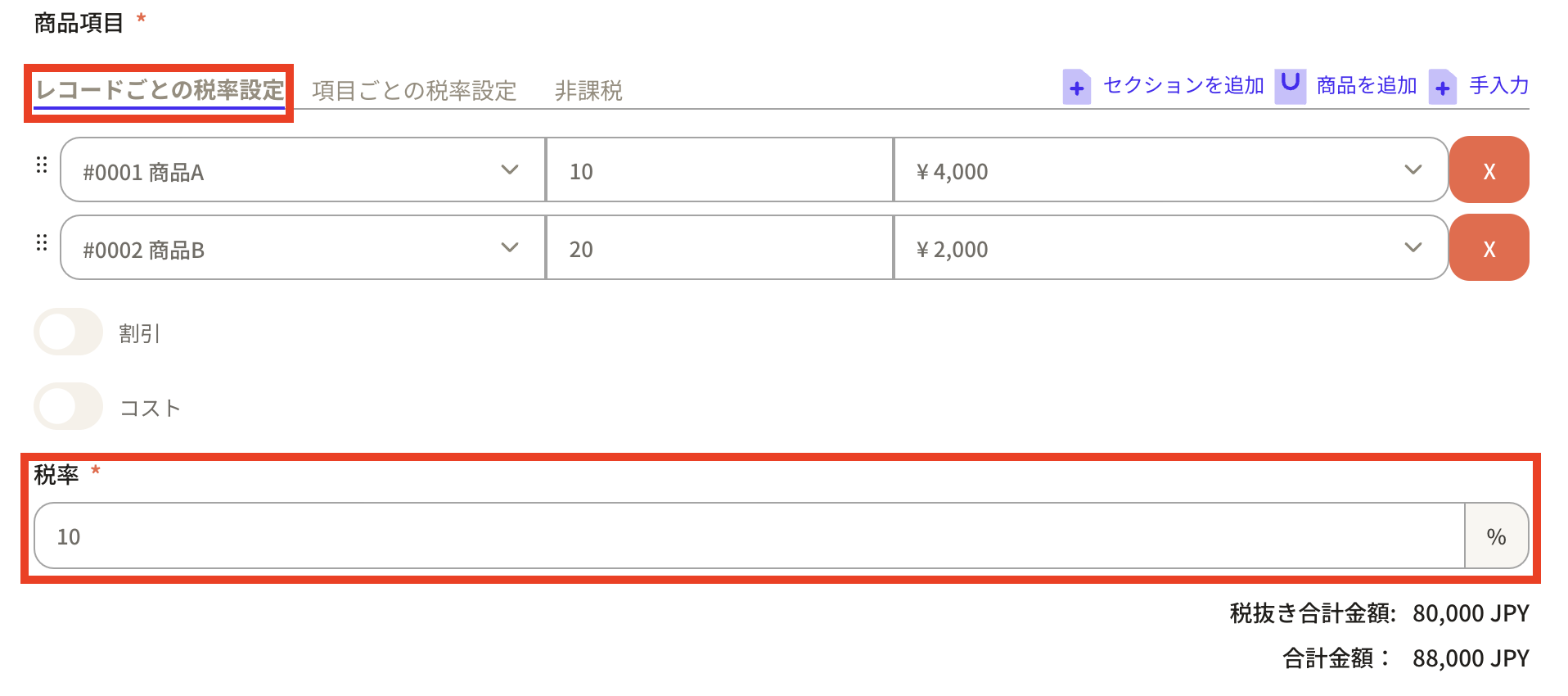
 ⑤Next, set the product items for which you want to quote. Before registering product information, first set the tax rate.
Tax rates can be set in three ways:
⑤Next, set the product items for which you want to quote. Before registering product information, first set the tax rate.
Tax rates can be set in three ways:
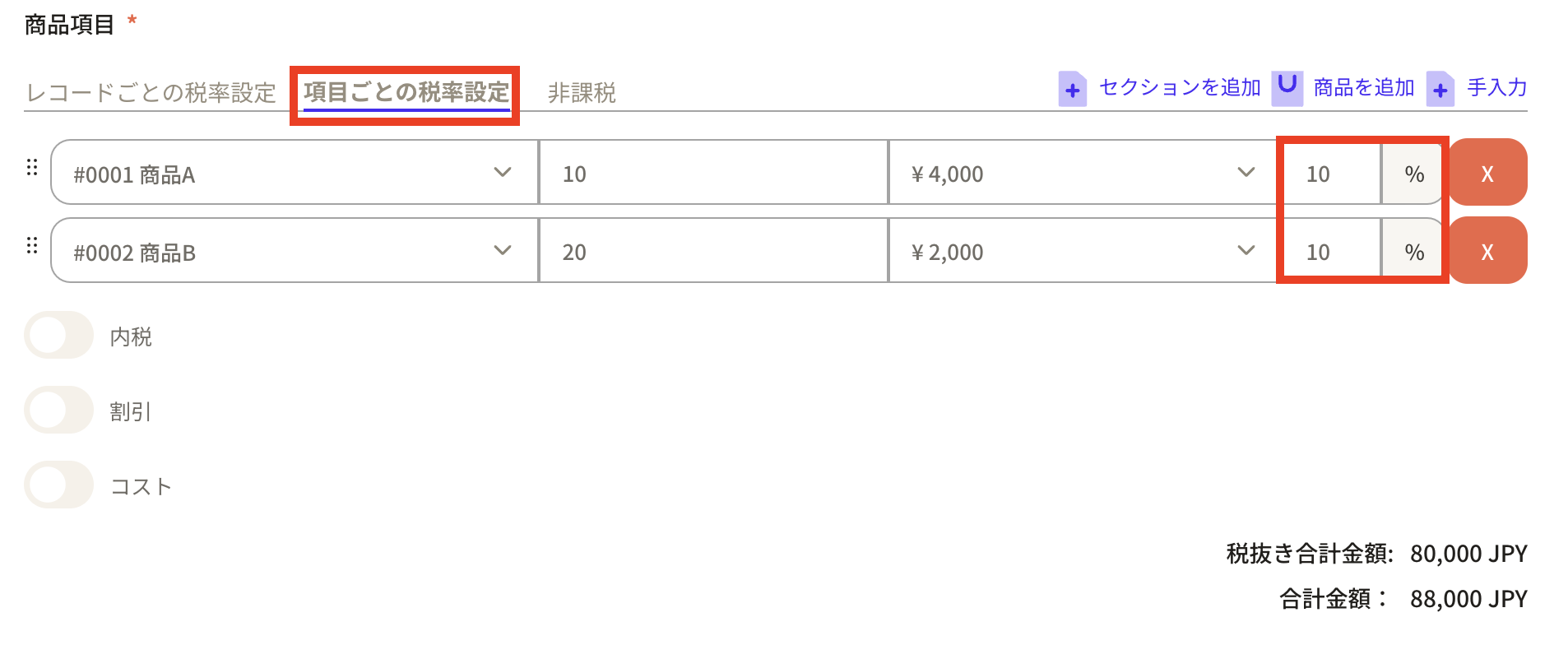
- Tax rate setting for each record: The same tax rate is set for all product items in the quotation. -Setting tax rates for each item: You can set different tax rates for each product.
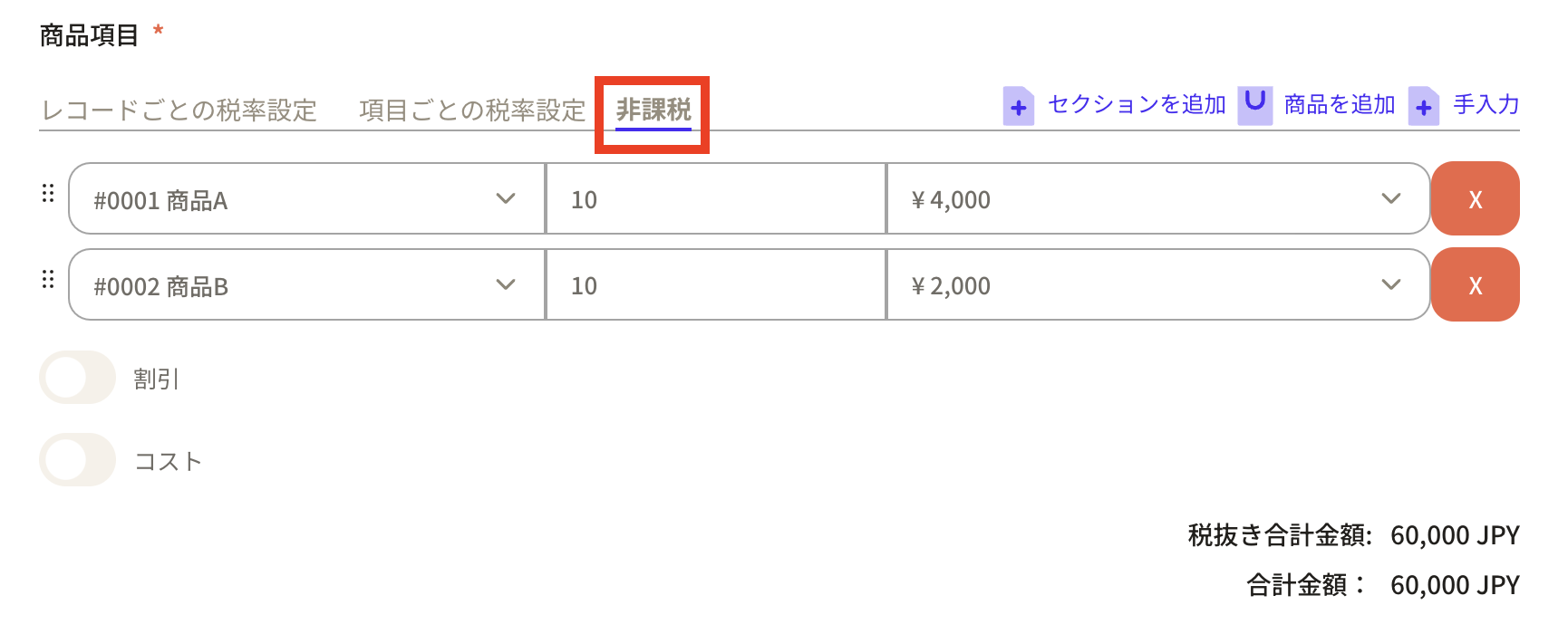
- Tax-free: No tax rate is set and it is not applied to the estimate.
 Example 2: Setting tax rate for each item
It is also possible to include tax.
Example 2: Setting tax rate for each item
It is also possible to include tax.
 Example 3: Tax exempt
 ⑥Continue to register the product information. There are two input methods:
- “Select product”: This is a method to select the corresponding product from the product records registered in Sanka.
- “Manual input”: This is a method of manually inputting product information.
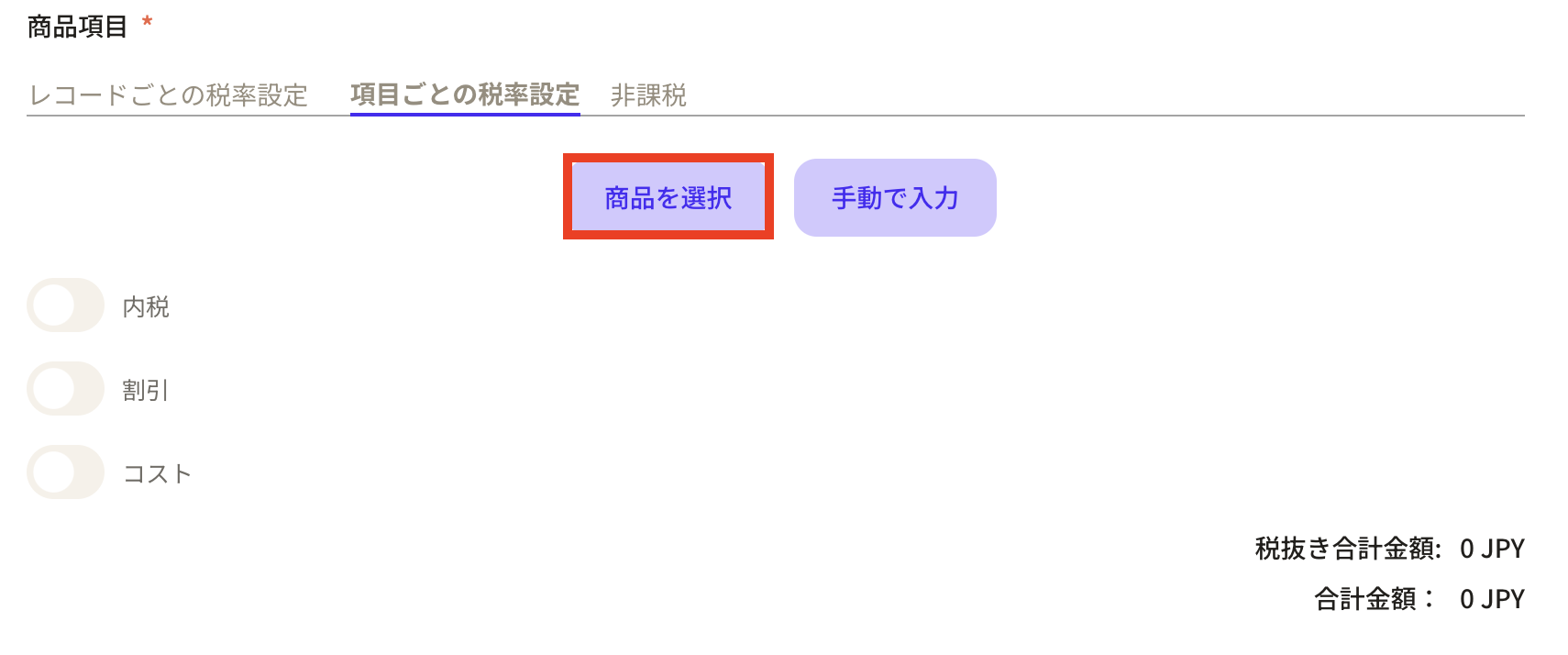 ⑦Fields for entering the item, quantity, and unit price will be displayed. Click the item tab to display the products registered in the product object.
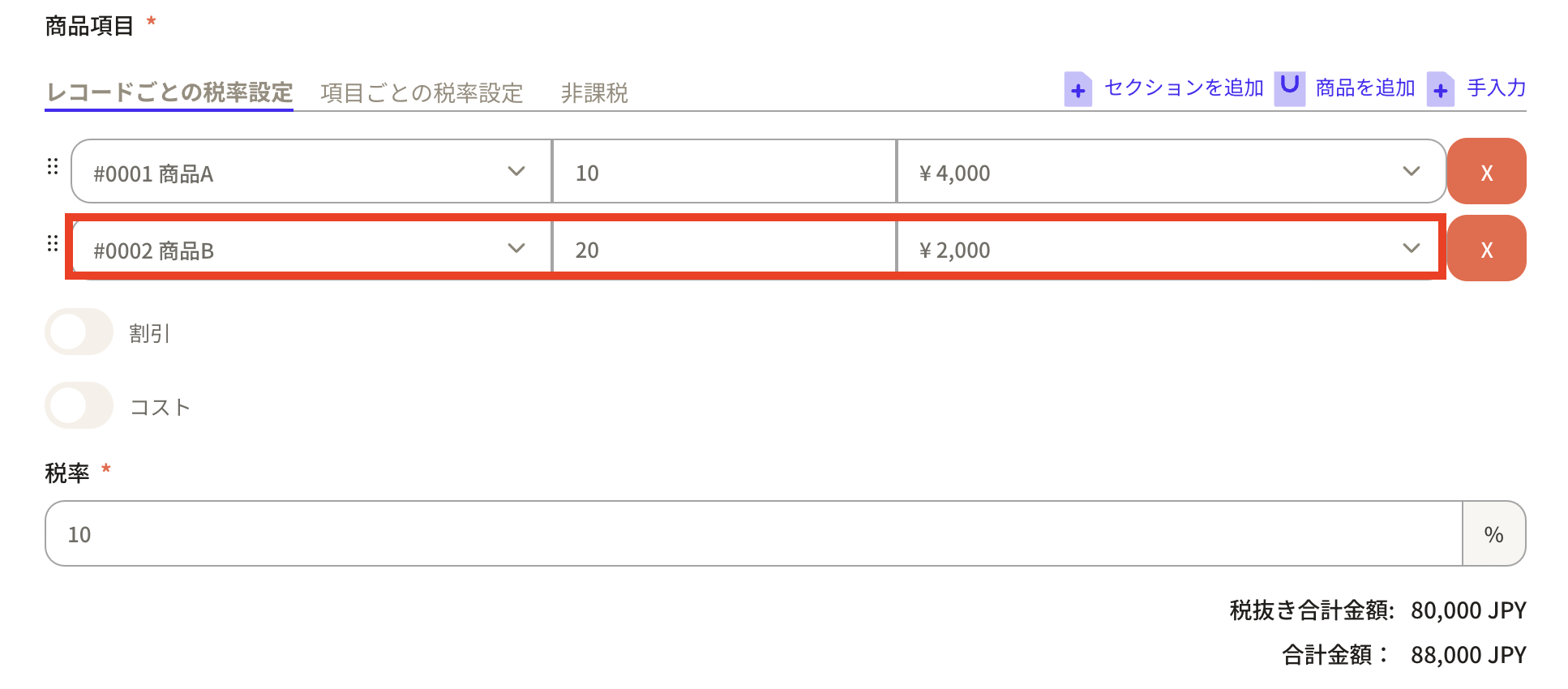
This time, as an example, let’s create an estimate for “Product A: 10 pieces” and “Product B: 20 pieces.”
First, select product A in the field and enter 10 as the quantity.
Please note that the amount at the time of product record registration will be automatically added to the unit price.
⑦Fields for entering the item, quantity, and unit price will be displayed. Click the item tab to display the products registered in the product object.
This time, as an example, let’s create an estimate for “Product A: 10 pieces” and “Product B: 20 pieces.”
First, select product A in the field and enter 10 as the quantity.
Please note that the amount at the time of product record registration will be automatically added to the unit price.
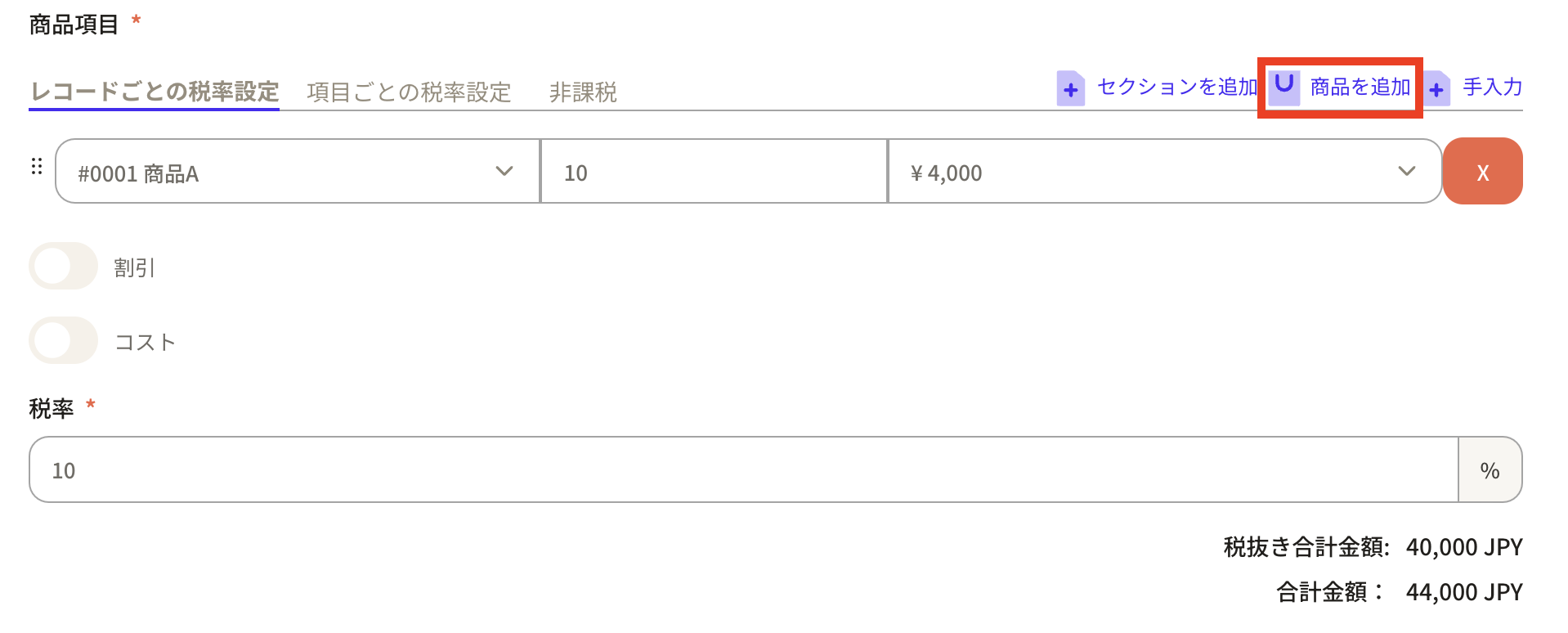
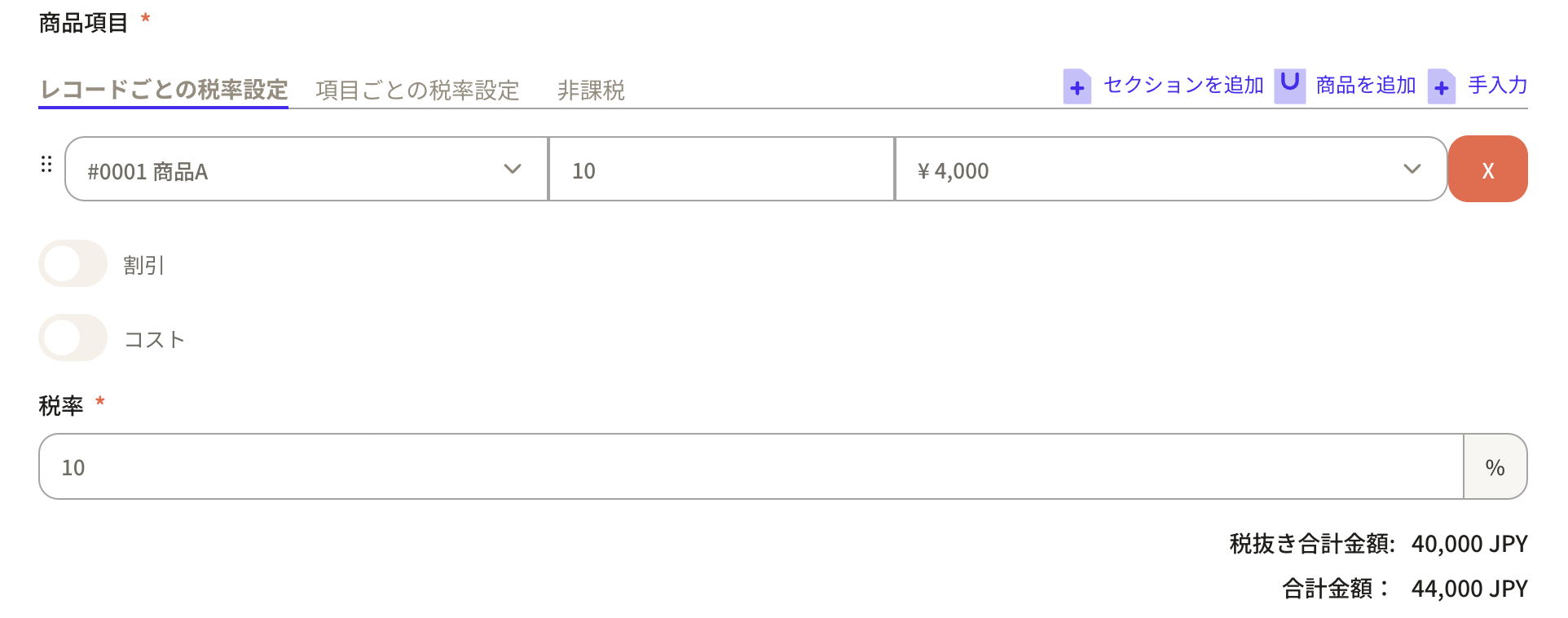 If you would like to increase the number of items listed in the estimate, click “Add item” in the upper right corner and additional blank fields will be displayed.
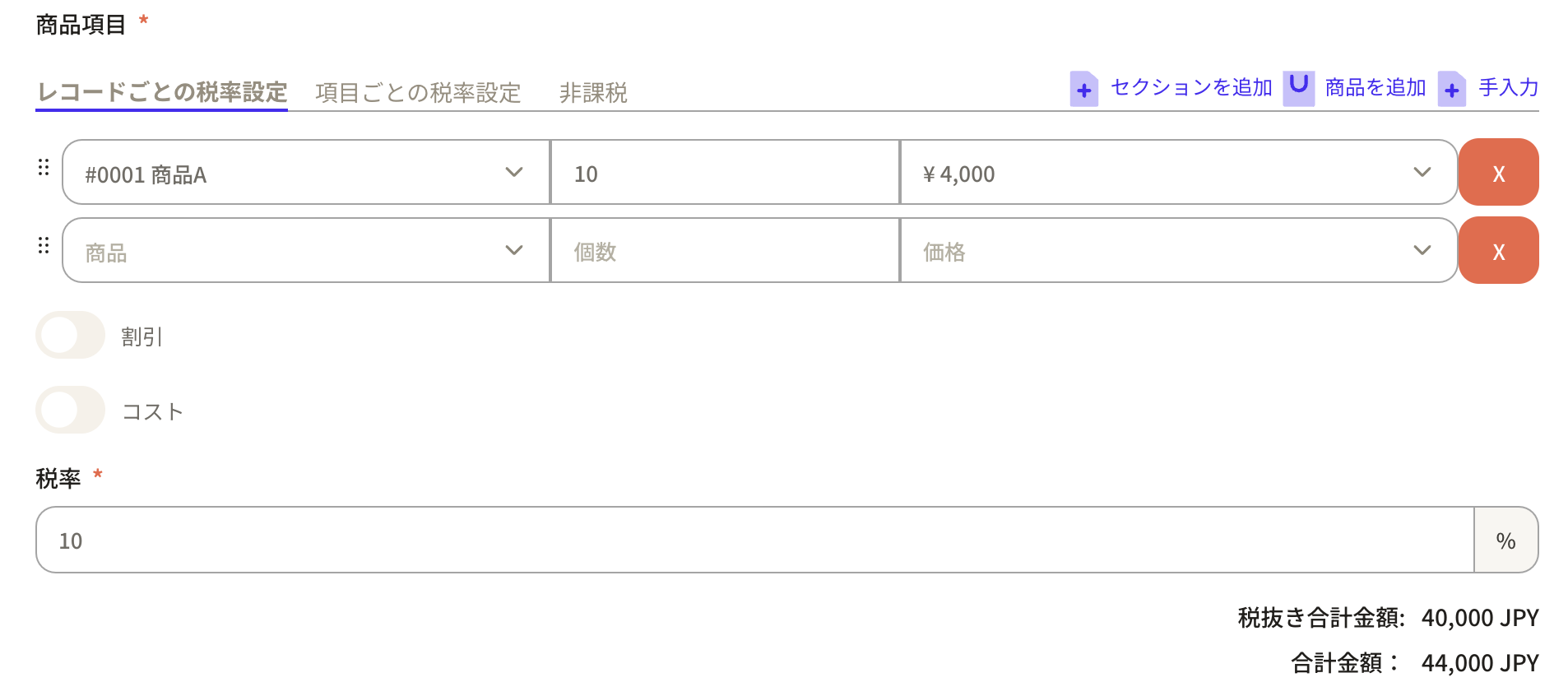 Select product B from the added items and enter the quantity 20. If there is a discount or cost, a frame will be displayed when you check the check button.
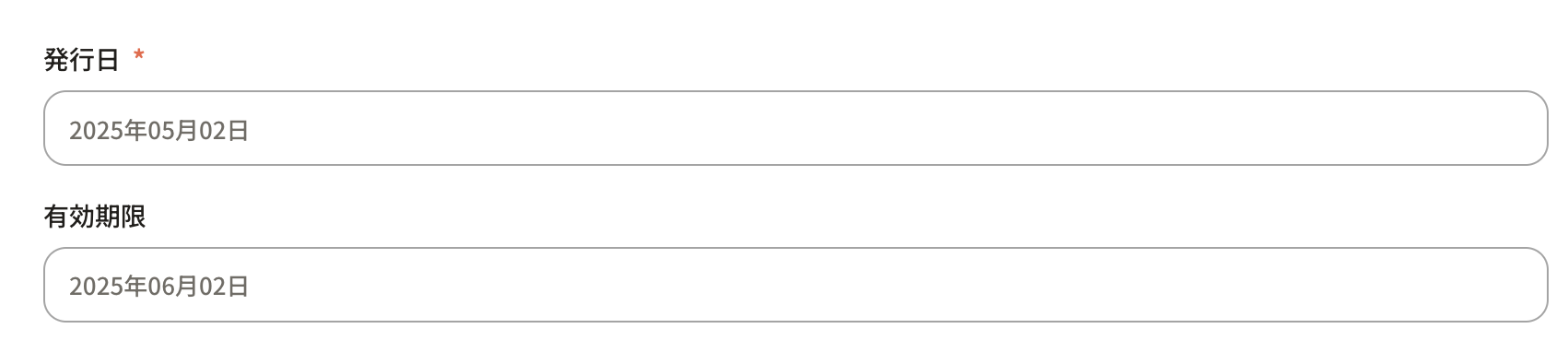
 ⑧Set the “issue date” and “expiration date”. The date is automatically entered, but you can of course change it by clicking on the frame and a calendar will appear.
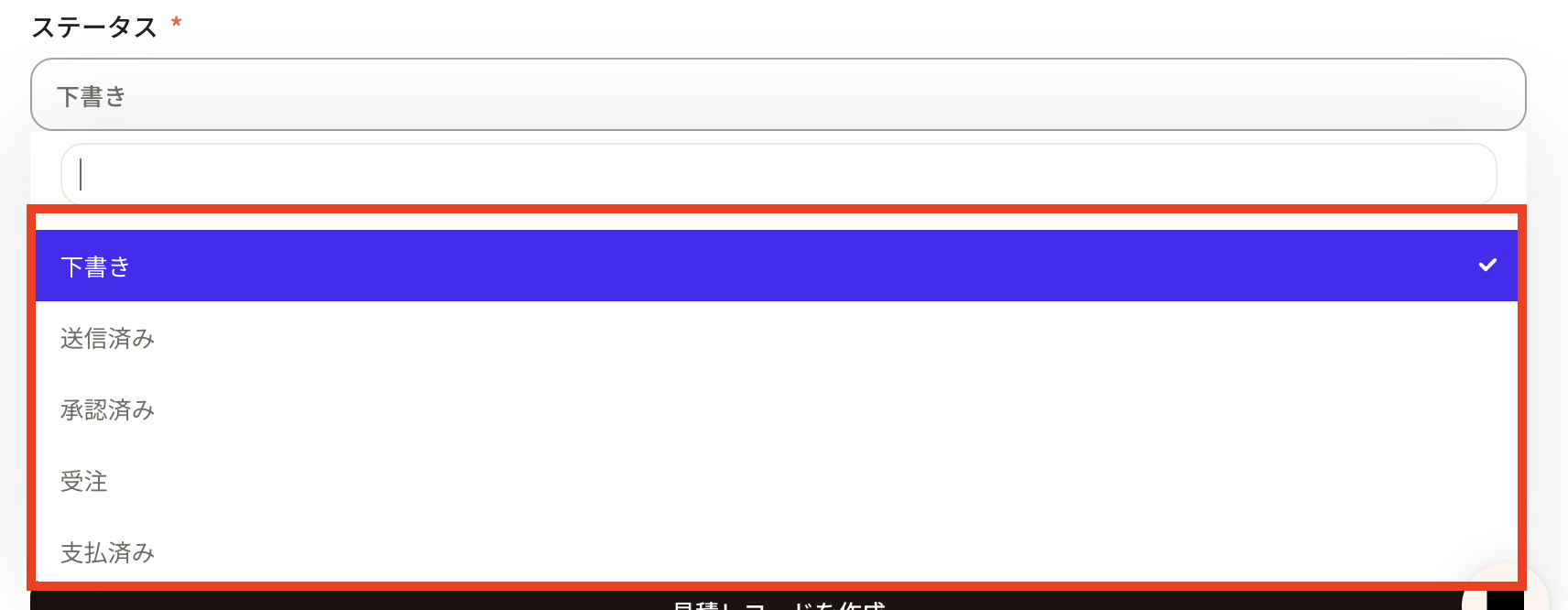
 ⑨ Select the status of the quotation in “Status”.
You can choose from Draft, Sent, Approved, Ordered, and Paid. Status can be changed from property settings.
⑨ Select the status of the quotation in “Status”.
You can choose from Draft, Sent, Approved, Ordered, and Paid. Status can be changed from property settings.
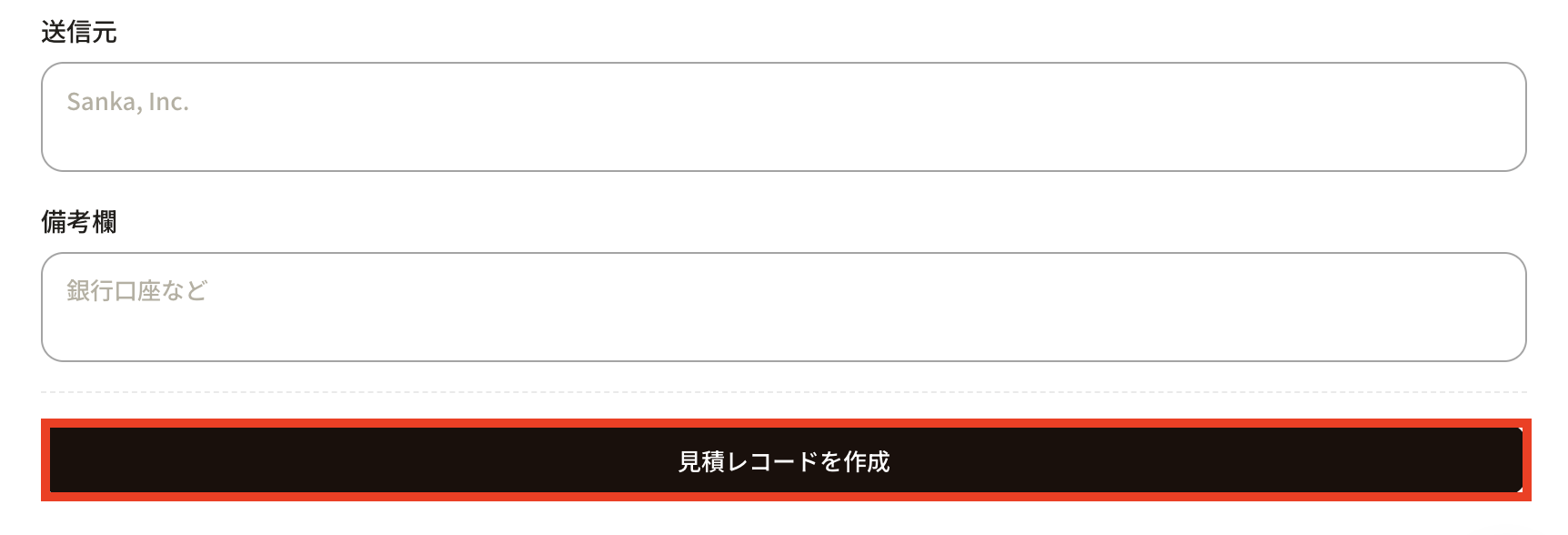
 ⑩ After entering all the necessary information such as “Sender” and “Remarks”, click “Create quotation record”.
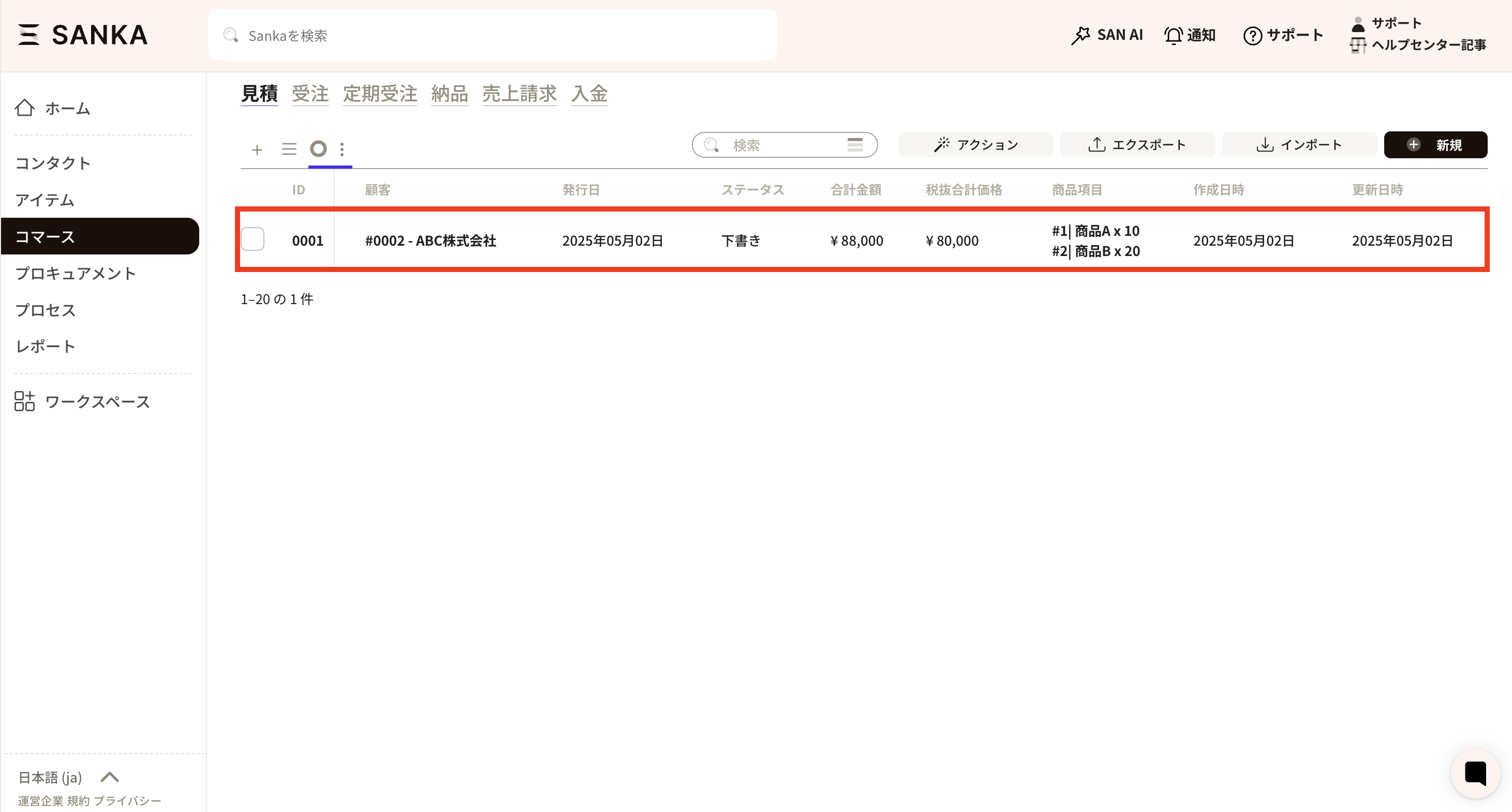
 ⑪The registered contents will be displayed on the record list screen of the “Estimate” object.
The “total amount” and “total price excluding tax” will be automatically calculated.
⑪The registered contents will be displayed on the record list screen of the “Estimate” object.
The “total amount” and “total price excluding tax” will be automatically calculated.
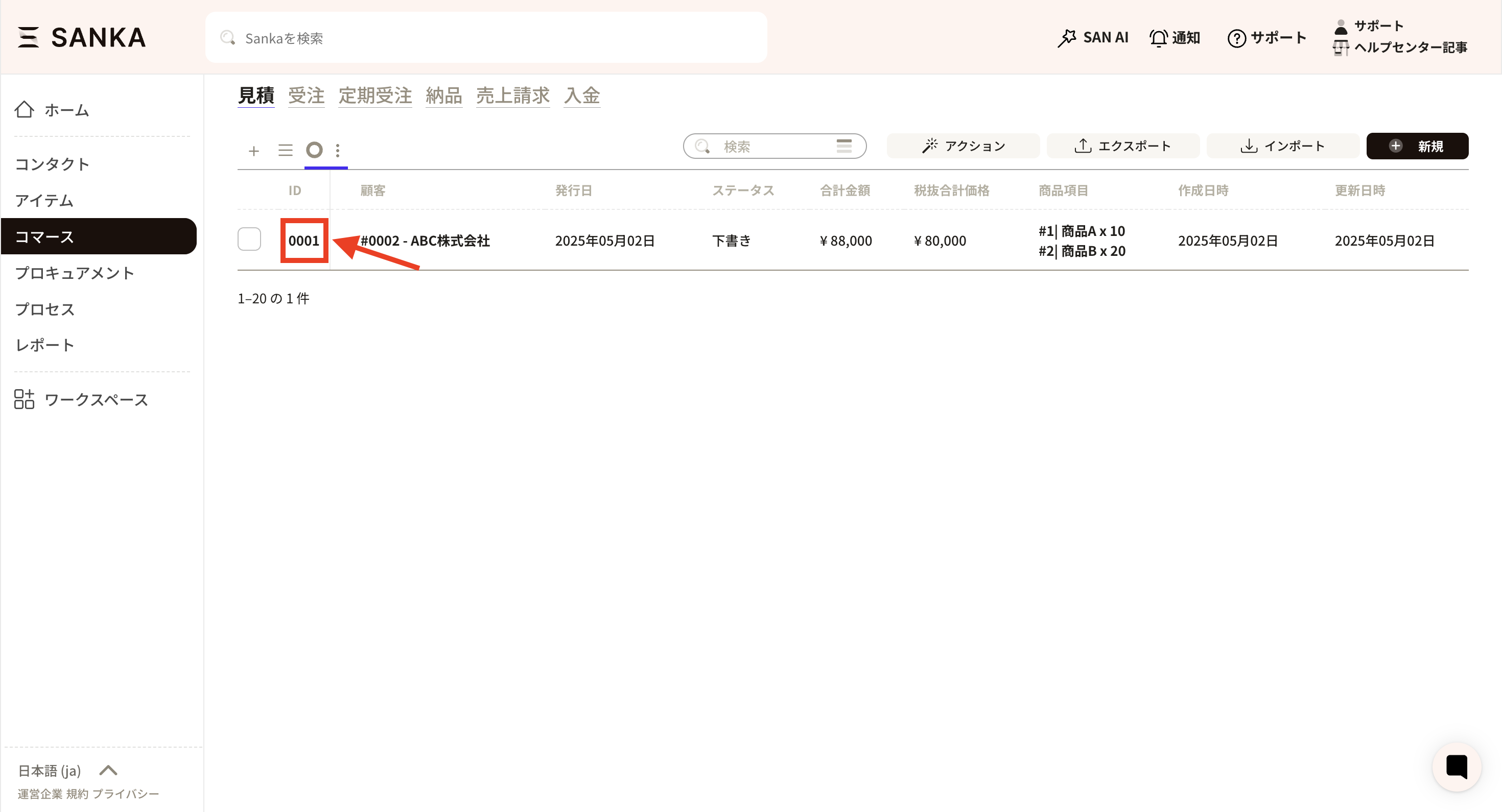
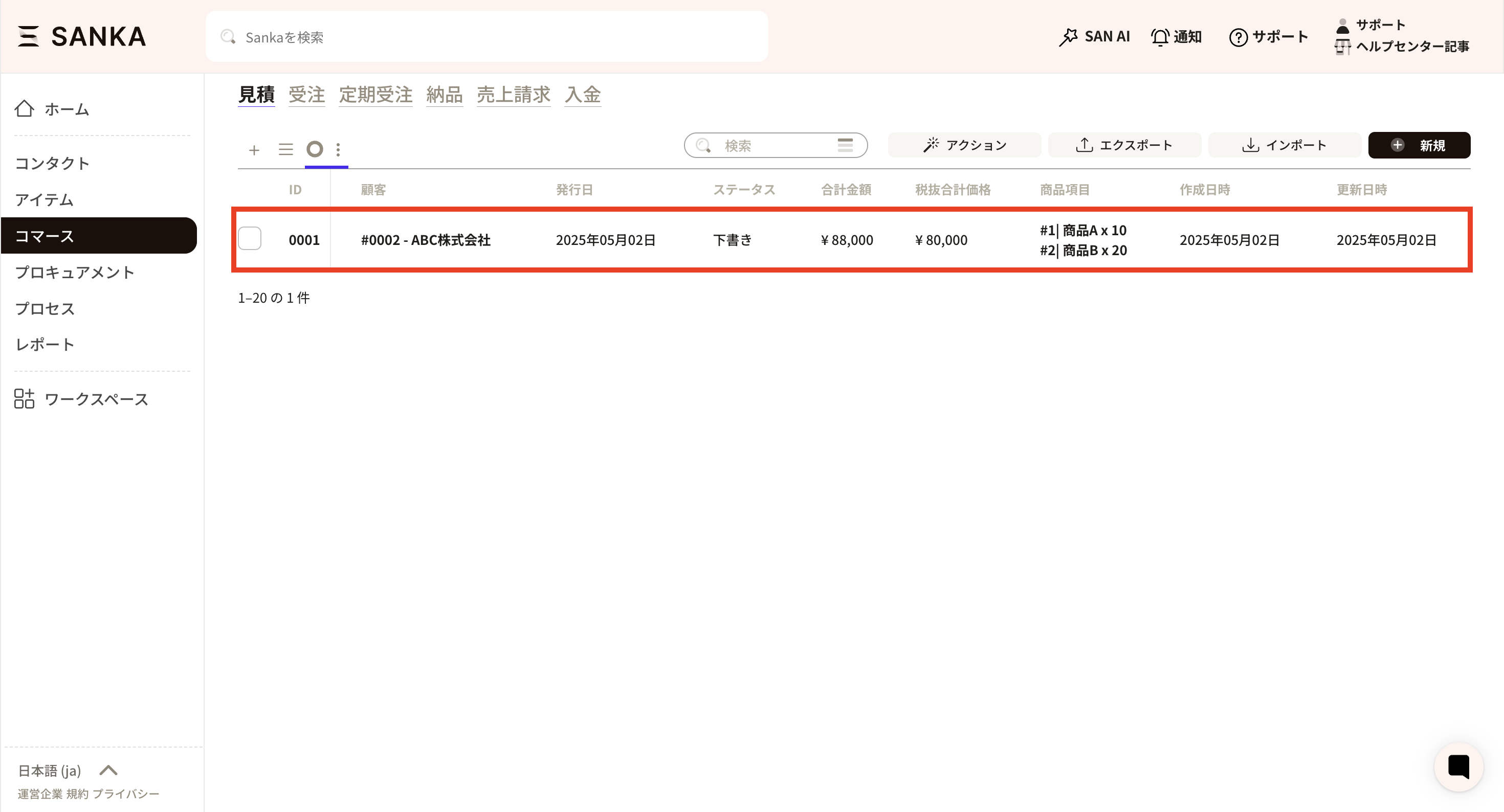 ⑫Click on the corresponding ID from the record list to view the registered record information.
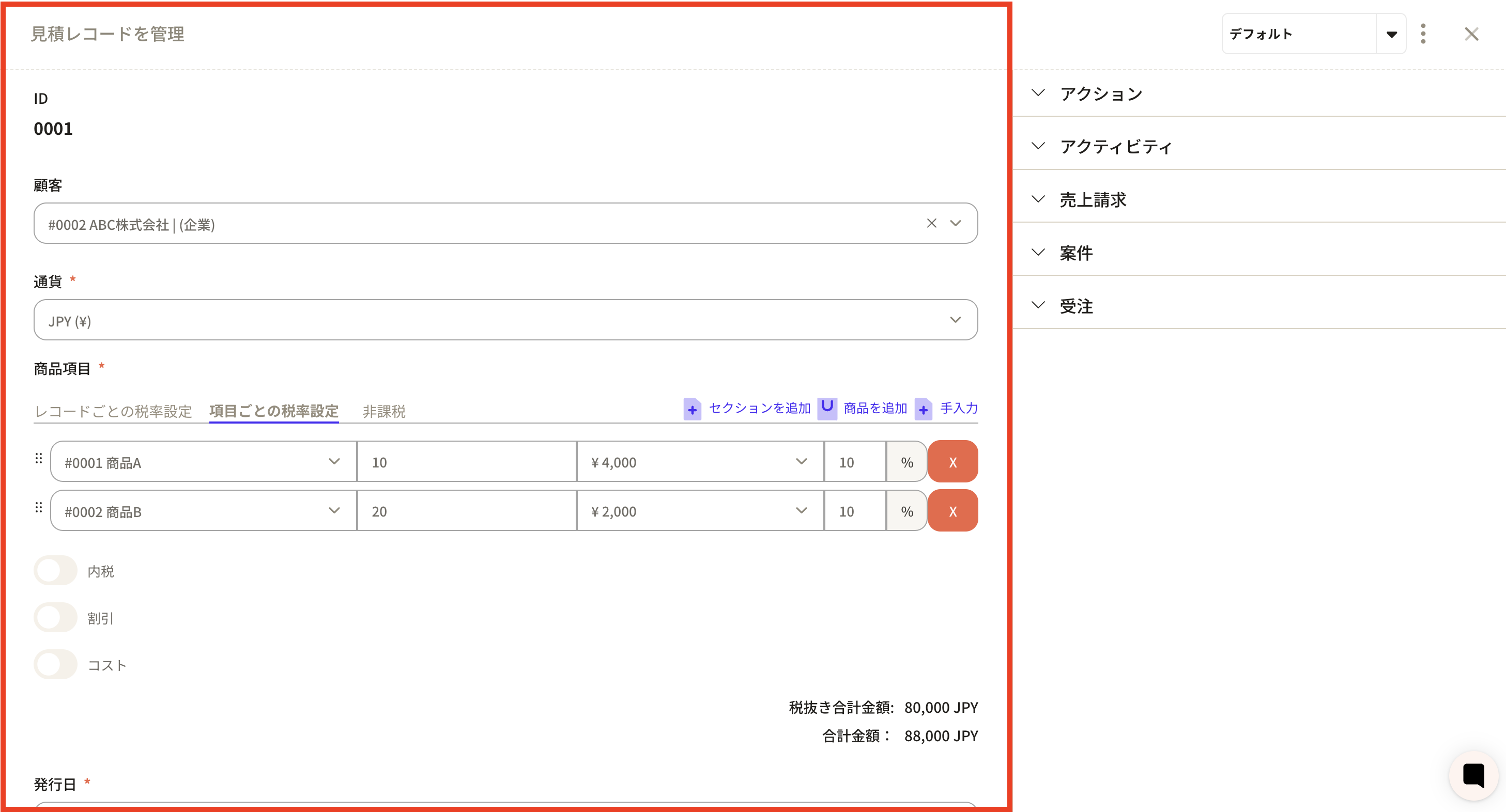
 ⑬The “Manage quotation records” screen will be displayed.
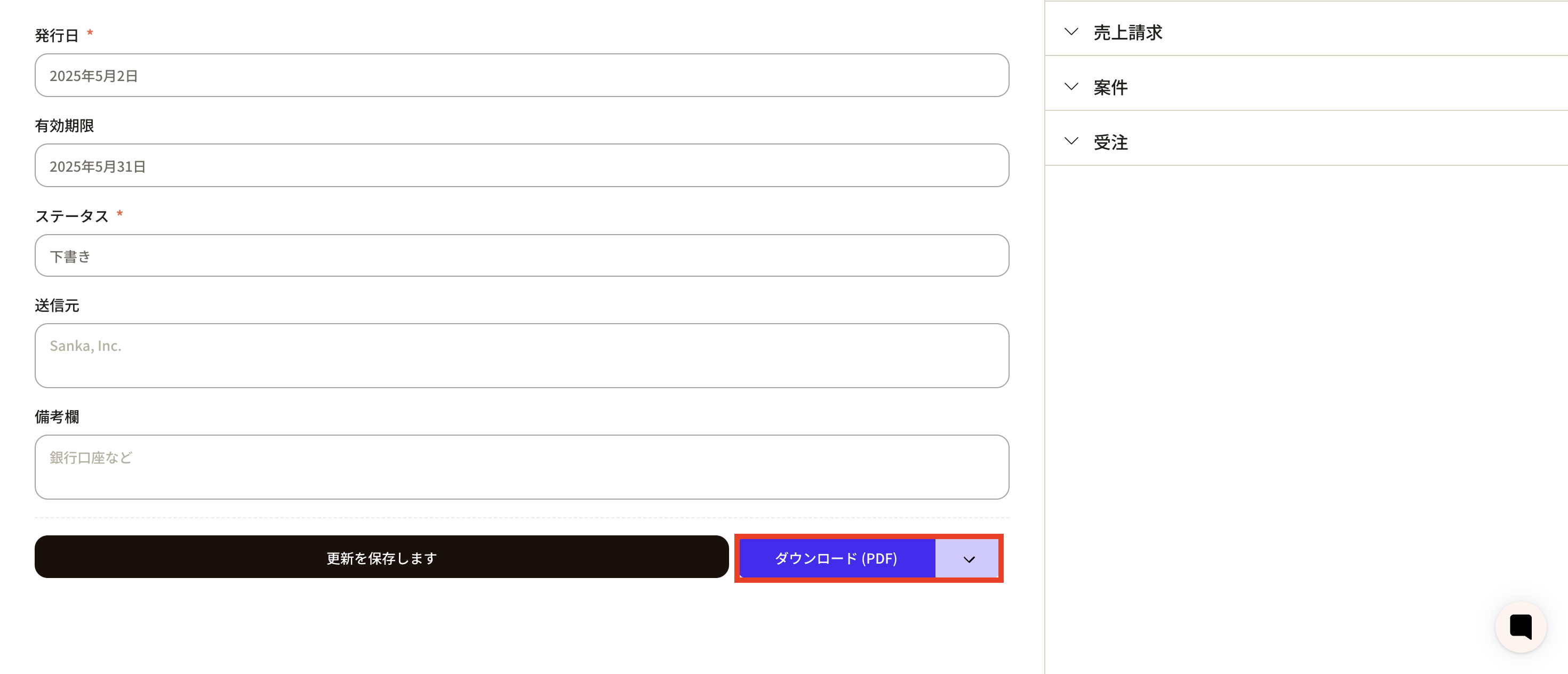
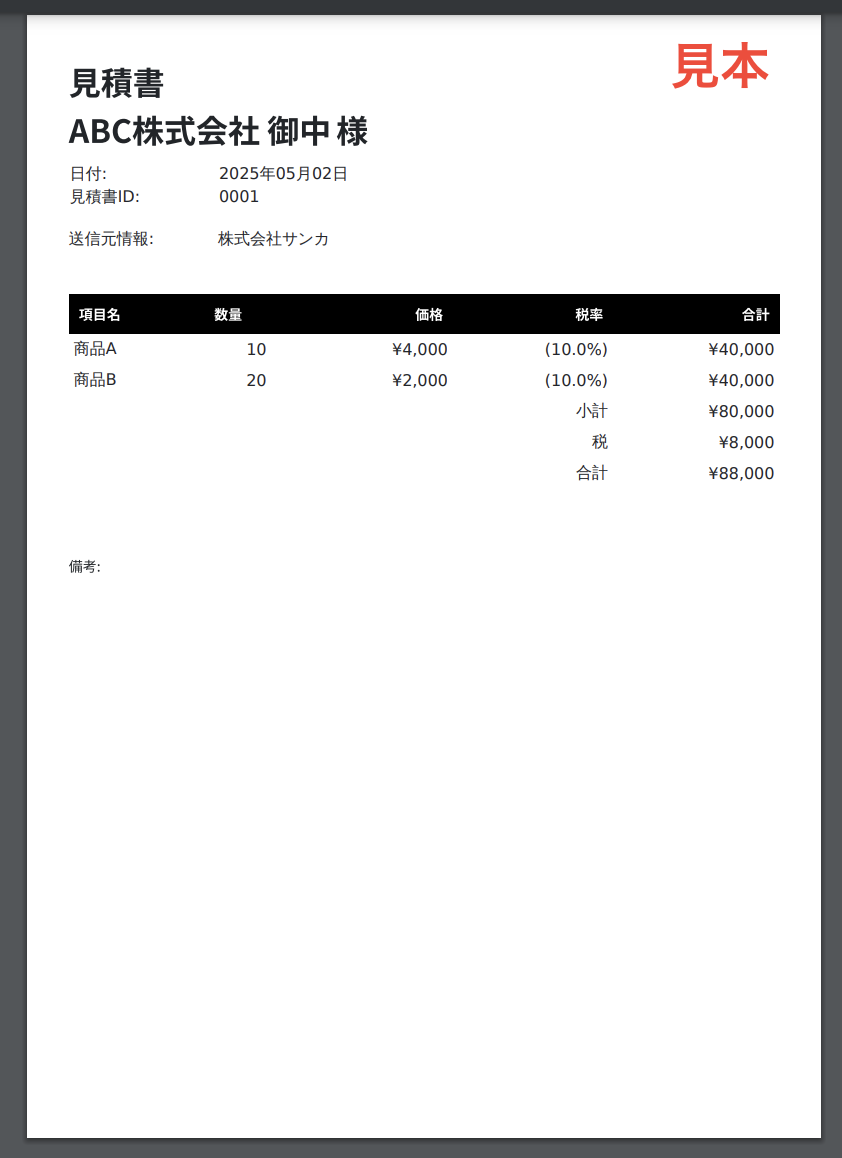
 ⑭Click the “Download (PDF)” button at the bottom of the screen to download the estimate.
 ⑮ Click here for a sample quote. You can also change the form template. Click here to see how to change the form template.
How to modify registered record information
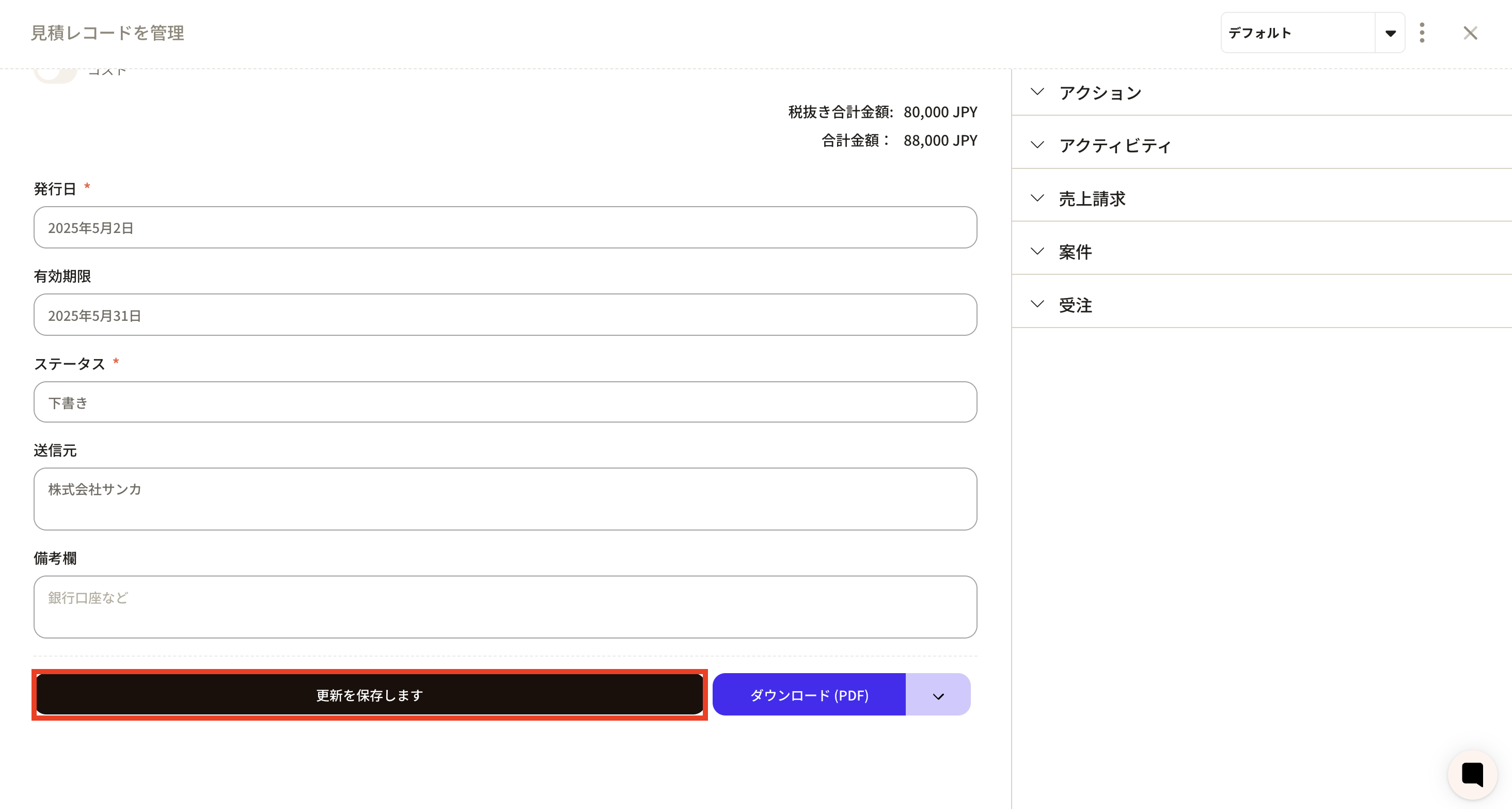
① Click the “ID” of the corresponding record from the record list screen of the “Estimate” object.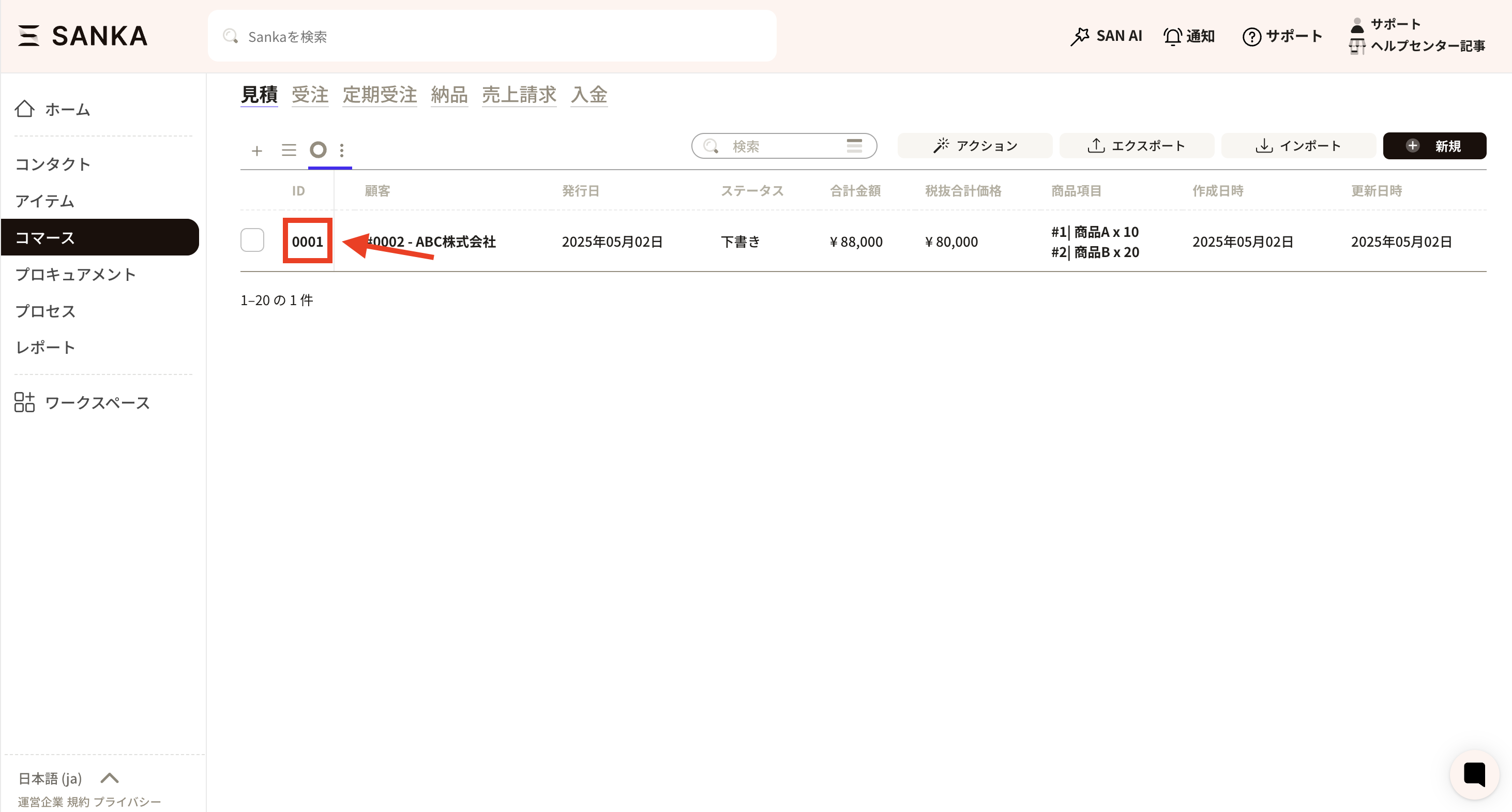 ② The “Manage quotation records” screen will be displayed, so modify the information as necessary.
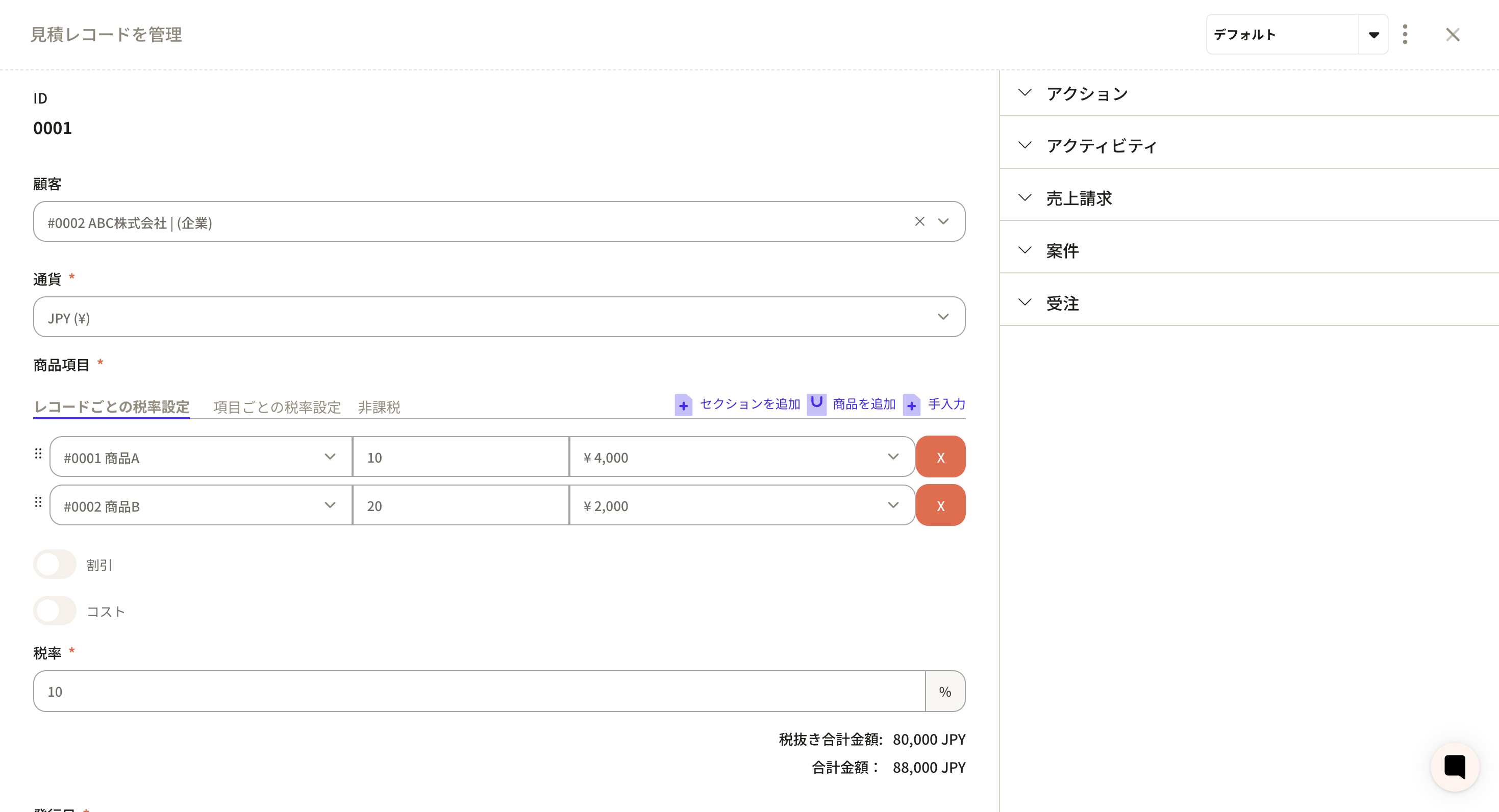 ③Finally, be sure to click the “Update” button to update.
How to archive quote record information
By using the archive function, you can hide registered estimate information from the table. ① Click the checkbox of the record you want to archive and select the “Archive” button.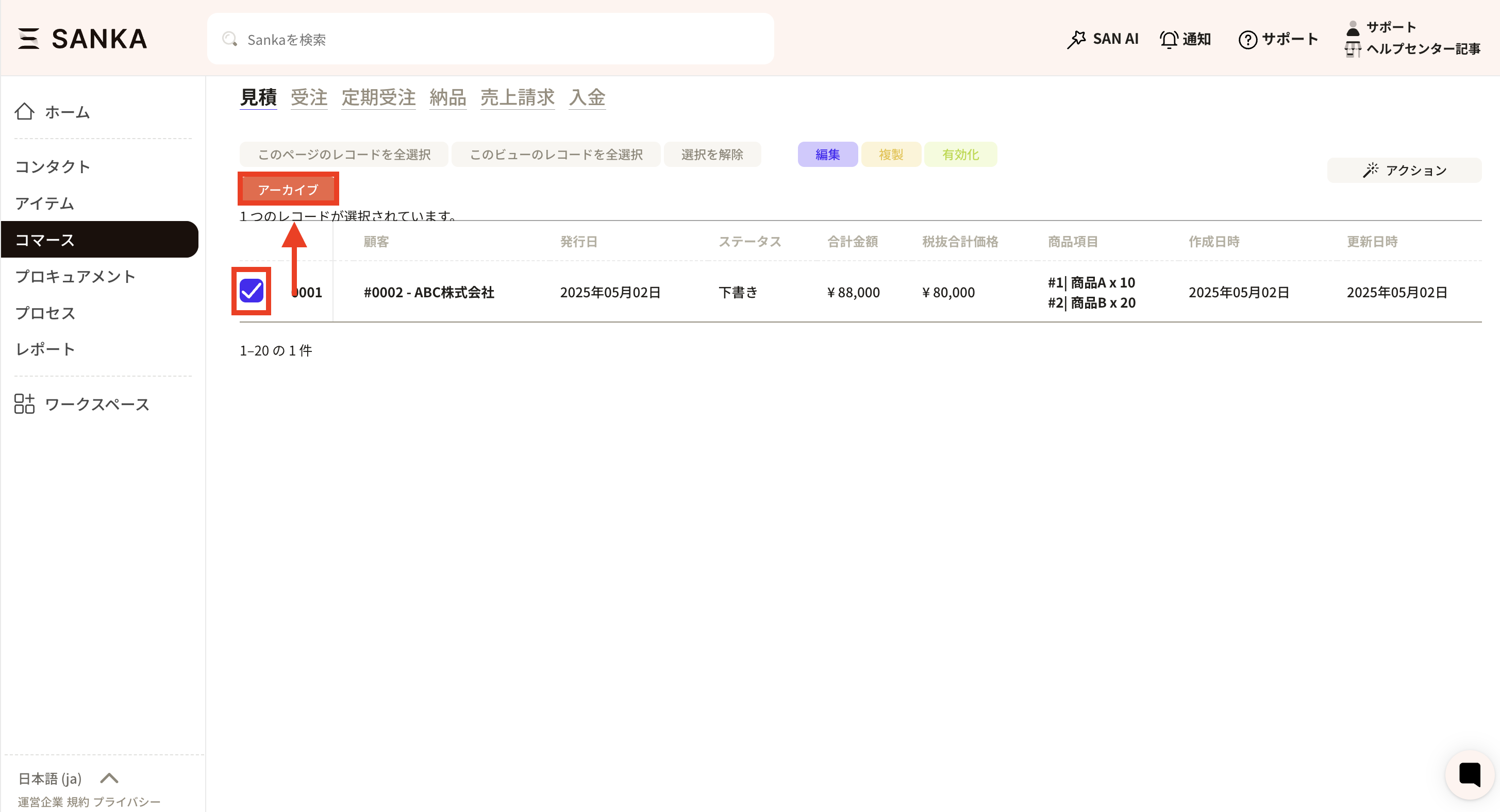 ② Archived records will no longer be displayed.
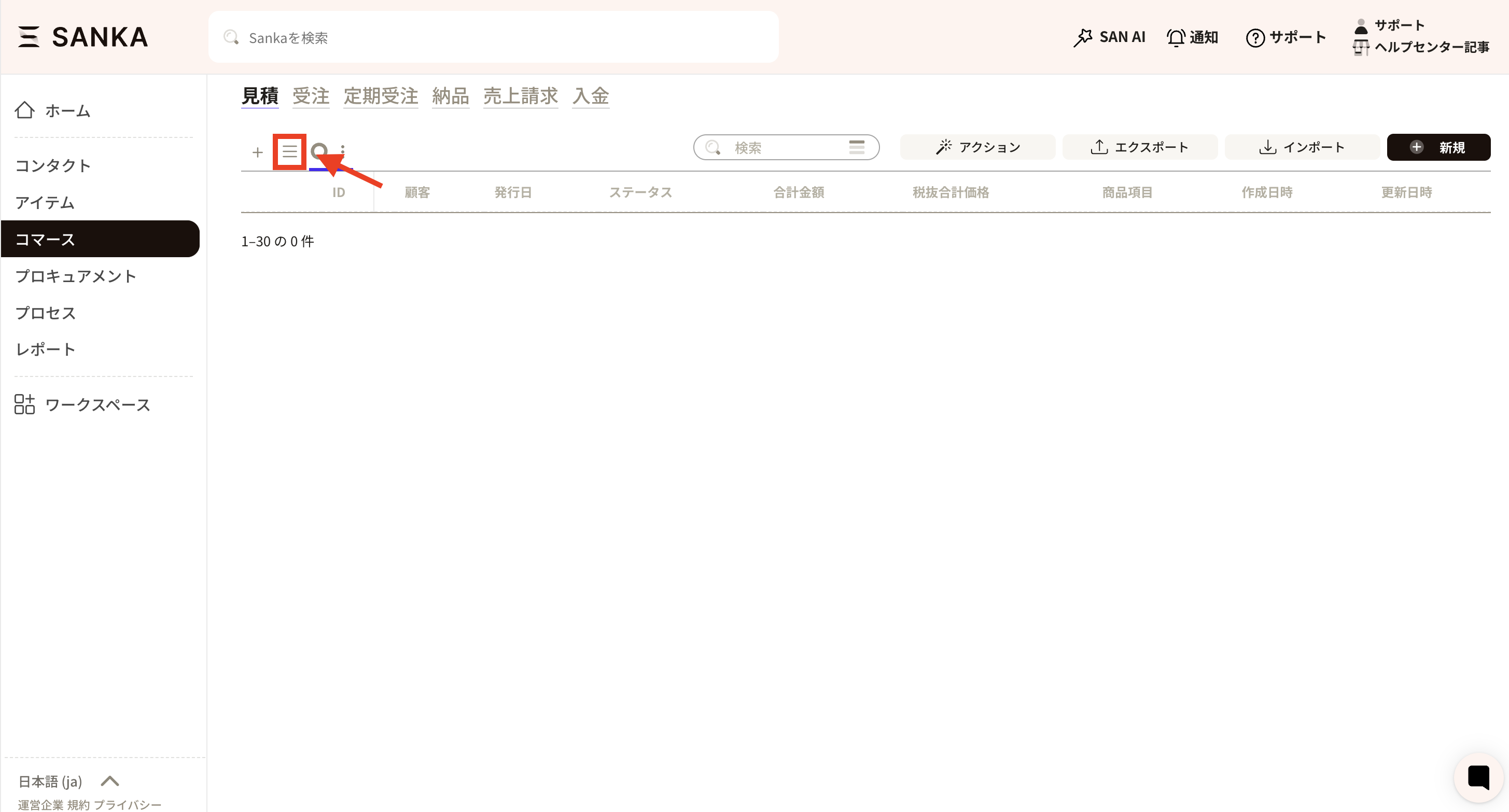
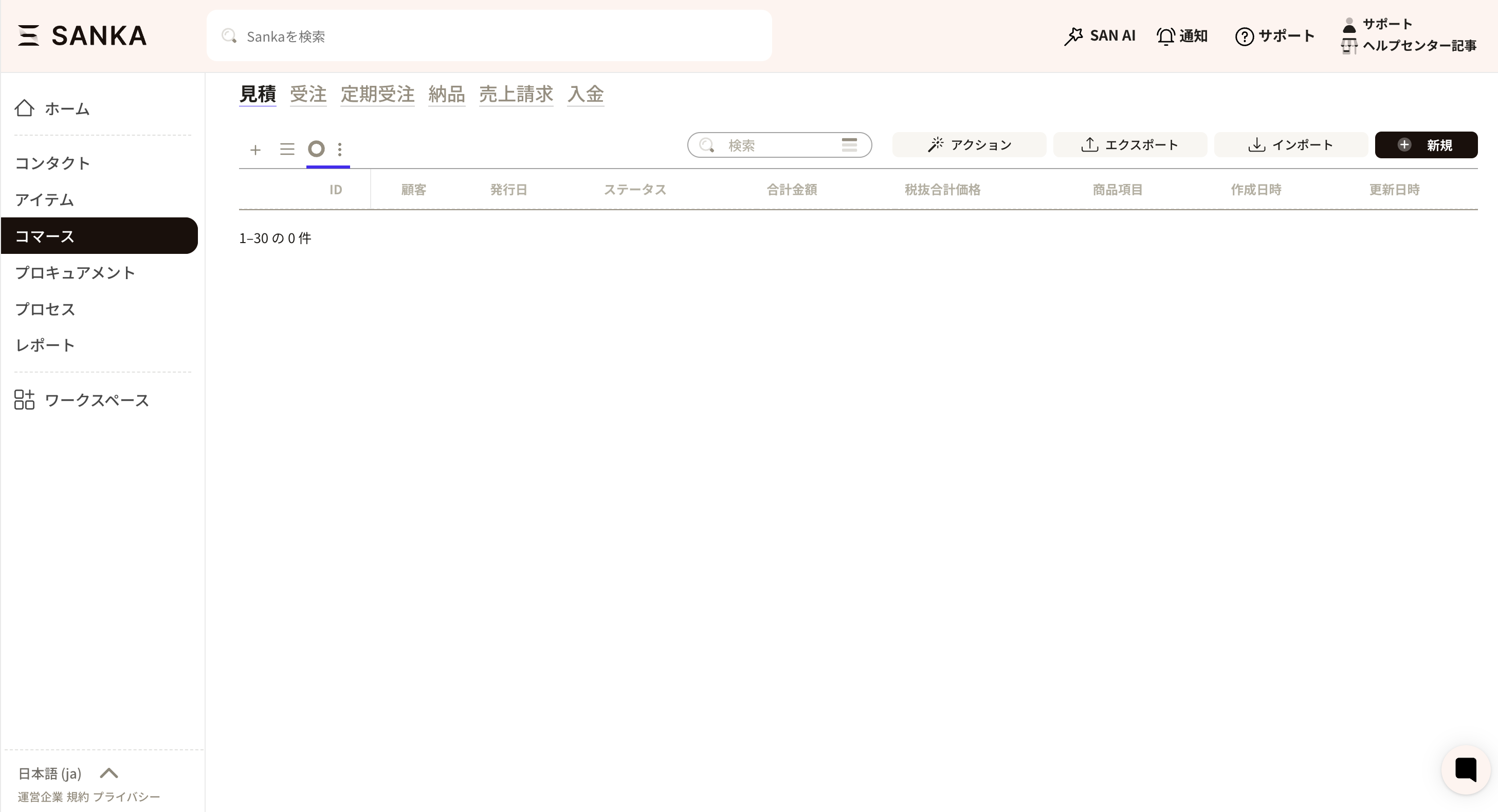 ③ If you want to cancel the archive, click the three-line mark on the record screen.
 ④ Select the archive.
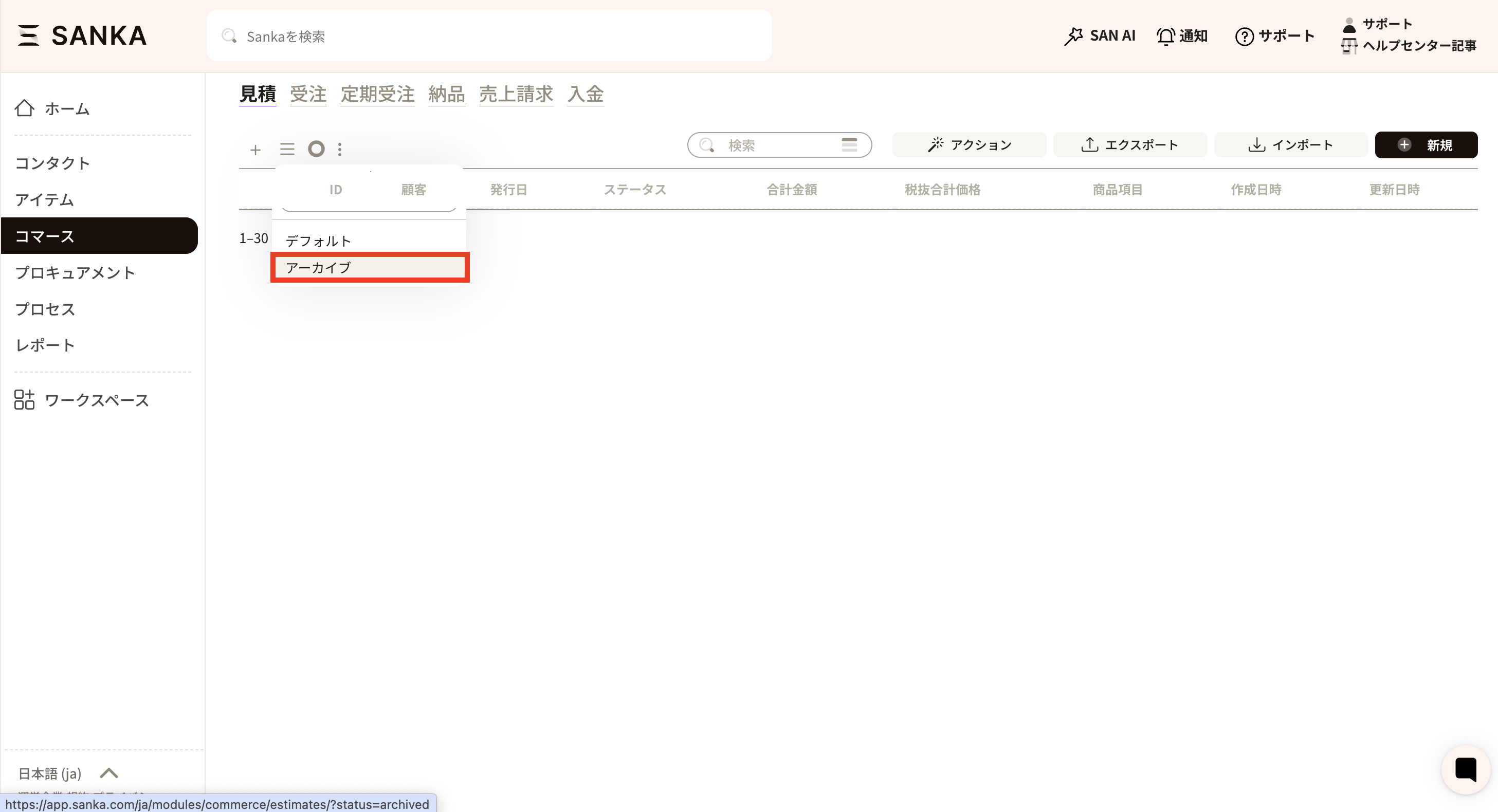 ⑤ Select Archive to display a list of records archived so far. Click the check button for the record you want to unarchive, then press the Activate button.
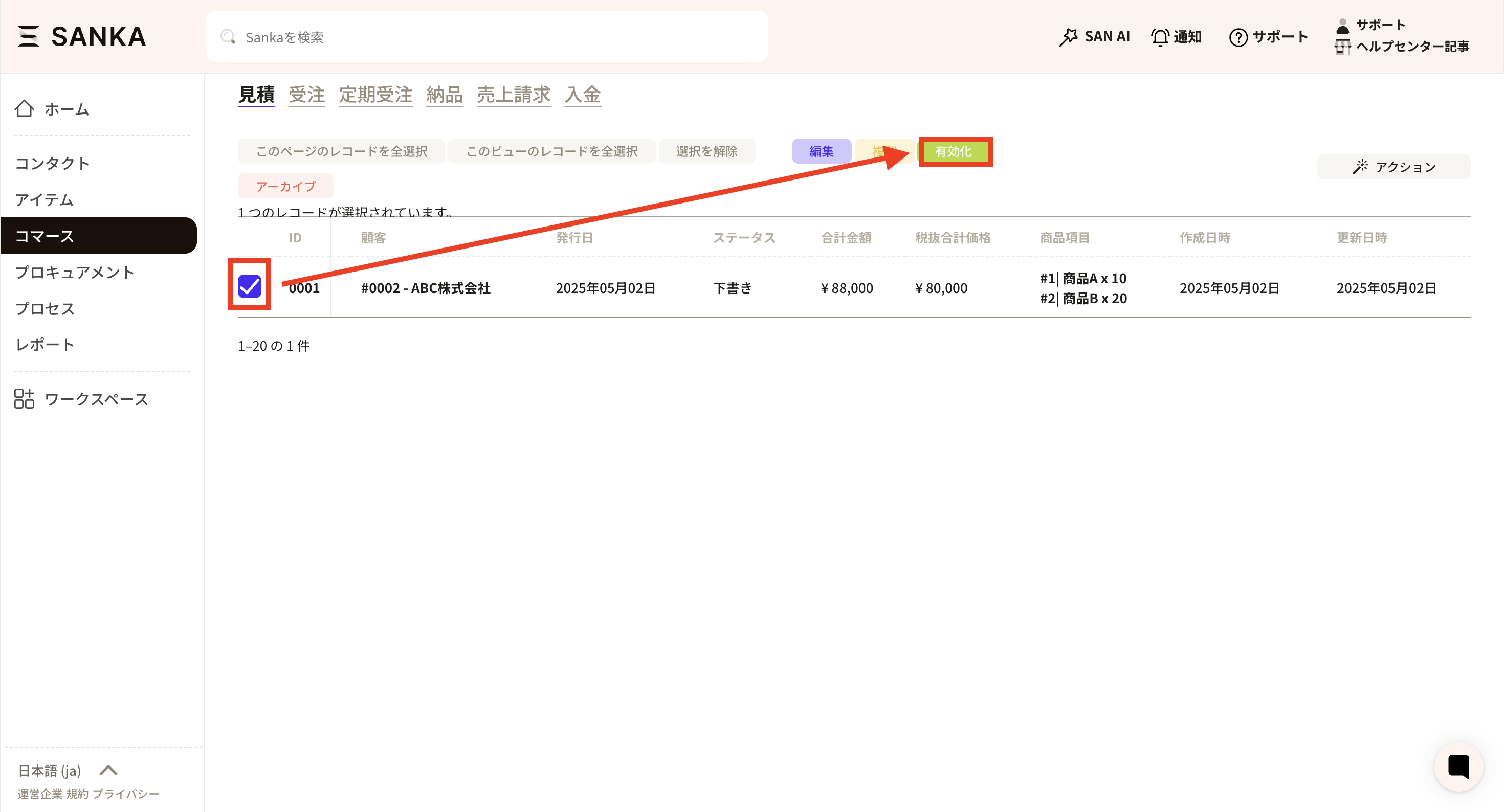 ⑥It is displayed.