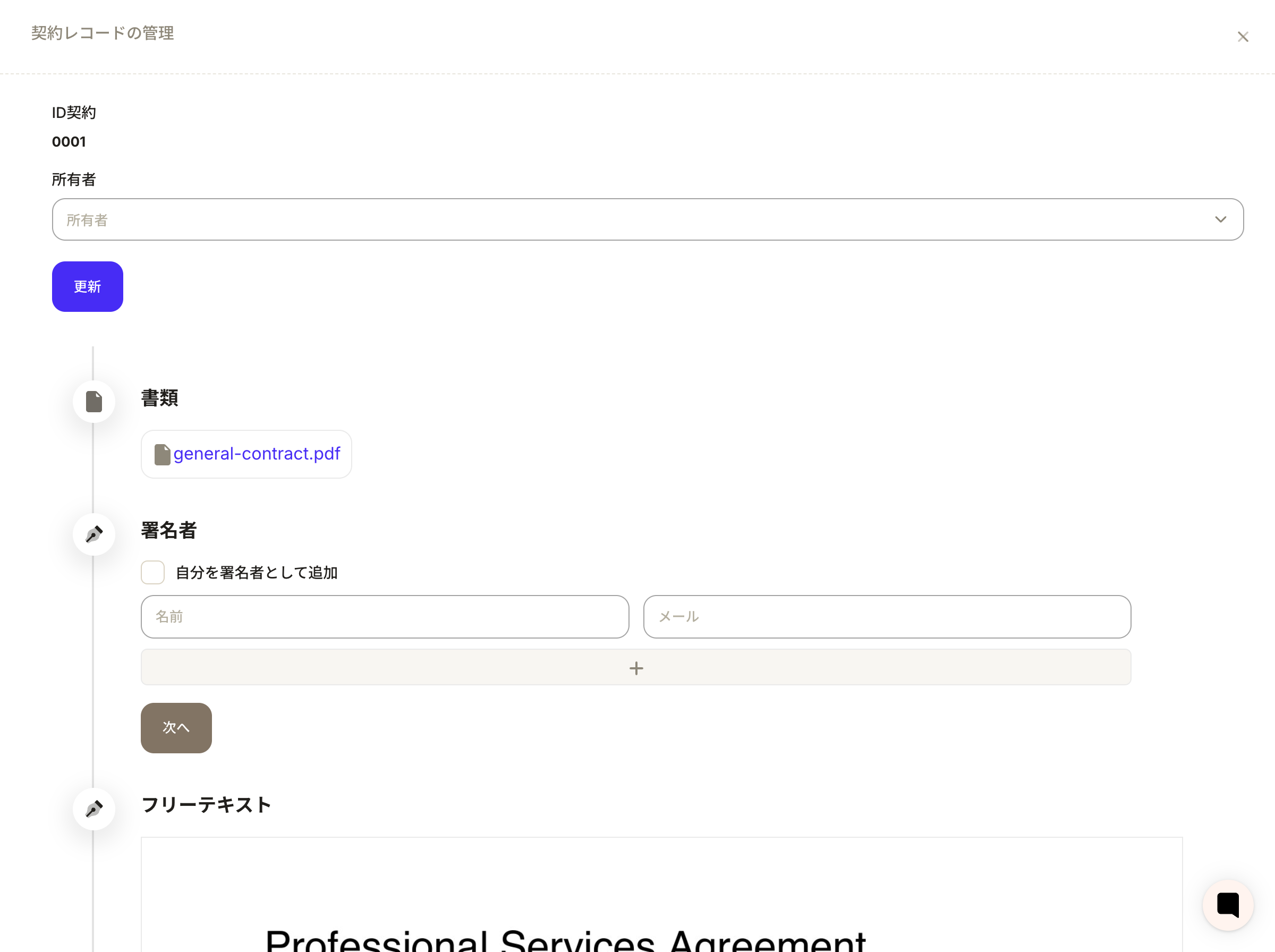
Key properties of the contract object
The following are the default properties of the contract object.- Documents: You can upload contract documents in PDF format.
- Signature: You can set the person in charge of signing the contract. By registering your email address, you can request a signature from the other party.
- Free text: You can include free text in your document.
- Place stamp/signature field: You can place a stamp/signature.
Contract record creation flow
We will introduce a standard flow for importing a PDF with a contract object, setting signers, and preparing to send. Here we use the samplegeneral-contract.pdf and specify hey@sanka.com as the destination.
1. Select “New” in the contract object
Open the Contracts tab and press the New button in the top right to display the create drawer. It is accessible even in an empty workspace and is the starting point for all steps.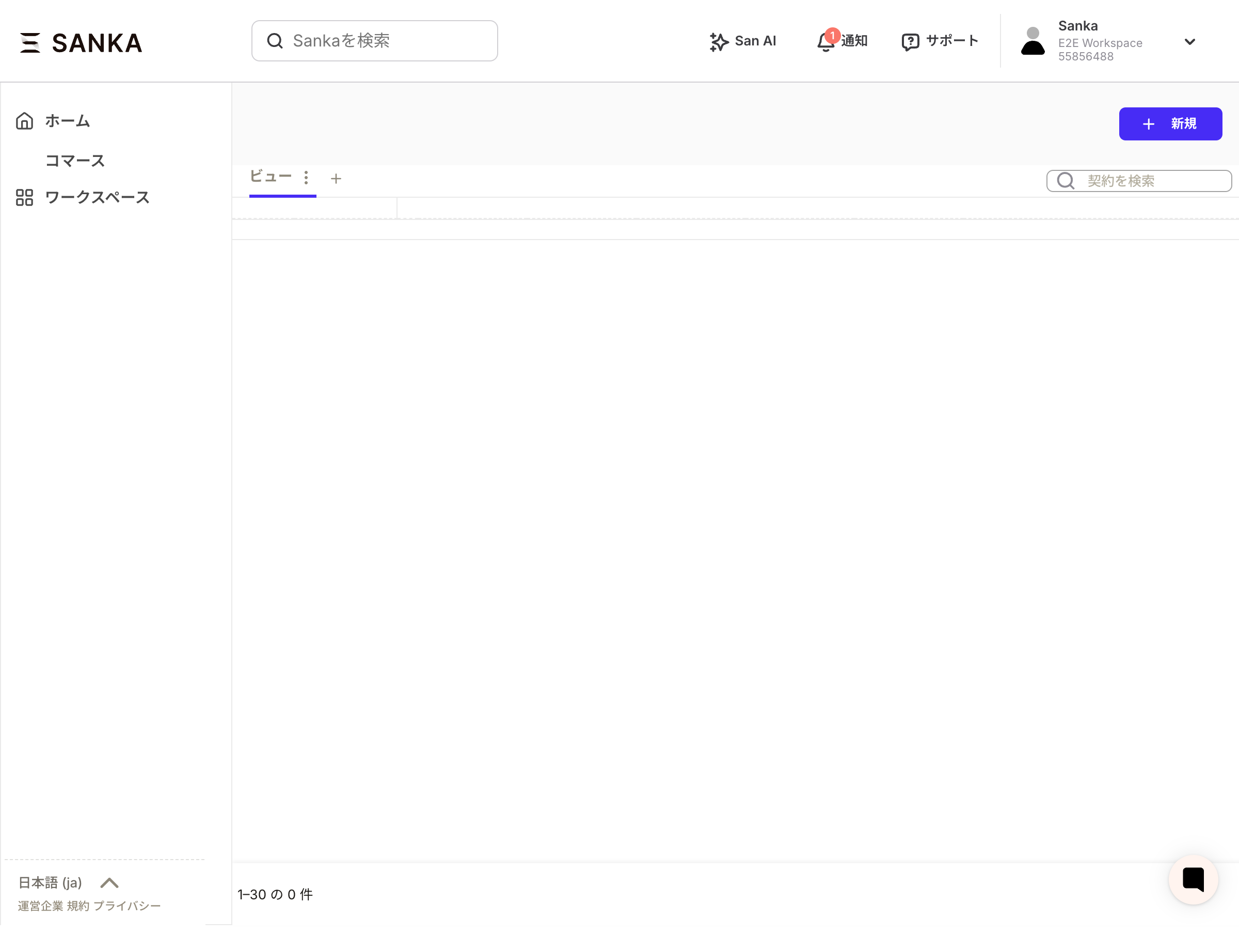
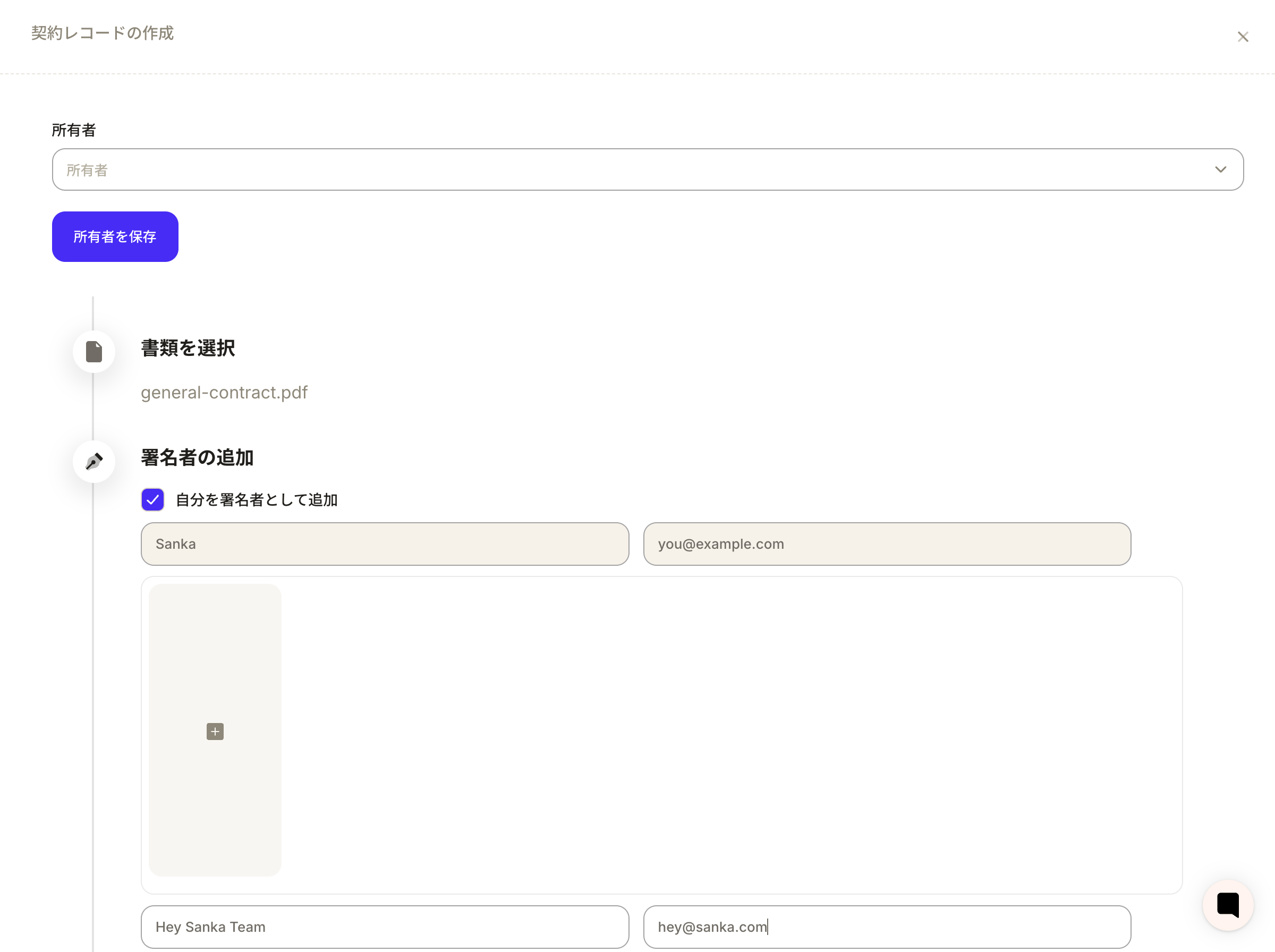
2. Upload PDF and register signers
- Upload the unsigned PDF (e.g.
general-contract.pdf) using “Select document”. - If you turn on “Add me as a signer”, your name and company email address will be automatically filled in.
- Register Hey Sanka Team / hey@sanka.com in the business partner field. If necessary, you can specify multiple destinations using the Add button.
3. Free text and prepare to send
Once the document is uploaded, you can proceed to place free text and imprint fields and confirm submission within the same drawer. In this example, a draft record is published when a signer is set, and is displayed as the latest contract ID (e.g.0001) in the bottom left. After checking the contents, you can send a signature request to hey@sanka.com by clicking “Send”.