How to integrate RMS with Sanka
First, log in to Sanka and create a linkage service from Workspace > Linkage Service. Please select Rakuten from the affiliated services.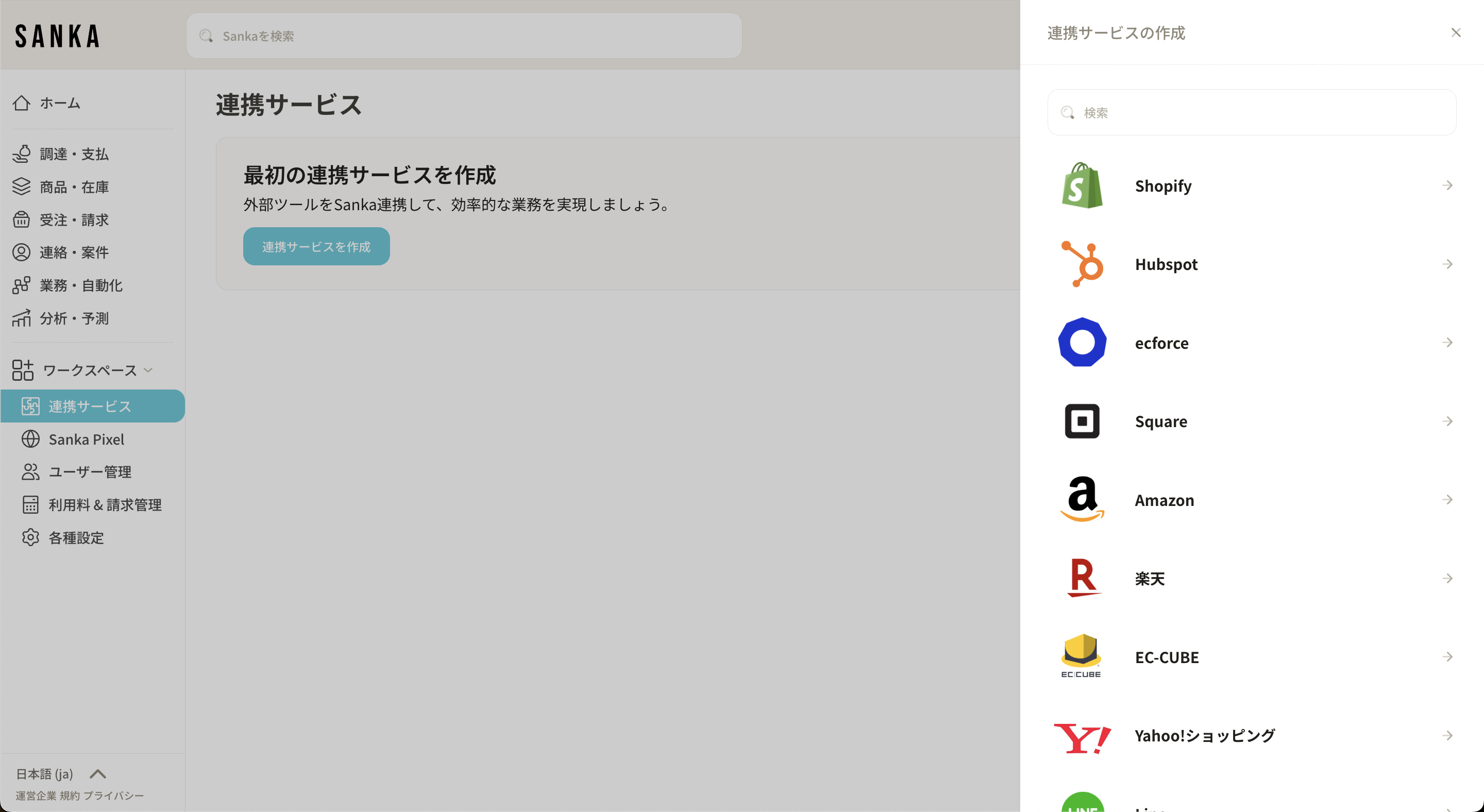 There you will find input fields for
 Service Secret'' and License Key.”
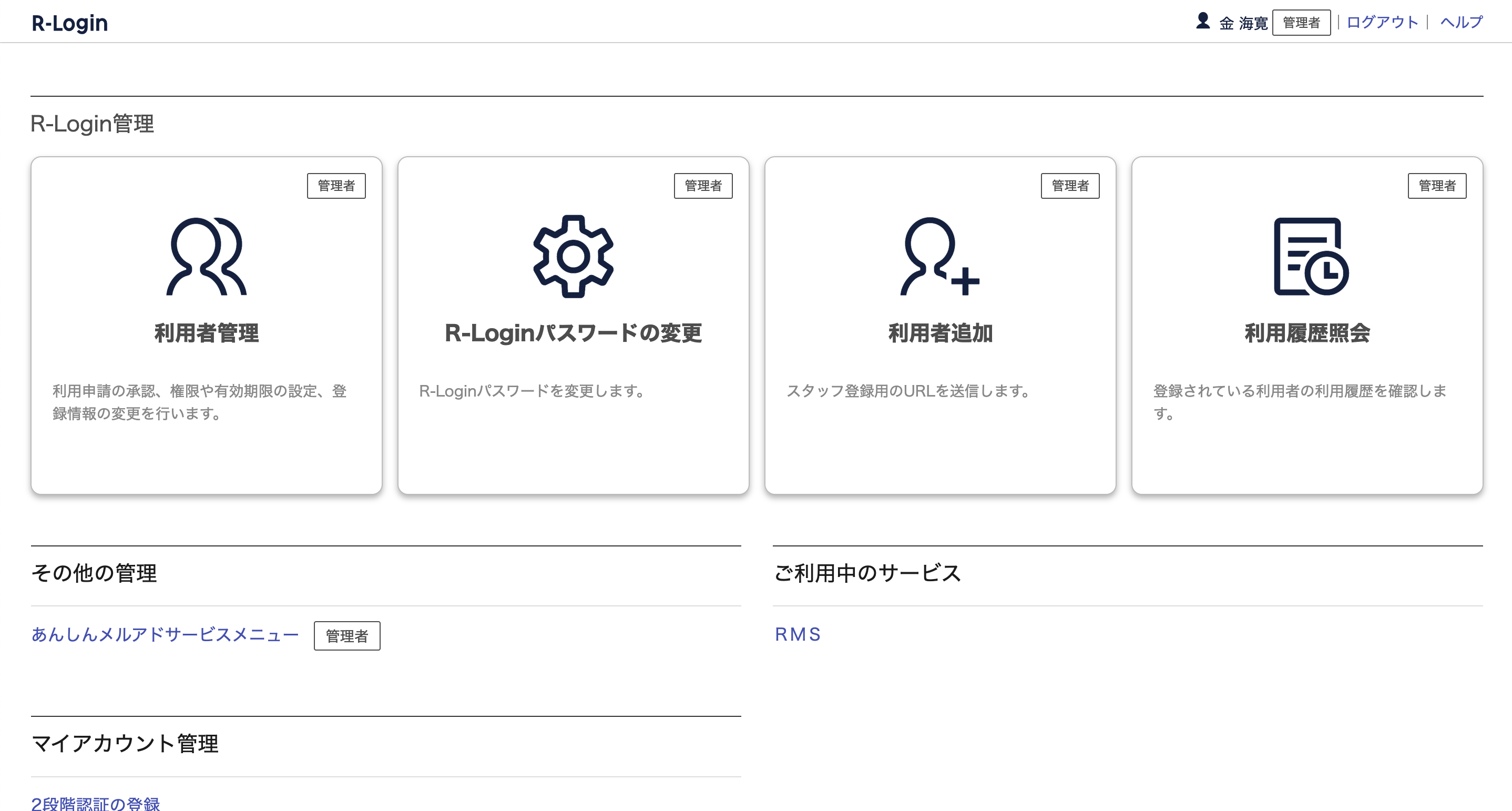
These two pieces of information can be obtained from RMS, the management screen of Rakuten Market.
Open another window and log in to RMS.
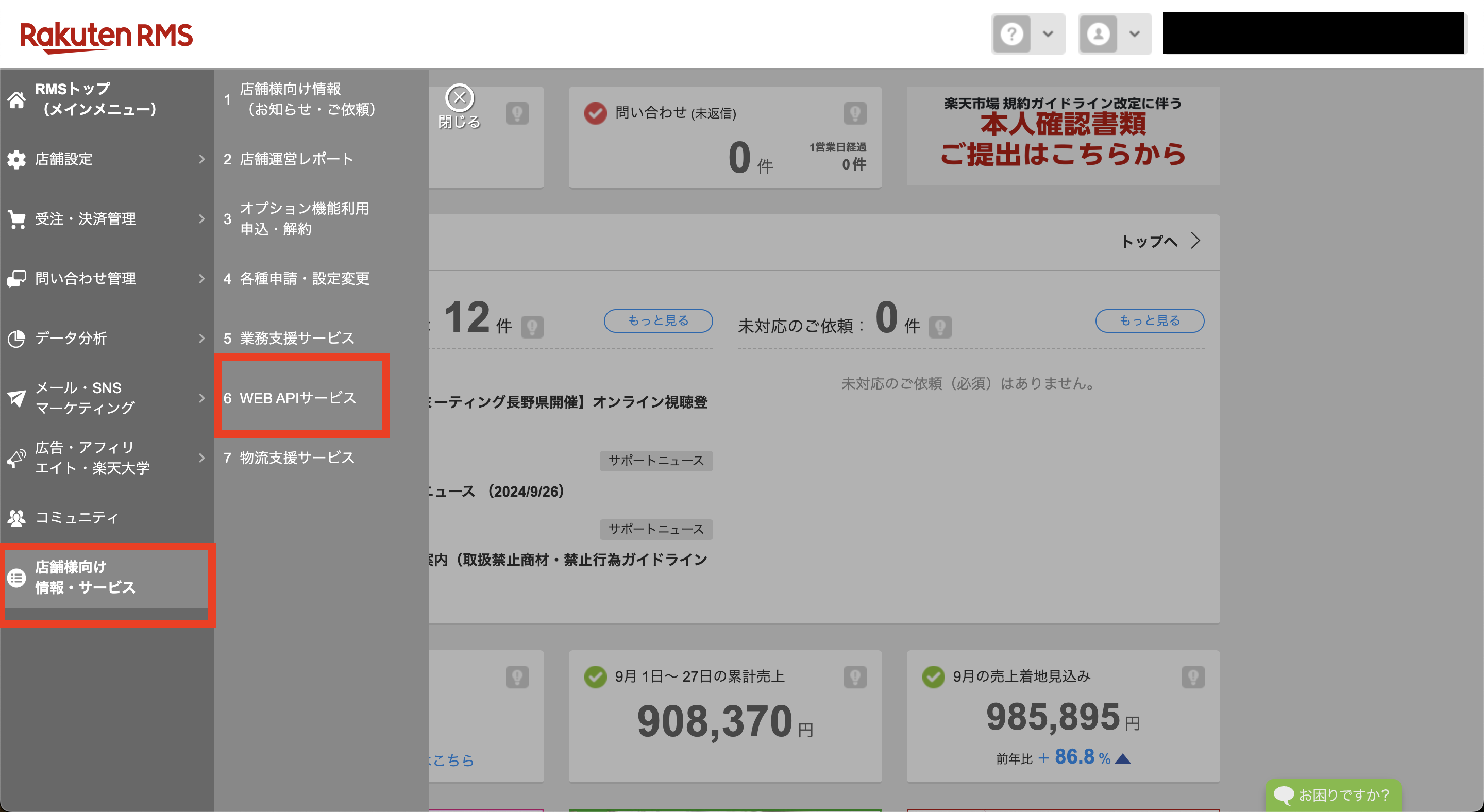
 Select “Information/Services for Stores” > “Web API Service” from the left menu.
 Press the app list.
From the WEB API access permission settings, press the details button on the right side of “Store” at the top.
Check Not operated by robot and press the Confirm button.
Click the Edit Available Functions button at the bottom of the page.
Enable all available functions (select checkboxes) on the Edit Usable Functions page.
Press the app list.
From the WEB API access permission settings, press the details button on the right side of “Store” at the top.
Check Not operated by robot and press the Confirm button.
Click the Edit Available Functions button at the bottom of the page.
Enable all available functions (select checkboxes) on the Edit Usable Functions page.
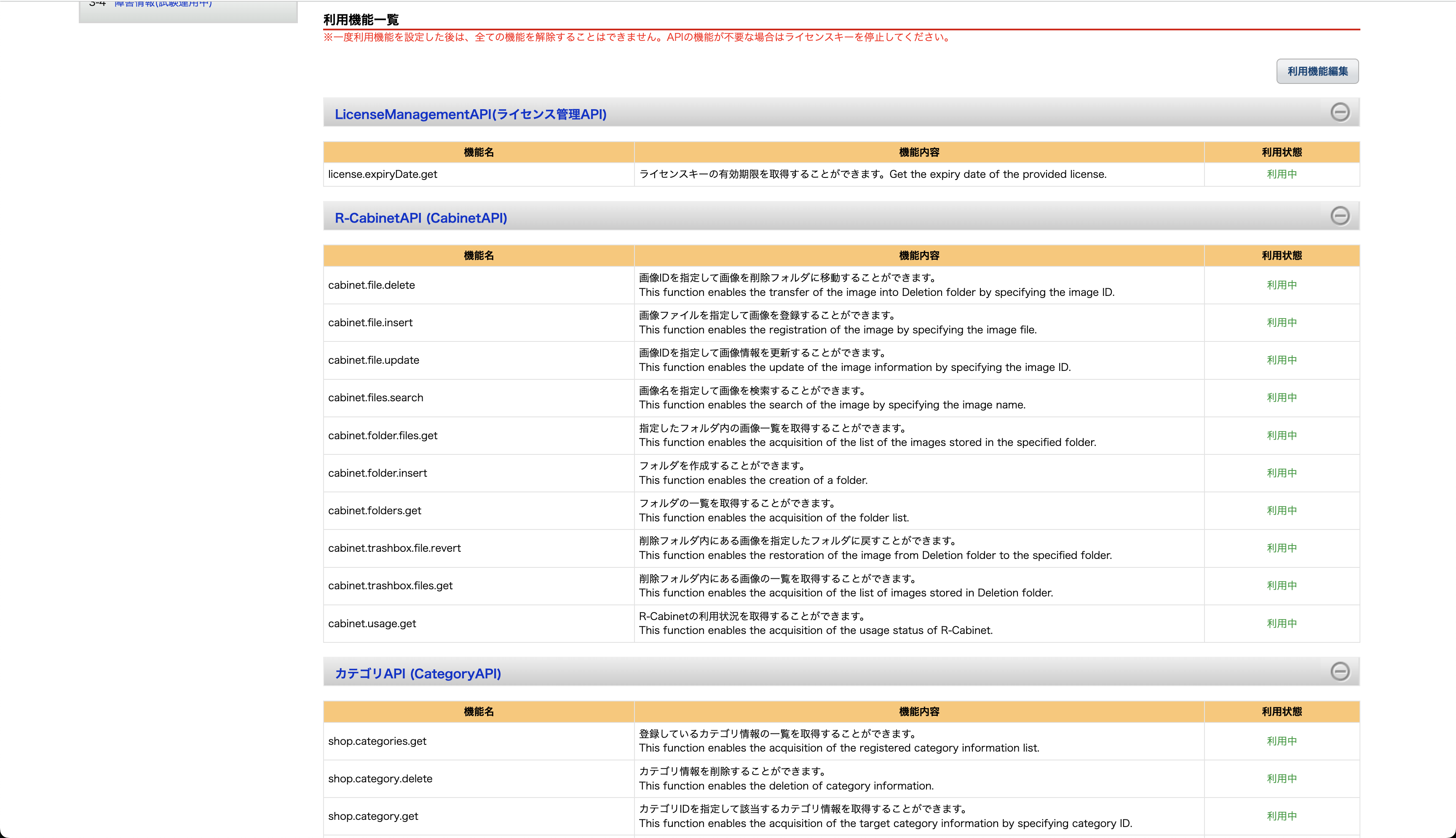 After activating all available features, obtain a license key.
Once checked, click Confirm at the bottom of the page.
A confirmation screen will be displayed, so scroll to the bottom of the page again and press the register button.
Paste the “Service Secret” and “License Key” obtained on the above screen into the input fields of the first Sanka and press the “Create Linked Service” button to complete the linkage.
** The maximum collaboration period between Sanka and Rakuten collaboration services is 63 days. Please issue the license key again before the expiration date and update the cooperation details.
After activating all available features, obtain a license key.
Once checked, click Confirm at the bottom of the page.
A confirmation screen will be displayed, so scroll to the bottom of the page again and press the register button.
Paste the “Service Secret” and “License Key” obtained on the above screen into the input fields of the first Sanka and press the “Create Linked Service” button to complete the linkage.
** The maximum collaboration period between Sanka and Rakuten collaboration services is 63 days. Please issue the license key again before the expiration date and update the cooperation details.
How to link Rakuten SKU and Sanka properties
**If you sell the same product or inventory on multiple e-commerce sites or stores, you will need to add Rakuten’s “Product Management Number” or “SKU Number” to your Sanka property (must have unique restrictions). ** **If you already have a unique property on Sanka, please add the necessary information to Rakuten’s “Product Management Number” or “SKU Number” in advance. **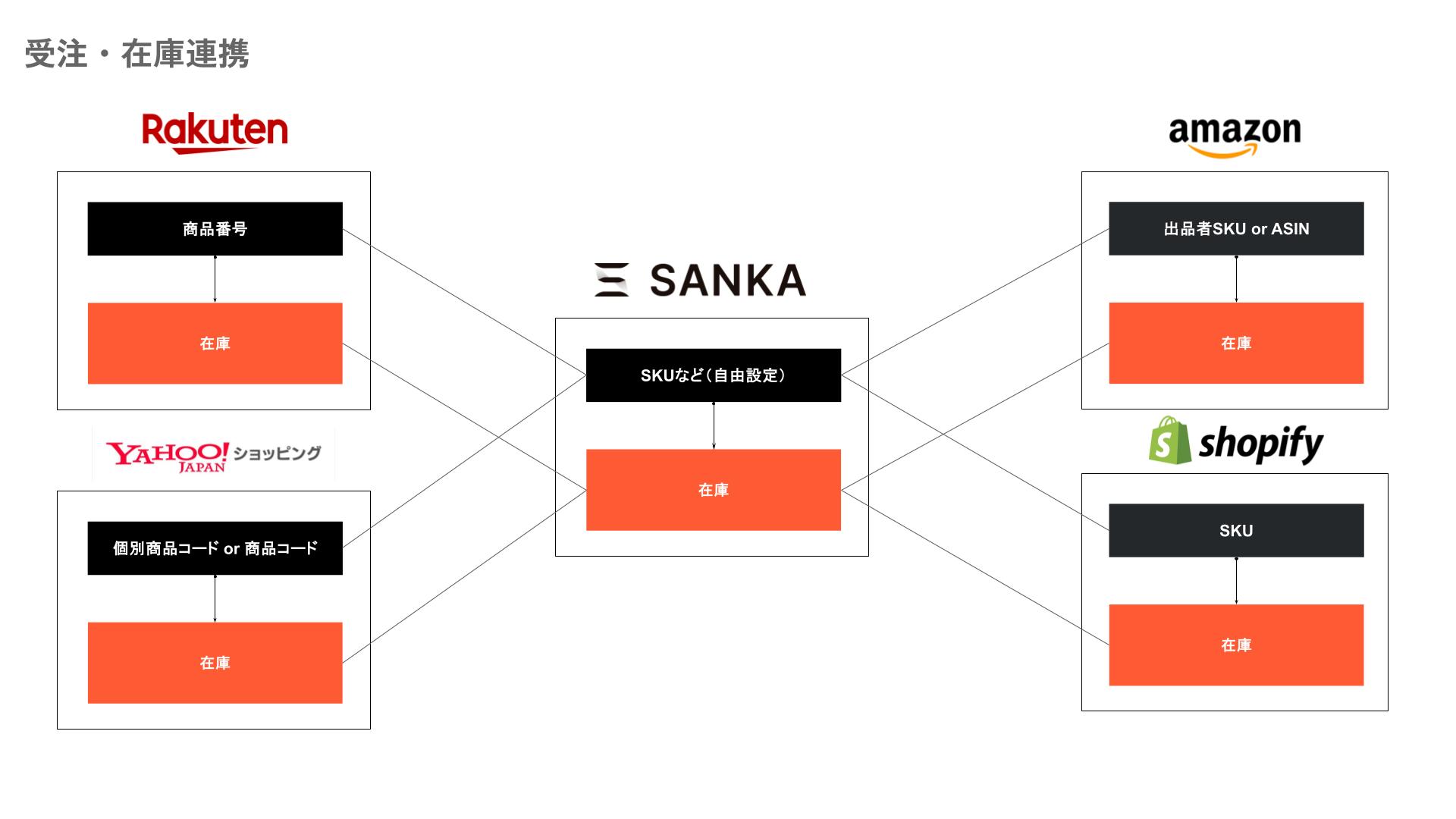
How to import Rakuten order information to Sanka
From here, I will show you how to import Rakuten order information into Sanka. First, we will proceed here on the assumption that Rakuten (RMS) is linked to Sanka. Open the Sanka order object and press import.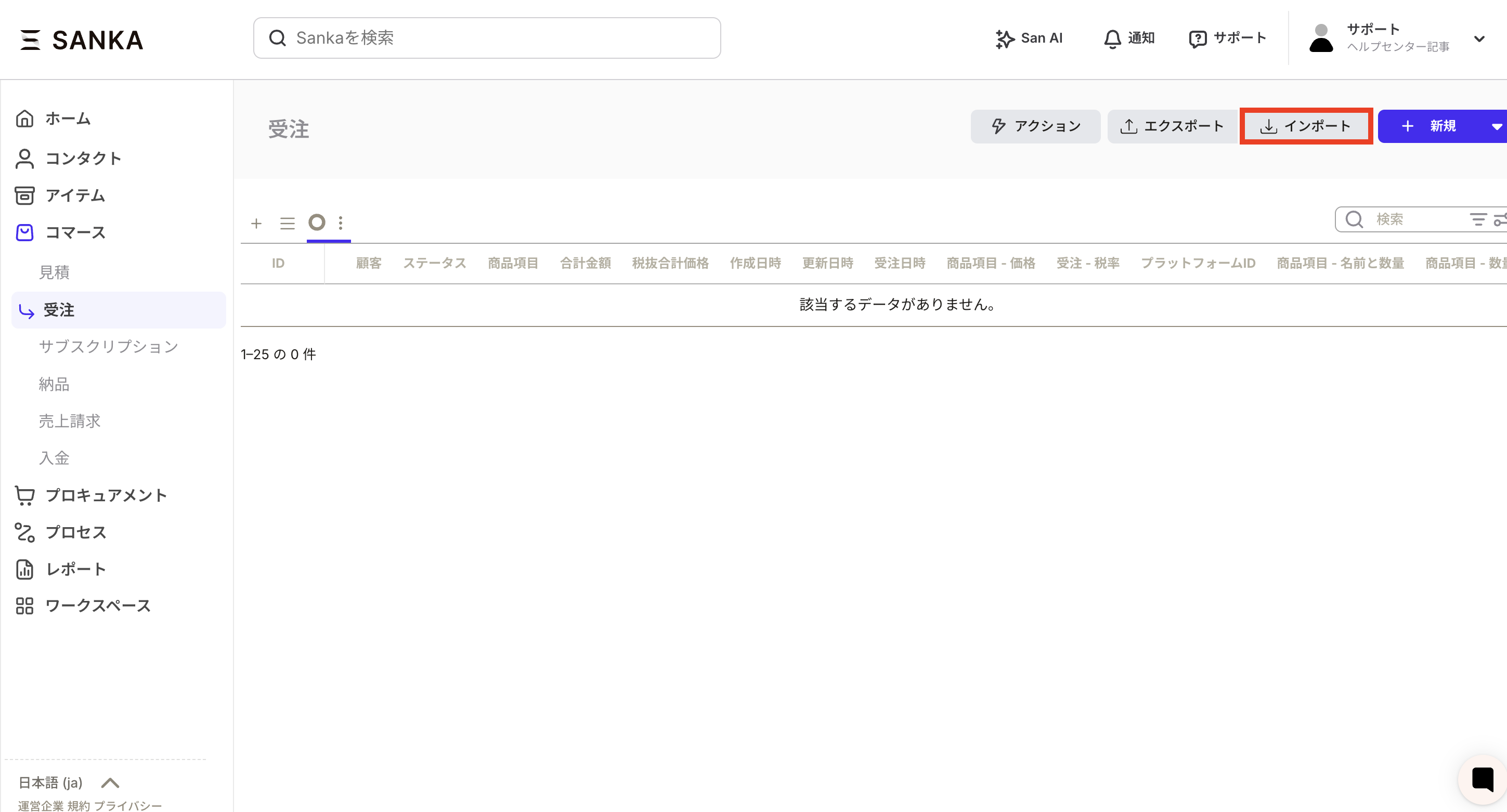 The import screen will be displayed. Next, select the linked service from the import source.
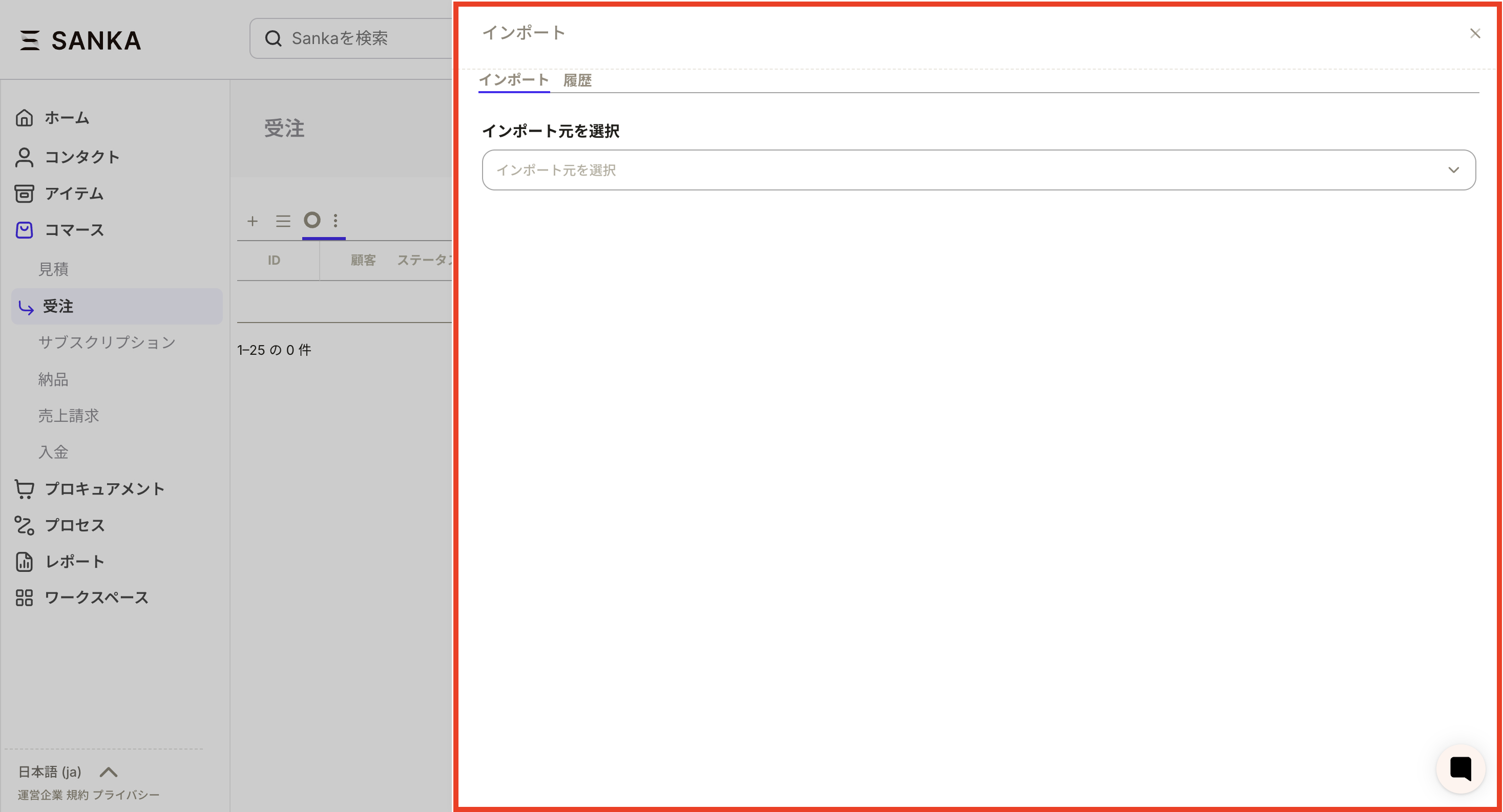 A frame for linked services will be displayed, so select the relevant Rakuten account.
*“Use default customer” is a function that, when checked, will register the person selected here as a customer.
A frame for linked services will be displayed, so select the relevant Rakuten account.
*“Use default customer” is a function that, when checked, will register the person selected here as a customer.
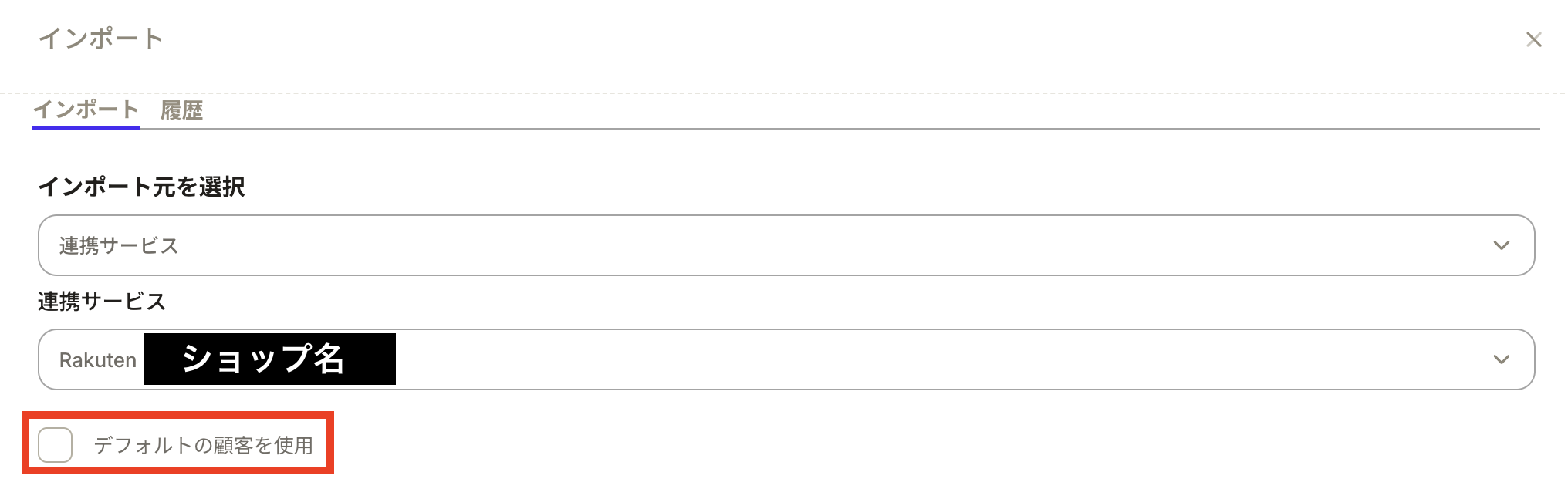 When you select a linked service, a mapping table will be displayed.
Next, we will map Rakuten item information and Sanka properties. (For example, 〇〇 item in Rakuten order information corresponds to 〇〇 property in Sanka property.)
In the black frame part of the image below, the platform header actually displays the items on the Rakuten side, and Sanka’s properties are displayed. Sanka properties can be selected from pre-created properties.
When you select a linked service, a mapping table will be displayed.
Next, we will map Rakuten item information and Sanka properties. (For example, 〇〇 item in Rakuten order information corresponds to 〇〇 property in Sanka property.)
In the black frame part of the image below, the platform header actually displays the items on the Rakuten side, and Sanka’s properties are displayed. Sanka properties can be selected from pre-created properties.
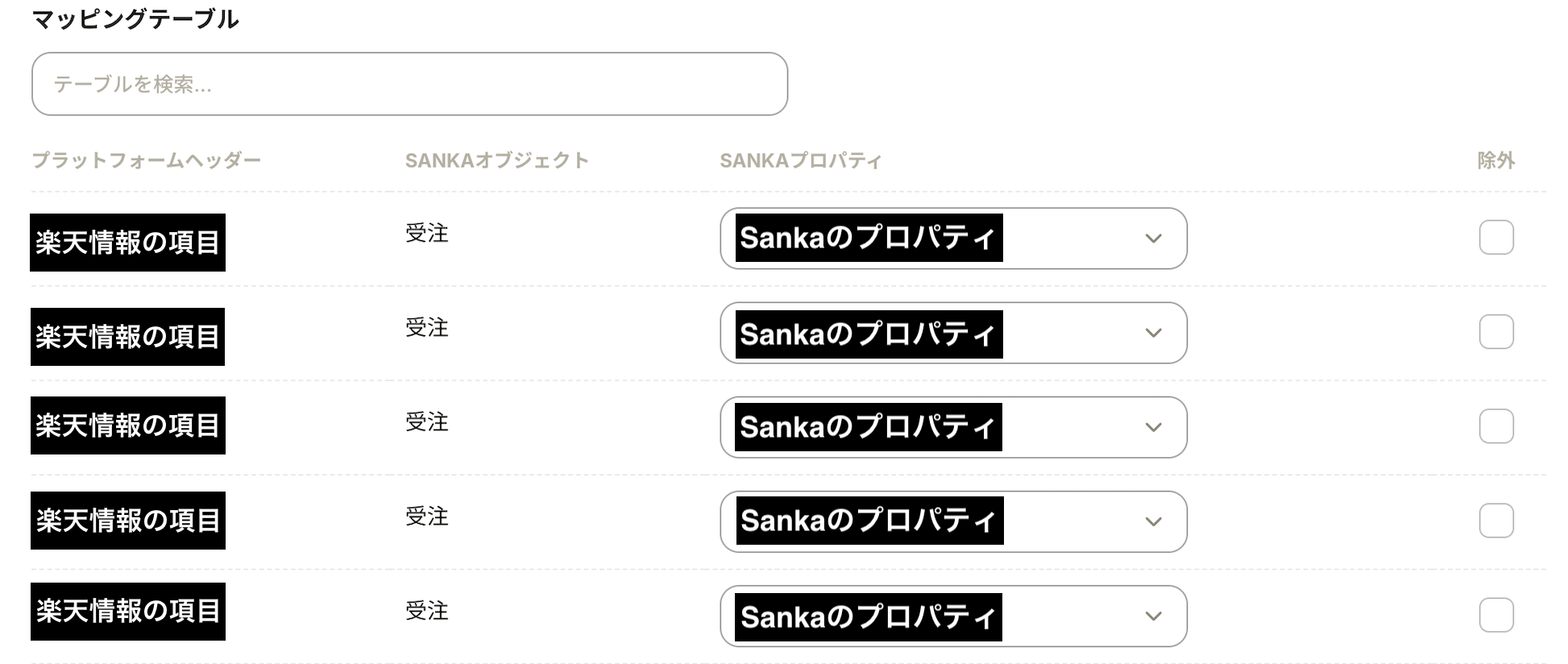 If Sanka does not have a property, you can create a new one on the spot. Select Create new Sanka property.
 SankaYou can prevent synchronization by checking the exclusion column for things you do not want to include or unnecessary information. If excluded, it will not be imported.
 *We recommend that you enter only the necessary information for the properties to be linked according to the business flow.
Once the mapping is complete, we will make various settings before importing.
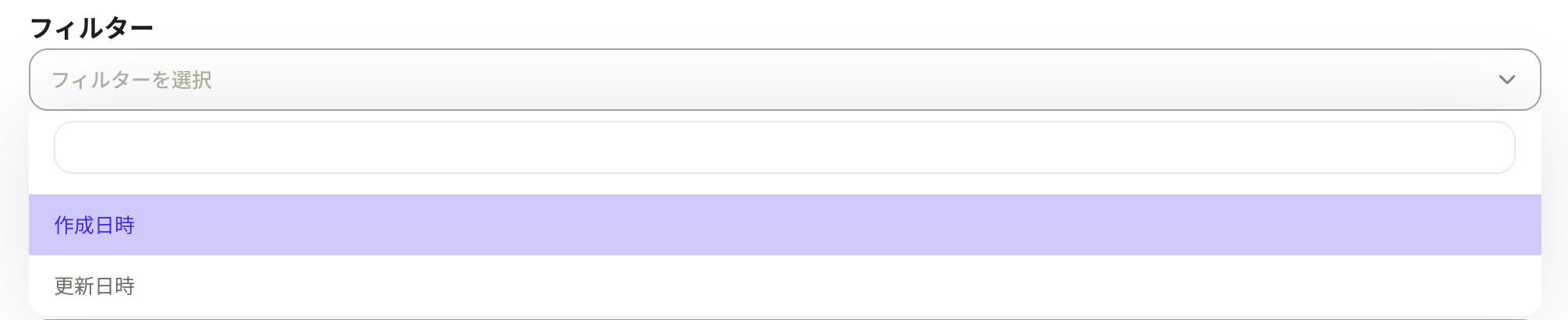
“Filter”: You can filter the information you want to import by creation date or update date. For example, if you want to only include order information after this date and time, please set it here.
*We recommend that you enter only the necessary information for the properties to be linked according to the business flow.
Once the mapping is complete, we will make various settings before importing.
“Filter”: You can filter the information you want to import by creation date or update date. For example, if you want to only include order information after this date and time, please set it here.
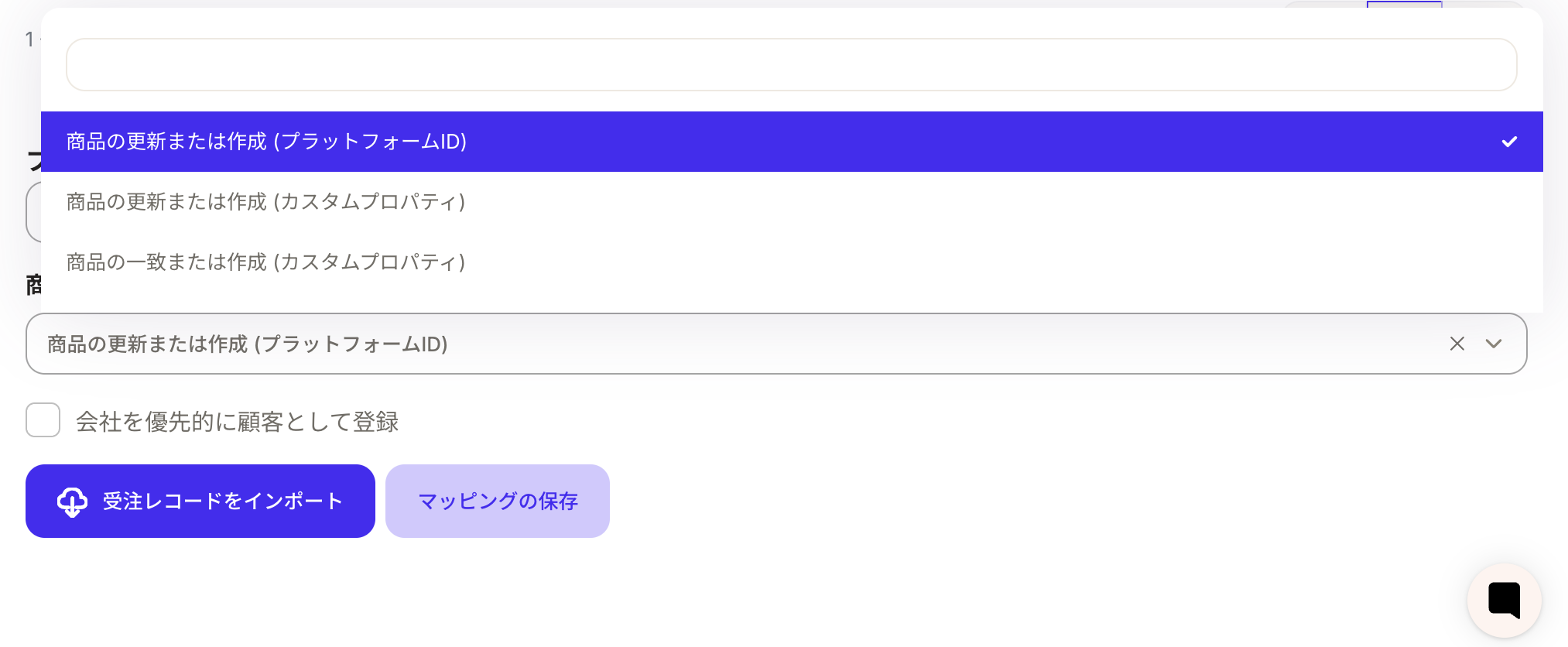
 “Select product import method”: Select from “Update or create product (Platform ID)”, “Update or create product (custom property)”, or “Match or create product (custom property)”. Here, we select the ID to use as the starting point when importing, updating, or creating.

- “Product update or creation (platform ID)” starts from Rakuten’s platform ID.
- “Updating or creating a product (custom property)” starts from the custom property. This is not Rakuten’s platform ID, but a unique ID that is set separately.
- “Match or create products (custom properties)” is a function that prevents the creation of new products by matching Sanka product records based on arbitrary properties. For example, it is useful when you are working with multiple ECs and want to manage one product and its inventory with Sanka.