

Guide Overview
We will introduce how to export CSV. This is useful when you want to check the information or use the Sanka registration information separately.Advance preparation
- You have permission to view and export the target object.
- Organize the properties you want to output
Related pages
What you can do with CSV export
- Records of specified objects can be output as CSV.
- You can freely set output properties, filters, and encoding.
Start the export
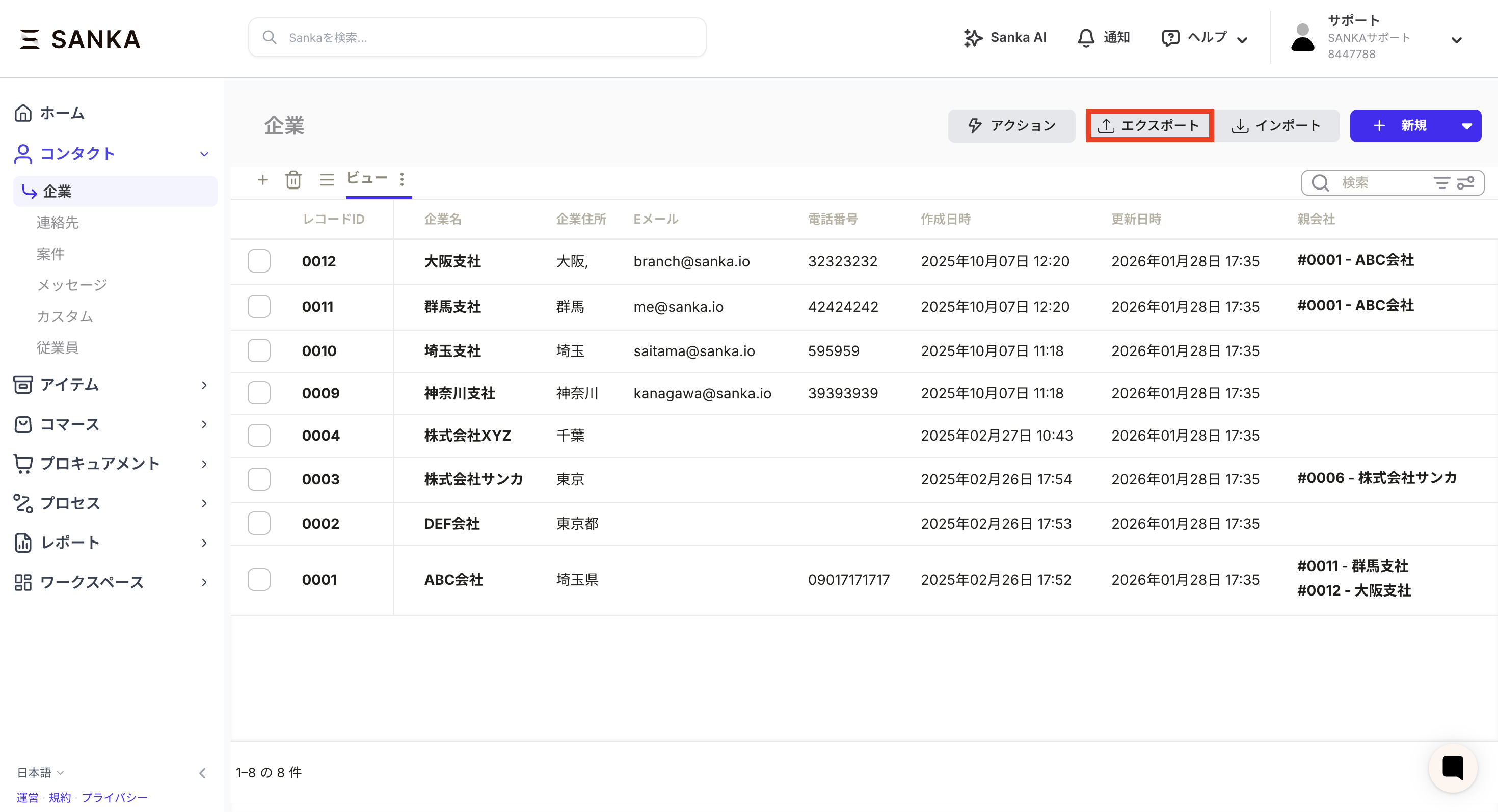
- Open the relevant object and click Export.
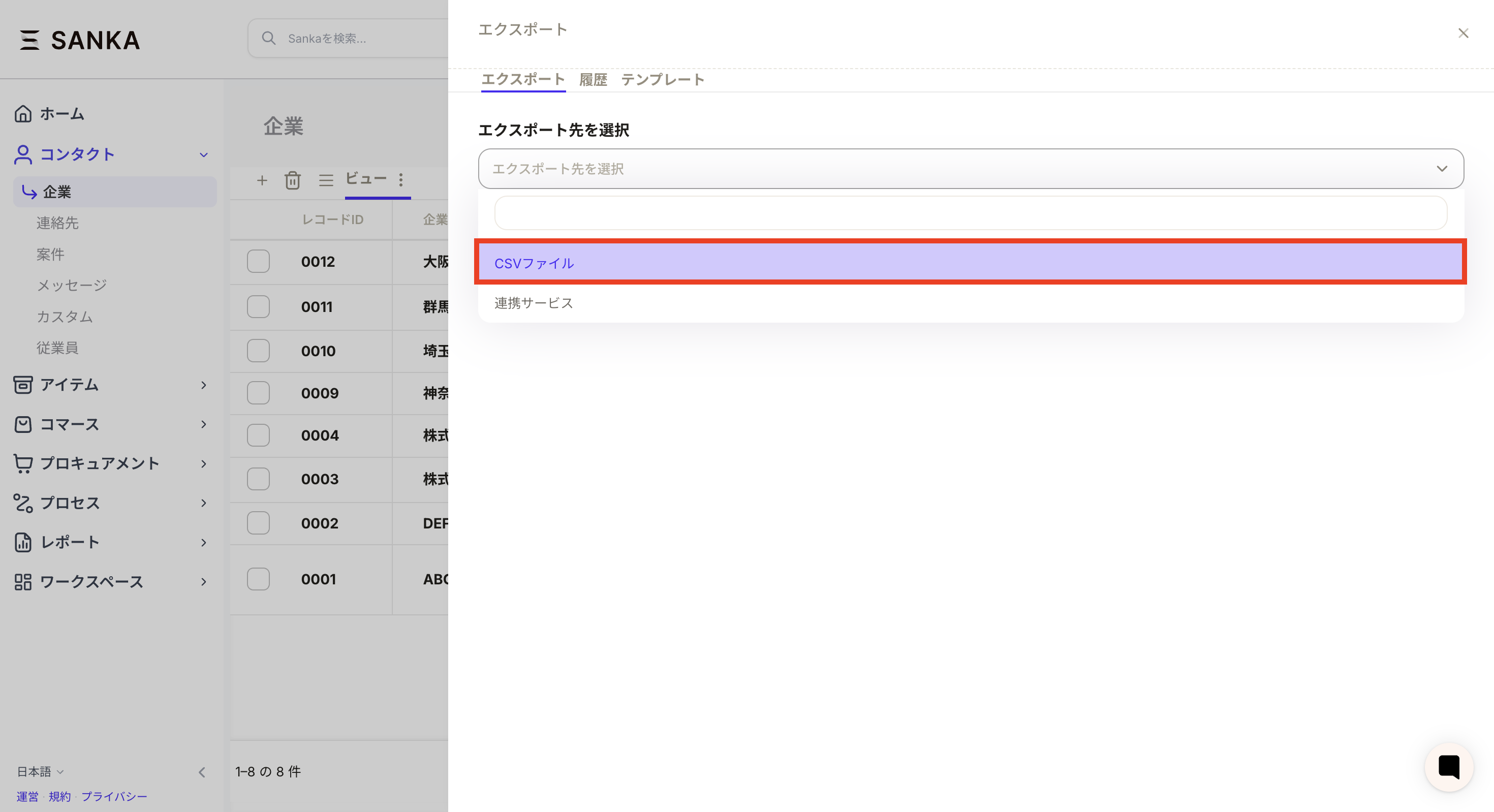
- On the export screen, select “CSV file” as the export destination.
Select output items
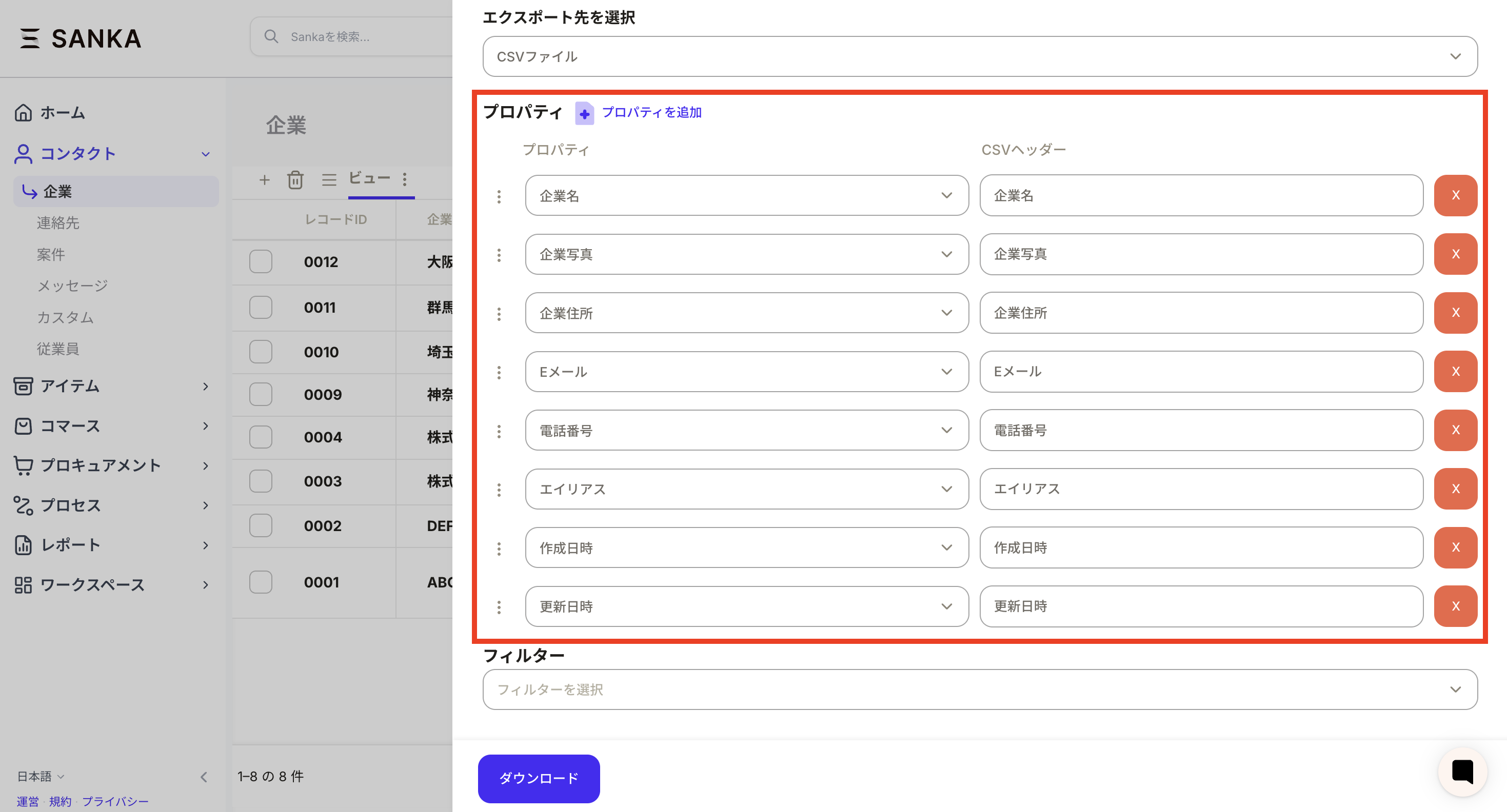
Select the properties you want to output.- Property: Property name used in Sanka
- CSV header: Output CSV item name
- Properties and CSV headers are paired row by row, so make sure the contents match.
- If you want to update Sanka information in CSV, it is convenient to include Record ID in the output item.
- You can add items with “Add property”.
-
Delete unnecessary properties by clicking “x”.
Set output conditions and encoding
Set filters and encoding as necessary.- Specify the output conditions in “Filter”.
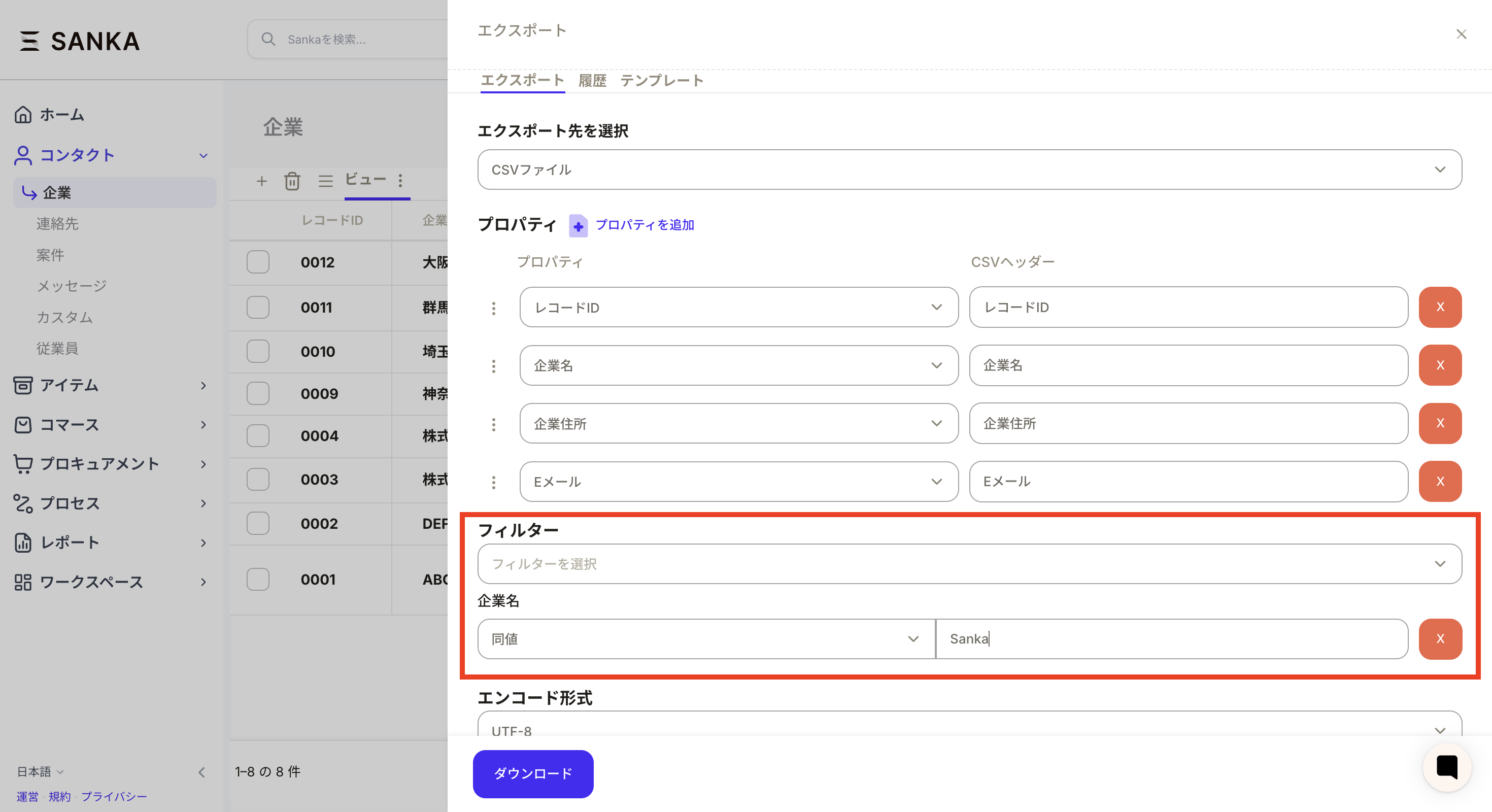
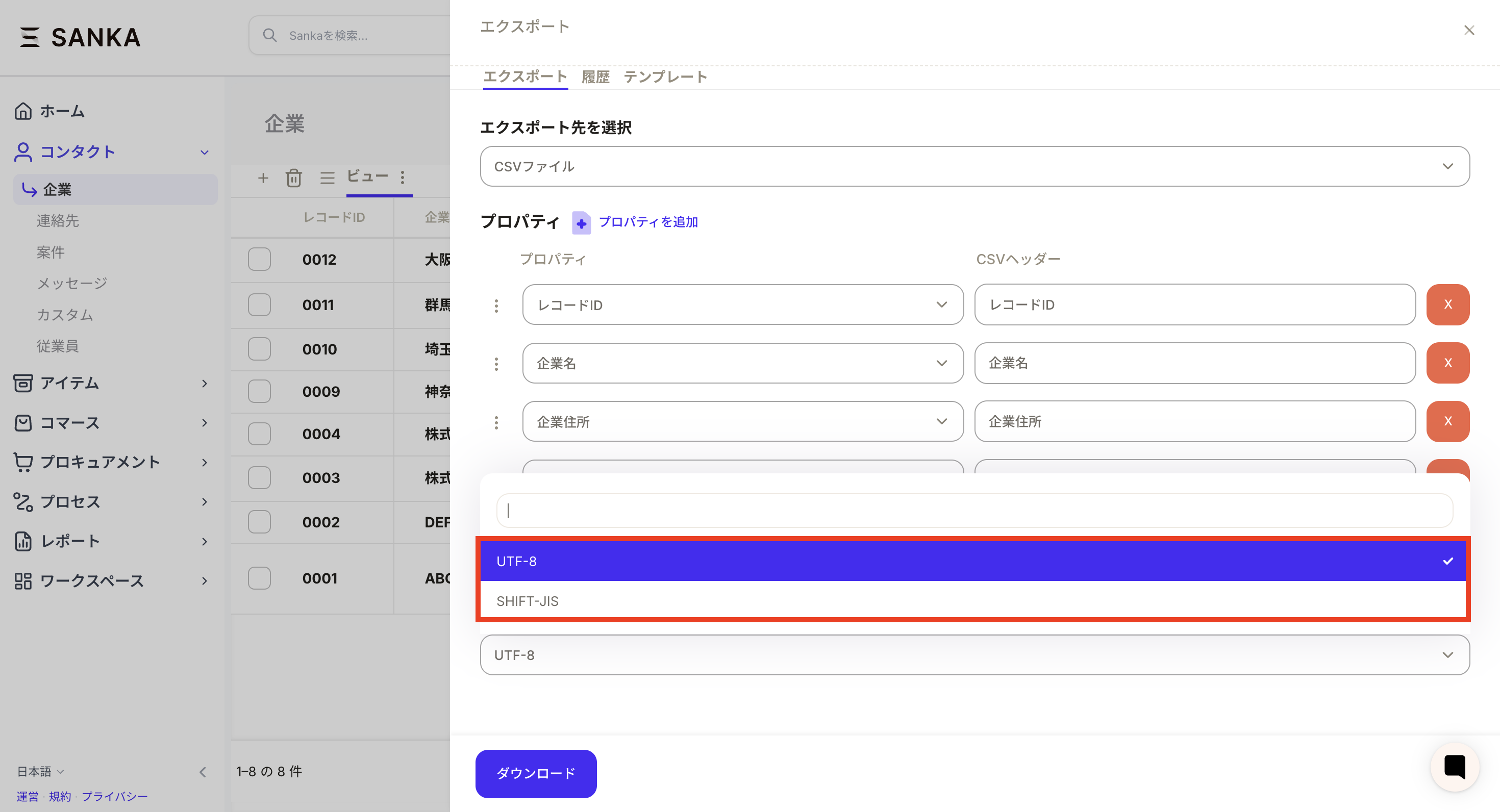
- Select the CSV output format in “Encoding” (UTF-8 or SHIFT-JIS).
Downloads and history
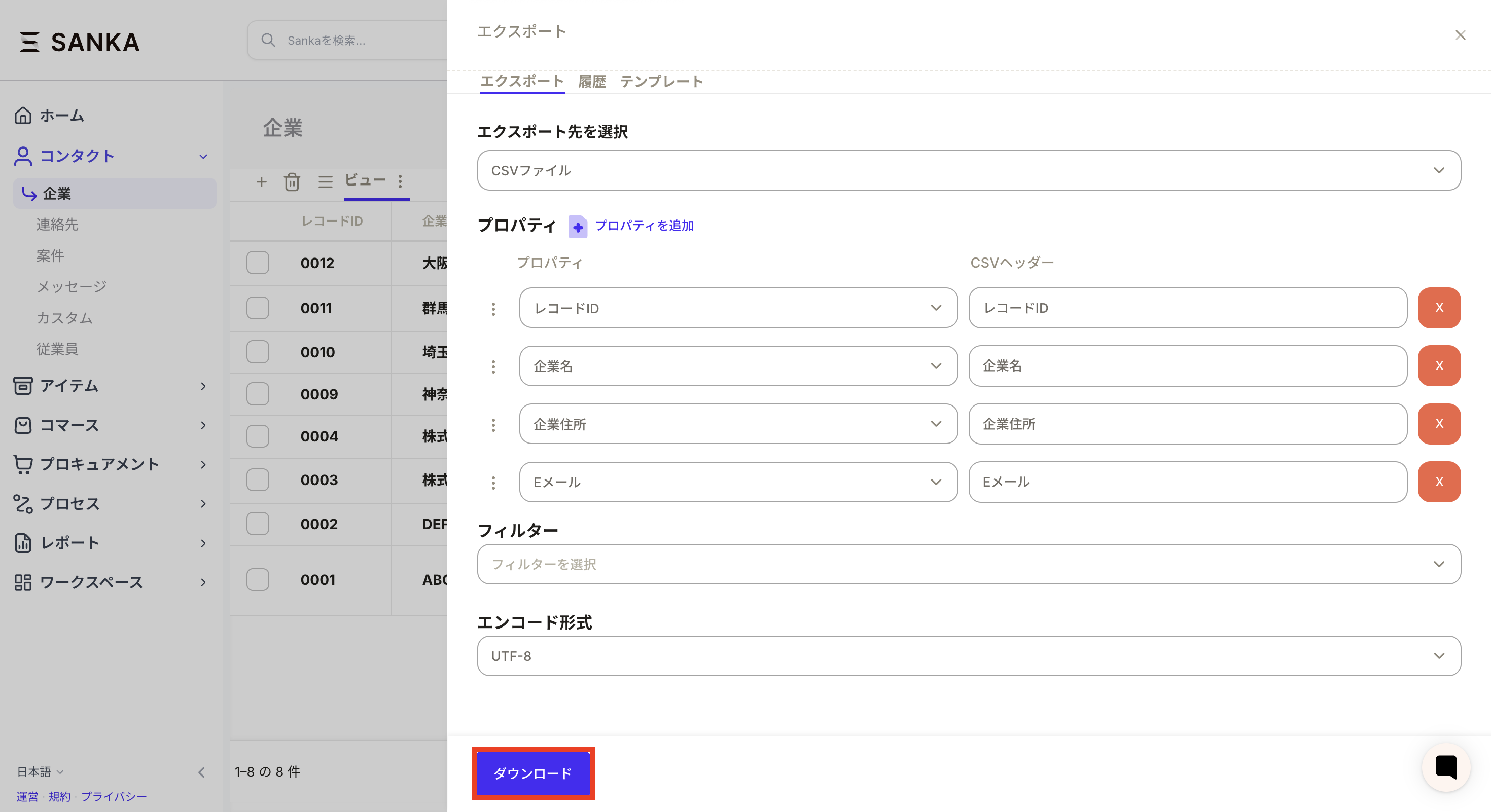
- Click Download.
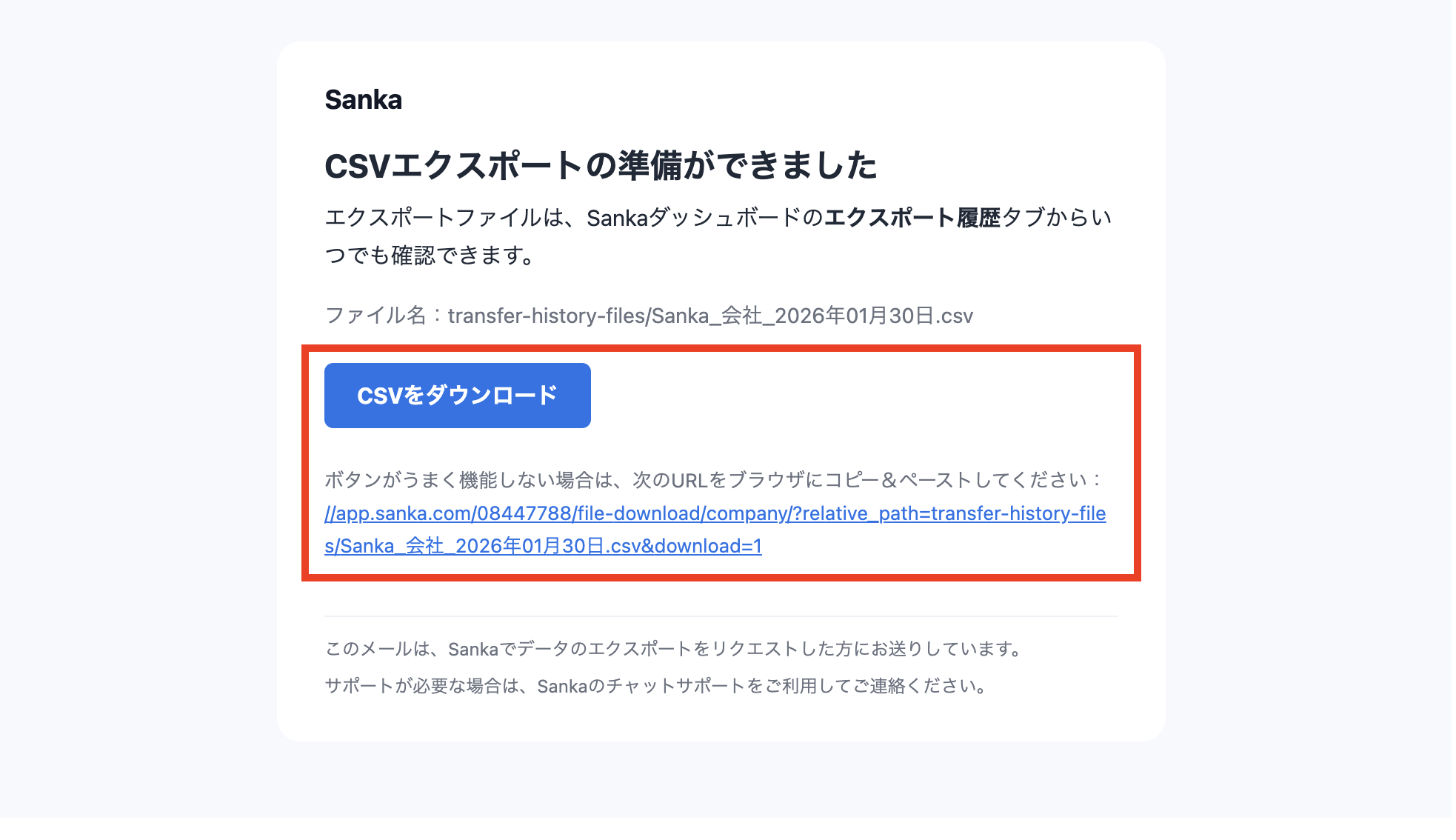
- A notification will be sent to your registered email address. You can also download from the export history.
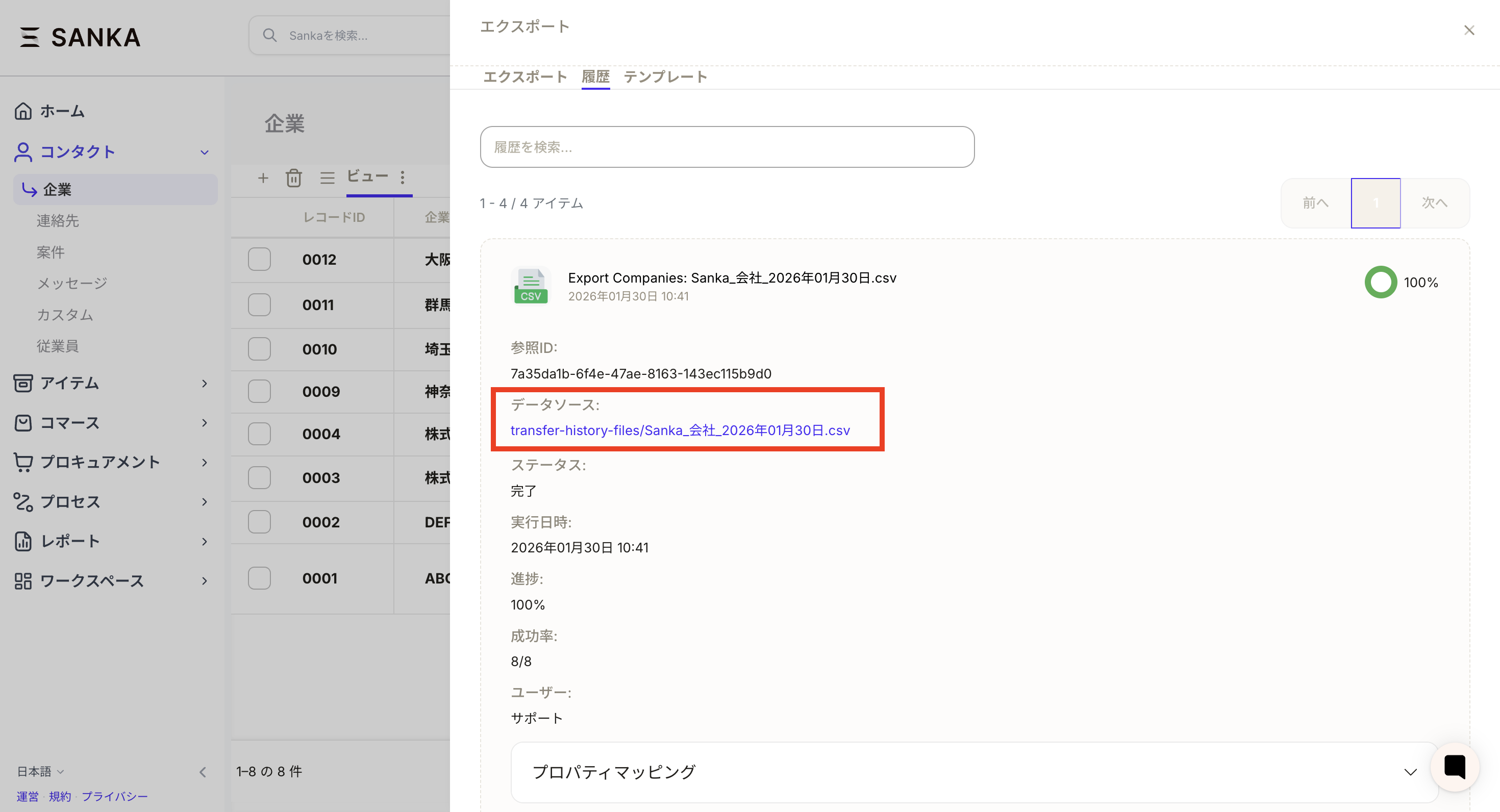
- You can check the target CSV from “Export → History”.
Operation points
- You can speed up the work by creating templates for each combination of output items.
- Including the record ID will make updating in CSV smoother.
- Use filters to narrow down to only the data you need before outputting.