Workflow Object
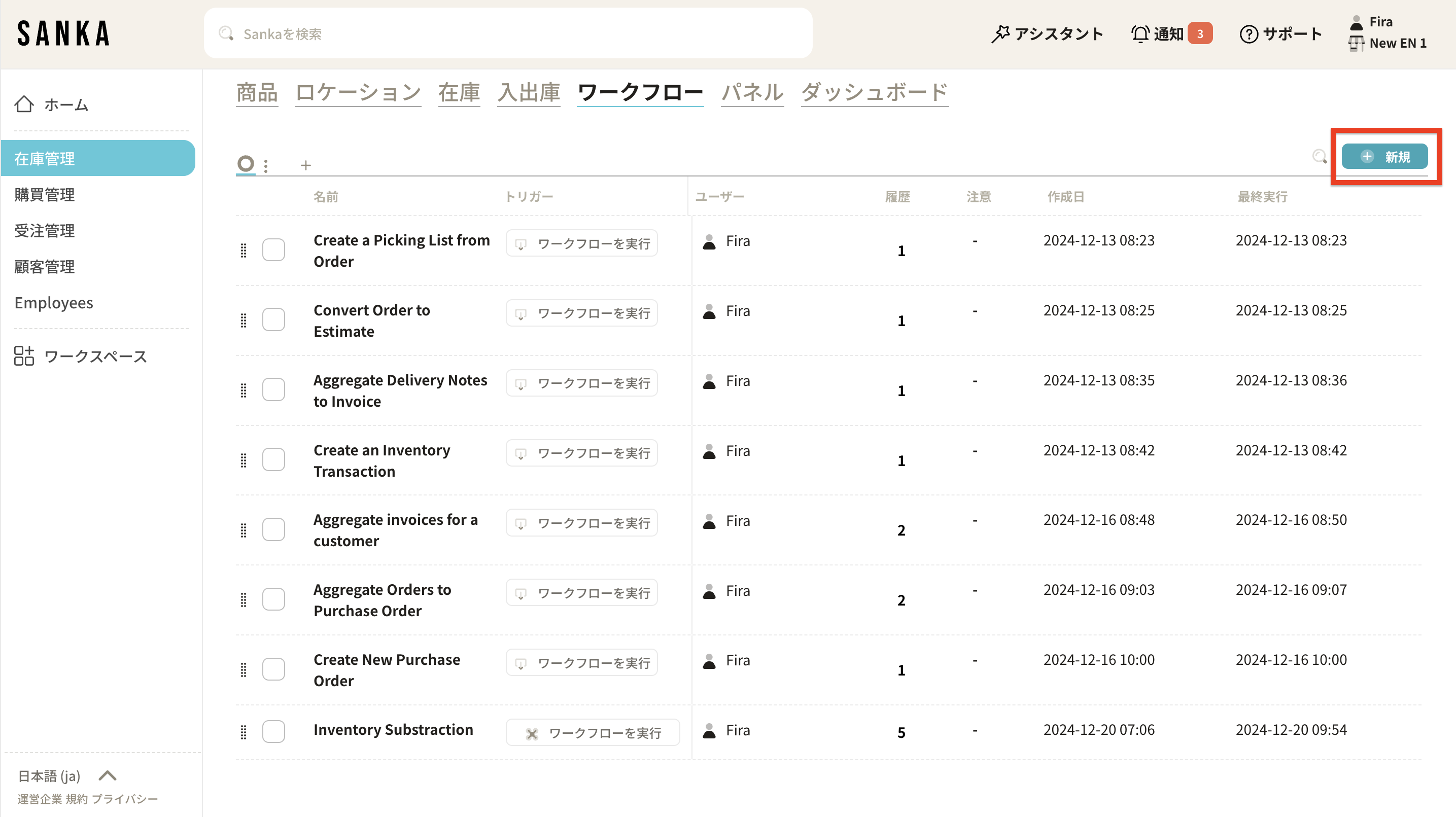
Navigate to the Workflow Object. You can create a workflow using the New button.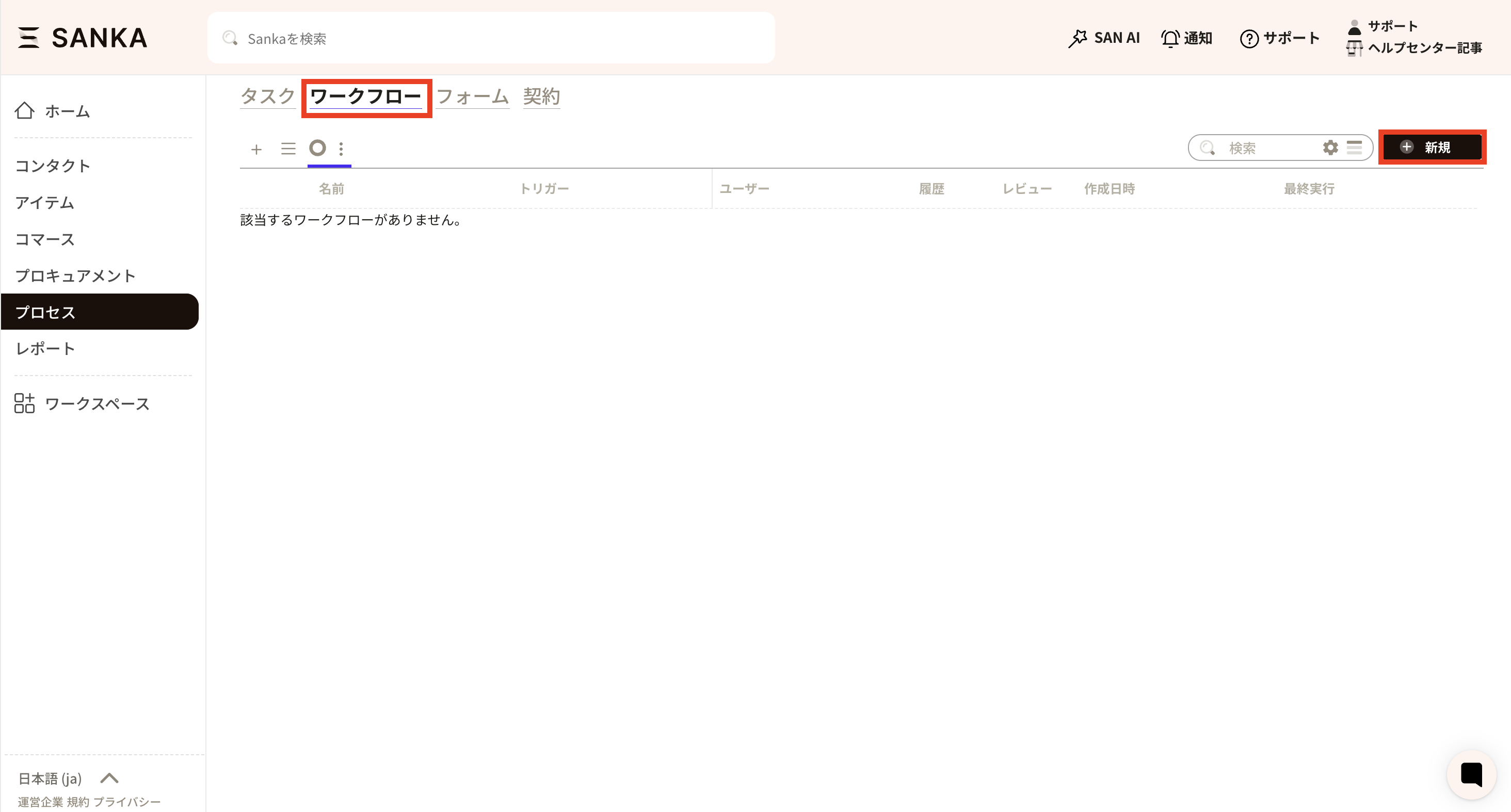 Workflow creation screen
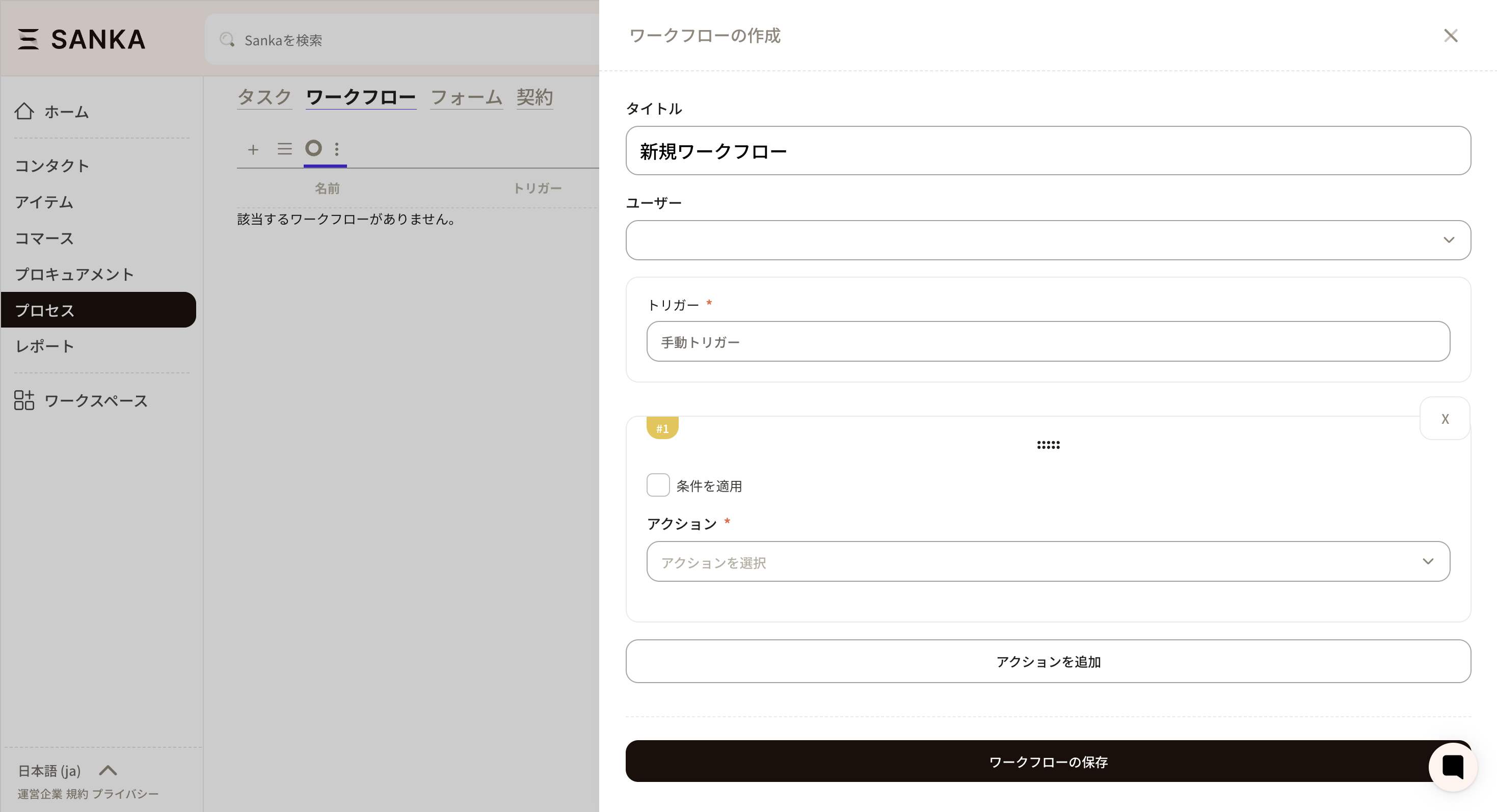
Types of Triggers
Manual Trigger: Performed manually Time Trigger: Performed at a set time Event Trigger: Execute when an event occursTypes of Actions
Approval Action Create Object Record Update Object Record Aggregate Object Record Import data from integrated service Export data to integrated service Synchronize data with integrated service AI Actions and UtilitiesWorkflow Action: Automatic Inventory Allocation
This process streamlines inventory management by automatically deducting inventory levels after updates to orders. We have also prepared a more comprehensible video, so please refer to the information below.Workflow Creation Process
To begin inventory deduction, you must set a trigger to start the workflow based on a specific event, such as an order, a new shipment, or a sales transaction. In this case, the trigger will be set to update the order. 1: First, navigate to the workflow section.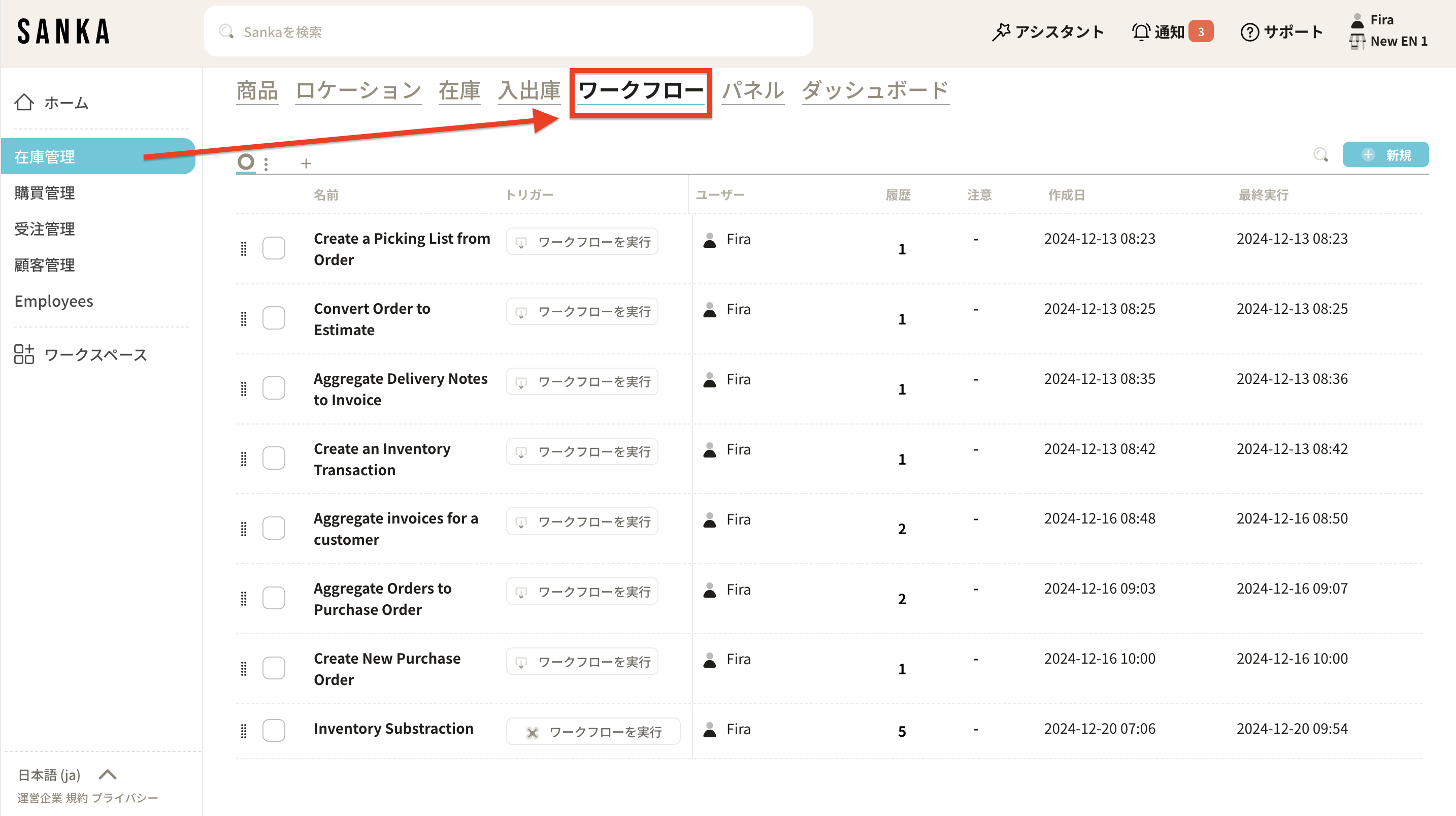 2: Create a new workflow.
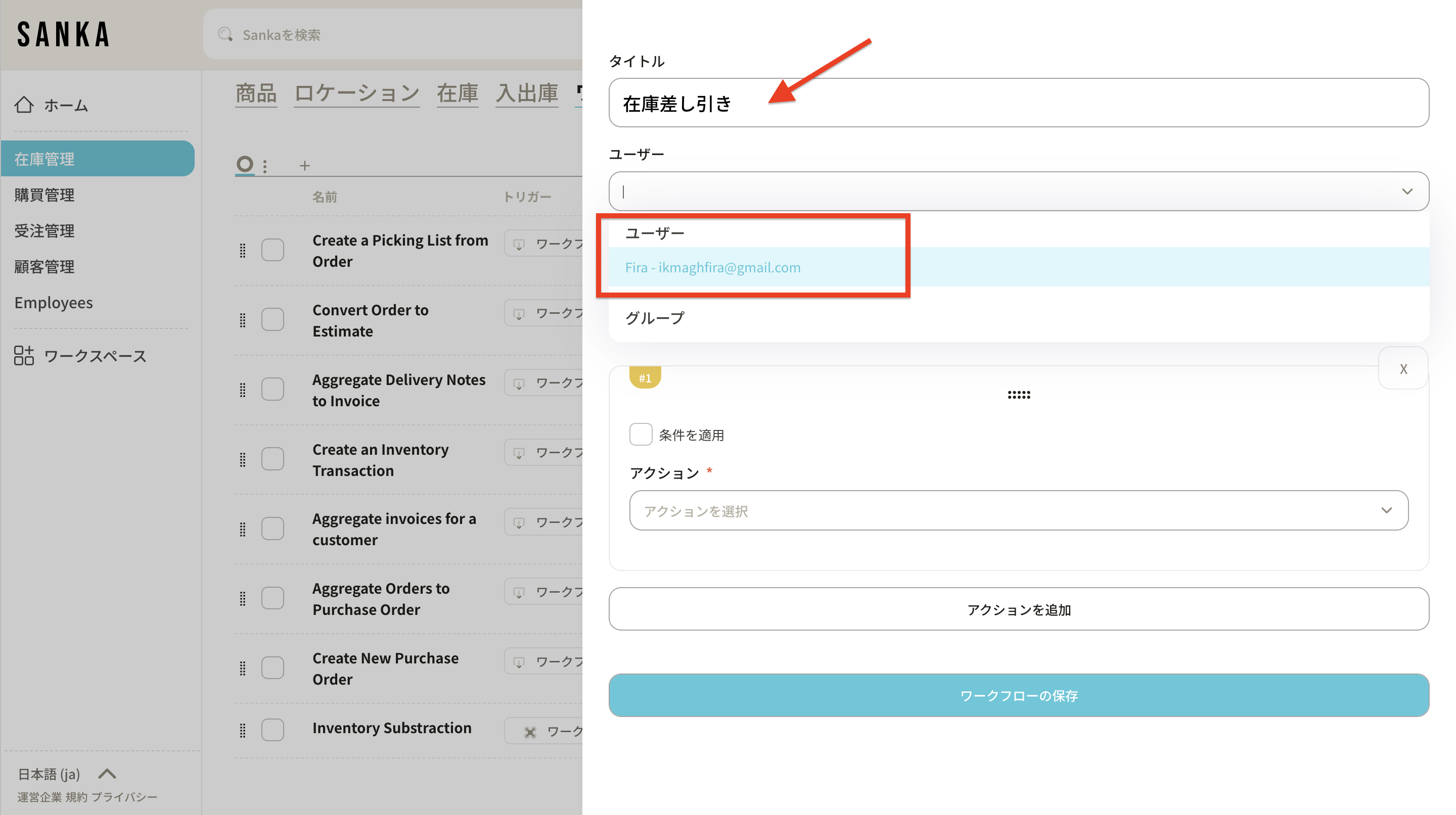
 3: Enter the title and select the user.
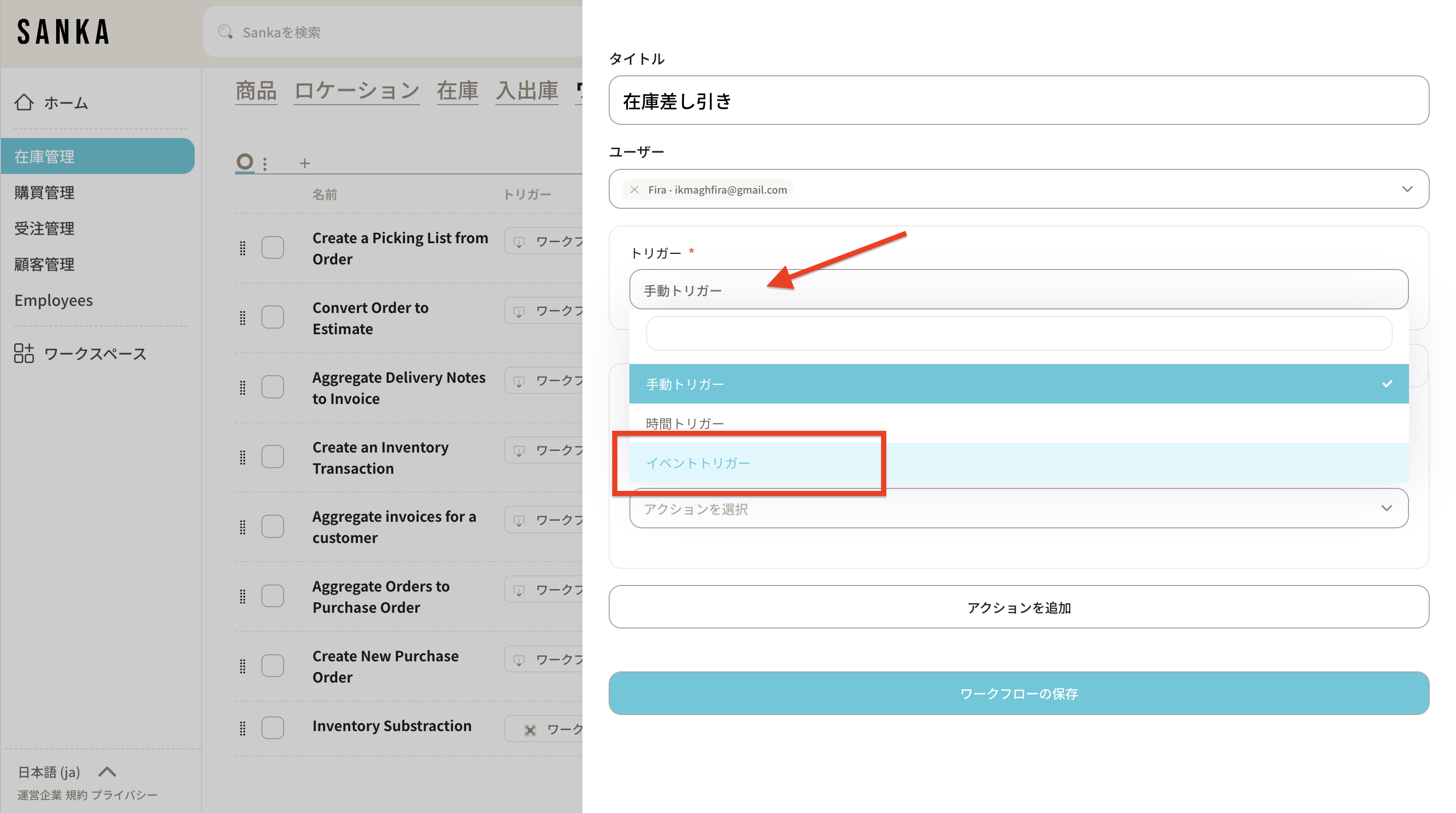
 4: Select the event trigger.
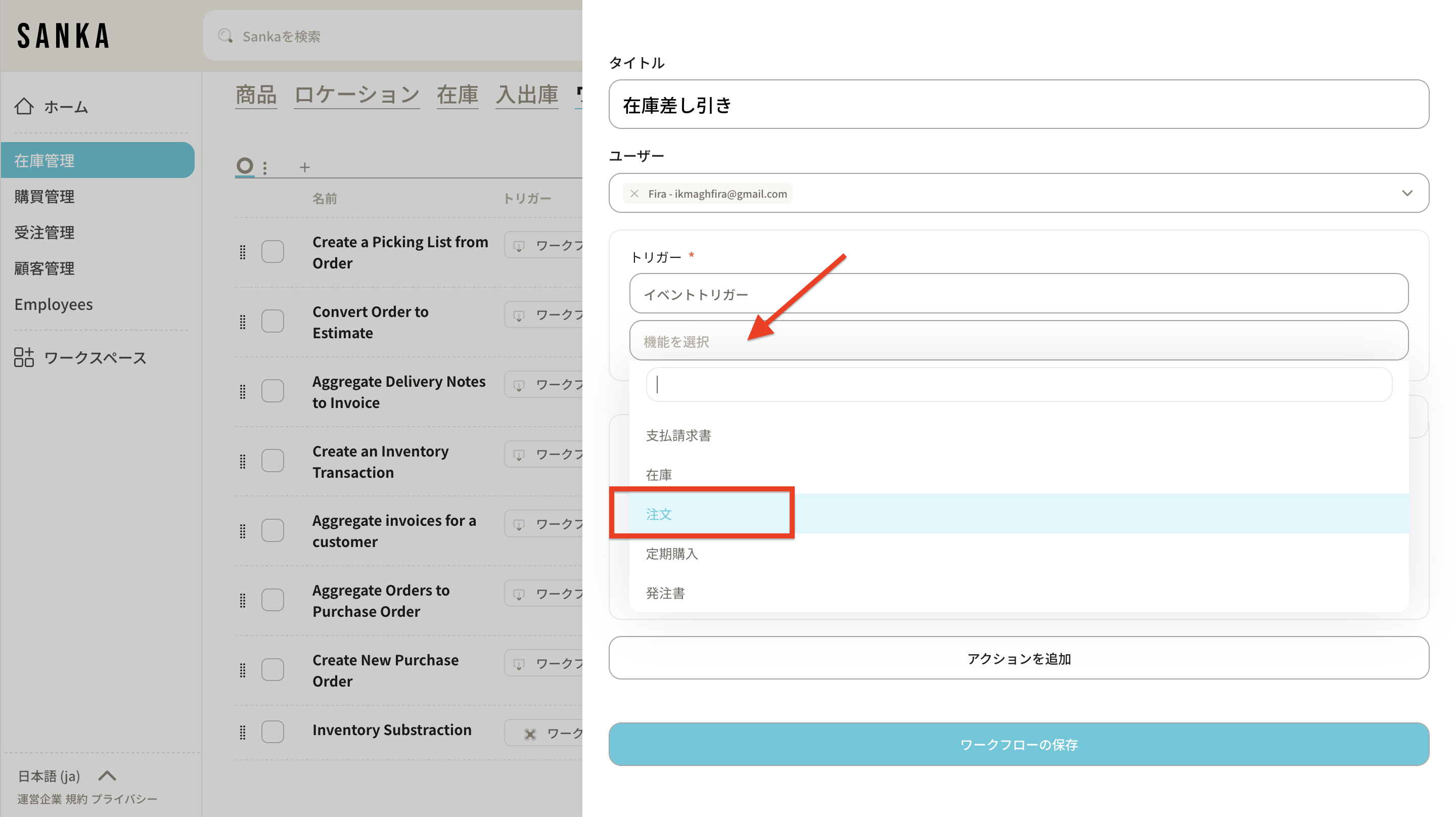
 5: Select “Order” from Functions.
 6: Select “Update Order” and “Status” as action triggers. In this case, select all statuses.
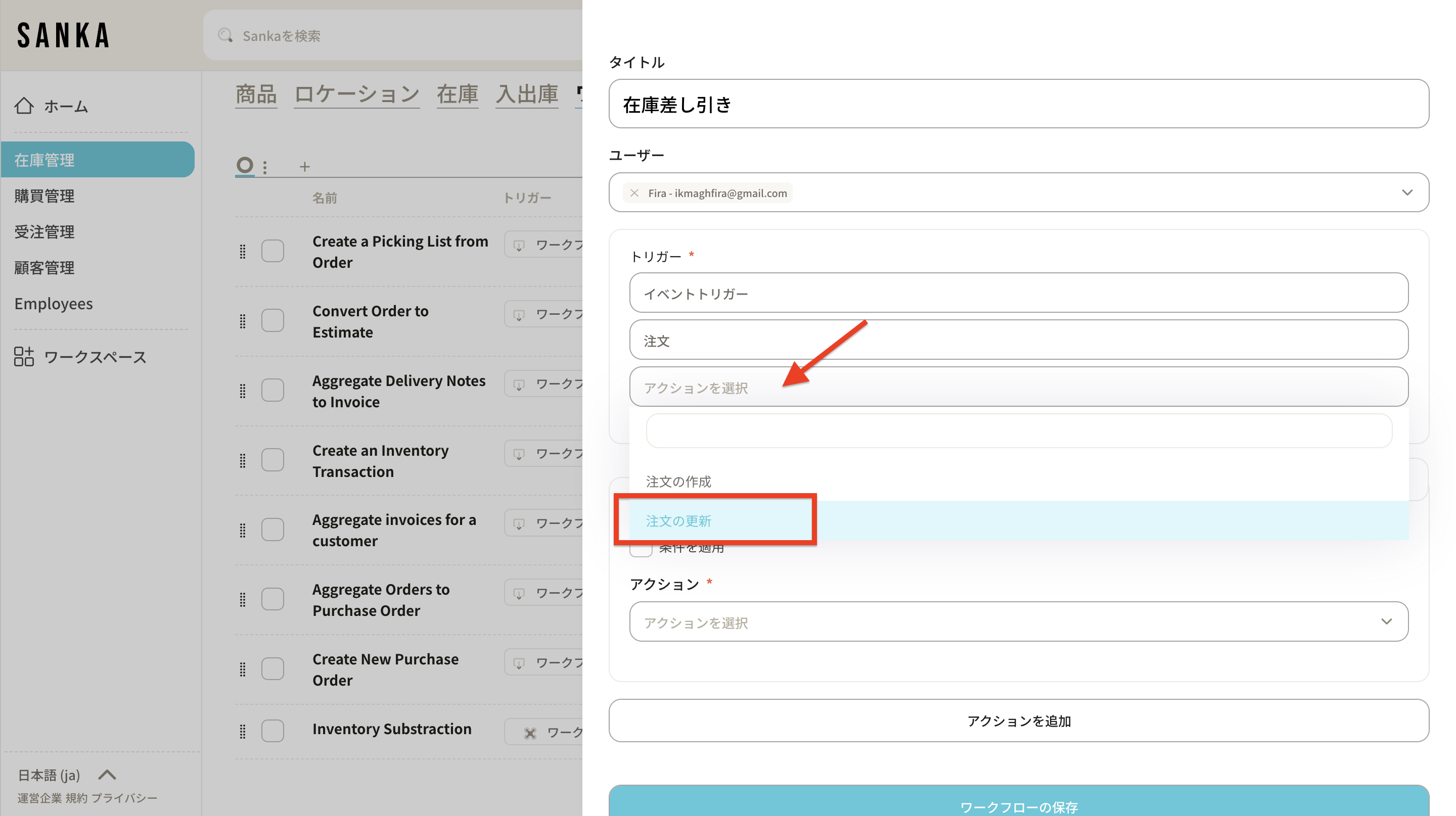
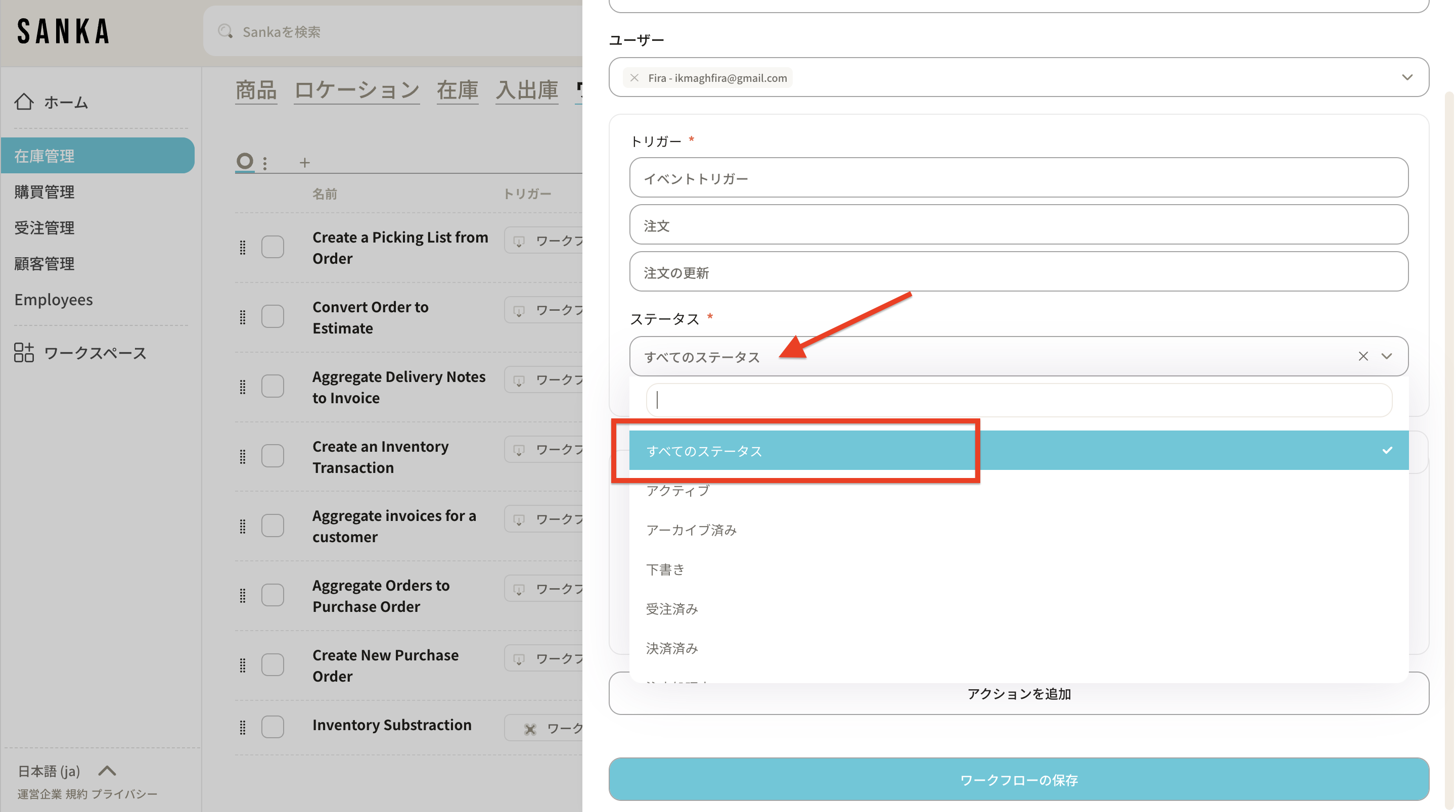 7: After setting the conditions, select the action to be performed based on the event. Choose “Create object record” and “Inbound/Outbound”.
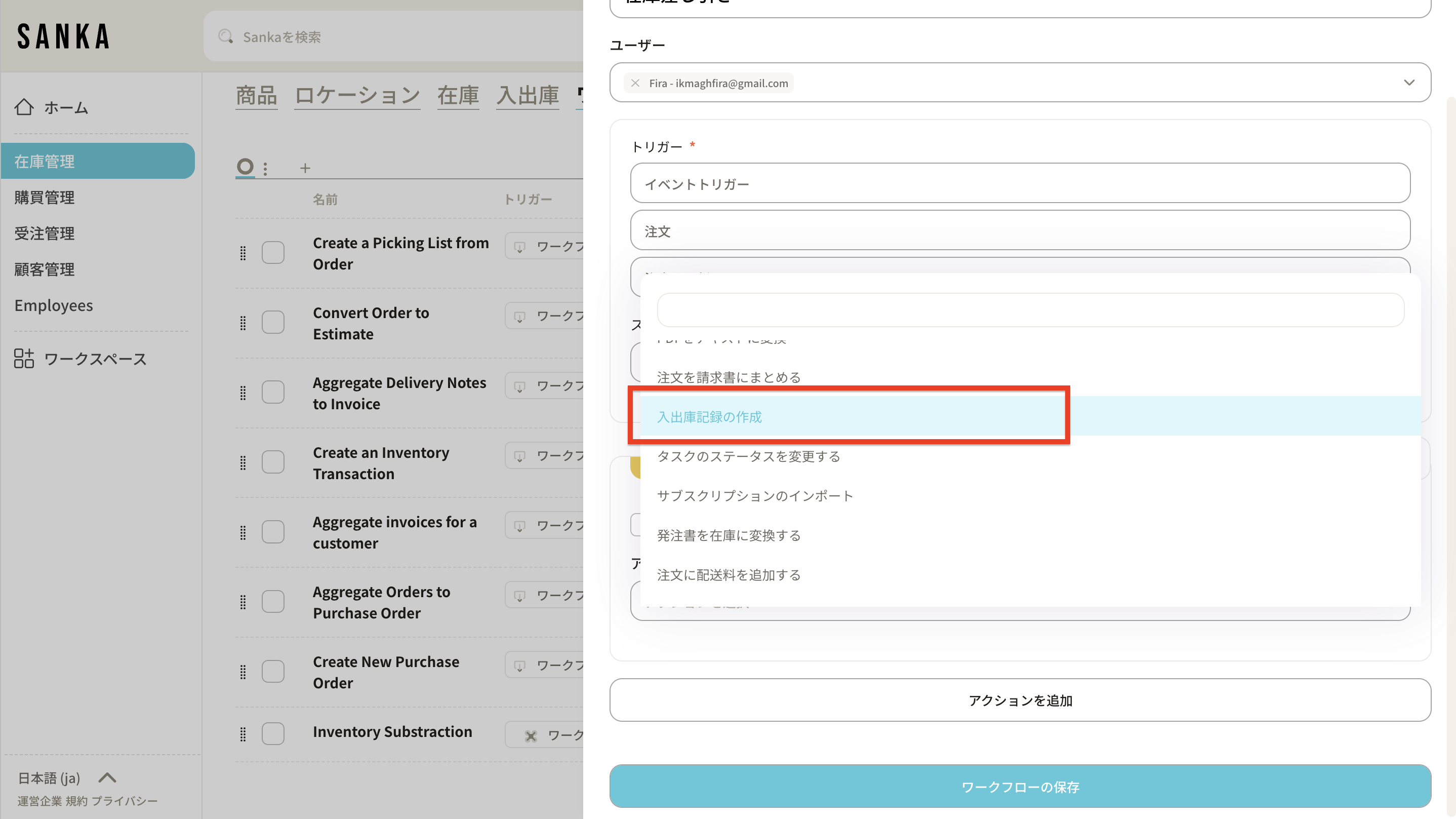 8: Enable the option to use data from the previous action.
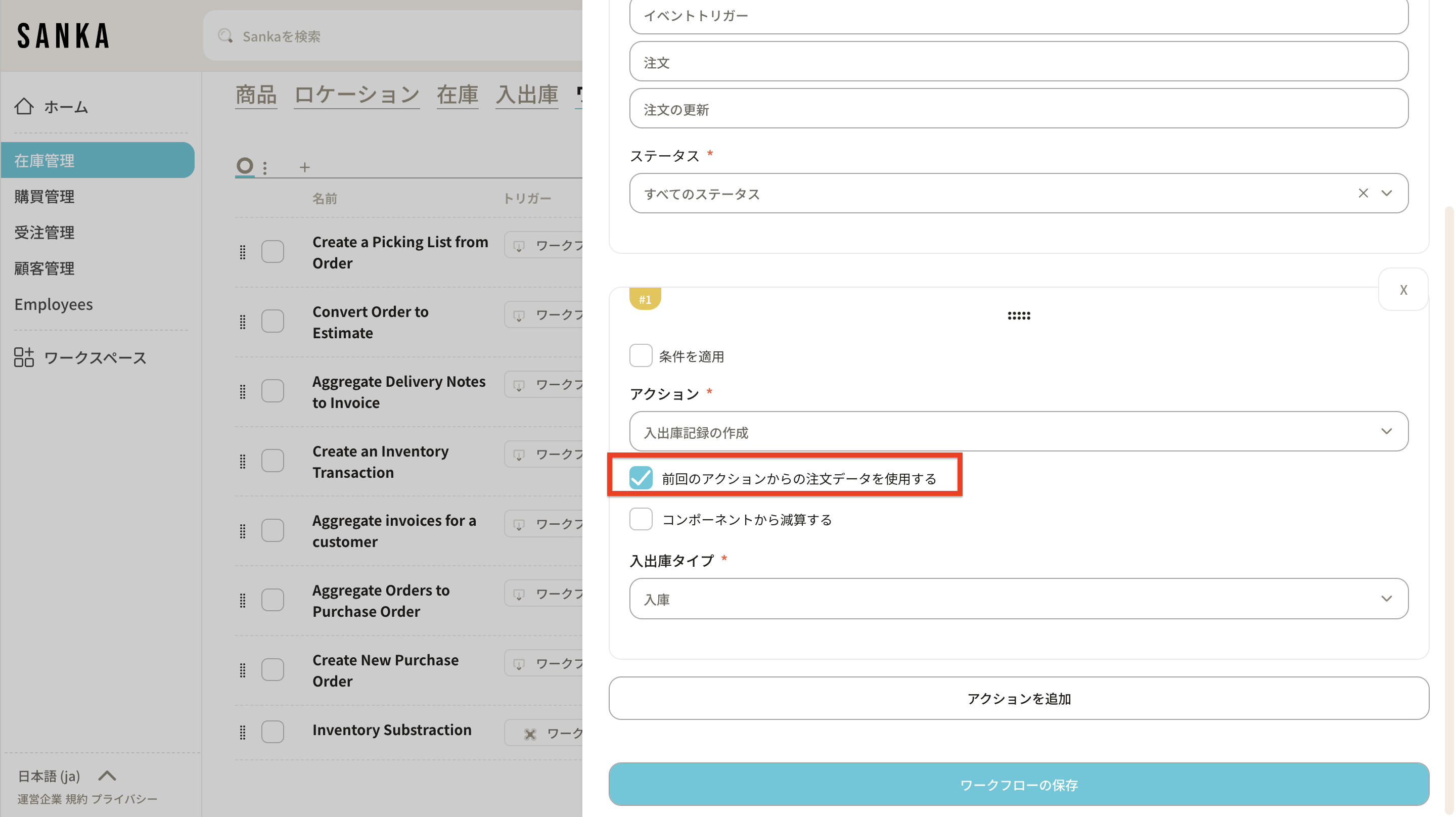 9: Select “Shipment” as the transaction type.
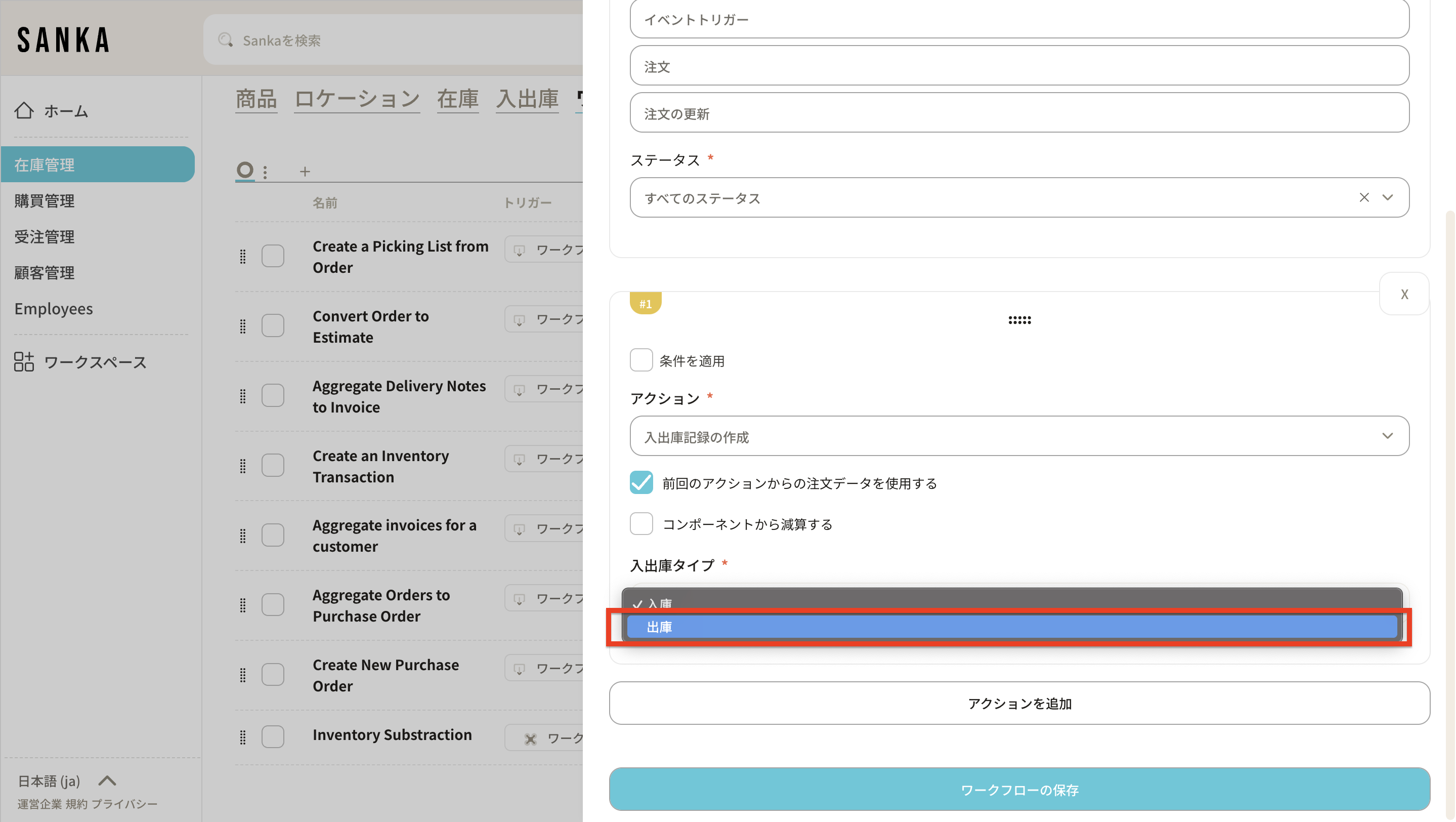 10: Save the workflow.
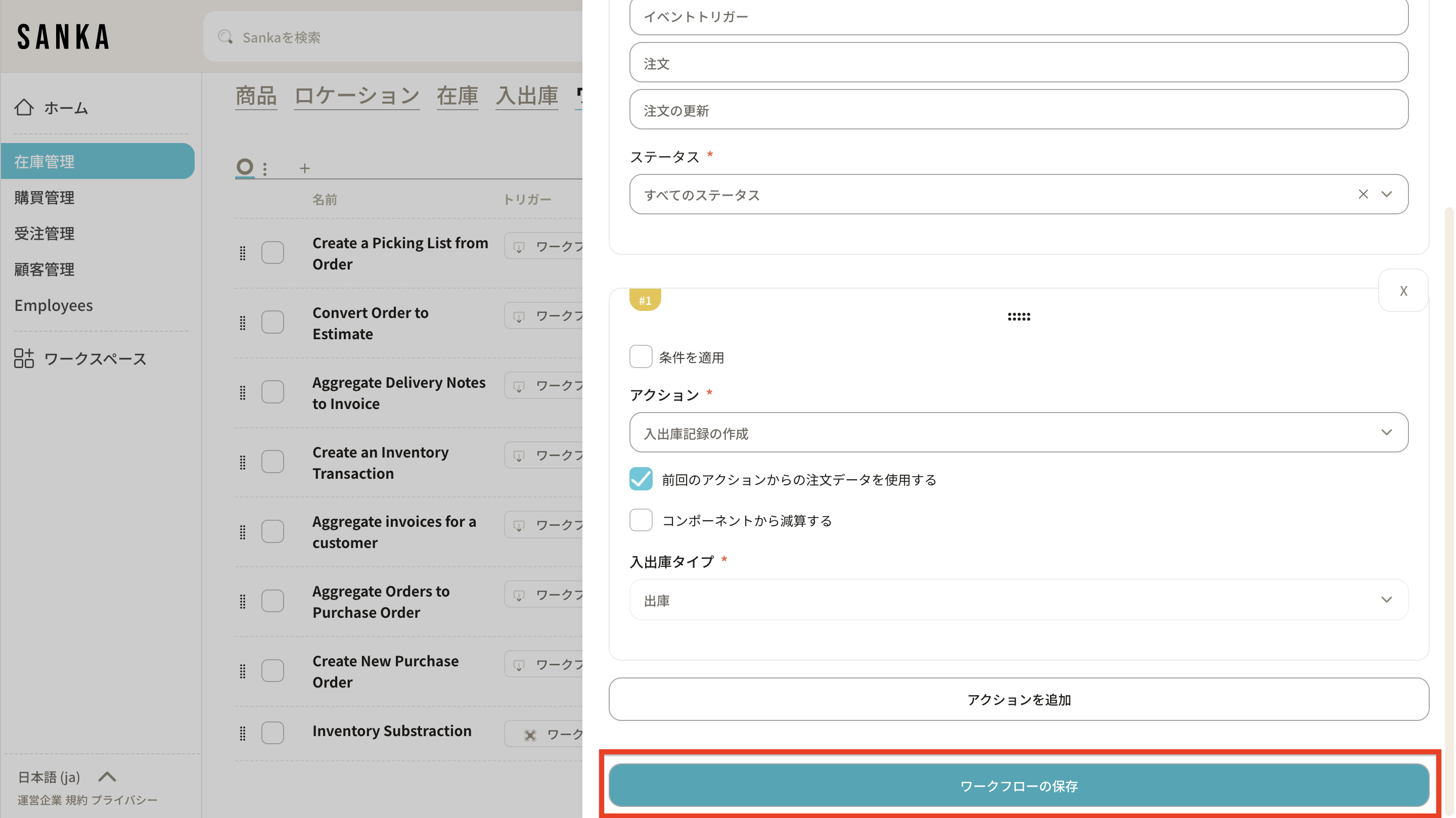 11: Navigate to the workflow you have created and click “Activate Workflow.”
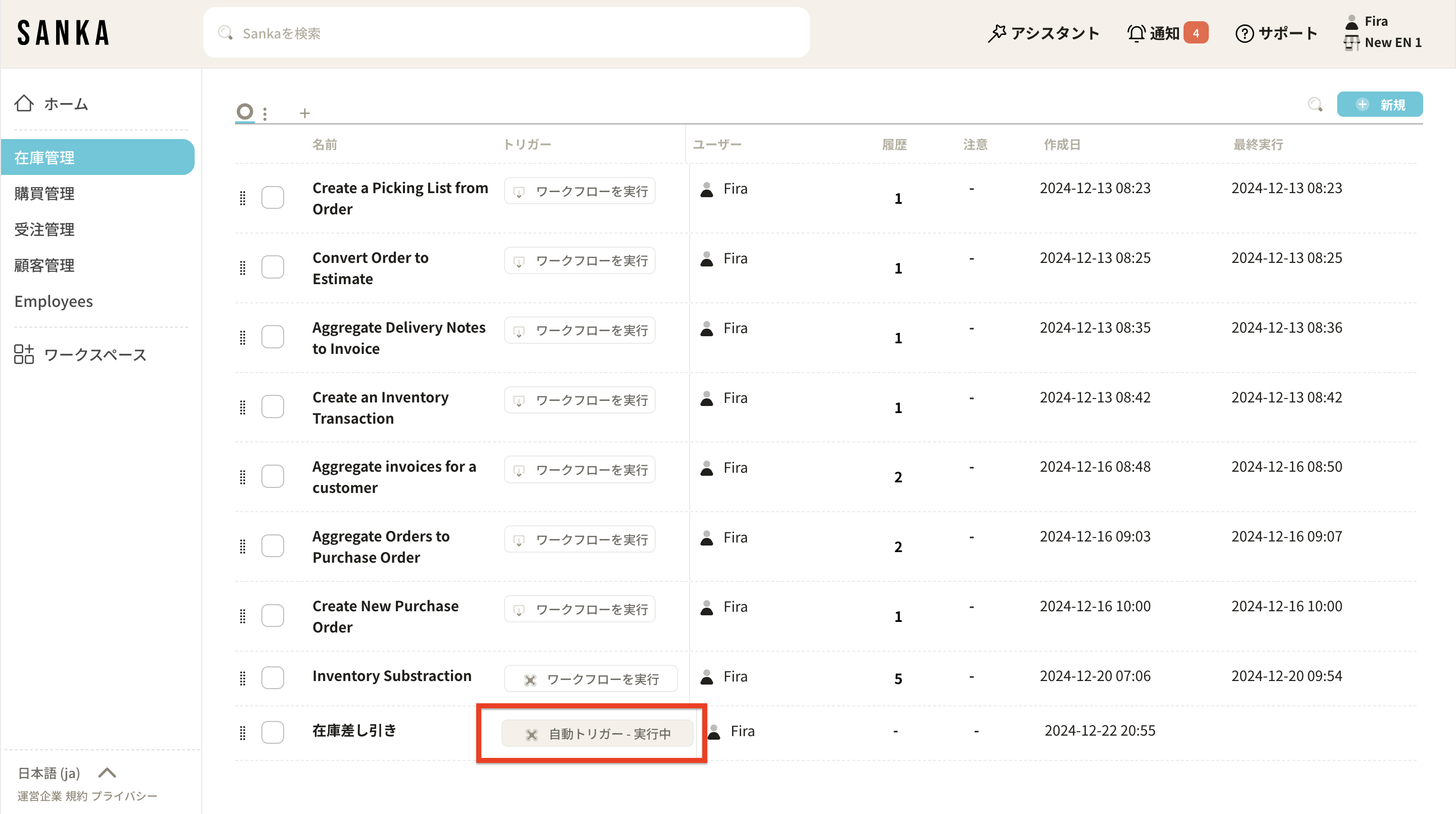
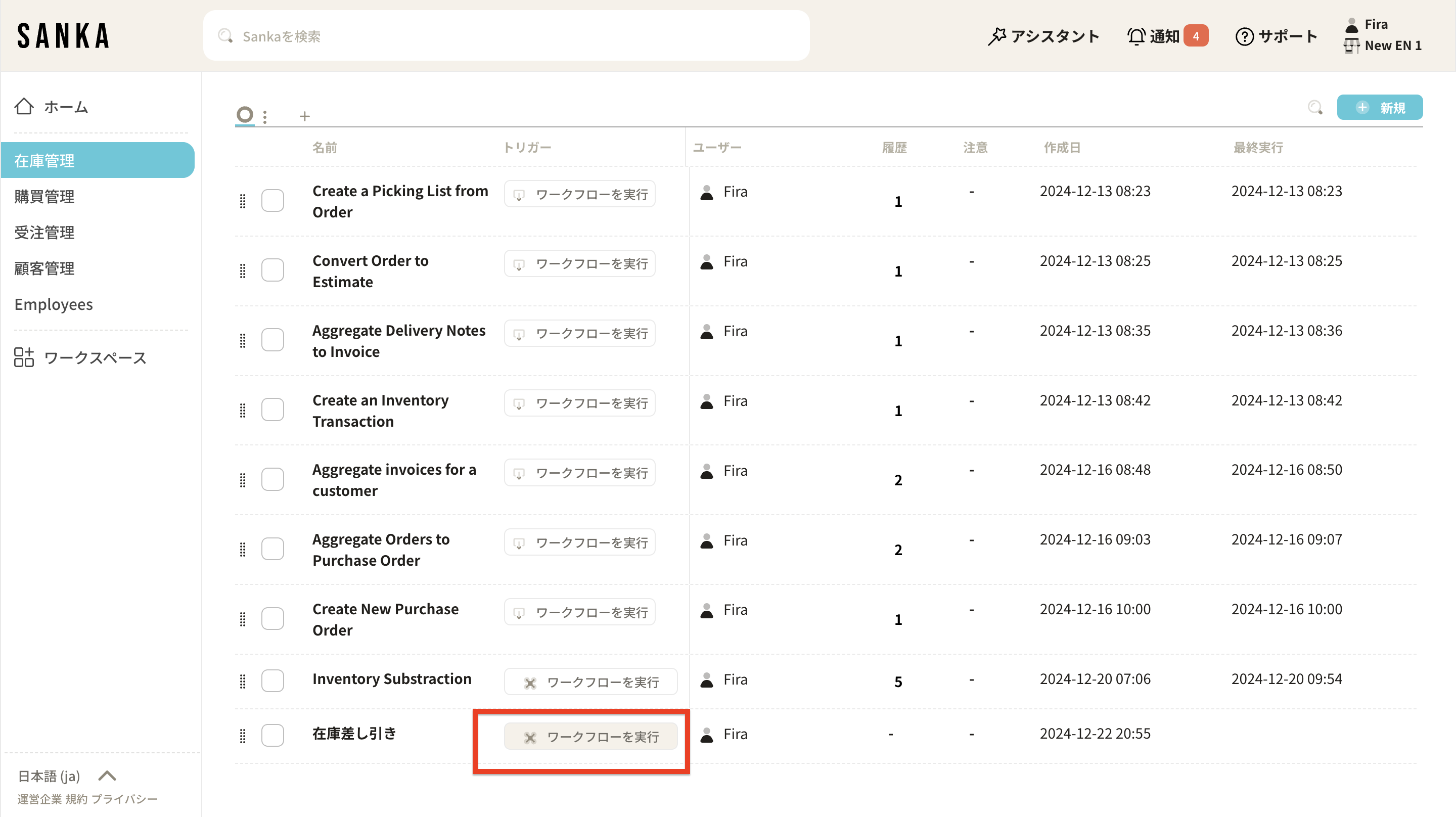 12: The workflow is now enabled.
Confirmation and Tracking of Inventory Transactions
After configuring the workflow, please follow the steps below to execute actions and track inventory transactions. 13: Navigate to “Orders” and create a new order.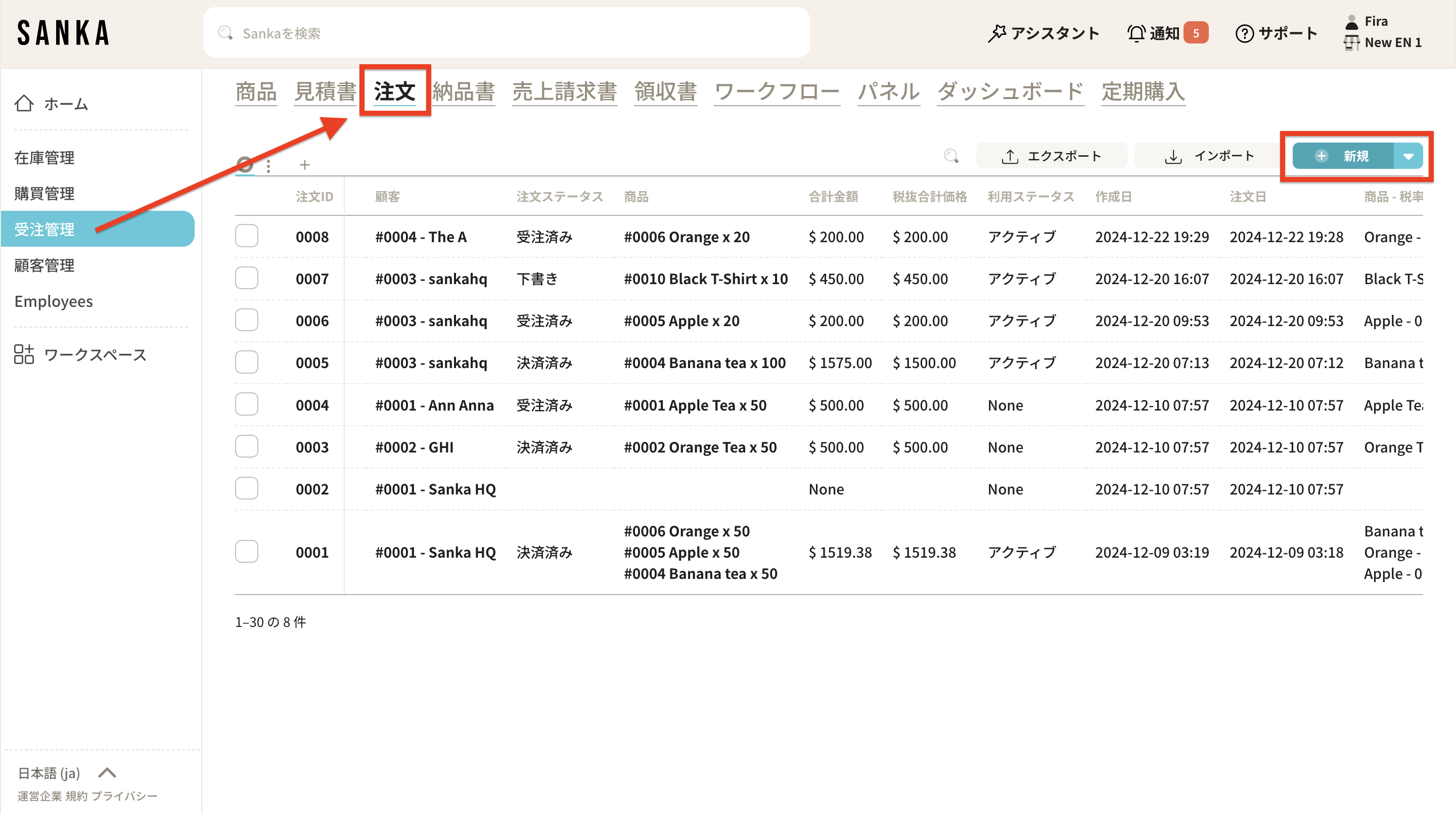 14: Select the product, enter the quantity, and click “Create Order”.
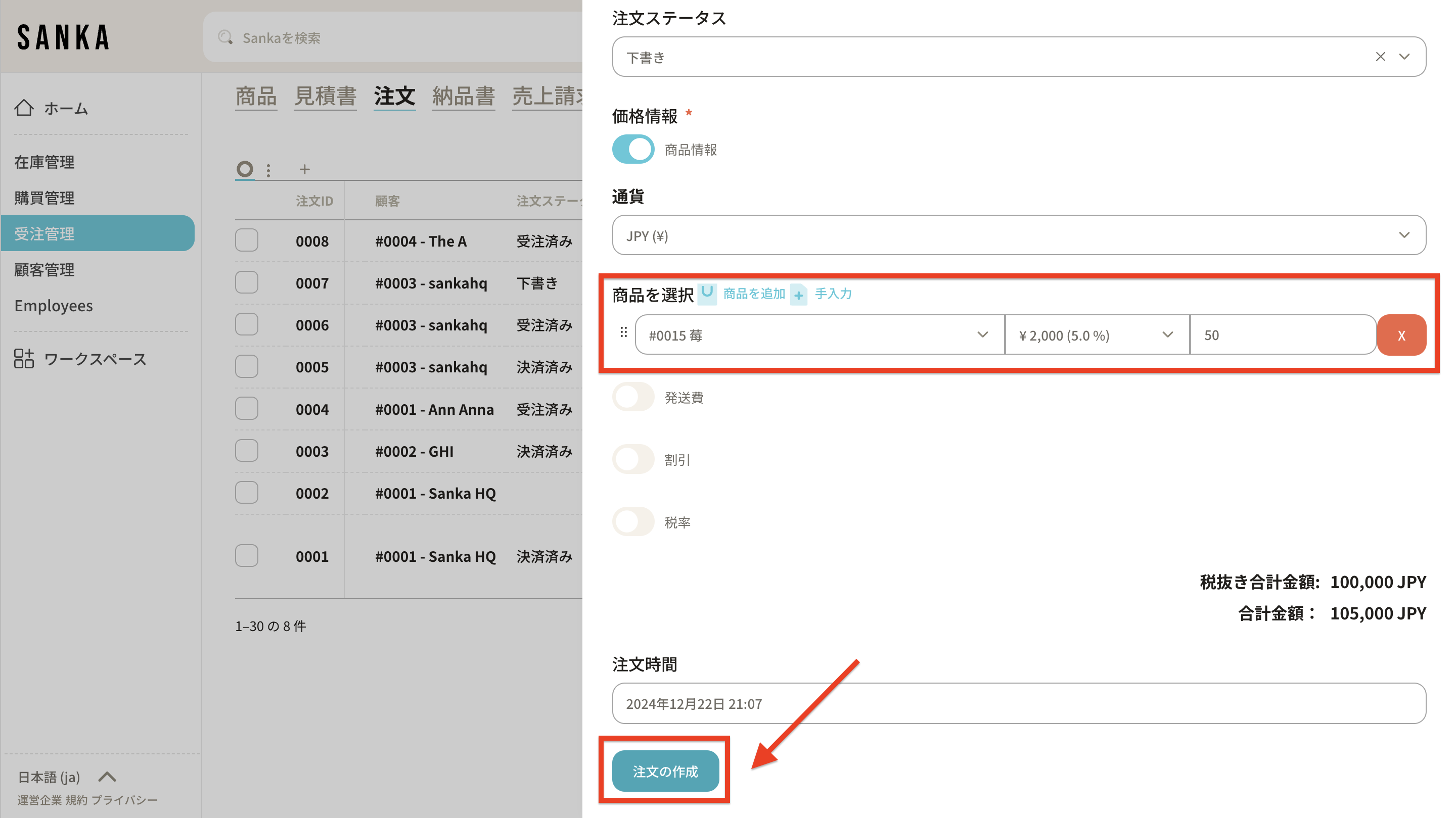 15: After creating a new order, change the order status to trigger the action.
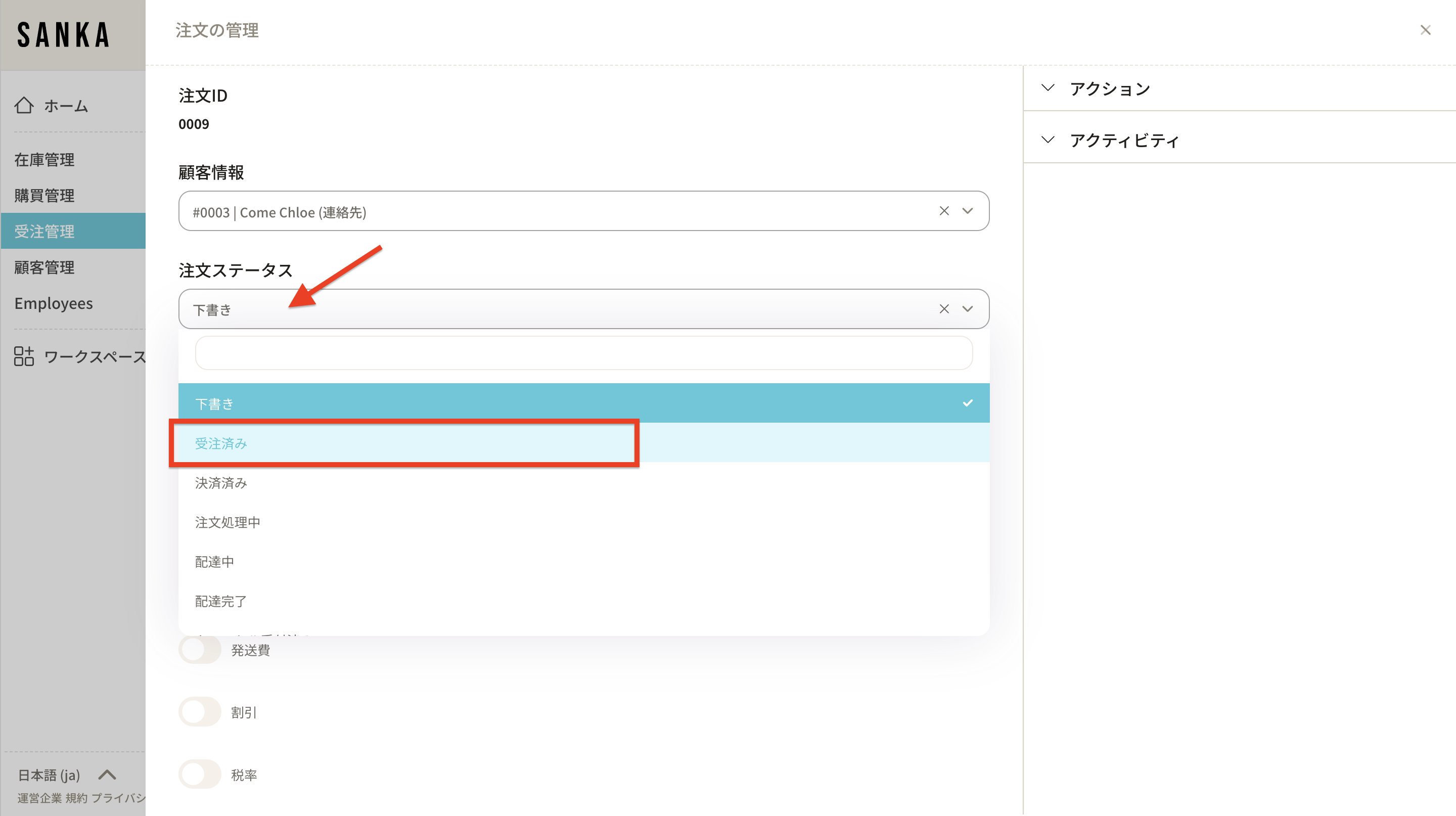 16: You may also change the quantity as required. Then, click “Update Order”.
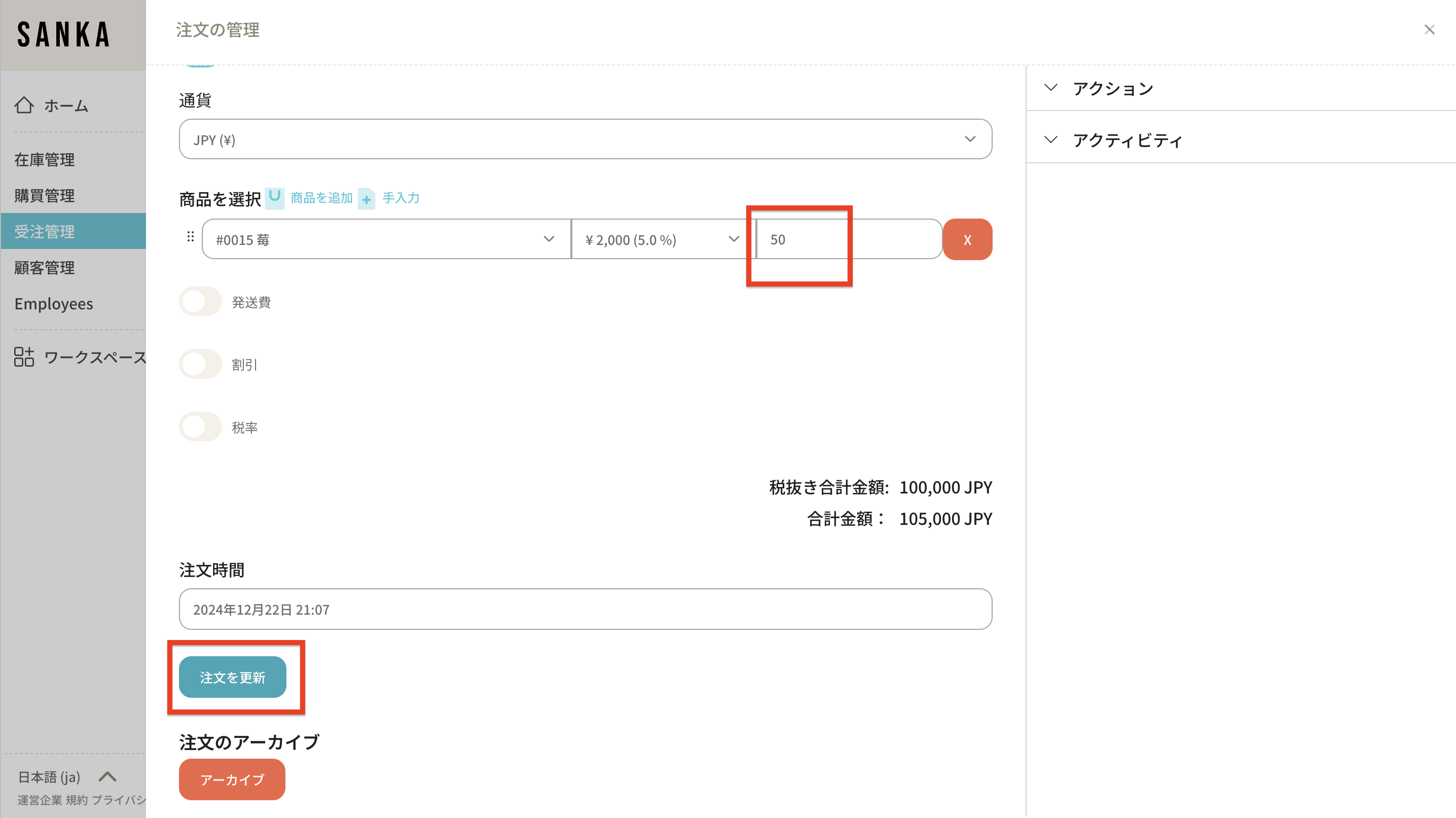 17: When you navigate to “Inventory”, you can confirm that the inventory quantity has been updated.
Previously:
17: When you navigate to “Inventory”, you can confirm that the inventory quantity has been updated.
Previously:
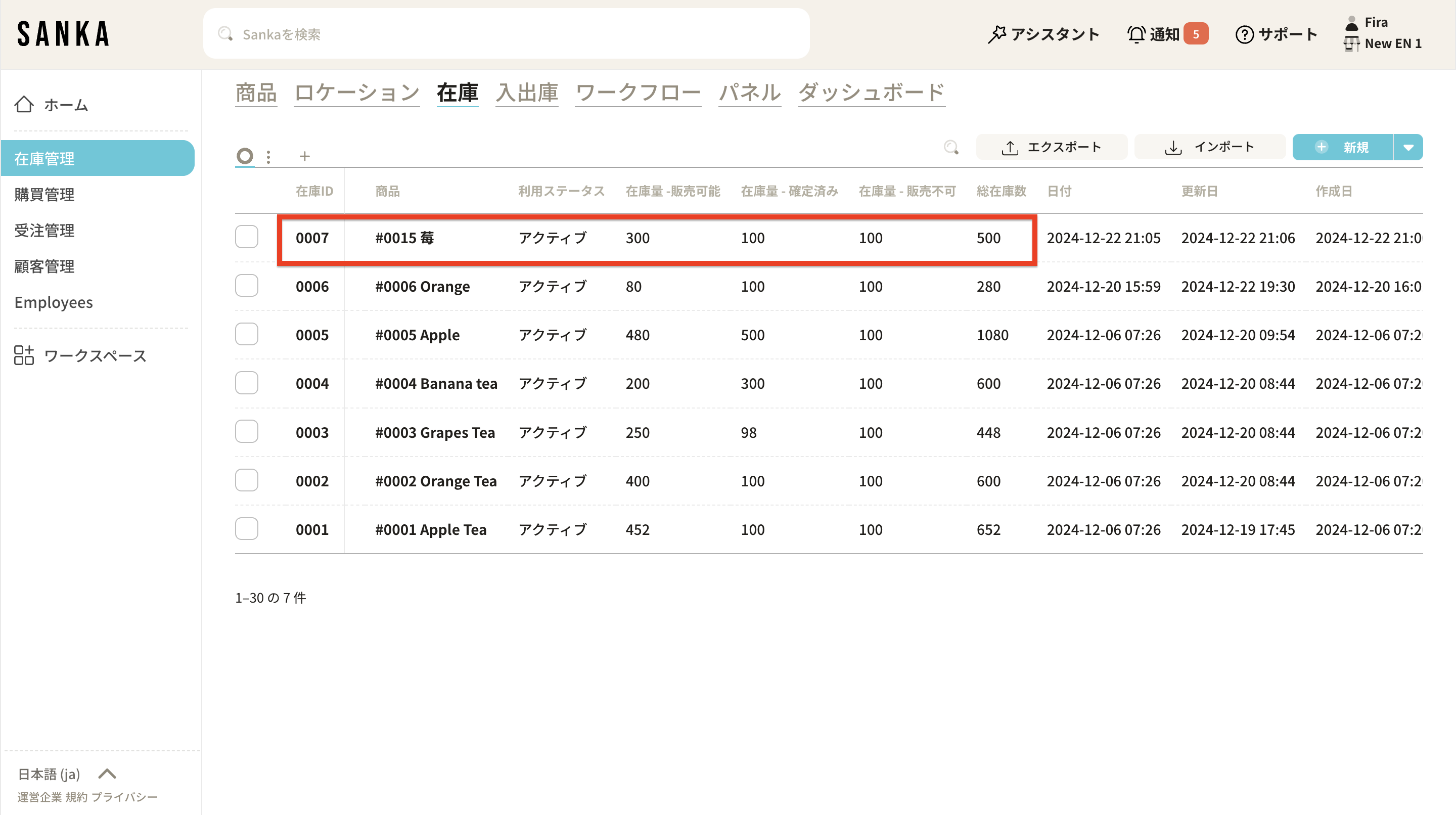 Afterwards:
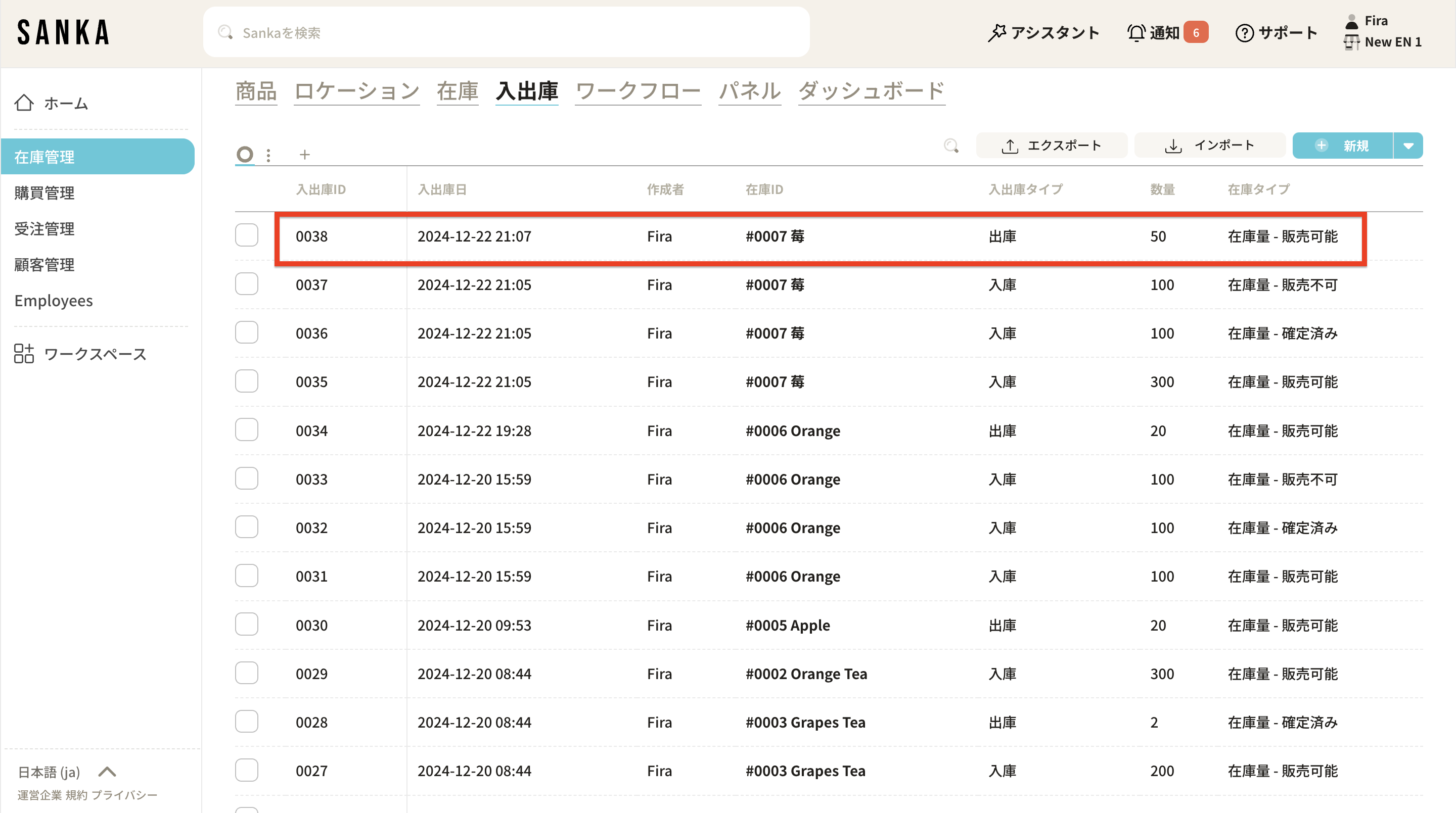
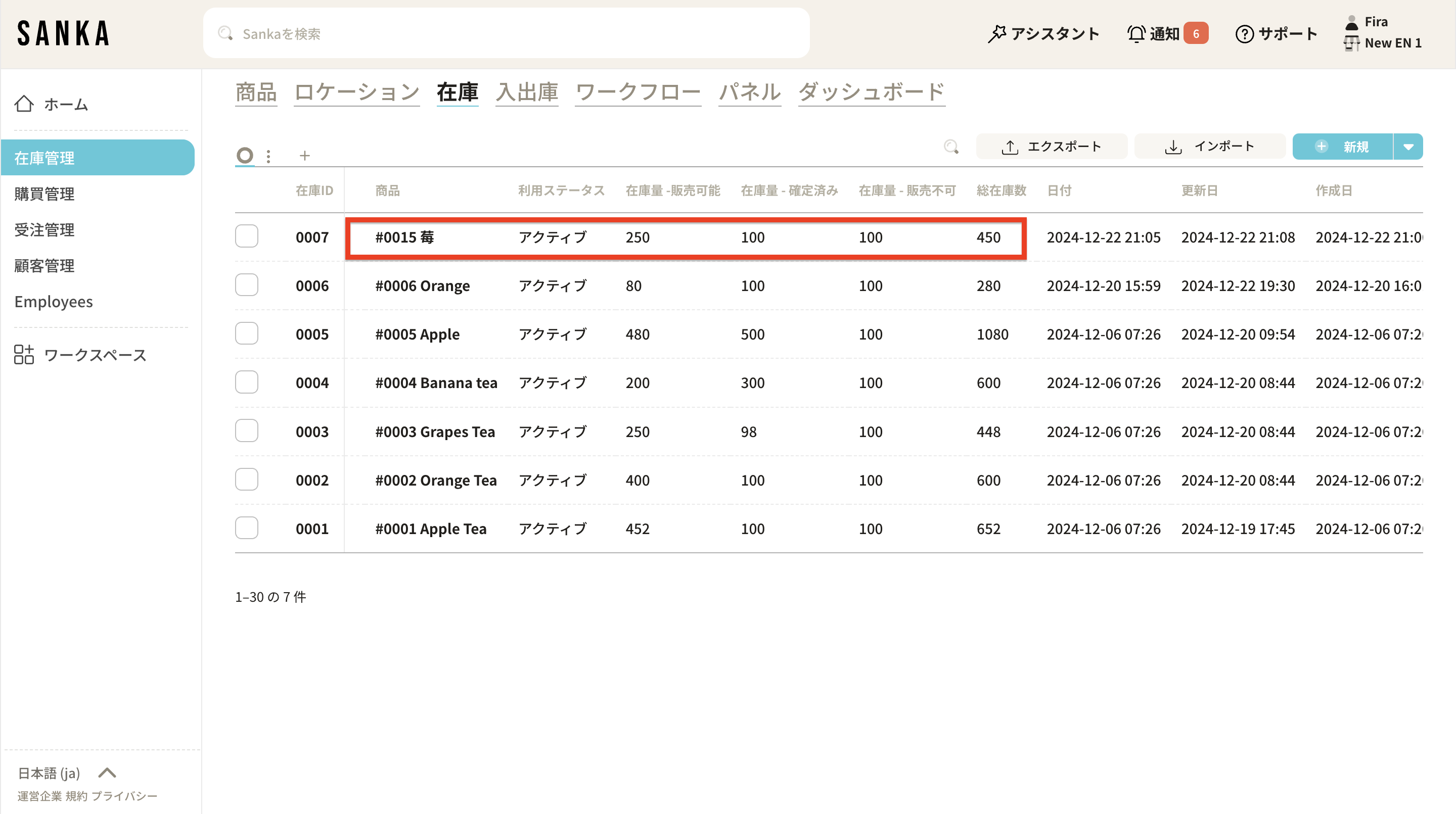 18: In addition, this change is also recorded in “Inventory Transactions” as an “Outbound Transaction,” and follows the updated order.